Snapchat AI, known as My AI, was introduced as a built-in chatbot designed to recommend restaurants, answer questions, and help users navigate Snapchat more efficiently. While the idea sounds helpful, not everyone enjoys having a chatbot pinned at the top of their chat feed, especially when it can’t be deleted easily on the free version of Snapchat. Because of this, many users feel that My AI is intrusive, cluttered, or unnecessary, especially for those who prefer a cleaner, simpler chat interface.
However, understanding how My AI works, why it is pinned automatically, and what Snapchat officially allows you to disable is extremely important before you attempt to remove it. This deeper insight helps you decide whether you want to fully remove My AI, limit it, or restrict its access for better privacy.
What Is Snapchat AI (My AI) and Why It’s Always at the Top of Your Chat Feed
Snapchat AI is built on OpenAI technology and integrated into the Snapchat app to improve recommendations and enhance interactive features. In short, My AI is designed to behave like a “personal assistant” inside Snapchat, offering:
- Quick answers
- Restaurant or travel suggestions
- Bitmoji customization ideas
- Chat responses
- General knowledge replies
Why My AI Is Pinned Automatically
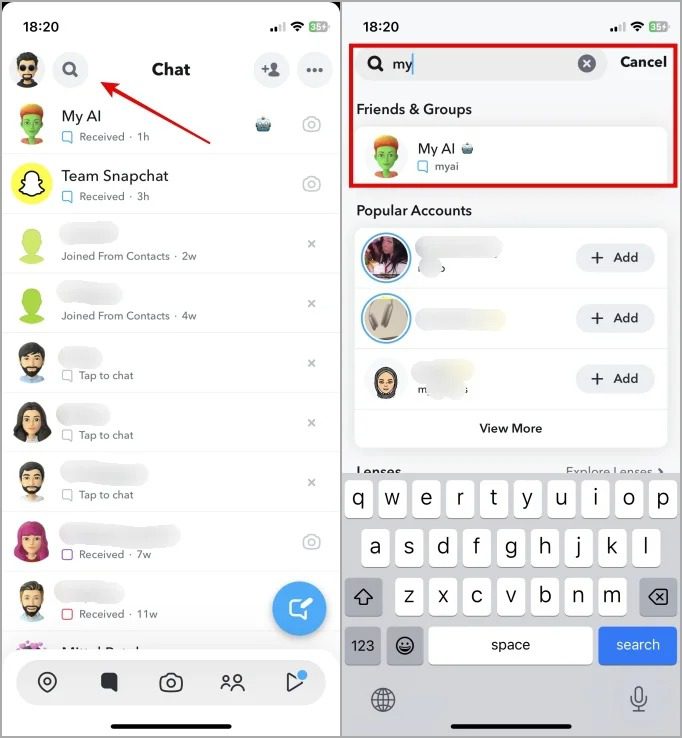
Snapchat pins My AI at the top of your chat feed because:
- Snapchat wants user engagement
- It is part of the app’s long-term AI strategy
- It integrates with Maps, Lenses, Search, and Spotlight
- It acts as a test environment for new AI features
Why Some Users Want It Removed
While some people enjoy My AI, others experience:
- App clutter
- Privacy concerns
- Unnecessary notifications
- Younger users over-engaging with AI
- Annoyance with unexpected or too-personal replies
- Confusion about its location or data access
If privacy is your biggest concern, you may also want to read this guide on how to protect your privacy online. It breaks down how apps track your activity and how to stay in control.
Can You Fully Remove Snapchat AI? (Free Users vs. Snapchat+ Users)
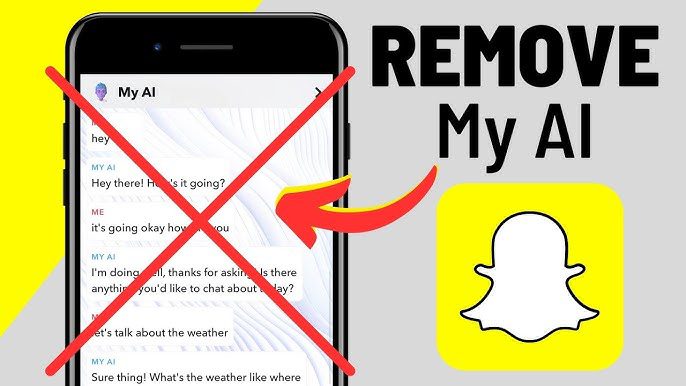
Snapchat’s removal options depend on the type of account you have. Free users have very limited control, while Snapchat+ subscribers have exclusive options that let them remove My AI from the chat feed but not from the app.
Below is an expanded, more detailed comparison table to help you understand your exact options.
Comparison Table: What You Can and Cannot Do
Action | Free Snapchat Account | Snapchat+ Account (Paid) |
Unpin My AI from Chat Feed | ❌ Not allowed | ✅ Yes; directly available |
Remove My AI from Chat Feed Entirely | ❌ Not available | ✅ Full removal allowed |
Clear My AI Chats | ✅ Yes | ✅ Yes |
Clear My AI Data/History | ✅ Yes | ✅ Yes |
Disable My AI Recommendations | ⚠️ Limited | ⚠️ Partially available |
Disable “My AI” Suggestions in Search | ❌ Not fully | ⚠️ Reduces but doesn’t remove |
Stop My AI from Using Your Location | ✅ Yes | ✅ Yes |
Push My AI Down Your Chat List | ✅ Yes (manual workaround) | Not necessary; removal available |
Block My AI | ⚠️ Possible but temporary | ⚠️ Possible but unnecessary |
Remove My AI Bitmoji | ❌ Not available | ❌ Not available |
Remove My AI from Snapchat Map | ⚠️ Limited | ⚠️ Limited |
Access to Extra AI Features | ❌ No | ✅ Yes (custom responses, early AI experiments) |
How to Get Rid of Snapchat AI on Snapchat+
If you have Snapchat+, the process is very straightforward. Snapchat gives premium users full control, including the ability to remove My AI, which is considered an “exclusive benefit” to encourage subscriptions.
Let’s walk through the step-by-step process.
Step 1: Open Your Snapchat Settings
- Open the Snapchat app
- Tap your Bitmoji or profile icon
- Tap the gear icon to open Settings
You must enter the Settings menu because My AI removal tools are only found within Snapchat+ features.
Step 2: Clear My AI Chat History
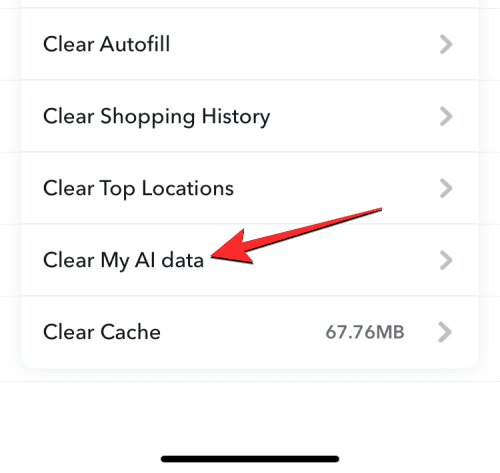
Before removing My AI from your feed, clear the previous conversation data.
- Scroll down to Privacy Controls
- Tap Clear Data
- Select Clear My AI Data
- Confirm the deletion
This ensures that My AI has no previous context or stored recommendations associated with your account.
This process works similarly to clearing browsing data on a phone. For example, if you’ve ever wiped cookies on an iPhone, this guide explains how: How to Clear Cookies on iPhone.
Step 3: Unpin My AI
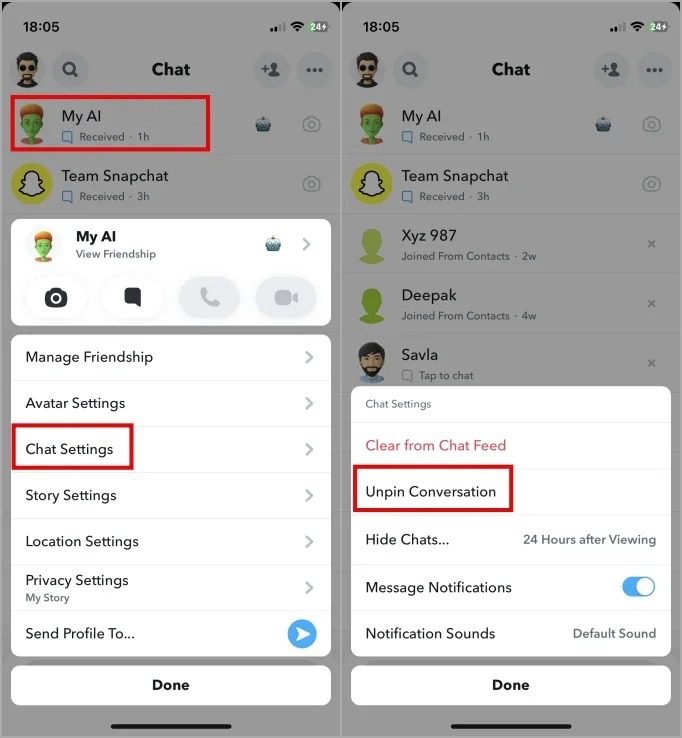
- Go to your chat feed
- Long-press the My AI chat
- Tap Chat Settings
- Select Unpin Conversation
Once unpinned, My AI will behave like a normal chat and drop lower in your feed.
Step 4: Remove My AI Completely
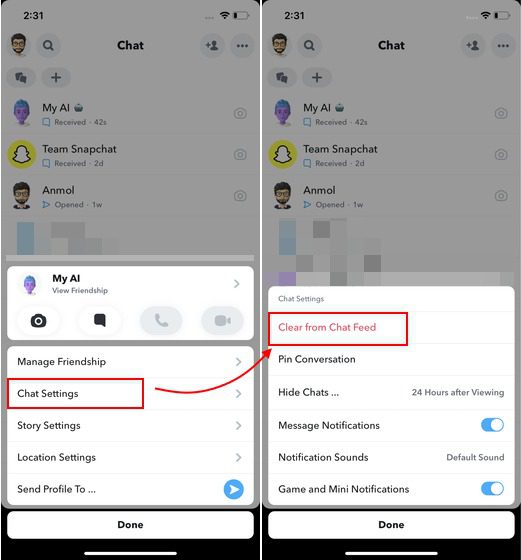
- Long-press the My AI chat
- Tap Chat Settings
- Choose Remove from Chat Feed
After this step, My AI disappears from your chat feed entirely.
Step 5: Disable Additional AI Features
Even after removal, My AI can still influence Search or Lenses.
To limit this:
Turn Off Location Access
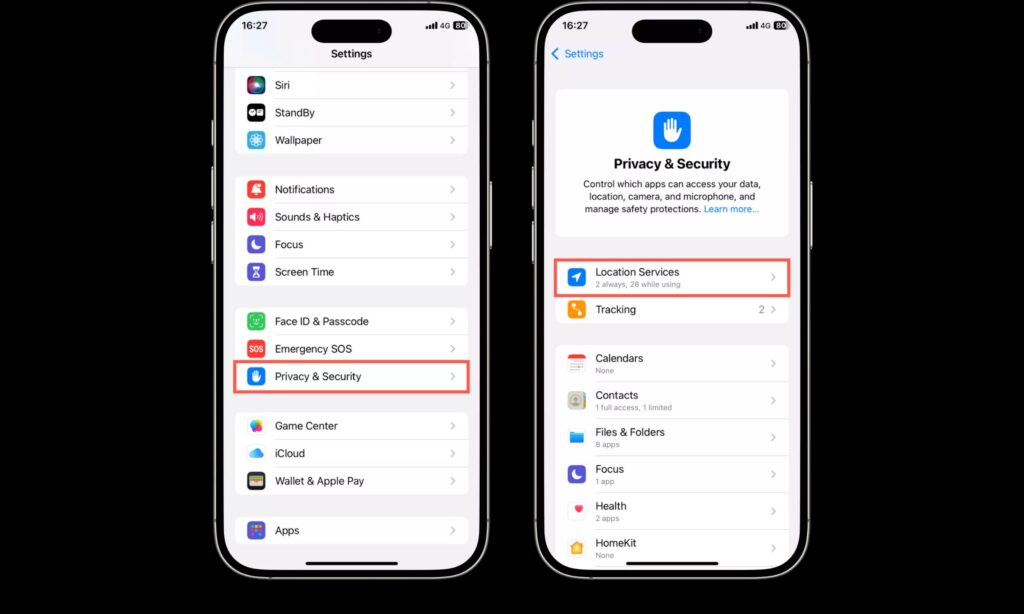
- Go to Settings → Privacy → Location
- Remove Snapchat’s location access
This stops My AI from giving location-based suggestions.
Disable Activity-Based AI Recommendations
- Go to Settings → Privacy Controls
- Turn off activity sharing and personalization
These steps improve privacy and reduce the likelihood of AI-generated suggestions.
How to Limit or Hide Snapchat AI on a Free Account (Best Workarounds)
If you’re using the free version of Snapchat, you cannot fully remove My AI from your chat feed. However, you can minimize, control, and limit it using several practical methods.
Let’s explore the best options.
Option 1: Clear My AI Data (Removes Its Memory)
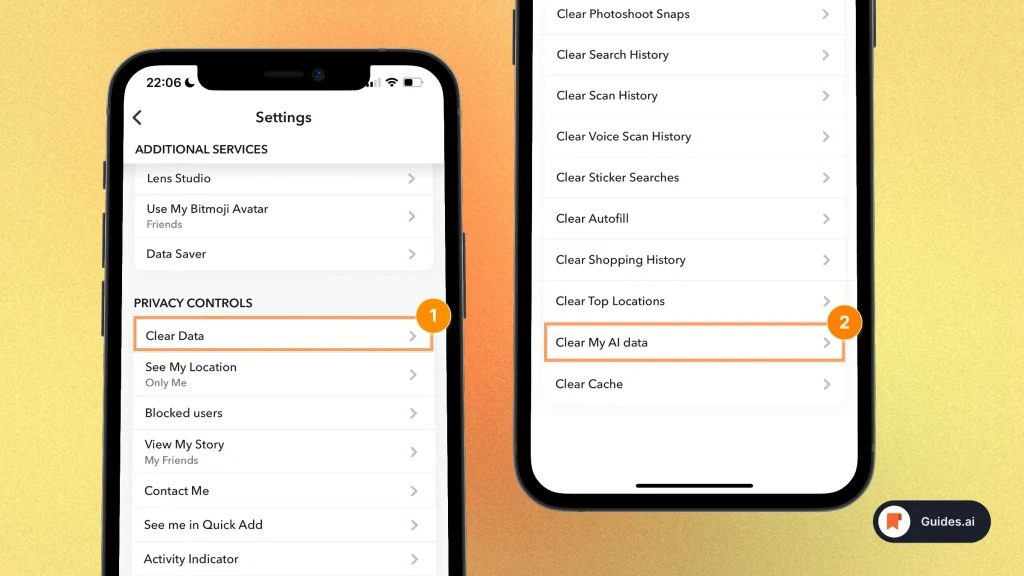
- Open Settings
- Tap Privacy Controls
- Select Clear Data
- Tap Clear My AI Data
This resets My AI, removes all chat context, and erases personalized suggestions.
Option 2: Push My AI Down Your Chat Feed
Since deletion is not allowed, the next best option is to move it lower.
Push it down by:
- Messaging real friends
- Pinning other conversations
- Frequently using top chats
This prioritizes your real conversations and reduces My AI’s visibility.
Option 3: Turn Off Location Access for My AI
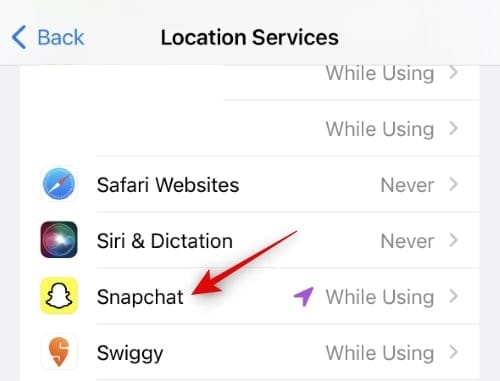
Location plays a major role in how My AI generates recommendations.
To disable:
- Go to your phone’s App Permissions
- Remove Location access from Snapchat
This prevents AI from giving location-aware suggestions.
Option 4: Use Parental Controls or App Limit Tools
You can limit My AI by controlling how the Snapchat app itself behaves.
iPhone:
- Use Screen Time settings
Android:
- Use Digital Wellbeing
If your iPhone ever shows SOS in the status bar during setup, this guide breaks it down:
What Does SOS Mean on iPhone?.
Why Snapchat Won’t Allow Full Removal for Free Users
Snapchat integrates My AI deeply with:
- Search
- Maps
- Lenses
- Friend suggestions
- Location recommendations
- Spotlight results
Because of this, Snapchat treats the AI as a core system component. Full removal could break several features, so only Snapchat+ users receive optional removal as a “premium perk.”
Final Thoughts
Managing Snapchat AI becomes much easier once you understand how the system works and what Snapchat allows for each account type. Snapchat+ users get full removal options, while free users can still significantly limit, hide, and control My AI through privacy adjustments, location settings, and data clearing.
Ultimately, the right choice depends on how you use Snapchat, how much privacy you want, and whether you prefer a cleaner chat feed without AI interruptions. Personally, choosing the best method comes down to how much control you want over your experience.
FAQs
No. They can only limit or hide it.
Snapchat often re-enables AI features automatically.
It uses moderation filters, but parental controls are strongly recommended.
It cannot read Snaps, but it learns from chats and activity.
As of now, there is no sign of that.