If your Android phone drains battery faster than it should, runs warm even when you’re not using it, or feels sluggish during normal tasks, background apps are almost certainly the cause. Android allows apps to keep running silently after you leave them, syncing data, tracking your location, checking for notifications, and refreshing content, all without you seeing any of it. That constant background activity consumes your battery, eats your mobile data, and keeps your processor busy when it should be resting. The good news is that you don’t need a special app or technical expertise to fix it. The built-in tools on your Android phone are more than capable of handling this.
This guide covers every method available to stop apps from running in the background on Android, from the quick one-tap Force Stop to the persistent per-app restrictions that prevent long-term battery drain. You’ll also get manufacturer-specific steps for Samsung, Google Pixel, OnePlus, and Xiaomi devices, since each handles background app management slightly differently. Most importantly, this guide tells you which apps to target and which ones to leave alone, because stopping the wrong apps can break notifications and cause problems you didn’t have before.
Why Do Apps Run in the Background on Android?
To fix this problem effectively, you need to understand what’s actually happening. This is because the popular advice of “just swipe away your apps” addresses the wrong thing entirely.
When you leave an app by pressing the Home button or switching to another app, Android doesn’t close it. Instead, it moves the app into one of two states.
The first is a suspended state; the app is preserved in memory so it reloads instantly when you return to it, but it’s not actively running any code. Suspended apps use almost no battery on their own and are actually fine to leave alone.
The second, and more important, state is active background services: these are processes that continue to run real code even while you’re not using the app. Background services handle legitimate tasks such as delivering push notifications, playing music, and syncing your email. However, they also enable abusive behaviors, such as continuous location tracking, constant data refresh, and activity monitoring, which many social media apps perform purely to serve you better-targeted ads.
The key insight is that the battery drain problem is almost never “all my background apps.” It’s usually two to five specific apps with aggressive background services.
Real-world testing on a Pixel 9 and OnePlus Open showed that restricting just five apps (Google Play Store, Spotify, Messenger, Google, and Settings Services) raised overnight battery retention from 65–70% to 80–90%. That’s the kind of improvement that comes from targeting the right apps with the right tools, not from force-stopping everything.
How to Check Which Apps Are Draining Your Battery
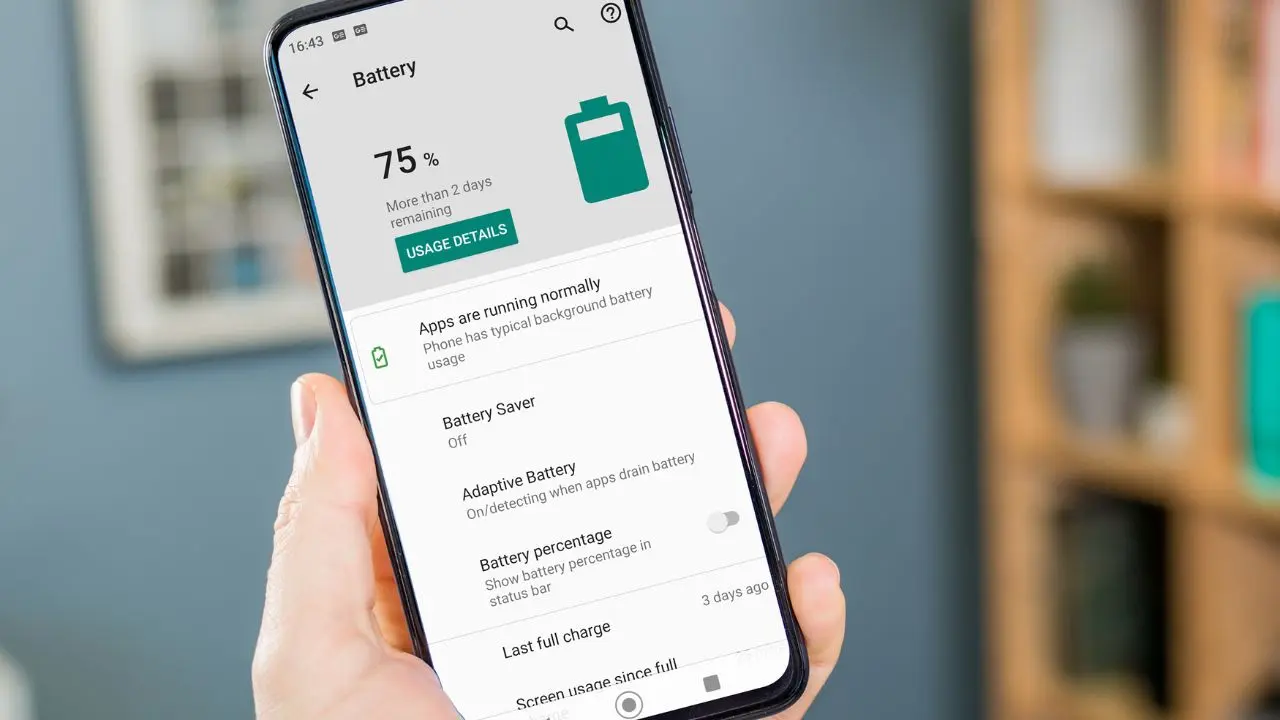
Before you start stopping anything, spend two minutes identifying the actual offenders. This saves you from disrupting apps that are behaving well and focuses your efforts where they matter.
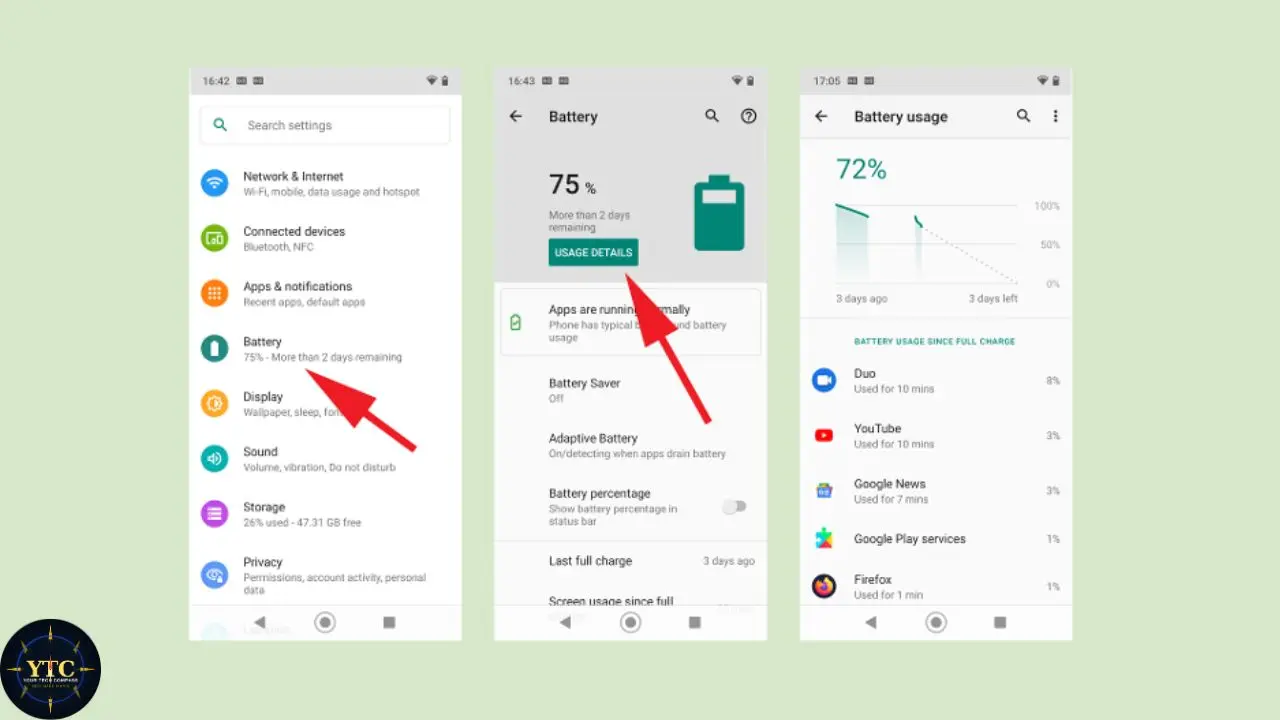
On any Android device: Go to Settings → Battery → Battery Usage (or Battery Usage by App on some devices). You’ll see a ranked list of apps by battery consumption over the last 24 hours.
The important figure isn’t the total percentage; it’s the background battery use. It’s normal for an app to use 15% of your battery if you spent two hours in it. An app that uses 10% while you spend less than a minute using it is a background drain problem.
Tap into each suspicious app to see the breakdown between foreground use (while you had it open) and background use (while it was running silently). Any app that shows disproportionately high background use relative to your active use is a prime candidate for restriction.
Common offenders include Facebook, Instagram, TikTok, Snapchat, Google Maps, Netflix, Amazon Shopping, and news aggregator apps, all of which are known for aggressive background activity. Additionally, go to Settings → Network & Internet → Data Usage → Mobile Data Usage to identify apps consuming data in the background without you knowing.
How to Stop Apps Running in the Background
Method 1: Force Stop Apps (Immediate Fix)
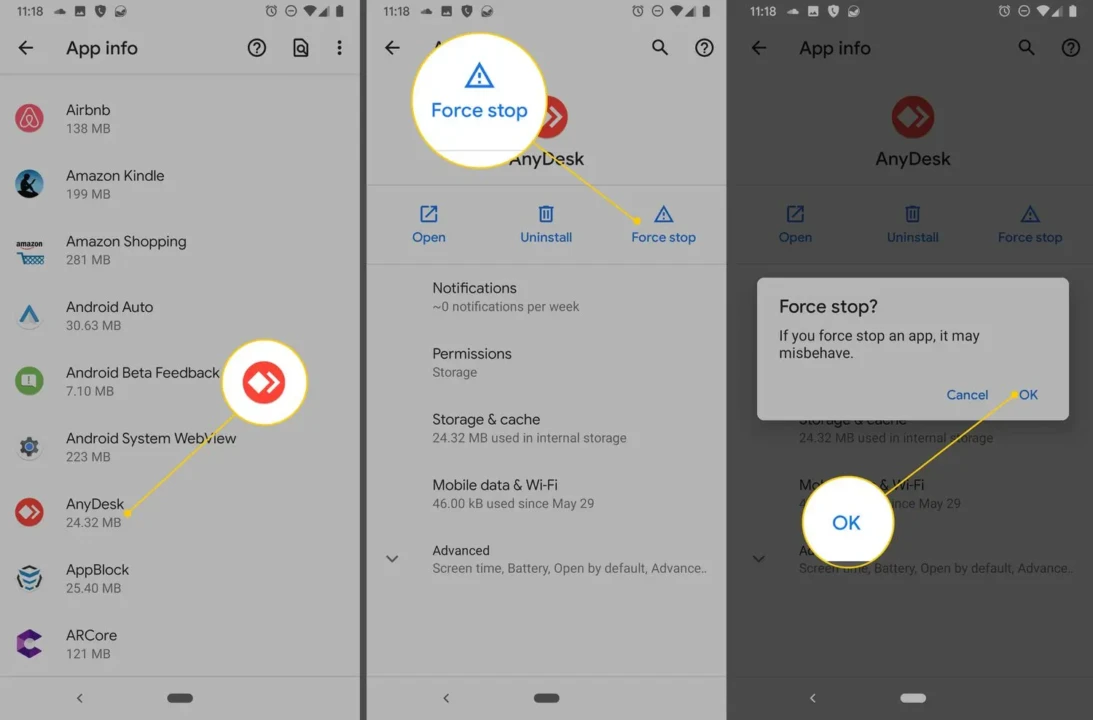
Force Stop is the fastest way to kill a background app right now. It immediately terminates every process the app is running, including background services, sync operations, and active code. Think of it as a hard shutdown for a specific app.
Steps (works on every Android device):
- Open Settings
- Tap Apps (also called App Management, Applications, or See All Apps, depending on your device)
- Find and tap the app you want to stop
- Tap Force Stop
- Tap OK or Force Stop when the confirmation prompt appears
The important thing to understand about Force Stop is that it’s temporary. The app will restart its background processes the next time you open it, and some apps restart their background services automatically via system triggers, even without you opening them.
Force Stop is useful for an immediate fix when an app is currently misbehaving, but it isn’t a permanent solution on its own. For a lasting fix, you need the restriction methods in Methods 2 and 3 below.
Safe to Force Stop: social media apps, games, shopping apps, streaming apps you’re not currently using, and news apps. Never Force Stop: Google Play Services, your Phone app, your Messages app, any accessibility service you rely on, or any app actively playing audio or navigating.
Method 2: Restrict Background Activity Per App (Lasting Fix)
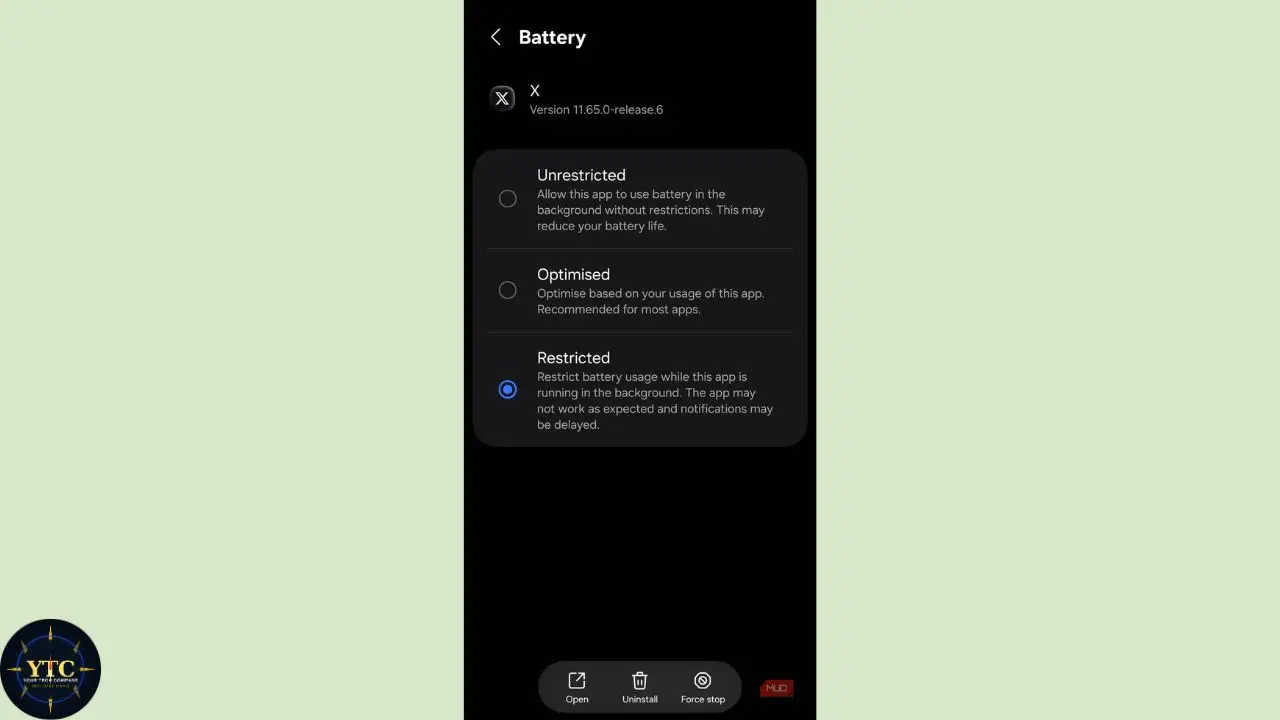
This is the most effective long-term solution for stopping specific apps from draining your battery. Rather than killing the app once and watching it restart, you restrict its background permissions so it can’t run background services in the first place.
Restrict Battery Usage Per App
- Go to Settings → Apps → [Tap the App] → Battery
- You’ll see three options: Unrestricted, Optimized, and Restricted
- Select Restricted for apps you don’t need running in the background
Here’s what each setting means in practice:
- Unrestricted means the app runs in the background at any time; use this for messaging apps, alarm apps, and any app that needs instant notifications.
- Optimized means Android’s built-in intelligence manages the app’s background activity. This is the default and the right setting for most apps.
- Restricted means the app cannot run background services at all; it only operates while you’re actively using it.
Use Restricted for social media, games, shopping apps, and any app you open manually, rather than having it alert you automatically.
Restrict Background Data Per App
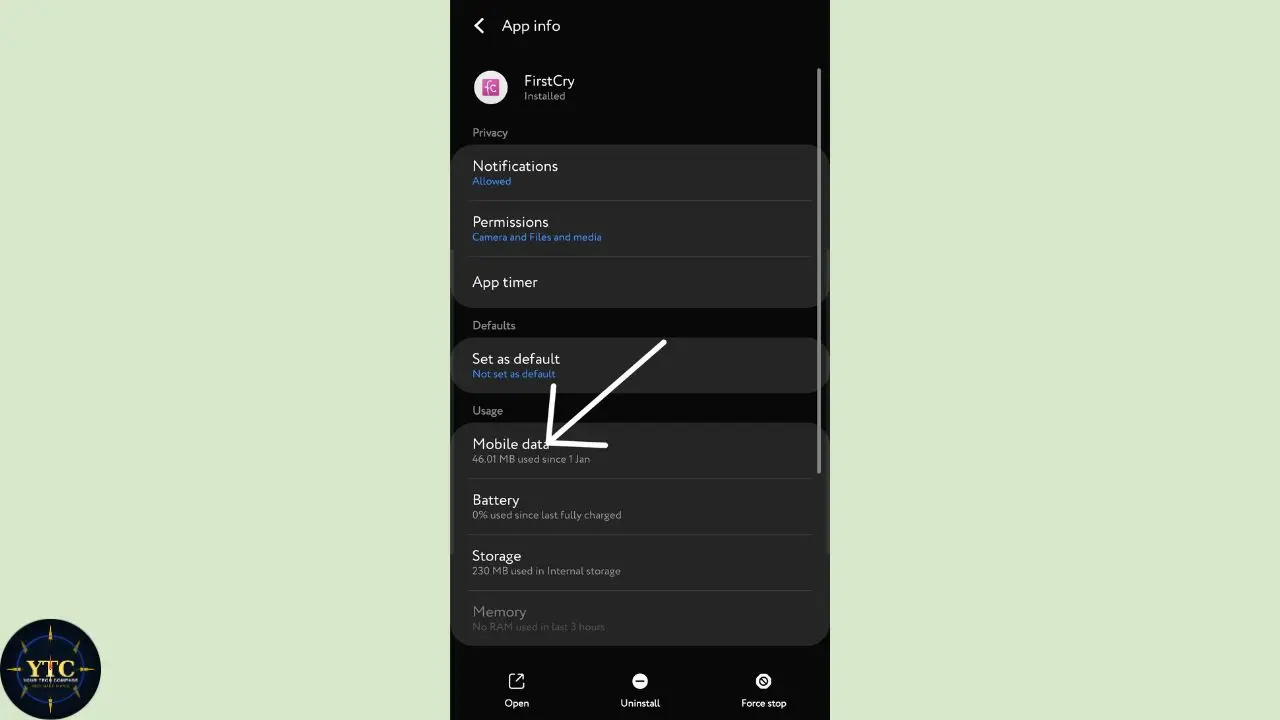
Some apps drain battery specifically by constantly sending and receiving data in the background. Blocking background data is a separate control from battery restriction and adds another layer of protection.
- Go to Settings → Apps → [Tap the App] → Mobile Data (or Data Usage, depending on your Android version)
- Toggle off Background Data or Allow Background Data Usage
With background data disabled, the app can no longer send or receive any data while you’re not actively using it. Consequently, it can’t refresh content, sync new posts, or silently track your activity. This is especially effective for news apps, social media, and email clients that are constantly pulling new content even when you haven’t opened them.
Method 3: Use Android’s Battery Optimization System
Android has a built-in system called Adaptive Battery that uses machine learning to intelligently manage background app activity. It categorizes every app into usage buckets (Active, Working Set, Frequent, Rare, and Never) and automatically limits background resources for apps in lower buckets. Apps you use every day stay in the Active bucket with full background access. Apps you rarely open get progressively restricted the longer they sit unused.
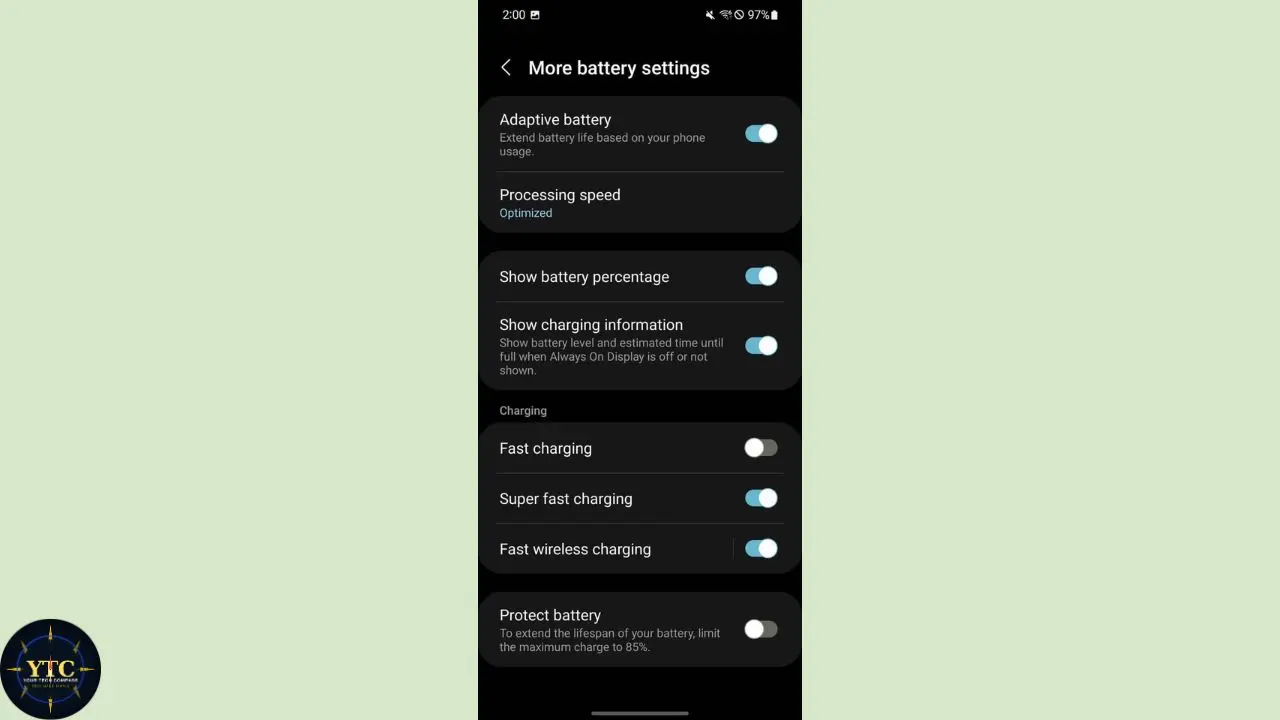
To enable Adaptive Battery: Go to Settings → Battery → Adaptive Battery and toggle it on. On Google Pixel, this path is Settings → Battery → Adaptive Battery. However, on Samsung, look for Settings → Battery and Device Care → Battery → Adaptive Battery. On most other Android devices, it’s Settings → Battery → Battery Saver → Adaptive Battery.
Beyond Adaptive Battery, check your Battery Optimization list at Settings → Battery → Battery Optimization (or App Power Management on Samsung). This shows you which apps are set to Optimized, which are Unrestricted, and which have been specifically excluded from optimization.
Apps showing as Unrestricted are the ones Android is allowing to bypass Doze mode and run background services freely; those are your primary targets. Change any non-essential app from Unrestricted to Optimized, and you’ll see an immediate improvement in overnight battery retention.
Method 4: Manufacturer-Specific Background App Controls
Each major Android manufacturer adds their own layer of background app management on top of stock Android. These tools are often more powerful than standard settings, particularly Samsung’s Deep Sleep feature, one of the most aggressive background app restrictions available on any Android device.
Samsung (One UI)
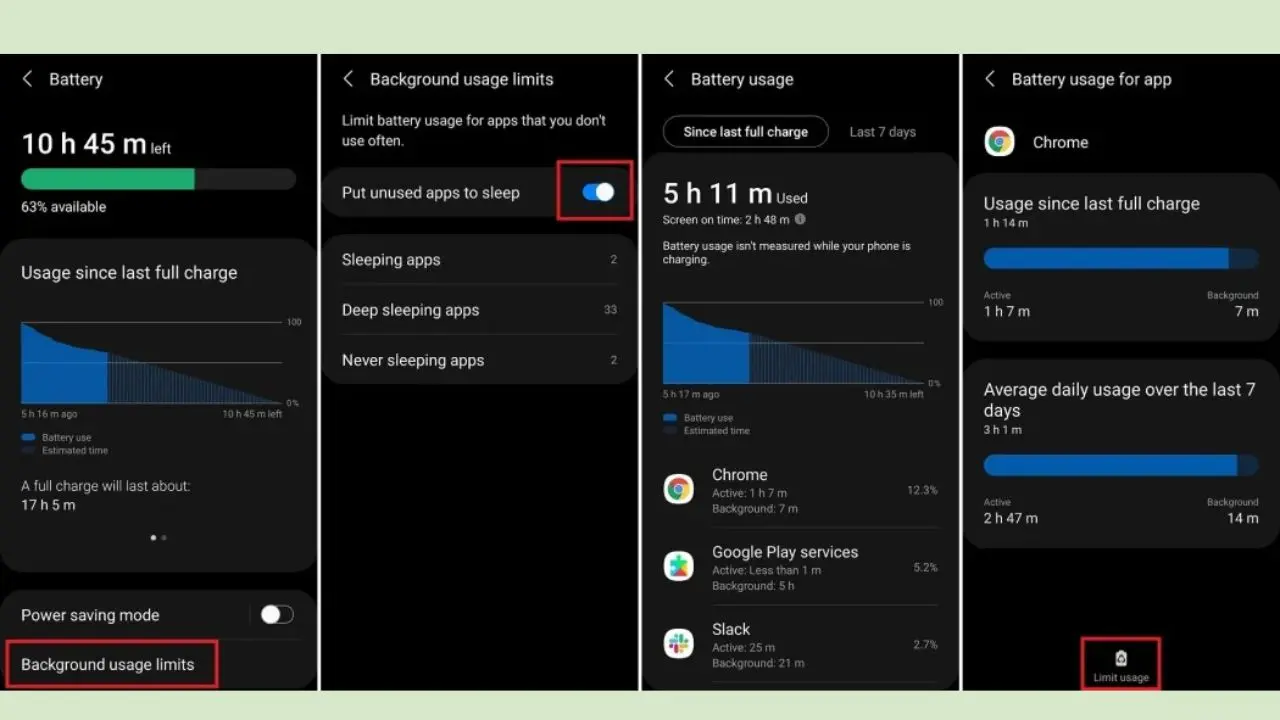
Samsung’s background app management is the most feature-rich among Android manufacturers. Go to Settings → Battery and Device Care → Battery → Background Usage Limits. Here you’ll find three categories.
Sleeping Apps are apps that Samsung restricts from running in the background after a few days of inactivity. This happens automatically. On the other hand, Put Apps to Sleep lets you manually add specific apps to the sleep list without waiting for them to become inactive.
Deep Sleeping Apps is the most aggressive option. Apps placed in Deep Sleep cannot run background services, receive updates, or send notifications at all until you manually open them. Therefore, Deep Sleep is perfect for apps you only open occasionally and don’t need to be alerted to automatically. Additionally, the Device Care shortcut on the home screen or in the widget provides a one-tap Optimize button that closes background processes and instantly frees up RAM.
Google Pixel (Stock Android)
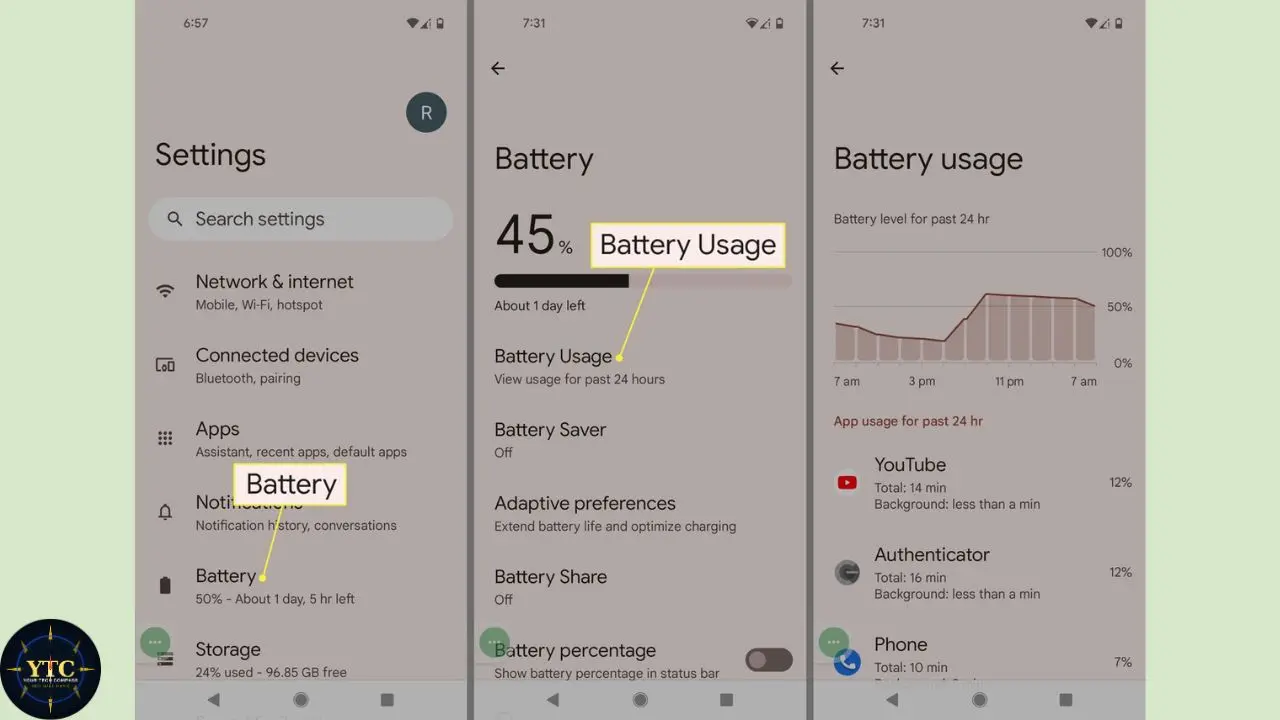
Pixel devices rely more heavily on Android’s native Adaptive Battery and Doze mode than other manufacturers’ devices do. Go to Settings → Battery → Battery Usage to find your top battery consumers, then tap into each app and toggle off Allow Background Usage for any that are draining battery unnecessarily.
Pixel’s Adaptive Battery is particularly effective because it learns from weeks of your actual usage patterns, becoming more accurate over time at predicting which apps need background access and which ones don’t. Google recommends keeping Adaptive Battery and battery optimization on at all times for the best results.
OnePlus (OxygenOS)
On OnePlus devices running OxygenOS, go to Settings → Battery → Battery Usage by App to see your top-draining apps. Tap into each app, and you’ll see three options: Allow Background Activity, Smart Mode (which optimizes background activity when consumption is higher than normal), and Restrict Background Activity.
Smart Mode is a reasonable middle ground for apps you want to keep somewhat active without giving them unlimited background access. OxygenOS also includes an App Freeze option in some versions that prevents frozen apps from running at all until you manually open them.
Xiaomi (MIUI / HyperOS)
Xiaomi devices are notably aggressive about managing background apps by default, more so than most other Android manufacturers. Go to Settings → Apps → Manage Apps → [Select App] → Battery Saver and choose between No Restrictions, Optimized, and Restrict.
For a global view, Settings → Battery & Performance → App Battery Saver shows all apps together. One important note for Xiaomi users: MIUI and HyperOS sometimes kill important apps too aggressively, causing missed notifications. If a specific app isn’t delivering notifications reliably, you may need to set it to No Restrictions rather than further restricting other apps.
Method 5: Use Developer Options to Limit Background Processes
This method gives you direct control over how many processes Android allows to run simultaneously. It’s more technical than the other methods, but it’s effective for power users who want maximum control.
Step 1: Enable Developer Options: Go to Settings → About Phone → tap Build Number seven times in quick succession. You’ll see a “You are now a developer” message after the seventh tap. If prompted for a PIN, enter it to confirm.
Step 2: Access the settings: Go to Settings → System → Developer Options (on some devices, it appears directly in Settings rather than under System). Scroll to the Apps section and tap Background Process Limit.
Step 3: Choose your limit: The options are Standard Limit (Android decides), No Background Processes, At Most 1 Process, At Most 2 Processes, At Most 3 Processes, and At Most 4 Processes. However, be very cautious, as setting this too low can cause real problems.
“No Background Processes” and “At Most 1 Process” will break notifications, make multitasking nearly unusable, and cause apps to reload from scratch every time you switch between them. Therefore, “At Most 4 Processes” is the most reasonable option for everyday users who want additional restrictions without compromising their phone’s core functionality. This method is best treated as a supplemental tool alongside the per-app restrictions in Methods 2 and 3; not as a standalone fix.
Method 6: Find and Remove the Real Offenders
The most permanent solution of all is simply not having the problem app installed. No background restriction is as effective as uninstalling an app that consistently abuses background services.
Go to Settings → Battery → Battery Usage and look at any app consuming more than 5 to 10% of your battery in the background relative to minimal active use. If that app isn’t essential to your daily workflow, removing it eliminates the problem entirely.
Facebook is the most commonly cited example; its Android app is notorious for background location tracking, activity monitoring, and constant data refresh. Switching to Facebook in your mobile browser instead of using the dedicated app immediately removes all that background activity. The same applies to TikTok, Instagram, Snapchat, and similar apps that request broad permissions and run extensive background services.
If you’re not ready to uninstall an app, consider replacing it with a lighter alternative. Facebook Lite, for example, has significantly less background activity than the full Facebook app. The browser versions of most social media platforms also have no background services; they only run when you have the browser tab open.
What Actually Happens When You Swipe Apps Away
This is the most common misconception about Android background apps, and it’s worth addressing directly because it shapes your overall understanding of the problem.
When you swipe an app away from the Recent Apps screen, Android removes it from the visible recents list, but it does not fully close it. The app moves to a cached state in memory, allowing it to be reloaded quickly, and any background services that were running before you swiped continue running afterward. Consequently, swiping away only affects what you see, not what’s actively running in the background.
This is intentional Android design behavior. Keeping apps in a cached state makes them faster to return to, which is part of why modern Android phones feel responsive when you switch between apps. The practical implication for battery life is that constantly swiping apps away doesn’t meaningfully reduce battery drain.
What actually helps is restricting background services and data per app using Methods 2 and 3 above. Interestingly, on iPhone, the situation is similar; force-closing apps from the iOS app switcher doesn’t save battery either. This is a reality of smartphone architecture, not a quirk specific to Android.
Should You Use a Third-Party Task Killer App?

The short answer is no, and here’s exactly why that matters.
Third-party task killers and RAM booster apps made sense on Android in 2010 when the operating system’s memory management was genuinely poor. Today, Android’s built-in memory management is significantly more sophisticated; it already handles suspended-app cleanup efficiently through the App Standby Bucket system and Doze mode.
When a task killer wipes your RAM, Android immediately begins reloading essential processes to keep the system running correctly. That constant cycle of killing and reloading actually puts more stress on the CPU and drains the battery faster than simply letting Android manage memory on its own. Google’s official documentation explicitly discourages third-party task killers for this reason.
Additionally, many task killers and RAM boosters, particularly those from less reputable developers, are themselves heavy users of background services. You’d be installing an app that drains the battery to solve a battery-drain problem. The right approach is the one this guide covers: use Android’s native battery optimization tools, restrict background access per app, and remove the genuine offenders.
For more help with Android performance issues, including apps that crash unexpectedly or behave erratically, our guide on how to fix apps that keep crashing on Android covers that problem in detail.
Background App Management: Methods at a Glance
Method | Difficulty | How Long It Lasts | Best For |
Force Stop | Easy | Temporary (until app restarts) | Immediate fix for a misbehaving app |
Restrict Battery per App | Easy | Permanent | Social media, games, shopping apps |
Restrict Background Data | Easy | Permanent | News apps, email, social media |
Adaptive Battery | Easy (toggle on) | Ongoing / learns over time | All apps (set and forget) |
Samsung Deep Sleep | Easy | Permanent until you open the app | Rarely-used apps on Samsung devices |
Developer Options Limit | Moderate | Permanent | Power users (however, use with caution) |
Uninstall / Replace App | Easy | Permanent | Habitual offenders like Facebook |
FAQs
Swiping apps away from the Recent Apps screen doesn’t meaningfully save battery because Android doesn’t fully close those apps; it suspends them. The battery savings come from restricting background services per app through Settings → Apps → Battery, not from clearing the recents list.
Force Stop terminates the app’s processes immediately; it’s temporary because the app restarts its background services the next time you open it. Restrict prevents the app from running background services at all going forward; it’s a persistent setting that survives app restarts. Restrict is the better long-term solution; Force Stop is useful for addressing a current misbehavior immediately.
Never Force Stop Google Play Services, your Phone app, your SMS/Messages app, any accessibility service you rely on, or any app that’s currently playing audio or running active navigation. Stopping these causes immediate problems; calls may fail, notifications may stop, or your phone may behave unpredictably until the services restart.
Some apps register themselves as background service providers that Android automatically restarts when the device detects certain events, such as incoming data, network changes, or system broadcasts. For these apps, Force Stop alone isn’t enough. You need to use the Restrict battery setting or disable background data to prevent them from automatically restarting their services.
Yes. Particularly on phones with less RAM (4GB or below). Fewer active background processes mean more RAM available for the app you’re currently using, smoother multitasking, and a cooler-running processor. On high-end phones with 8GB or more of RAM, the performance improvement is less dramatic but still noticeable in battery life.
Conclusion
Stopping apps from running in the background on Android is most effective when you target the specific apps actually causing the problem rather than trying to stop everything at once. The combination of setting problematic apps to Restricted in battery settings, disabling their background data, enabling Adaptive Battery, and using your manufacturer’s sleep tools, Samsung’s Deep Sleep in particular, produces a meaningful and lasting improvement in battery life and performance. Real-world testing confirms that restricting just three to five apps can add 1 to 2 hours of screen-on time per day, a significant gain for zero cost and 5 minutes of effort.
The important habits to build are checking your Battery Usage list regularly to catch new offenders, never relying on third-party task killers that do more harm than good, and remembering that swiping apps away doesn’t address the root cause. For other Android tips and device management guides, our guide on how to sync contacts across devices and our full tech guides section have everything you need to get the most out of your Android phone.
Found this helpful? Browse more in-depth tech guides, honest reviews, and step-by-step tutorials at YourTechCompass; your go-to resource for making smarter tech decisions.