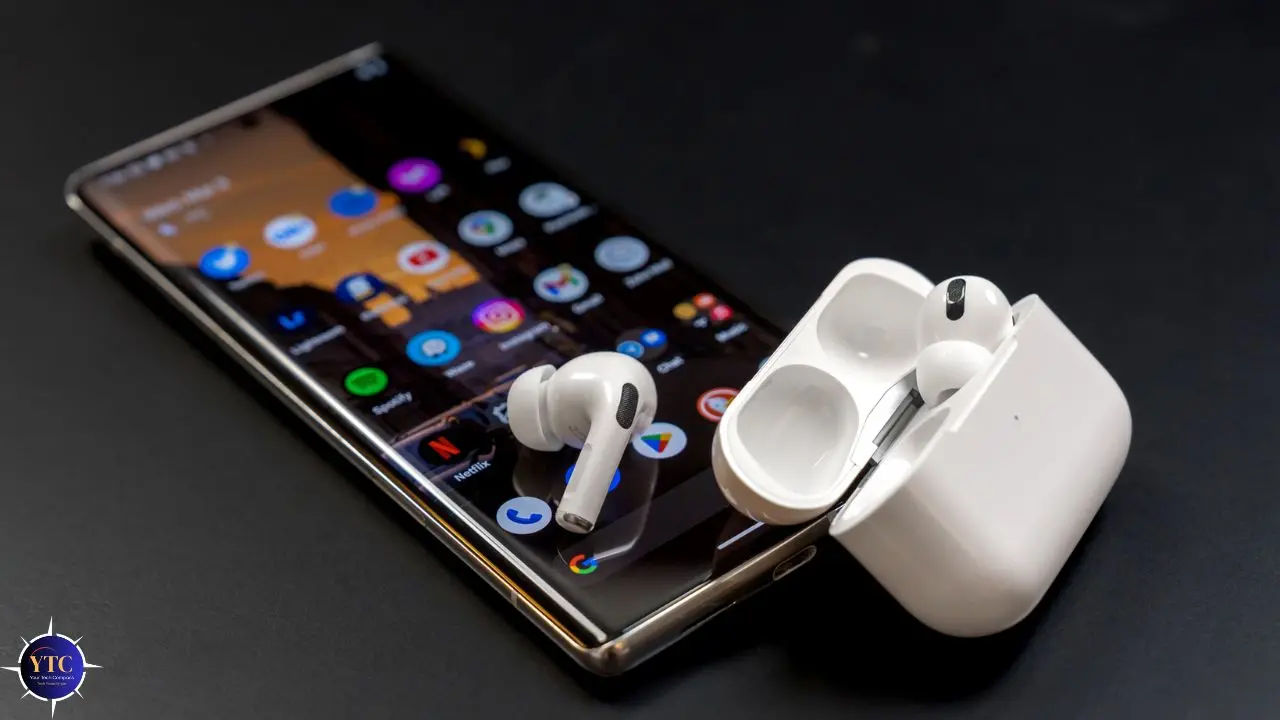
If you own AirPods and an Android phone, you’ve probably wondered whether the two can actually work together, or whether Apple’s “Walled Garden” reputation means you’re out of luck. The good news is that pairing AirPods with Android is genuinely simple and takes less than 60 seconds from start to finish. AirPods use standard Bluetooth 5.0, the same universal wireless protocol that every Android device supports, which means the connection works regardless of brand, and you’ll have music, calls, and basic controls up and running within a minute.
That said, the honest picture is worth knowing upfront so you aren’t surprised later. AirPods on Android behave like premium Bluetooth earbuds: the audio quality is excellent, and the core functionality works reliably, but the deep iOS ecosystem features that justify AirPods’ price tag on an iPhone don’t carry over. Siri is completely non-functional, Spatial Audio with head tracking doesn’t work, and Automatic Device Switching between Apple devices doesn’t apply. This guide covers the complete pairing process for every AirPods model, explains which features carry over to Android and which don’t, and provides straightforward solutions for common problems you might encounter.
Do AirPods Work With Android?
Yes. AirPods work with any Android device that supports Bluetooth, which covers every Android phone and tablet made in the last decade. The reason this works is straightforward: at their core, AirPods are Bluetooth audio devices, and Bluetooth is a universal standard that operates identically across iOS, Android, Windows, and other platforms.
Apple’s custom W1 and H1/H2 chips in AirPods enable the seamless pop-up pairing experience on iPhone, but they don’t prevent AirPods from pairing manually with non-Apple devices. They just mean you pair through the standard Bluetooth menu instead of the automatic iOS shortcut.
What you get on Android is the core AirPods experience: excellent audio playback, a reliable microphone for calls, and basic physical controls. What you don’t get is the layer of Apple-specific software features that runs on top of that core experience.
Think of it this way: you’re getting the hardware without the Apple operating system wrapped around it. That’s a meaningful distinction worth understanding before you decide whether AirPods are the right earbuds for your Android device.
What Works on Android
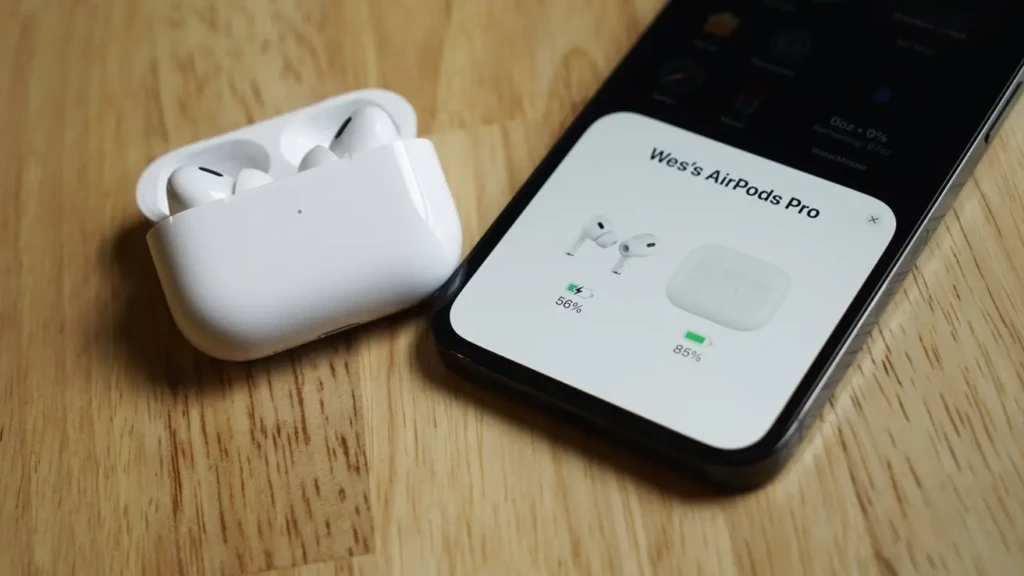
- Full audio playback (music, podcasts, video, and calls at full quality)
- Microphone for phone calls and voice messages
- Automatic ear detection (pausing playback when you remove one earbud, works on most models)
- Basic physical controls, such as play/pause, skip tracks, and answer calls via tap or squeeze
- Active Noise Cancellation as a hardware toggle (AirPods Pro and Max)
- Transparency Mode via physical controls (AirPods Pro and Max)
- Volume control through Android’s native volume buttons
What Does NOT Work on Android
- Siri is completely non-functional; there is no way to invoke Siri from an Android device
- Spatial Audio with dynamic head tracking (requires iPhone hardware)
- Personalized Spatial Audio (works in iOS only)
- Automatic Device Switching between Apple devices
- Custom control remapping (you can’t change what a tap or squeeze does; controls are fixed)
- Battery percentage in the status bar without a third-party app
- Adaptive EQ (the automatic sound adjustment to your ear shape is iOS-only)
- Announce Notifications and Announce Messages (this is Siri-dependent)
- Live Translation and Conversation Awareness (Apple Intelligence features work in iOS only)
- Find My integration (non-functional on Android)
- AirPods firmware updates (these are delivered only through Apple devices)
Things You Need Before Pairing
Before you start, run through this quick checklist to make sure the pairing process goes smoothly the first time.
Your AirPods Need Charging
They don’t have to be full, but they need enough battery to complete the pairing process without cutting out. A quick way to check: open the case near an iPhone if one is available, and the battery pop-up will tell you. If no iPhone is available, the LED on the front of the case shows green for charged and amber for low or charging.
Bluetooth Must Be On On Your Android Device
Swipe down from the top of your screen to open the Quick Settings panel and make sure the Bluetooth tile is active. Alternatively, go to Settings.
The exact path varies by manufacturer. For instance, on Samsung, it’s Settings → Connections → Bluetooth. While on Google Pixel, it’s Settings → Connected Devices → Pair New Device. On other Android phones, look for Settings → Bluetooth or Settings → Wireless & Networks.
Your AirPods Must Be in Their Case With the Lid Closed First
Pairing is always initiated from the case, not directly from the earbuds. If the AirPods were in your ears moments ago, place them back in the case and close the lid for about 15 seconds before starting. This resets their state and prepares them for pairing mode.
One Important Note: If your AirPods are already paired to an iPhone, you don’t need to unpair them from the iPhone before pairing them to Android. AirPods remember multiple paired devices simultaneously. You simply add Android as an additional paired device and switch between connections manually when needed.
How to Pair AirPods to Android: Step-by-Step
Follow these steps in order, and your AirPods will be connected and playing audio on your Android device in under a minute.
Step 1: Place Both AirPods in the Case and Close the Lid for 15 Seconds
This ensures that both earbuds are fully seated and that their previous connection state is cleared. If you skip this and go straight to pairing mode, you may sometimes get an incomplete connection, with one earbud not responding correctly.
Step 2: Open the Case Lid, But Leave the AirPods Inside
You don’t take the AirPods out until after pairing is complete. The case must remain open for the LED indicator to be visible and for pairing mode to activate properly.
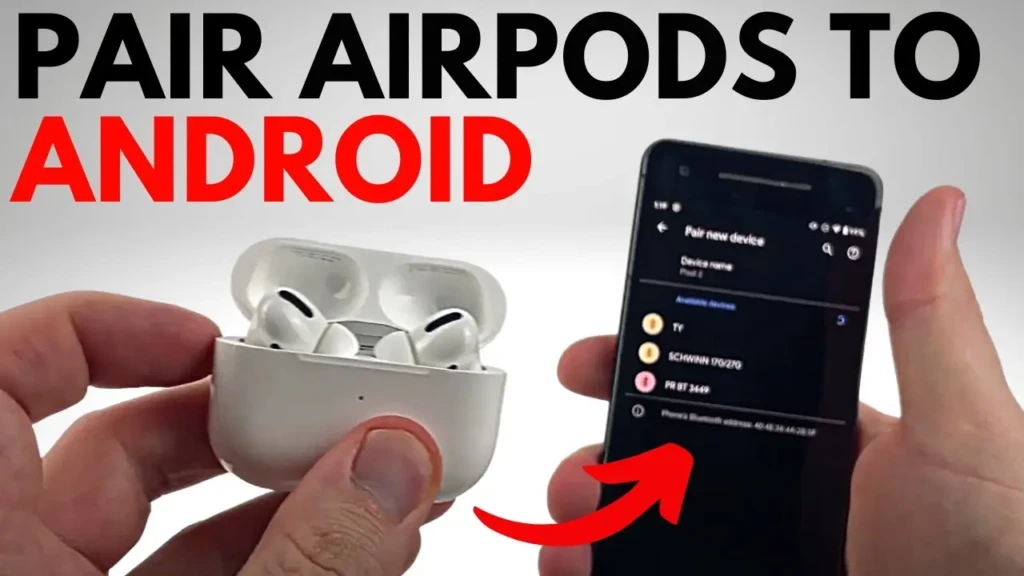
Step 3: Press and Hold the Small Setup Button on the Back of the Case
Hold it for approximately 3 to 5 seconds. The LED light on the front of the case will start flashing white. That white flashing light indicates that the AirPods are in Bluetooth pairing mode and actively searching for a device to connect to.
If the light doesn’t flash white after 5 seconds, release and try again. Sometimes, you need to press slightly more firmly.
Step 4: On Your Android Device, Open Bluetooth Settings
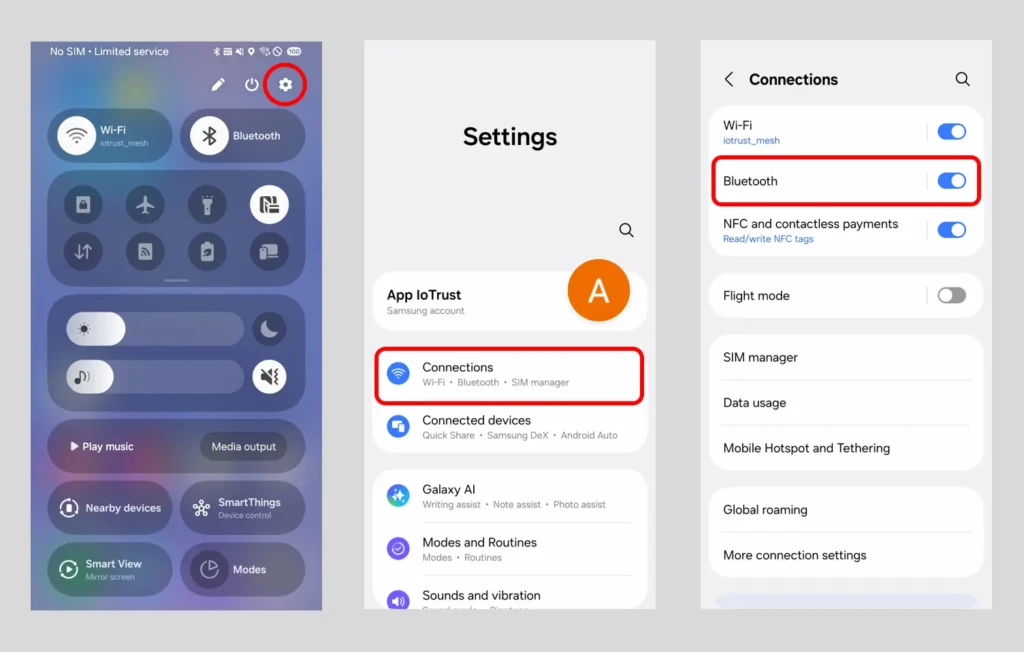
Go to Settings → Connections → Bluetooth (Samsung) or Settings → Connected Devices → Pair New Device (Google Pixel or stock Android) or Settings → Bluetooth (most other Android phones). In addition, make sure Bluetooth is toggled on. Your device will automatically begin scanning for nearby Bluetooth devices.
Step 5: Wait for Your AirPods to Appear in the Available Devices List
Within a few seconds, you’ll see your AirPods listed by name, either “AirPods,” “AirPods Pro,” “AirPods Max,” or whatever name was previously set on an iPhone. If they don’t appear within 10 seconds, make sure the LED is still flashing white. However, if it has stopped flashing, press the back button again to re-enter pairing mode.
Step 6: Tap Your AirPods’ Name in the List
Your Android device will send a pairing request. If a confirmation prompt appears on your screen, tap Pair or OK to confirm.
Step 7: Wait for the Connected Confirmation
The LED on the AirPods case will turn solid white when the case is successfully paired. On your Android device, the AirPods’ name will move from the list of available devices to the connected or paired devices section, and you’ll see a “Connected” status.
Step 8: Put the AirPods in Your Ears and Play Audio
Open a music app, a podcast, or a video, and start playback. Audio should route to the AirPods automatically. If it plays through the phone speaker instead, tap the audio output icon in your media player and select the AirPods manually.
Going Forward, Reconnection Is Automatic
After the first pairing, you don’t need to go back into Bluetooth settings every time. Simply open the AirPods case near your Android device with Bluetooth enabled, and they’ll reconnect automatically within a few seconds.
How to Pair Different AirPods Models to Android
The pairing process is nearly identical across all AirPods models, but there are a few model-specific differences worth knowing so you don’t have to search for a button in a different place.
AirPods (1st, 2nd, and 3rd Generation)
Standard process as described above. The setup button is on the back of the case, slightly recessed. The LED is on the front of the case between the two earbud slots.
AirPods Pro (1st and 2nd Generation)
Same process. The setup button is on the back of the smaller, squarer case. The AirPods Pro 2 USB-C case has a slightly different shape with a lanyard loop, but the button is in the same location, and the process is identical. Active Noise Cancellation works on Android as a hardware toggle via the physical stem; you cycle through ANC, Transparency, and Off without an app.
AirPods Pro 3 (2025)
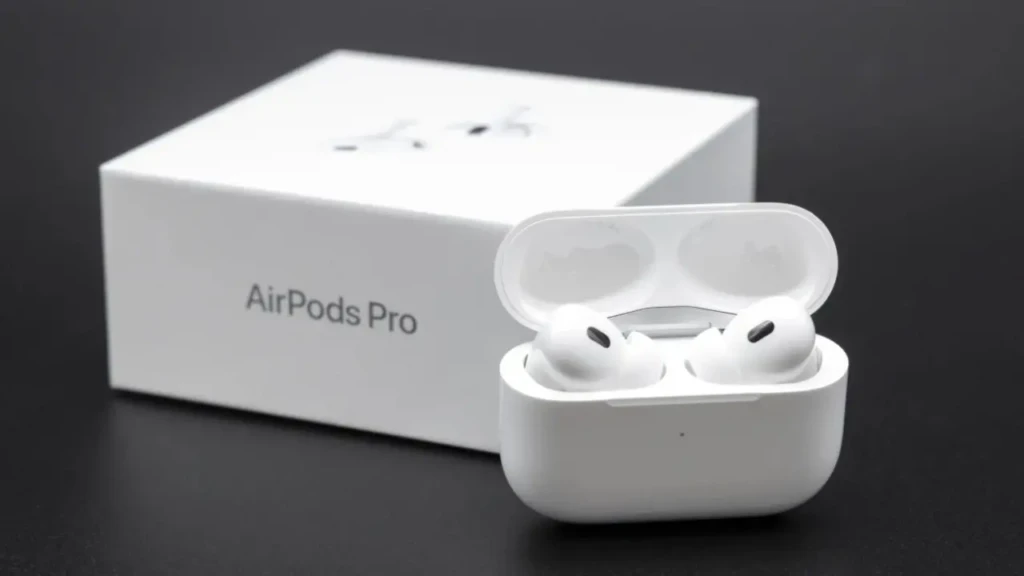
Same button-on-back method. The IP57-rated case is more durable than previous generations. The heart rate sensor, Live Translation, and Apple Intelligence features are all iOS-only and non-functional on Android, but the audio quality, ANC, and basic controls all work.
AirPods 4 (with and without ANC)
Same standard pairing process. The open-ear design, without silicone ear tips, results in a different fit and sound profile than the Pro models. The ANC version’s noise cancellation on Android is controlled via the physical controls, as it’s a hardware capability.
AirPods Max
This is the only model with a different pairing trigger. There is no case button; instead, press and hold the Noise Control button on the right earcup for approximately 5 seconds until the status light LED flashes white.
The rest of the pairing process is identical. On Android, the Digital Crown adjusts volume, but the full range of noise-control settings available on iPhone is not accessible through any Android app.
AirPods Features on Android vs iPhone
This table shows you exactly what you’re working with before you commit to using AirPods on Android full-time.
Feature | On iPhone | On Android |
Audio Playback | ✅ Full quality | ✅ Full quality |
Microphone (calls) | ✅ Yes | ✅ Yes |
Ear Detection (auto-pause) | ✅ Reliable | ⚠️ Works on most models |
Play / Pause / Skip Controls | ✅ Full | ✅ Basic controls work |
Active Noise Cancellation | ✅ Full with app settings | ✅ Hardware toggle only |
Transparency Mode | ✅ Full with app settings | ✅ Physical control only |
Siri | ✅ Full | ❌ Non-functional |
Spatial Audio (head tracking) | ✅ Yes | ❌ No |
Personalized Spatial Audio | ✅ Yes | ❌ No |
Adaptive EQ | ✅ Yes | ❌ No |
Automatic Device Switching | ✅ Seamless | ❌ Manual only |
Custom Control Remapping | ✅ Via Settings app | ❌ Fixed defaults |
Battery % in Status Bar | ✅ Native | ⚠️ Requires third-party app |
Find My | ✅ Yes | ❌ No |
Firmware Updates | ✅ Automatic | ❌ Requires an Apple device |
Live Translation | ✅ iOS + Apple Intelligence | ❌ No |
How to Check AirPods Battery on Android
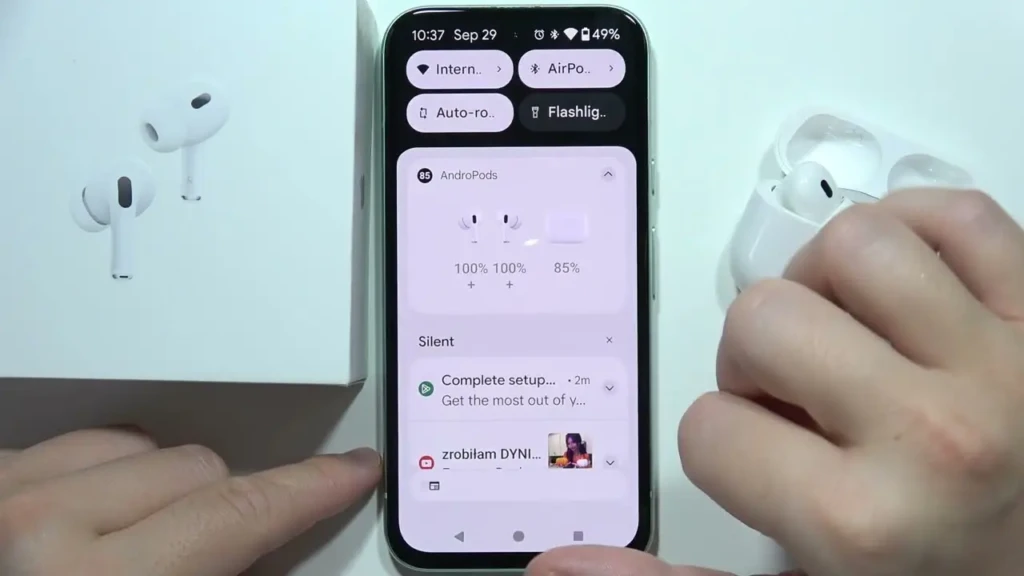
One of the most frustrating things about using AirPods on Android is that the battery level doesn’t appear in your notification bar or status panel the way it does on iPhone. Android doesn’t natively read AirPods battery data because that information is communicated through Apple’s proprietary protocol rather than the standard Bluetooth battery profile. Fortunately, several third-party apps solve this problem cleanly.
MaterialPods is the most widely recommended option in 2026. It displays battery levels for the left and right earbuds and the case in a clean Android-style pop-up that appears automatically when you open the AirPods case near your phone. Install it from the Google Play Store, grant the required Nearby Devices permission, and it works in the background without further configuration.
CAPod is an open-source, lightweight, privacy-focused alternative, a good option if you prefer apps that don’t collect usage data. AndroPods is another solid choice, particularly if you’re on an older Android version where MaterialPods doesn’t perform as well. Additionally, some Android manufacturers, particularly Samsung with One UI, include native Bluetooth battery indicators that show the percentage for connected devices, including AirPods, without requiring any app.
Troubleshooting: AirPods Not Pairing With Android
Most AirPods pairing problems on Android have simple solutions. Work through these fixes in order, and you’ll resolve the issue in most cases.
AirPods Don’t Appear in the Bluetooth Device List
The most common reason is that the AirPods weren’t successfully put into pairing mode. Make sure the LED on the case is flashing white (not solid or off) before your Android device starts scanning. If it’s not flashing white, press and hold the back button more firmly and for longer.
Close the case, reopen it, and try again. Additionally, turn Bluetooth on and off on your Android device to refresh the scan. Move the devices within 1 meter of each other for the initial pairing attempt.
AirPods Appear in the List, But Pairing Fails
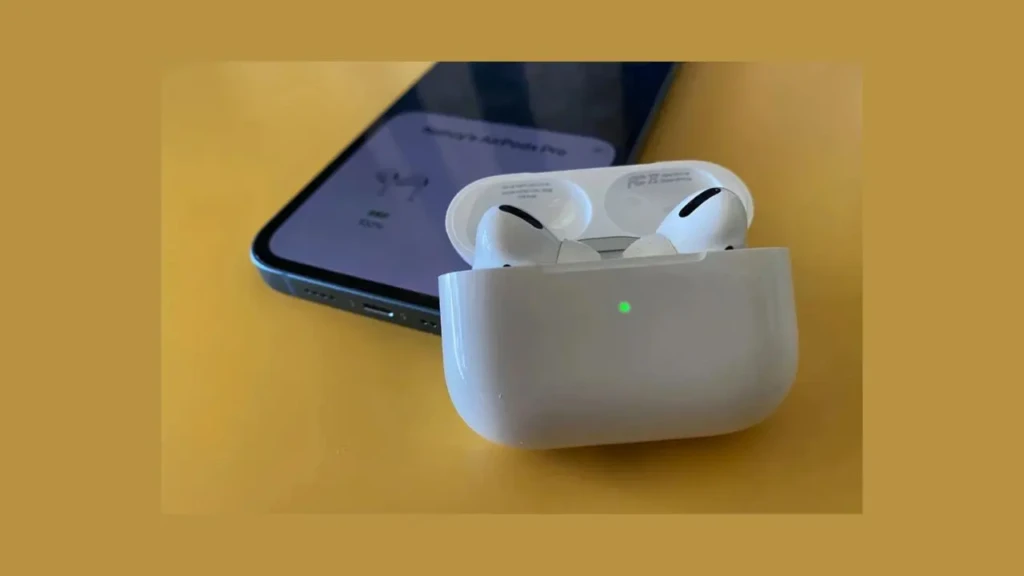
This usually means the AirPods have a conflicting saved connection (typically to an iPhone) that is interfering with the connection. On the iPhone, go to Settings → Bluetooth, tap the info icon next to the AirPods, and select Disconnect (not Forget).
Then retry the Android pairing. If that doesn’t work, restart your Android device and try again from a fresh Bluetooth scan.
AirPods Paired, But Audio Plays Through the Phone Speaker
This means the AirPods connected to Bluetooth, but Android didn’t automatically route audio to them. Tap the audio output icon in whichever media app you’re using, then manually select the AirPods. You can also go to Bluetooth settings, tap the AirPods name, and verify they’re set as the active audio device.
Only One AirPod Has Audio
Place both AirPods back in the case, close the lid for 30 seconds, reopen it, and let them reconnect. If the problem persists, check that both earbuds are physically seated correctly in the case. However, if one isn’t making contact with the charging pin, it may not have initialized properly before the connection was made.
AirPods Keep Disconnecting
This is more common with AirPods on Android than on iPhone because the Apple W/H chip’s power optimization doesn’t apply outside the iOS ecosystem. Keep your phone within 10 meters of the AirPods.
Go to Settings → Apps → Special App Access → Battery Optimization and make sure Bluetooth is excluded from battery optimization on your device. Some Android phones aggressively disable Bluetooth in the background to save power, causing repeated disconnections.
How to Factory Reset AirPods
Place the AirPods in the case and open the lid. Press and hold the back button for 15 full seconds. The LED will flash amber, then white.
That amber-to-white sequence confirms the factory reset is complete. After resetting, pair from scratch following the standard steps above. A factory reset clears all paired devices, so you’ll need to re-pair your Android device and any iPhone you use.
How to Switch AirPods Between Android and iPhone
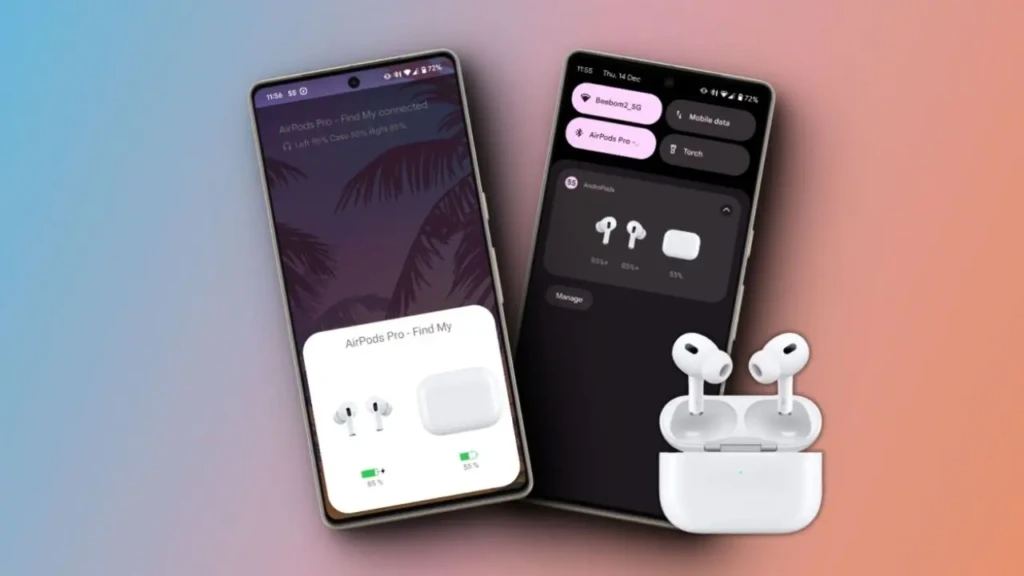
Many people use AirPods across both an Android phone and an iPhone, for example, someone who uses an iPhone personally and an Android device for work, or someone who recently switched from iPhone to Android and kept their AirPods. The good news is that your AirPods can be paired to multiple devices at once. They simply connect to one device at a time, and you switch manually.
Switching from iPhone to Android
On your iPhone, go to Settings → Bluetooth and tap the info icon next to your AirPods. Tap Disconnect.
Importantly, don’t tap Forget This Device, because that removes the pairing entirely, and you’d need to re-pair next time. Once disconnected from the iPhone, open your Android Bluetooth settings and tap the AirPods name in your paired devices list to connect.
Switching from Android to iPhone
On your Android device, go to Bluetooth settings and disconnect the AirPods. Then open the AirPods case near your iPhone, and they’ll reconnect automatically within a few seconds. This is the one place where iOS integration still shows its advantage: iPhone reconnection is seamless, while Android reconnection always requires a manual tap.
For more iPhone setup and connection guides, our guide on connecting AirPods to iPhone covers that part of the workflow in full detail. Additionally, our tech guides section includes a comprehensive range of device setup and how-to content.
Should You Buy AirPods for Android?
This is worth answering honestly because the answer depends entirely on your situation, and “it depends” without specifics isn’t useful.
If You Already Own AirPods
Use them on Android without hesitation. The audio quality is excellent, the controls work, calls are clear, and the pairing process is trivially simple.
There’s no reason to buy a second pair of earbuds just because you’re on Android. This is because the features you lose (Siri, Spatial Audio, Automatic Switching) won’t be something you actively miss if you never had them in the first place.
If You’re Buying Earbuds Specifically for Android
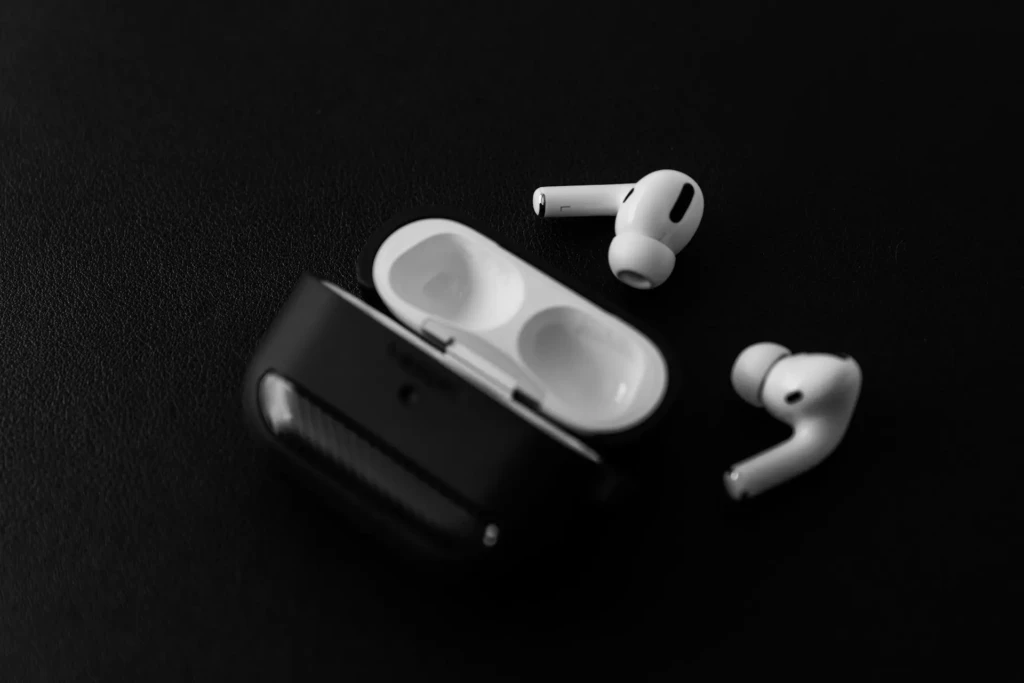
AirPods are probably not the best value for their price. At ~$249 for AirPods Pro 3, you’re paying for Apple ecosystem features that don’t carry over. The Sony WF-1000XM6 (~$329.99), Samsung Galaxy Buds 4 Pro, and Bose QuietComfort Ultra Earbuds 2nd Gen are all designed for Android, support LDAC for high-resolution wireless audio, integrate natively with Google Assistant, and deliver equivalent or better ANC, with all features actually accessible.
The Exception
If you regularly use both an iPhone and an Android device and want a pair of earbuds that work with both, AirPods are a reasonable choice. They work on both platforms; the audio quality is excellent on both; and you only carry one pair. Just go in knowing that full functionality is on iOS, and Android gets the reliable but limited version.
FAQs
Yes. AirPods pair with Samsung Galaxy phones exactly the same way they pair with any other Android device. The pairing process is the same, and the same feature limitations apply. Samsung One UI also has native Bluetooth battery indicators that sometimes display AirPods battery levels without a third-party app.
The most common reason is that the AirPods weren’t put into pairing mode correctly. Make sure the LED on the case is flashing white before scanning. Press and hold the back button until that white flash appears, turn Bluetooth off and back on on your Android device, and scan again. If they still don’t appear, place them back in the case, close the lid for 30 seconds, and retry.
No. AirPods can be paired with multiple devices, but are only actively connected to one at a time. You switch between them by disconnecting from one device and connecting to the other through each device’s Bluetooth settings.
Yes. Active Noise Cancellation is implemented on Android as a hardware feature. You cycle through ANC, Transparency, and Off by pressing the physical button on the AirPods Pro stem or the Noise Control button on AirPods Max. You won’t have app-based settings to adjust the intensity, but the core noise-cancellation hardware still functions correctly.
Android doesn’t show AirPods’ battery natively. Install MaterialPods or CAPod from the Google Play Store; either app reads AirPods battery data and displays levels for both earbuds and the case in a clean pop-up whenever you open the case near your phone.
Final Thoughts
Pairing AirPods to Android is genuinely simple; it takes less than a minute, requires no apps, and works on every Android device with Bluetooth. The audio quality is excellent, calls are clear, and the basic controls function as expected. If you already own AirPods and want to use them with your Android phone, there is no reason not to. The process above works for every model from the original AirPods through the AirPods Pro 3 and AirPods Max, and the troubleshooting steps cover every common issue you’re likely to encounter.
The honest trade-off is worth keeping in mind as well. Siri, Spatial Audio with head tracking, Automatic Device Switching, custom control settings, and native battery reporting are all iOS-exclusive, and none of them will work no matter what you try. For most users who already own AirPods, those limitations are easy to accept. For anyone buying earbuds specifically for Android, there are better-value options designed for the platform. Use the guide above to get set up in under a minute, and the troubleshooting section to handle anything that doesn’t go smoothly on the first attempt.
For more tech guides and honest reviews, visit YourTechCompass.