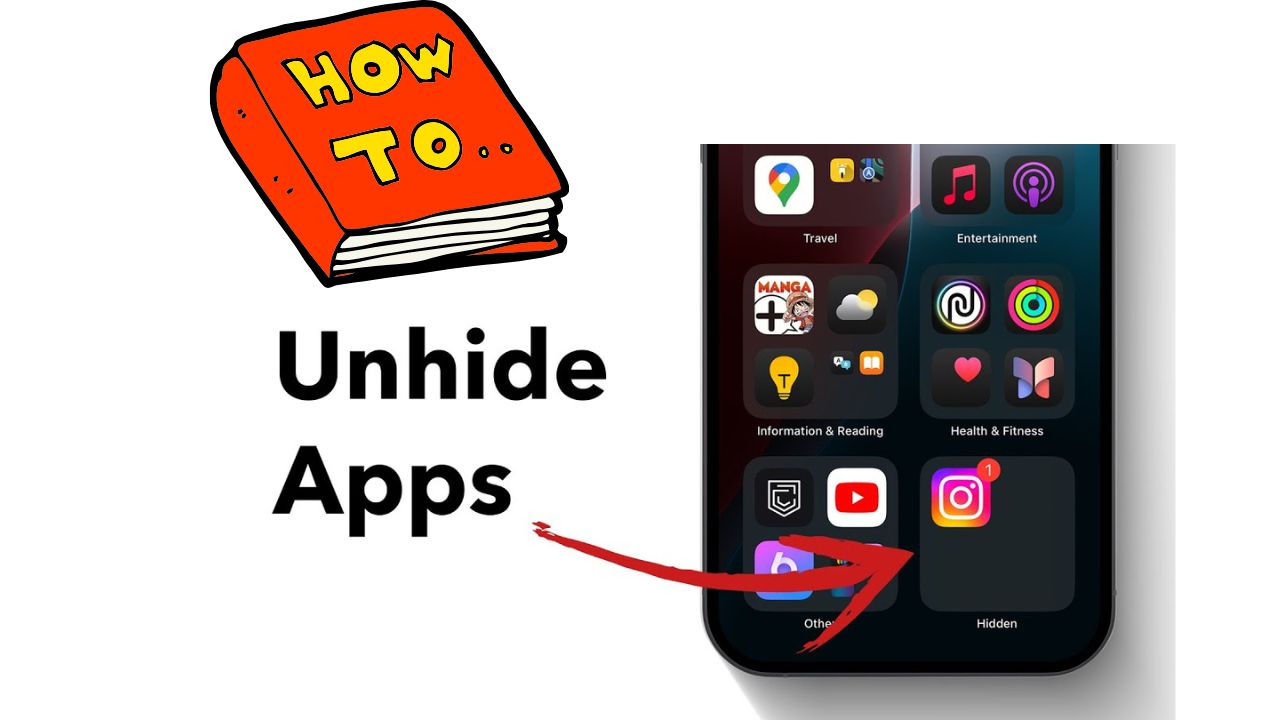
Have you ever opened your iPhone and noticed a favorite app missing from your Home Screen? It’s a common issue, and before you assume it’s deleted, there’s a good chance it’s just hidden somewhere. Apple’s iOS gives you several ways to organize and even hide apps, whether to maintain privacy, reduce clutter, or manage parental controls. The good news? Hidden apps are never truly gone, and you can easily bring them back within minutes.
In this detailed guide, you’ll learn how to unhide apps on iPhone using different methods, from the App Library to Screen Time settings and App Store purchases. Whether your app is restricted, offloaded, or simply tucked away, we’ll cover every fix you need. And at the end, I’ll share what personally helped me recover some “disappearing” apps from my own iPhone setup.
Why Apps Get Hidden on iPhone
Before exploring solutions, it’s helpful to understand why apps go missing. iOS is designed to help users declutter and manage screen space intelligently, which sometimes leads to confusion.
Here are the main reasons apps become hidden:
- Hidden from the Home Screen: You might have removed an app from the Home Screen while keeping it in the App Library.
- Screen Time Restrictions: Parental controls or content restrictions can disable certain apps.
- App Library Sorting: Apps remain in the library even when not visible on the main screen.
- Offloaded Apps: iOS sometimes offloads unused apps to free up storage space, keeping the data but removing the icon.
Luckily, in every one of these scenarios, you can easily restore your apps without losing data or having to reinstall from scratch.
How to Unhide Apps from the Home Screen
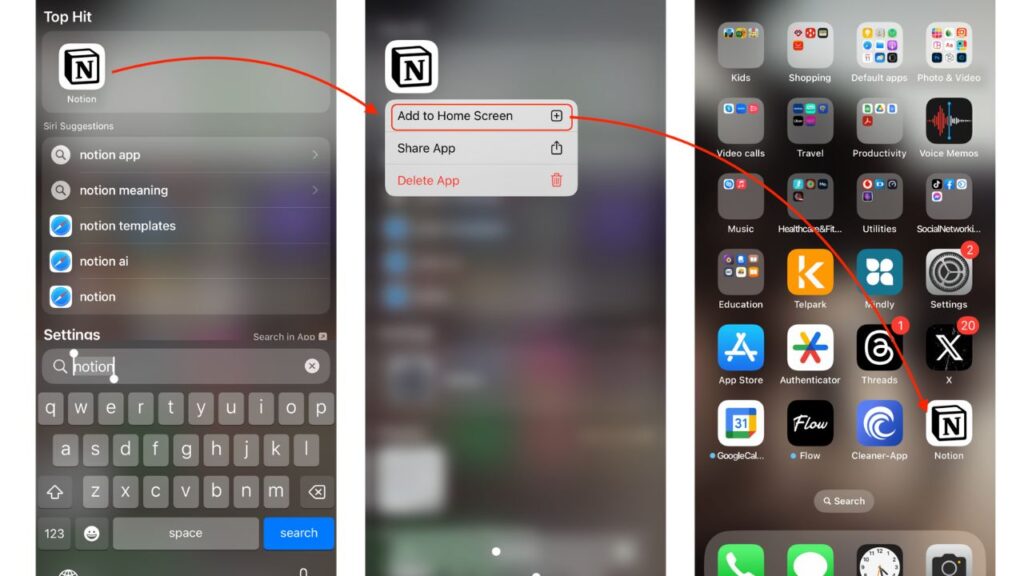
If you’ve accidentally removed an app from your Home Screen, it’s probably still in your App Library. Here’s how to bring it back:
- Swipe left until you reach the App Library (the last page of your Home Screen).
- Tap the Search bar at the top and type the name of the missing app.
- When it appears, long-press the app icon and select Add to Home Screen.
Alternatively, you can drag the app directly from the App Library back onto your Home Screen for quicker access.
💡Tip: Go to Settings → Home Screen, then choose “Add to Home Screen” under “Newly Downloaded Apps.” This ensures that any app you install in the future appears immediately, rather than being hidden in the App Library.
If you’re comparing display customization between iPhones and Android devices, you might also want to check out iPhone 16 Pro Max vs Galaxy S24 Ultra, which covers how each handles app organization and home layouts.
How to Unhide Apps from the App Library
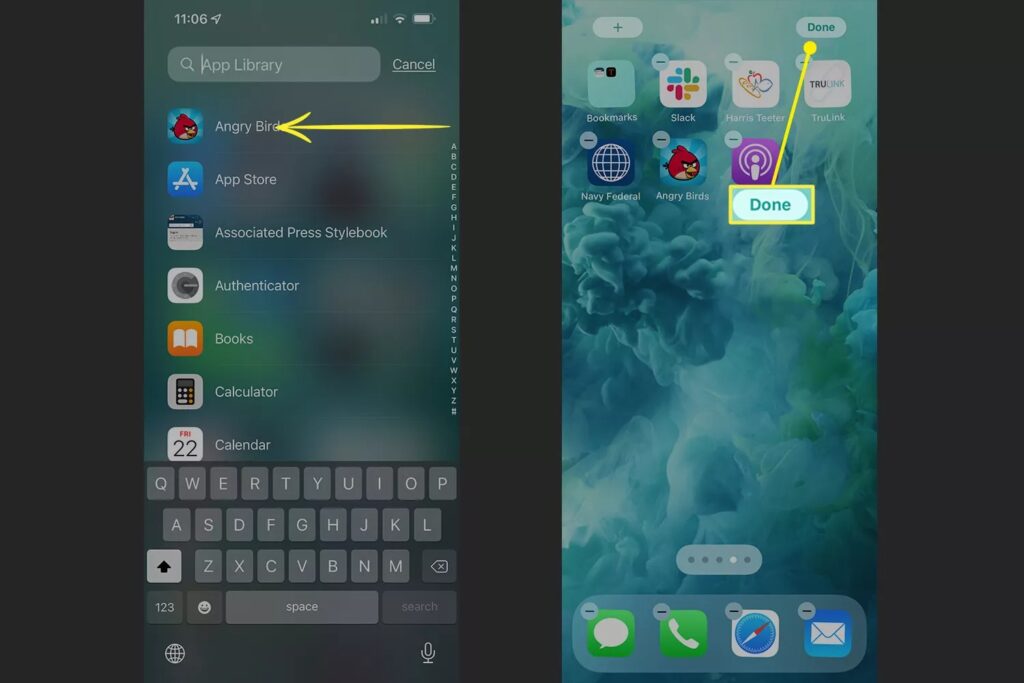
The App Library is one of iOS’s best features for decluttering your Home Screen, but it can also make apps seem to vanish.
Here’s how to find and unhide them:
- Swipe left until you reach the App Library.
- Browse through the automatically sorted folders (like “Productivity,” “Social,” or “Entertainment”) or use the Search bar at the top.
- Once you find the app, press and hold it, then drag it back to your Home Screen.
If the app doesn’t appear here, it may have been restricted or offloaded, which we’ll cover next.
How to Unhide Apps Restricted by Screen Time
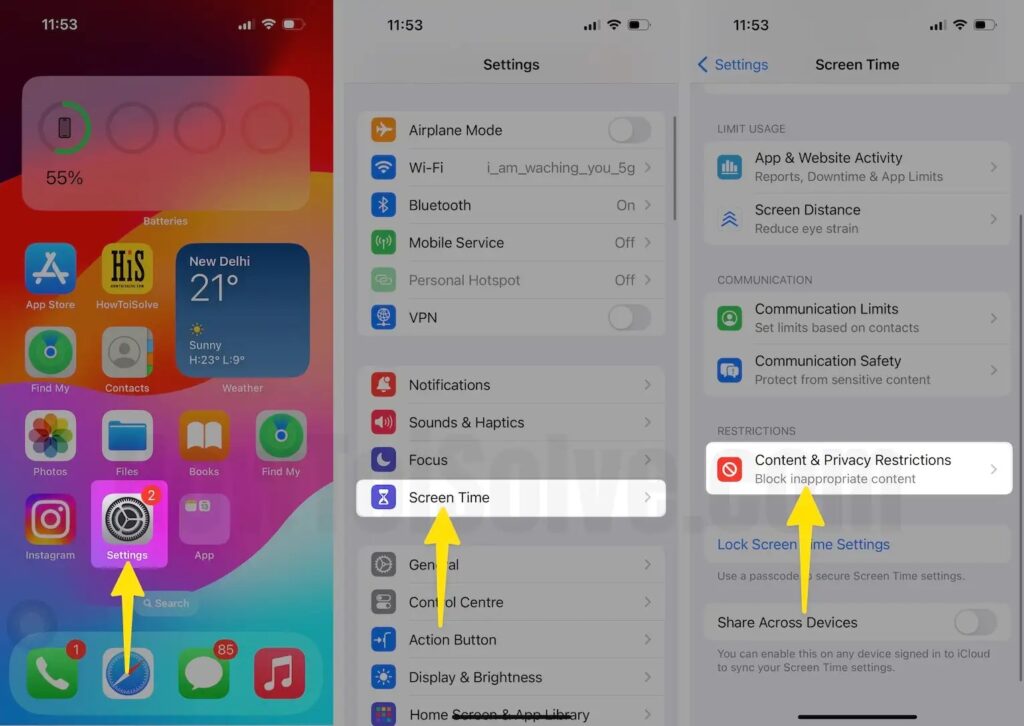
If you use Screen Time to control app usage or have parental restrictions enabled, some apps may be automatically hidden. To unhide them:
- Go to Settings → Screen Time → Content & Privacy Restrictions.
- Tap Allowed Apps.
- Enable any app that has been toggled off.
If your device has multiple user profiles or family restrictions, make sure the Screen Time passcode is entered to unlock those apps.
Still can’t restore the app? A full device reset might help clear persistent restrictions. You can follow our step-by-step guide on How to Reset iPhone to Factory Settings safely before taking that step.
How to Unhide Purchased or Downloaded Apps in the App Store
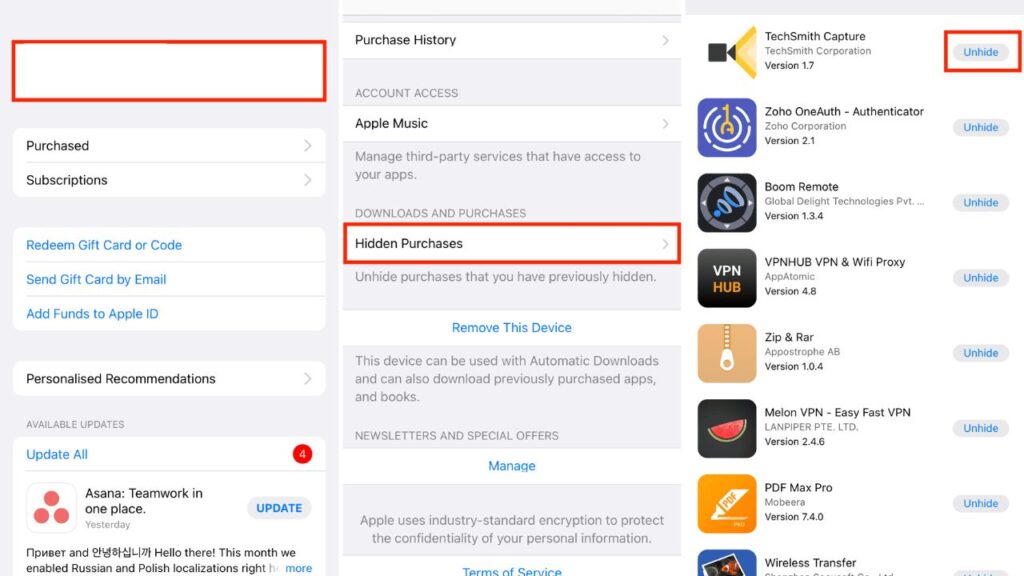
If you previously hid an app from your purchase history in the App Store, you can restore it easily:
- Open the App Store and tap your profile icon in the top-right corner.
- Go to Purchased → Hidden Purchases.
- Tap Unhide next to the app you want to restore.
This reveals the app in your purchase history, allowing you to redownload it at any time. Note that this doesn’t automatically reinstall it; you’ll need to download it again if it was deleted.
How to Restore Offloaded Apps
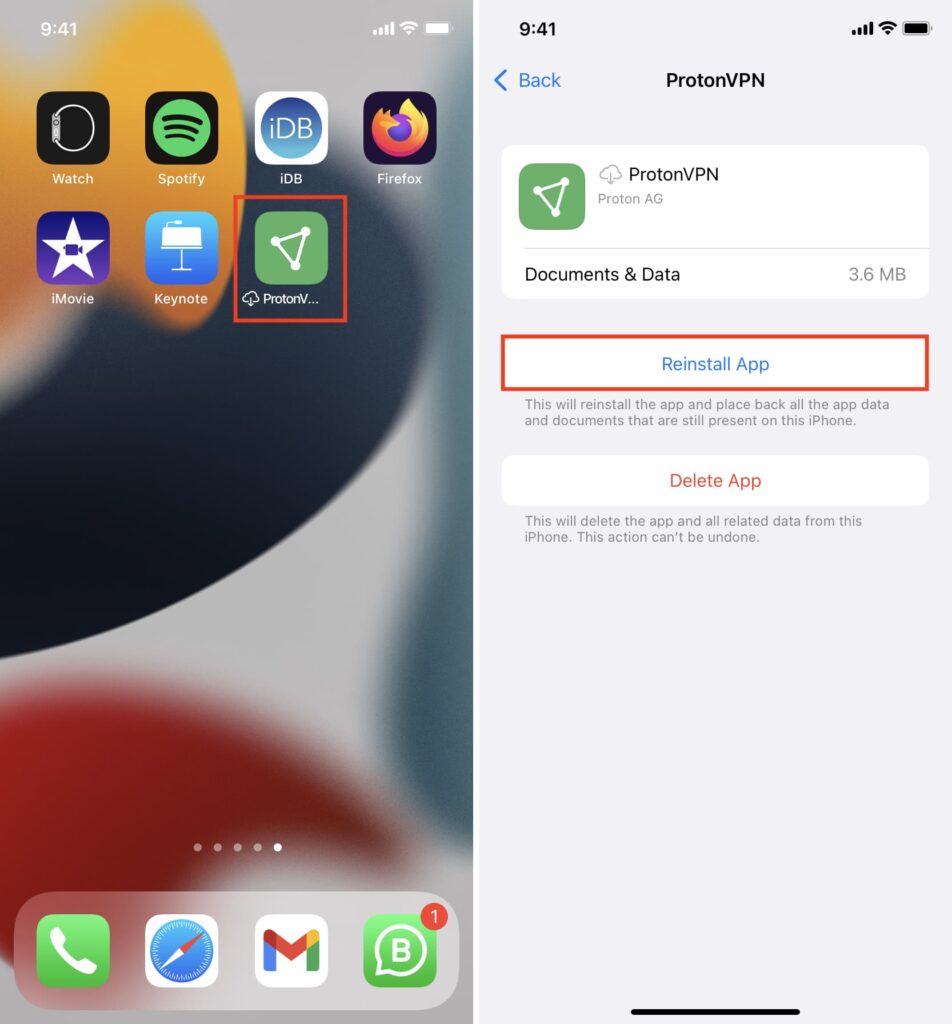
iPhones running low on storage sometimes offload unused apps while keeping their data intact. You can identify offloaded apps by the small cloud icon next to their name.
To restore them:
- Tap the app’s icon directly; it will start reinstalling.
- Or go to Settings → General → iPhone Storage.
- Scroll to the app, then tap Reinstall App.
Restoring offloaded apps can also improve your iPhone’s performance if done strategically. You can explore more optimization techniques in our guide on How to Speed Up iPhone Performance.
Comparison Table: Different Ways to Unhide Apps on iPhone
Before moving on, here’s a quick comparison of all the methods discussed above for easy reference:
Scenario | Where to Find | How to Unhide | Additional Tips |
Hidden from Home Screen | App Library | Long-press app → Add to Home Screen | Adjust “Newly Downloaded Apps” in Settings |
Restricted by Screen Time | Settings → Screen Time | Toggle back under “Allowed Apps” | Disable restrictions if necessary |
Hidden Purchases | App Store | Profile → Hidden Purchases → Unhide | Re-download if removed |
Offloaded by iOS | Home Screen (cloud icon) | Tap to reinstall | Free up space before reinstall |
Missing Entirely | App Store | Search and download again | Check Apple ID sync |
Troubleshooting Tips
If you’ve tried everything and your app is still missing, consider these final checks:
- Check for iOS updates: Go to Settings → General → Software Update to ensure your system is up to date.
- Confirm your Apple ID: Apps downloaded under a different Apple ID won’t appear under your main one.
- Use Siri: Simply say, “Hey Siri, open [App Name],” to confirm if it’s installed but hidden.
- Restart your iPhone: A quick reboot can resolve temporary visibility bugs.
If your apps are crashing or failing to open after unhiding, you can use our troubleshooting guide: How to Fix App Crashes on iPhone.
Conclusion
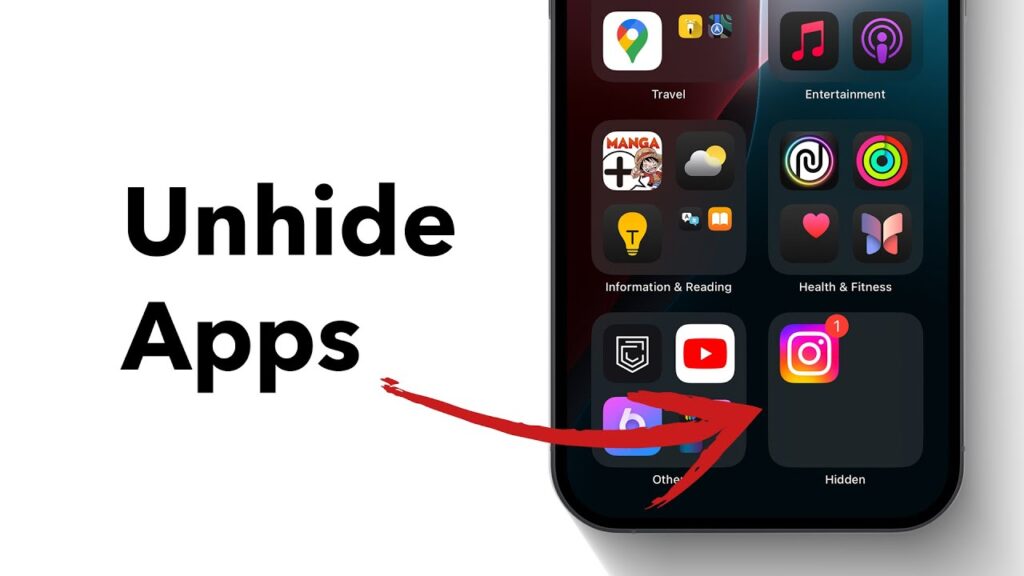
Hiding apps on an iPhone is a convenient way to stay organized, but it can be frustrating when you forget where they’re tucked away. Thankfully, whether your apps are hidden in the App Library, restricted by Screen Time, or offloaded for storage, the steps above will help you restore them quickly.
By learning these methods, you’ll not only save time but also gain a better understanding of iOS’s organizational features, which become even more apparent when comparing device ecosystems, such as the iPhone 16 vs Samsung Galaxy S24.
Now that you know how to unhide apps on your iPhone, you’ll never lose track of your favorite tools again. I’ve personally used these same steps to bring back apps I thought were long gone.