When your iPhone starts lagging, apps take too long to open, or multitasking becomes frustrating, clearing RAM can bring everything back to life. Even though iOS handles memory automatically, clearing RAM manually can instantly fix slowdowns, crashes, UI delays, and background task overload, especially on older or heavily used devices. This guide breaks down every method that works across all iPhone models and explains how RAM affects your phone’s speed and stability.
Because the topic often overlaps with other performance issues, such as overheating, frozen screens, or background processes stuck in “SOS” mode, I’ll also include helpful internal links you can use to troubleshoot deeper problems. By the end of this guide, you’ll know exactly how to reset your iPhone’s active memory the right way, the safest way, and the quickest way, and you’ll know when not to use these methods.
What RAM Does on an iPhone & Why It Matters
RAM (Random Access Memory) is where your iPhone stores active tasks, system processes, and app data while you’re using the device. When RAM is overloaded, even everyday actions like typing, scrolling, switching apps, or opening the camera may feel slow. Apple’s iOS is extremely efficient at managing memory, automatically suspending background apps and reallocating resources as needed. According to Apple’s official iOS performance documentation, the system dynamically manages RAM to avoid unnecessary manual intervention.
However, RAM can still become cluttered over time if you multitask heavily, use many apps, leave Safari tabs open, or run resource-intensive tools. This leads to sluggish performance that clearing RAM can fix almost instantly.
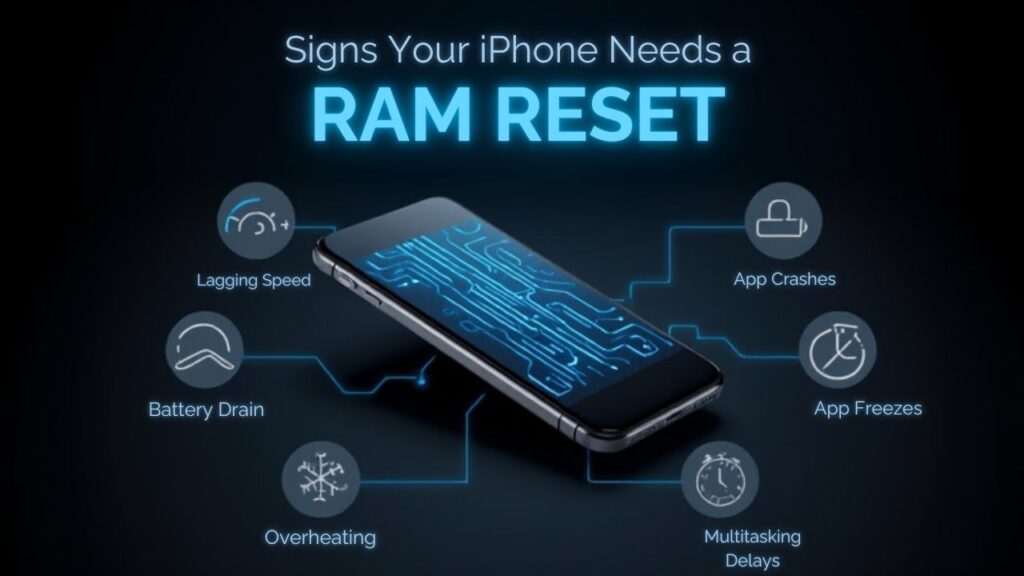
Signs Your iPhone Needs a RAM Reset
You may notice:
- Apps taking too long to launch
- Keyboard lag or UI stuttering
- App freezes or unexpected crashes
- Multitasking delays
- Increased heat from too many active processes (more on this in our guide on iPhone overheating)
- Safari tabs reloading frequently
- General sluggishness after long sessions
If these symptoms appear consistently, resetting your RAM often resolves them.
How to Clear RAM on iPhone (All Models)
There is no built-in “Clear RAM” button on iOS, so you must use device-specific actions. Below are the most reliable options.
1. Clear RAM on iPhones Without a Home Button (Face ID Models)
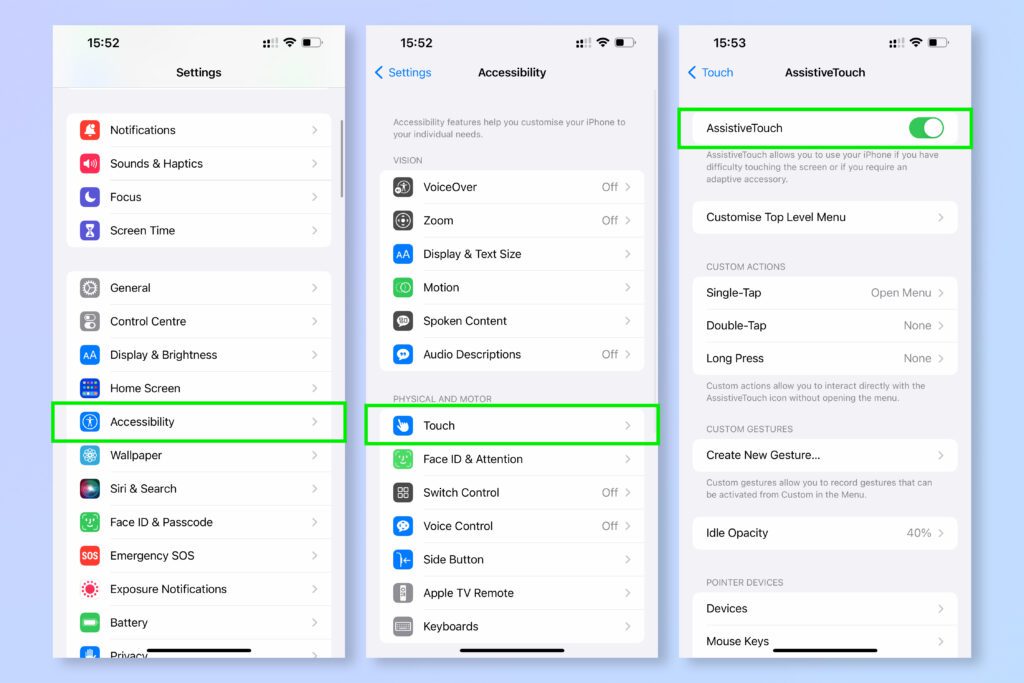
For gesture-only iPhones (X, XR, XS, 11, 12, 13, 14, 15, etc.):
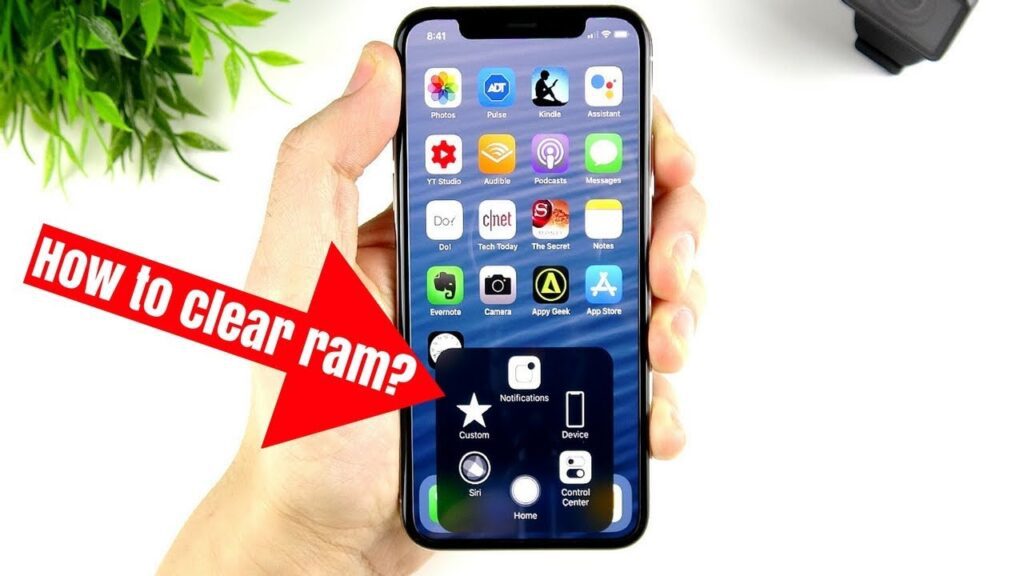
- Go to Settings → Accessibility → Touch → AssistiveTouch.
- Enable AssistiveTouch — this adds a floating virtual Home button.
- Return to Settings → General → Shut Down.
- When the “slide to power off” screen appears, tap the AssistiveTouch button.
- Press and hold the Home icon until the screen flickers and returns to the lock screen.
This flicker indicates that active RAM has been flushed.
2. Clear RAM on iPhones With a Home Button (Touch ID Models)
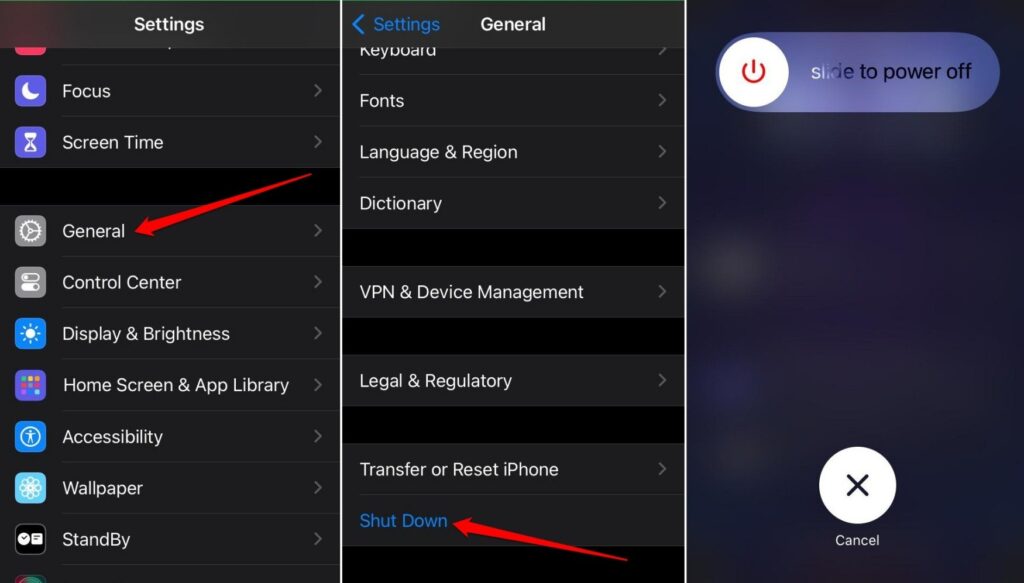
If your iPhone has a physical Home button (iPhone 8, 7, 6s, SE):
- Open Settings → General → Shut Down.
- When you see the power-off slider, press and hold the physical Home button until the screen flashes and returns to the lock screen.
This refreshes the active memory without fully powering off your phone.
3. Force Restart (Best for Crashes or Severe Lag)
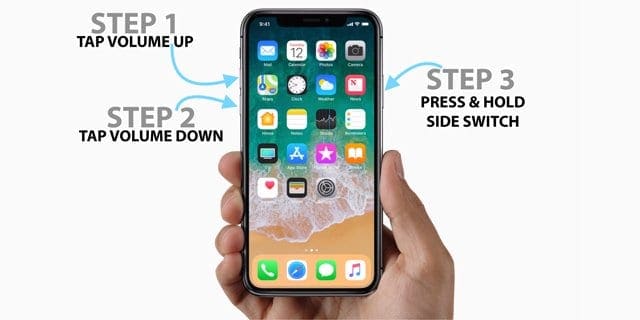
This method clears RAM and reloads the system kernel; ideal for deep freezes:
- iPhone 8 and Newer: Quickly press Volume Up, then Volume Down, then hold the Side button until the Apple logo appears.
- iPhone 7/7 Plus: Hold Volume Down + Side button until the Apple logo appears.
- iPhone 6s or Older: Hold Home + Top/Side button until the Apple logo appears.
A force restart wipes all active processes, effectively resetting RAM.
Comparison Table: Best Ways to Clear RAM on iPhone
Here is the promised comparison table:
Method | Ideal For | Advantages | Limitations |
AssistiveTouch + Shutdown Screen | Newer iPhones (no Home button) | Doesn’t require a full restart; fast | Slightly hidden steps |
Home Button Hold | Older iPhones | Quick, simple, reliable | Only works on physical Home models |
Force Restart | Severe lag or freezes | Clears more processes than other methods | Interrupts all active tasks |
Closing Apps Manually | Light lag or background clutter | Free’s small amounts of memory | iOS automatically reopens key apps; limited effectiveness |
If your iPhone is also running slowly while overheating, clearing RAM can help, but it’s smarter to read our full overheating guide to uncover the deeper cause.
When You Shouldn’t Clear RAM

Although helpful, RAM clearing should not be overused. iOS handles memory automatically using advanced background optimization, as explained in Apple’s developer documentation on iOS memory usage.
Avoid manual RAM resets when:
- GPS navigation is running
- Music or podcasts are playing
- Downloads or updates are active
- You rely on background activity (e.g., alarms, timers, widgets)
Clearing RAM will close suspended apps and reload all active ones, causing a temporary interruption.
Other Ways to Boost iPhone Speed
Clearing RAM is just one part of overall performance. Here are additional improvements:
- Restart your iPhone regularly to refresh system processes.
- Free up storage; low storage can increase lag.
- Reduce Background App Refresh for heavy apps.
- Update iOS to apply optimization patches.
- Clear Safari data and website storage, which you can learn more about in my guide on how to clear cookies on iPhone.
- Troubleshoot signal issues, especially if your iPhone is stuck on SOS mode. See our guide on what SOS means on iPhone.
These steps work together to reduce RAM usage and improve overall processing speed.
Final Thoughts
Clearing RAM on an iPhone is one of the fastest ways to eliminate lag, fix freezing apps, and restore smooth multitasking. Whether you use AssistiveTouch, the Home-button method, or a force restart, each technique gives iOS a clean slate to work with. Just remember that iOS normally manages RAM automatically, so use these methods only when needed, especially if your performance issues persist or are tied to overheating, storage limits, or network conditions.
If your iPhone has been feeling slower, try one of these RAM-clearing methods and then explore deeper fixes using the internal guides I’ve linked above. I hope this detailed walkthrough makes it easier to maintain your iPhone’s performance. I’m always here to help you keep your device running smoothly.
At Your Tech Compass, we publish practical guides and honest tech reviews to help users make smarter decisions.