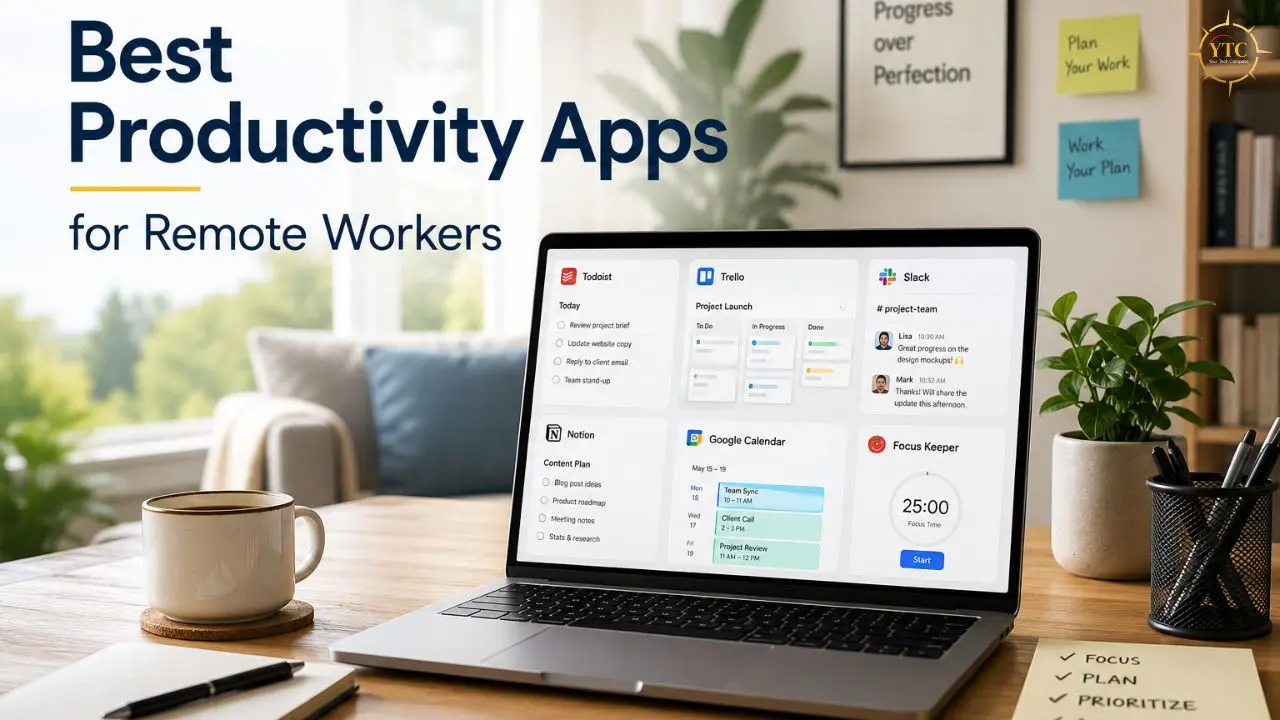
Remote work sounds like the dream until you’re three hours into a day and can’t remember what you were supposed to be doing. No office structure, no manager walking by, no visible clock on the wall, just you, your laptop, and approximately forty browser tabs pulling your attention in different directions simultaneously. I’ve been through that cycle, and I can tell you that willpower alone doesn’t solve it. The right combination of productivity apps for remote workers does. Not because apps think for you, they don’t, but because they reduce the friction between having work to do and actually getting it done.
The tools in this guide aren’t here because they have the best marketing. They’re here because they solve real remote-work problems: tasks falling through the cracks, time disappearing without explanation, communication happening across 12 different places at once, files that are impossible to find, and repetitive processes eating up hours that should be spent on focused work. I’ve organized them by the specific problem they solve, added honest specs and limitations for each, and included a comparison table so you can make a quick decision without having to test six tools yourself. Whether you’re a freelancer working solo, part of a distributed team, or somewhere in between, this guide has you covered.
Why Productivity Apps Matter More for Remote Workers Than Anyone Else
When you work in an office, the environment does a lot of the heavy lifting. Other people working creates social accountability. Physical proximity makes communication easy. The separation between work and home is built into geography. Remote work removes all those cues at once, which means you have to deliberately recreate them with tools.
That’s the actual job that productivity apps do for remote workers. They automatically replace the structures that office environments provide: the shared task board that replaces hallway conversation, the time tracker that replaces the psychological pressure of being visibly at your desk, and the communication platform that replaces the ability to tap someone on the shoulder.
Remote work success is largely a tool-selection problem, not because tools replace discipline, but because they dramatically lower the cost of being disciplined in the first place. As one productivity researcher framed it: the best system is the one you actually use consistently, and consistency matters more than the specific tool you choose.
What these tools do is make consistent use easy enough that you stick with it. Additionally, the right tools integrate with each other in ways that compound their value. Your task manager connects to your calendar.
In addition, your time tracker links to your project manager. And your cloud storage syncs across all devices you work on. That integration layer (your workflows being automatic rather than manual) is where remote workers find the hours they were losing.
📊 Best Productivity Apps for Remote Workers: Full Comparison

Tool | Category | Free Plan | Paid Plans (From) | Best For | Verdict |
Trello | Task management | ✅ 10 boards | $5/user/month | Visual, simple workflows | ✅ Best starter tool |
Asana | Project management | ✅ Up to 10 users | $10.99/user/month | Teams, cross-functional projects | ✅ Best for teams |
ClickUp | All-in-one workspace | ✅ Unlimited users | $7/user/month | Freelancers + teams | ✅ Best free plan |
Slack | Communication | ✅ 90-day history | $7.25/user/month | Async remote teams | ✅ Standard for remote |
Microsoft Teams | Communication | ✅ 60-min meetings | $4/user/month | Microsoft 365 orgs | ✅ Best for MS users |
Zoom | Video meetings | ✅ 40-min groups | $13.33/user/month | Client calls, workshops | ✅ Most reliable video |
Toggl Track | Time tracking | ✅ Up to 5 users | $9/user/month | Freelance billing | ✅ Best time tracker |
RescueTime | Focus analytics | ✅ Free Lite | $7/month (annual) | Habit awareness | ✅ Best for self-insight |
Forest | Focus/phone | ✅ Android; $1.99 iOS | Forest+ subscription | Phone-free focus sessions | ✅ Best for phone habits |
Google Drive | Cloud storage | ✅ 15GB | $1.99/month (100GB) | Document collaboration | ✅ Best free storage |
Dropbox | Cloud storage | ⚠️ 2GB only | $9.99/month (2TB) | Large files, creative teams | ✅ Best for media files |
OneDrive | Cloud storage | ✅ 5GB | $5/user/month | Windows + Microsoft 365 | ✅ Best for MS users |
Zapier | Automation | ⚠️ 100 tasks/month | $19.99/month | App-to-app automation | ✅ Widest integrations |
Notion | Docs + workspace | ✅ Individual use | $10/user/month | Documentation-heavy teams | ✅ Best all-in-one docs |
Airtable | Structured data | ✅ 1,000 records | $20/user/month | Content ops, data teams | ✅ Best for structured data |
Task Management and Organization Apps
A note before we begin: every YTC score is earned, never negotiated. If you want to understand exactly how we evaluate apps & tools and how we handle affiliate relationships, our Review Methodology lays it all out.
Keeping track of your workload when there’s no team standup and forcing accountability are the first things most remote workers struggle with. These three tools represent the best in the task management category for teams of different sizes and workflow styles.
1. ClickUp: Best All-in-One Workspace for Freelancers and Teams (R88)
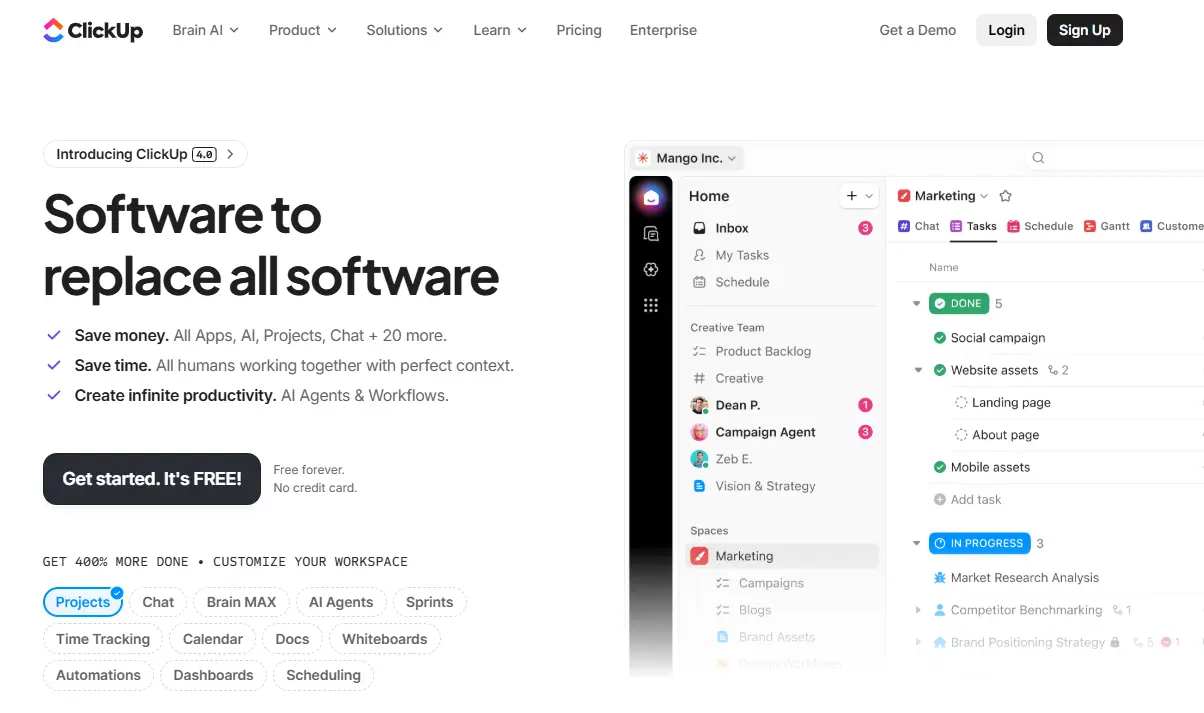
ClickUp positions itself as “one app to replace them all,” and while that’s bold marketing language, it’s closer to accurate than most productivity tools’ claims. It combines task management, goal tracking, document collaboration, time tracking, Gantt charts, and AI writing assistance in a single platform. ClickUp’s free plan is among the most generous in the category.
The flexibility is ClickUp’s defining characteristic. The same underlying task data can be viewed as a list, a board, a Gantt chart, a calendar, a timeline, or a mind map, all without importing or exporting anything. That means your project manager gets the Gantt view they need, your designer gets the calendar view they prefer, and your developer gets the list view that matches their workflow, all from the same task database.
Key Specs
- Platform: Web, iOS, Android, Windows, macOS, Linux
- Free Plan: Unlimited tasks, unlimited users, 5 Spaces, 100MB storage, multiple views
- Paid Plans: Unlimited from $7/user/month; Business from $12/user/month (annual billing); Brain AI add-on from $9/user/month
- Integrations: 1,000+ integrations, including Slack, Google Drive, GitHub, Notion, Zapier
- Offline: Limited offline mode on desktop
Why It Stands Out
- Free plan supports unlimited users; genuinely rare in this category and particularly valuable for small remote teams watching costs.
- Multiple views of the same data mean different team members can work in whatever format best matches their thinking style.
- Native time tracking is built into the free plan; no separate tool is required for freelancers who need to log hours.
- Goals and OKRs tracking connect daily task completion to higher-level objectives.
Honest Limitations
- ClickUp 4.0’s feature density is real; verified user reviews consistently flag the interface’s complexity and learning curve as the biggest friction points for new users. Budget time for onboarding.
- Brain (the AI features) is a paid add-on at $ 9 per user per month and is not included in any base plan.
- “One app to replace them all” can mean excessive context switching within a single tool.
Best For
Freelancers managing multiple clients who need one organized workspace, and remote teams of any size who want a single platform for tasks, docs, and time tracking rather than three separate tools.
2. Trello: Best for Visual Thinkers and Simple Workflows
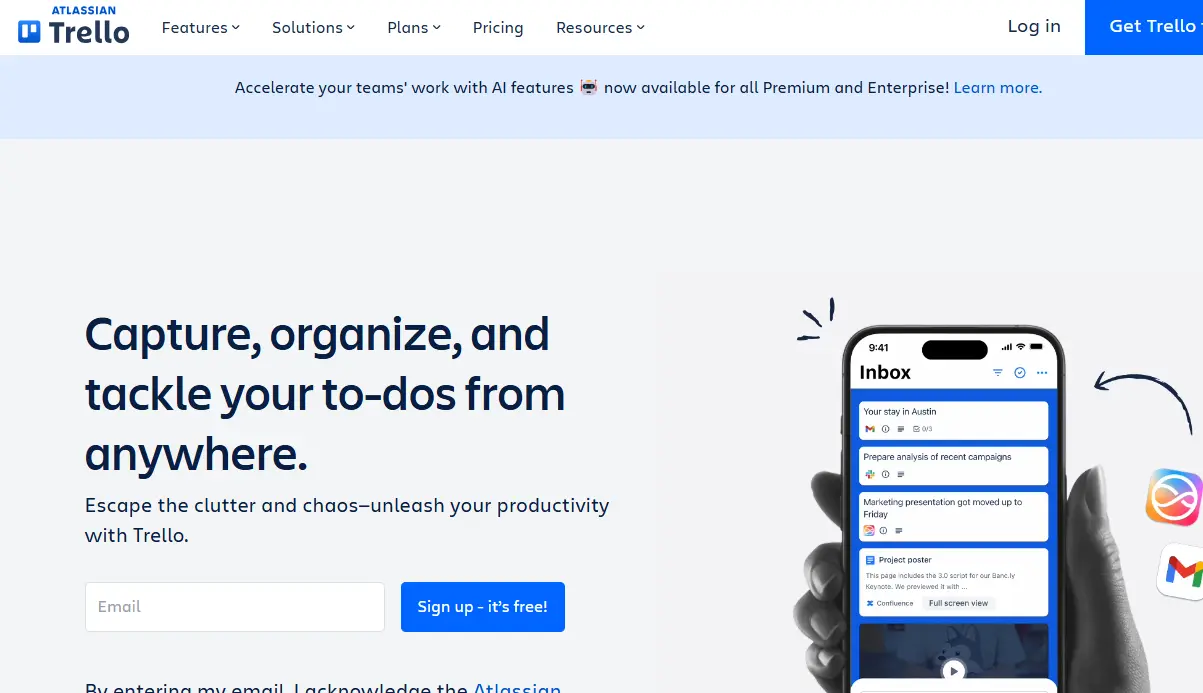
Trello is a Kanban-style project management tool that lets you organize work as boards, lists, and cards, a visual system that makes the status of every task visible at a glance. It was built around simplicity, and that simplicity is both its greatest strength and its honest limitation.
Trello describes itself as a tool that “lets you work more collaboratively and get more done.” In practice, this translates to a drag-and-drop interface where tasks move through stages (To Do → In Progress → Done) without any technical knowledge required.
You can assign cards to team members, set due dates, attach files, add checklists within cards, and leave comments. The Power-Ups system lets you add automations, calendar views, and integrations with tools like Slack and Google Drive without leaving the Trello interface.
Key Specs
- Platform: Web, iOS, Android, Windows, macOS
- Free Plan: Unlimited cards, up to 10 boards per workspace, unlimited Power-Ups (one per board on free)
- Paid Plans: Standard from $5/user/month; Premium from $10/user/month (annual billing)
- Integrations: Slack, Google Drive, Jira, GitHub, Dropbox, and 200+ others
- Offline: Limited (mobile app caches recent activity)
Why It Stands Out
- The visual Kanban interface has essentially zero learning curve; most users are productive within minutes of signing up.
- The free plan is genuinely functional for individual remote workers and very small teams.
- Automations via Butler reduce repetitive card management without requiring paid tiers.
- Customizable card views, including calendar, timeline, and table views, on paid plans.
Honest Limitations
- Trello doesn’t handle complex project dependencies well. If your work involves multi-step tasks where step B can’t start until step A is verified, you’ll need to use workarounds in Trello.
- The free tier limits you to 10 boards, which fill up quickly if you manage multiple client projects.
- No built-in time tracking, Gantt views, or reporting on the core product.
Best For
Individual remote workers, freelancers, and small teams (under 10 people) who need a simple visual system for tracking task status without a steep learning curve or complex setup.
3. Asana: Best for Team Collaboration and Project Tracking
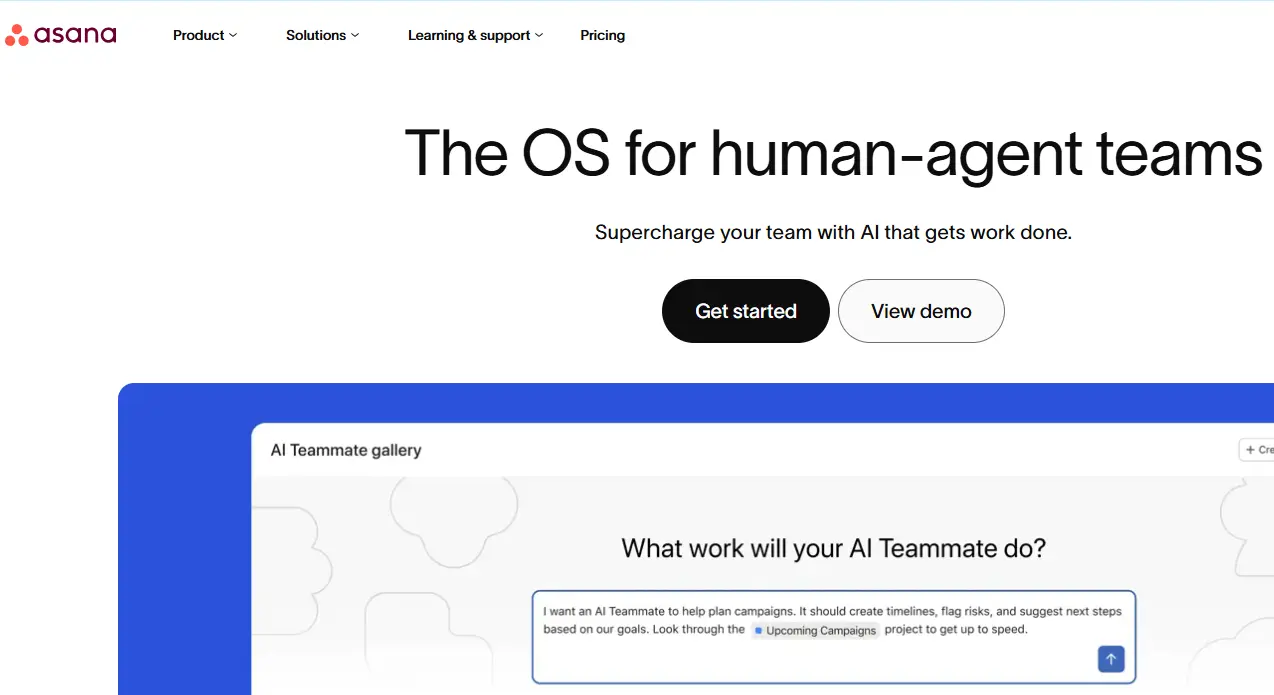
Asana is where task management graduates to actual project management. It handles everything Trello does and adds milestones, project timelines, dependencies, rule-based automation, and reporting that give teams visibility into project health, not just individual task status.
Asana’s core strength for remote teams is the way it keeps everyone aligned without requiring constant check-in meetings. Tasks have clear owners, due dates, subtasks, and comment threads. Project timelines show dependencies visually.
Workload views let managers see who is over capacity before someone misses a deadline. The rules engine automates routine status updates, assignments, and notifications, reducing the administrative overhead that disproportionately consumes remote workers’ time.
Key Specs
- Platform: Web, iOS, Android, Windows, macOS
- Free Plan: Unlimited tasks and projects, up to 10 users, list and board views, integrations with Google Drive, Slack, and Zoom
- Paid Plans: Premium from $10.99/user/month; Business from $24.99/user/month (annual billing)
- Integrations: 300+ integrations, including Slack, Google Workspace, Zoom, Microsoft 365, HubSpot, Salesforce
- Offline: Limited read access on mobile
Why It Stands Out
- Project timeline view with dependencies: you can see the full sequence of a project’s work and identify which tasks are blocking progress.
- The rules engine automates repetitive project management steps without requiring any coding.
- Workload management gives team leads visibility into who is over- or under-utilized.
- My Tasks view gives each team member a single prioritized list of everything assigned to them across all projects.
Honest Limitations
- Asana has a notably steeper learning curve than Trello. New team members typically need an hour of onboarding before they’re comfortable.
- The free plan caps at 10 users, which is a hard limit for growing teams.
- Reporting and portfolio views (useful for managers overseeing multiple projects) require the Business plan.
Best For
Remote teams of 5–50 people managing multiple ongoing projects simultaneously, especially those with cross-functional work involving different departments or contributors. Pair Asana with note-taking apps for Mac to keep your meeting notes, project context, and action items organized in one place alongside your Asana workflow.
Communication and Collaboration Tools
In a remote environment, communication that used to happen in a hallway or across a desk now needs to be intentional, structured, and accessible across time zones. These three tools define how most remote teams communicate.
1. Zoom: Best for Video Meetings and Client-Facing Calls
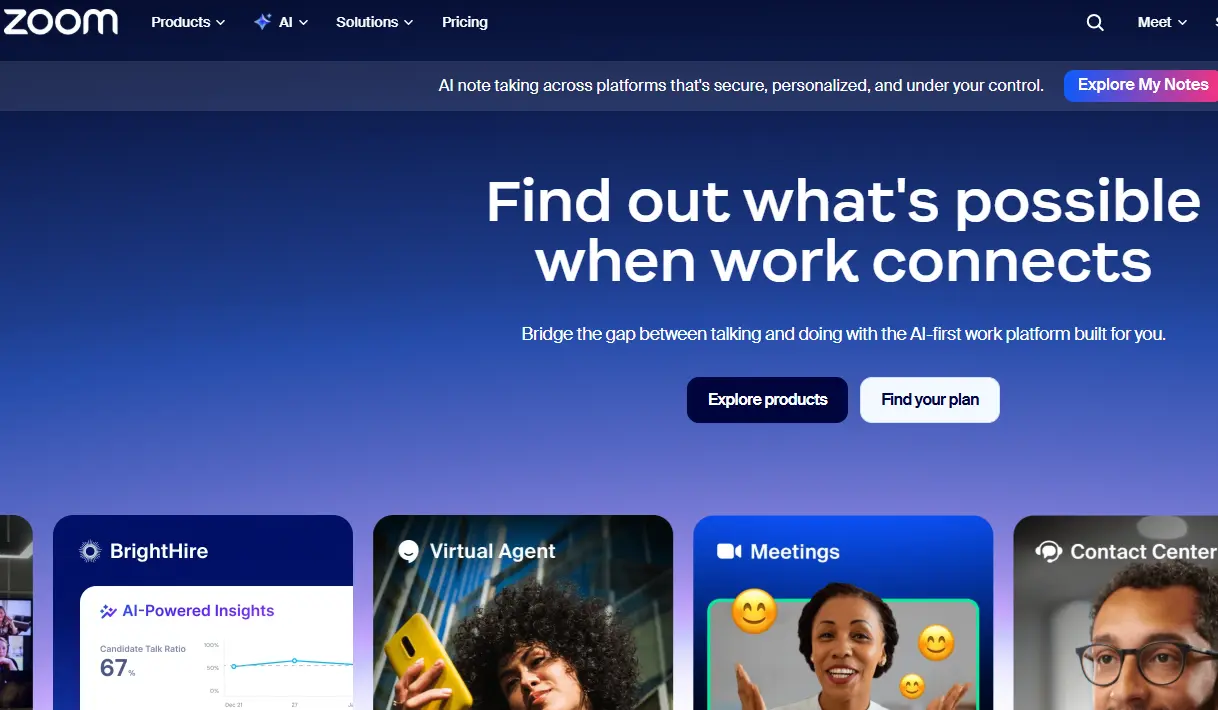
Zoom remains the gold standard for video conferencing quality and reliability, and there’s a straightforward reason for that reputation: it works consistently across widely varying internet connections in ways that browser-based meeting tools don’t always replicate. For client-facing calls specifically, where technical failures have real professional consequences, Zoom’s reliability is a meaningful advantage.
Beyond basic video meetings, Zoom’s meeting management features have matured significantly: breakout rooms for workshop facilitation, waiting rooms for controlled client onboarding, AI-powered meeting summaries, and webinar functionality for larger-audience events. The screen-sharing quality and annotation tools are among the strongest on any video platform.
Key Specs
- Platform: Web, iOS, Android, Windows, macOS, Linux
- Free Plan: Unlimited 1:1 meetings, 40-minute group meetings (up to 100 participants)
- Paid Plans: Pro from $13.33/user/month; Business from $18.33/user/month (annual billing)
- Integrations: Slack, Asana, Google Calendar, Outlook, HubSpot, Salesforce
- Offline: Not applicable (meeting tool)
Why It Stands Out
- Industry-leading connection reliability. It maintains video quality under network conditions that cause competing platforms to crash.
- AI meeting summaries automatically capture action items, decisions, and key discussion points after the call.
- Breakout rooms and workshop facilitation tools are the most mature in the category.
- Whiteboard collaboration is built into meetings for live visual brainstorming.
Honest Limitations
- 40-minute limit on free group calls is the most consistently cited friction point; client calls that run over create awkward end-and-restart cycles.
- Zoom fatigue is a real, documented phenomenon; the cognitive load of sustained video eye contact differs from that of in-person meetings.
- Security settings require active management on the host side to prevent unwanted participants on public links.
Best For
Remote workers who conduct regular client-facing calls, teams running structured workshops or training sessions, and any professional context where video reliability directly affects how you’re perceived.
2. Microsoft Teams: Best for Microsoft 365 Users and Enterprise Remote Teams
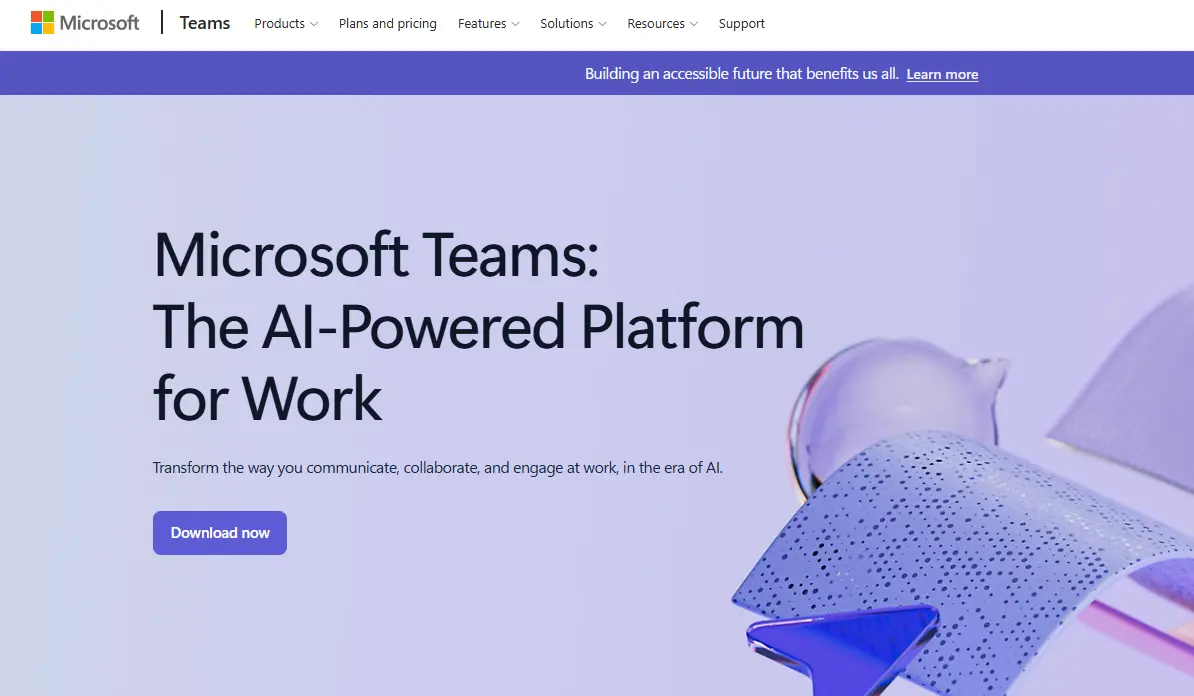
Microsoft Teams is the natural home for remote workers already operating inside the Microsoft 365 ecosystem. If your team uses Outlook, OneDrive, SharePoint, Word, Excel, or PowerPoint in daily work, Teams is not just a communication tool; it’s the hub that connects all those products into a single working environment.
The key advantage over Slack for Microsoft-heavy teams is the depth of integration: Word documents open natively in Teams, Outlook calendar events sync directly to Teams meetings, SharePoint file libraries are accessible inside team channels, and Excel spreadsheets can be co-authored in real time within Teams without opening a browser tab. For teams that live in Office files, that native integration is meaningfully more productive than maintaining a separate Slack workspace alongside Microsoft tools.
Key Specs
- Platform: Web, iOS, Android, Windows, macOS
- Free Plan: 5GB storage, 60-minute meeting limit, group chats, basic collaboration
- Paid Plans: Essentials from $4/user/month; Microsoft 365 Business Basic from $6/user/month (annual billing)
- Integrations: Deep Microsoft 365 integration; 700+ third-party apps in Teams app store
- Offline: Limited; core messaging cached for offline reading
Why It Stands Out
- Native co-authoring of Office documents directly within Teams channels; no separate app switching for Word, Excel, or PowerPoint.
- Together Mode for video meetings reduces fatigue by placing participants in a shared virtual environment rather than individual boxes.
- Meeting transcription and recording are built into the platform on paid plans.
- The most enterprise-grade security and compliance controls of any communication tool on this list.
Honest Limitations
- Teams’ interface is meaningfully more complex than Slack’s. The learning curve is steeper, and navigating among channels, chats, and meetings simultaneously can feel disorienting at first.
- The free plan’s 60-minute meeting limit is a practical constraint for teams that run longer strategy sessions or client workshops.
- Non-Microsoft tool integrations are available but are generally less seamless than native Office connections.
Best For
Remote teams embedded in the Microsoft 365 ecosystem, typically mid-size to large organizations, enterprise remote teams, and any team that handles regulatory compliance requirements that benefit from Microsoft’s enterprise security posture.
3. Slack: Best for Async and Real-Time Team Communication
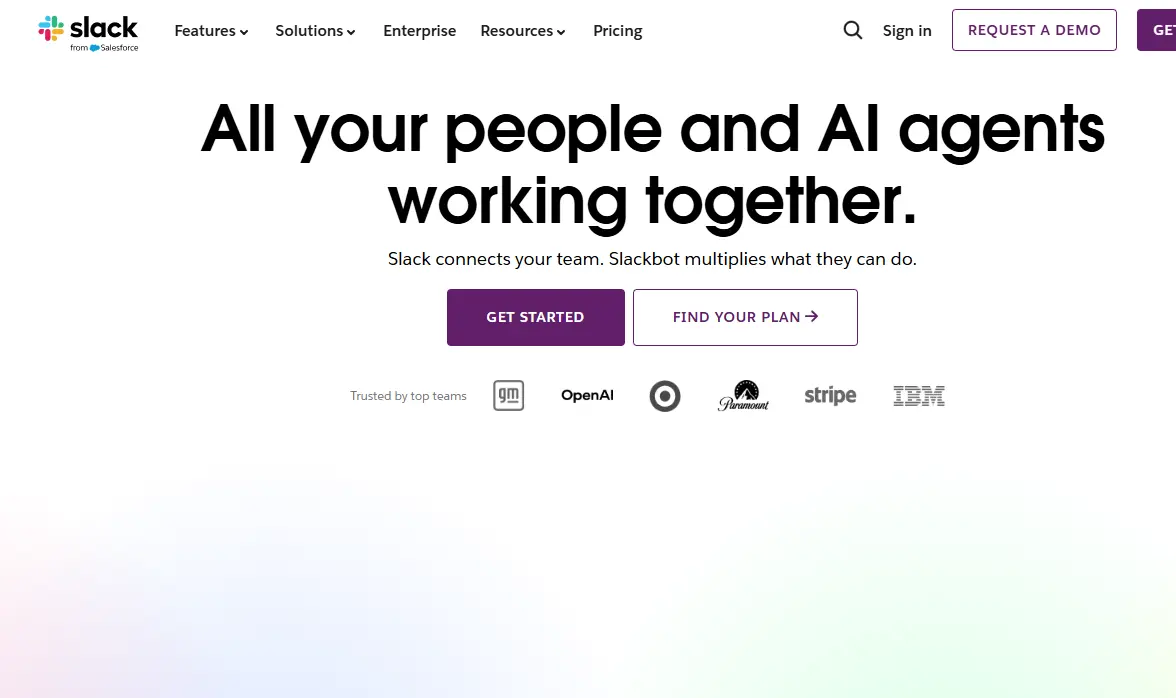
Slack is the default communication platform for remote teams worldwide, and that default status is earned, not just assumed. Organized channels keep conversations organized by topic rather than by person, so you can follow only what’s relevant to you and catch up on the rest at your own pace. That async-by-design approach is what makes Slack genuinely valuable for distributed teams rather than just a replacement for email.
Slack’s real power comes from its 2,400+ integrations. You can receive automated notifications from GitHub, Asana, Google Drive, Jira, and dozens of other tools directly in your Slack channels, which means your team’s single source of real-time information is Slack, not a sprawl of separate inboxes and dashboards.
Key Specs
- Platform: Web, iOS, Android, Windows, macOS, Linux
- Free Plan: 90-day message history, 10 integrations, 1:1 huddles
- Paid Plans: Pro from $7.25/user/month; Business+ from $12.50/user/month (annual billing)
- Integrations: 2,400+ apps, including Google Workspace, Asana, ClickUp, GitHub, Zoom, Salesforce
- Offline: Message drafts saved; read-only cache when offline
Why It Stands Out
- Channel-based organization lets team members manage the flow of information rather than be overwhelmed by it.
- Slack Connect allows direct communication with external clients and partners without switching platforms.
- Huddles (lightweight voice/video calls) can be initiated with one click, faster than scheduling a meeting for a 3-minute question.
- Workflow Builder automates routine Slack actions like welcome messages, status updates, and approvals.
Honest Limitations
- The free plan’s 90-day message limit is the most common complaint in user reviews; after 90 days, older messages are no longer searchable.
- Slack can become a source of distraction as easily as it solves one; without channel discipline and notification management, it fragments focus.
- Notifications require active management; the default settings will frequently interrupt deep work.
Best For
Any remote team that needs structured, searchable async communication with deep integration into the rest of their tool stack. Use alongside Trello or Asana and link task cards directly into Slack channels for a clean connection between communication and action.
Time Management and Focus Apps
Time is the remote worker’s most finite and most frequently mismanaged resource. These tools don’t manufacture time. They show you exactly where it’s going and help you take it back.
1. Forest: Best for Phone-Free Focus Sessions
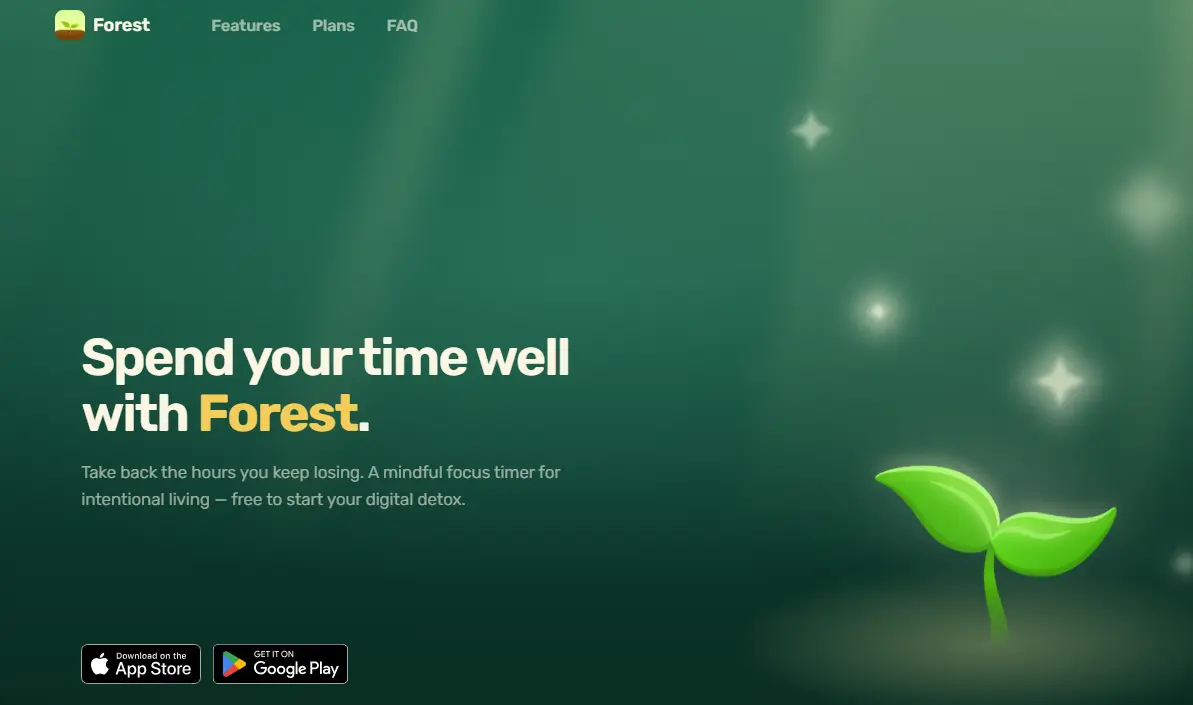
Forest gamifies focus in the simplest possible way: you set a timer, and a virtual tree grows while it runs. If you leave Forest to check your phone, the tree dies. That gamification loop is surprisingly effective, particularly for remote workers whose phones are the single biggest threat to their concentration.
Forest isn’t trying to replace a comprehensive time tracker or productivity system. It solves one specific problem: the reflexive phone-checking habit that fragments focus, using a mechanism light enough to feel like a game rather than a constraint. Each completed session earns coins that can be spent to plant real trees through Forest’s partnership with Trees for the Future, adding a social-good component that motivates many users more effectively than personal willpower alone.
Key Specs
- Platform: iOS, Android, Chrome extension (web)
- Free Plan: iOS; paid app ($1.99 one-time); Android; free with ads; Chrome extension; free
- Paid Plans: Forest+ subscription for advanced stats, custom sounds, and additional species
- Integrations: Limited; operates as a standalone focus tool
- Offline: Yes (fully offline capable)
Why It Stands Out
- Zero learning curve; set time, tap start, keep your phone down.
- The visual consequence of leaving (the tree dying) creates a mild but effective accountability mechanism.
- A real tree-planting partnership gives completed sessions a tangible social impact.
- Friends mode lets you grow forests together with teammates for group accountability.
Honest Limitations
- Forest solves exactly one problem: phone distraction. It’s not a time tracker, not a task manager, not a focus tool for desktop distractions.
- The paid iOS app price is minimal but worth noting alongside the free Android version.
- No integration with other productivity tools; it lives in its own ecosystem.
Best For
Remote workers whose primary focus threat is their smartphone: students, writers, and anyone who finds themselves reaching for their phone during work sessions as a habit rather than a necessity.
2. Toggl Track: Best for Freelancers Who Bill by the Hour
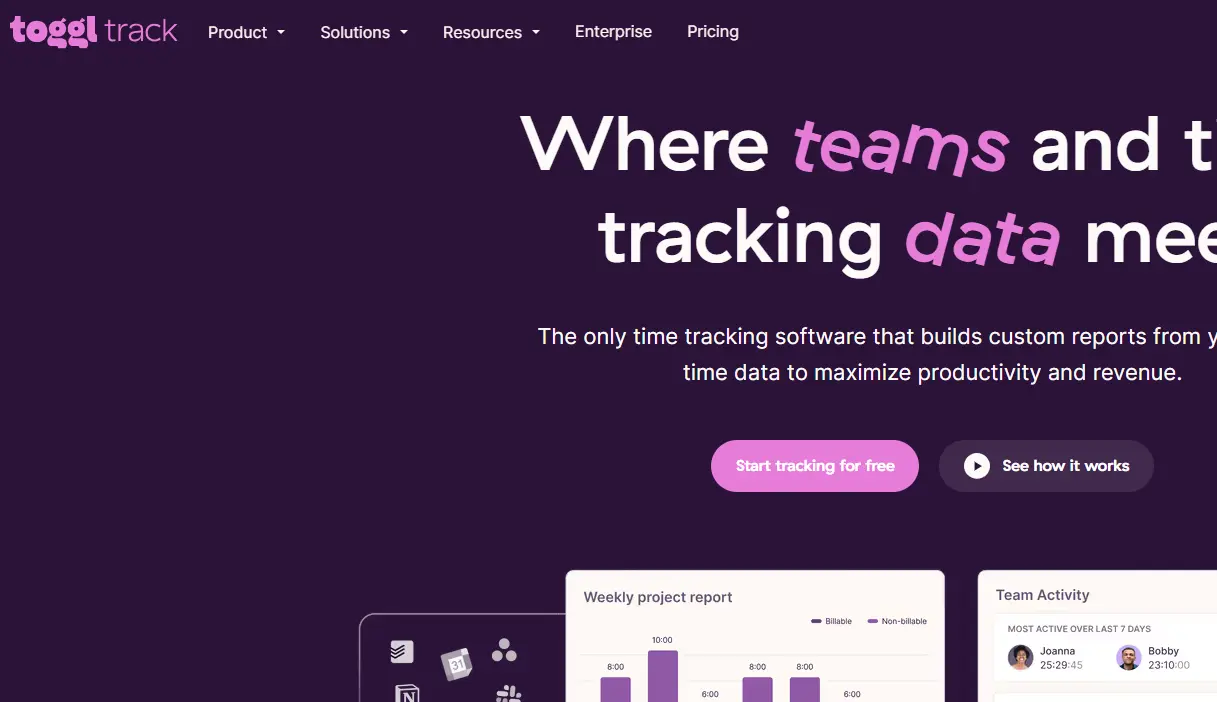
Toggl Track is the standard for freelance time tracking, and that reputation is thoroughly earned. Its free plan supports up to 5 users, unlimited projects, and reports, which is fully sufficient for solo freelancers.
Paid plans starting at around $9/user/month unlock features such as project budgets and time estimates. It’s quick to start: a one-click timer in the browser extension or mobile app, and the reports are clear enough to share directly with clients as billing backup.
The insight that Toggl consistently provides freelancers isn’t just billing accuracy; it’s the discovery that project work almost always takes longer than estimated. The real value isn’t just accurate invoicing; it’s understanding your own working patterns. If you’ve been estimating hours until now, precise time tracking will likely change how you price and plan your work.
Key Specs
- Platform: Web, iOS, Android, Windows, macOS, Linux, browser extension
- Free Plan: Up to 5 users, unlimited projects, unlimited clients, time reports
- Paid Plans: Starter from $9/user/month; Premium from $18/user/month (annual billing)
- Integrations: Asana, Trello, ClickUp, Jira, Google Calendar, Notion, 100+ others
- Offline: Yes (mobile and desktop apps track offline and sync when connected)
Why It Stands Out
- One-click timer start: the lowest-friction time-tracking experience available.
- The free plan includes reporting and unlimited projects, with no artificial limits that force upgrades to access core functionality.
- Cross-platform apps with background sync mean you can track time consistently across devices without manual reconciliation.
- Clear separation between billable and non-billable hours makes client invoicing straightforward.
Honest Limitations
- Manual timer start requires discipline. If you forget to start the timer, the data will be incorrect. Some features are limited to the paid version, but the free version still lets you track your time quickly and efficiently.
- Time rounding and editing past entries can be fiddly on mobile.
- Project budget features (useful for fixed-fee projects) are behind the Starter paid plan.
Best For
Freelancers who bill clients by the hour, independent consultants managing multiple projects, and any remote worker who wants honest data on where their billable hours actually go. Also valuable for automating client invoices with ChatGPT and Zapier, Toggl’s time data feeds cleanly into automated invoicing workflows.
3. RescueTime: Best for Understanding Where Your Time Actually Goes
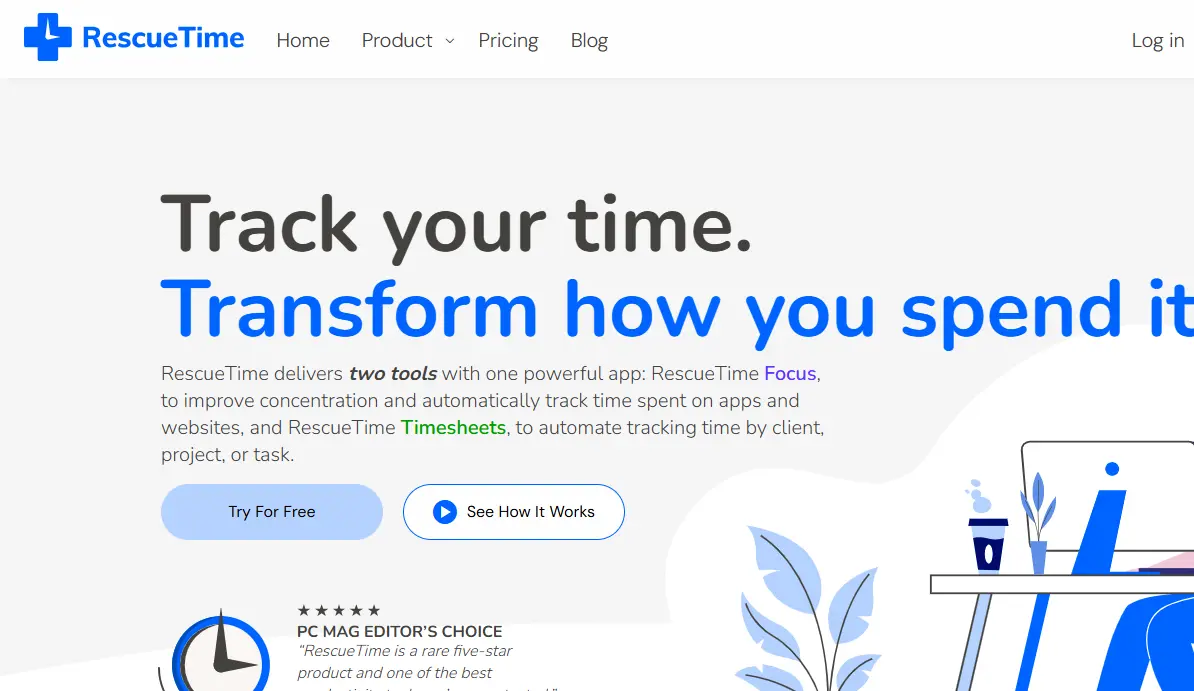
RescueTime is in a different category of time-tracking tools from Toggl, and it’s important to understand the distinction before choosing. Toggl tracks the time you consciously log.
RescueTime runs in the background, automatically tracking which apps and websites you use. It gives you an objective view of how you spend time throughout the day. You never start or stop a timer. RescueTime just watches and reports.
RescueTime is worth it if you want honest data on where your attention actually goes; it automatically captures the full picture of your workday, including distractions you’d never log manually. For remote workers who genuinely don’t know where their day goes (who feel busy but can’t explain what they accomplished), RescueTime’s automatic reports are revelatory. Most users are surprised by what the first two weeks of data show them.
Key Specs
- Platform: Windows, macOS, Android, Chrome, Firefox
- Free Plan: Free Lite plan with basic activity tracking and limited reports
- Paid Plans: Premium from $7/month (annual); unlocks FocusTime, goal tracking, detailed reports, distraction alerts
- Integrations: Slack (status sync), Zapier, Google Calendar
- Offline: Tracks offline time via manual entry prompts
Why It Stands Out
- Zero manual effort; the data exists whether you remember to track it or not.
- Productivity scoring categorizes apps and websites as productive, neutral, or distracting, and you can customize these categories to match your actual work.
- FocusTime (Premium) blocks distracting sites during a timed session to protect deep work.
- Weekly email reports give you a consistent, comparable view of your productivity trends over time.
Honest Limitations
- Some users are concerned that too much information will go online with RescueTime. Data collection is the trade-off for automatic tracking. Review the privacy settings before installing.
- Automatic tracking means some nuance gets lost. A Google Doc open for two hours might be work or a distraction, and RescueTime can’t always tell the difference.
- The free plan is too limited for meaningful insight; the paid Premium tier is required.
Best For
Remote workers who want objective, automatic data about their daily habits without the discipline of manual timers, particularly knowledge workers who want to identify and reduce their biggest distraction patterns.
Cloud Storage and File Management Apps
Remote work without reliable cloud storage is remote work with constant friction: files lost to crashed laptops, versions emailed back and forth in confusion, and no one is sure which copy is current. These three tools eliminate that problem.
1. Google Drive: Best All-Around Cloud Storage for Remote Teams
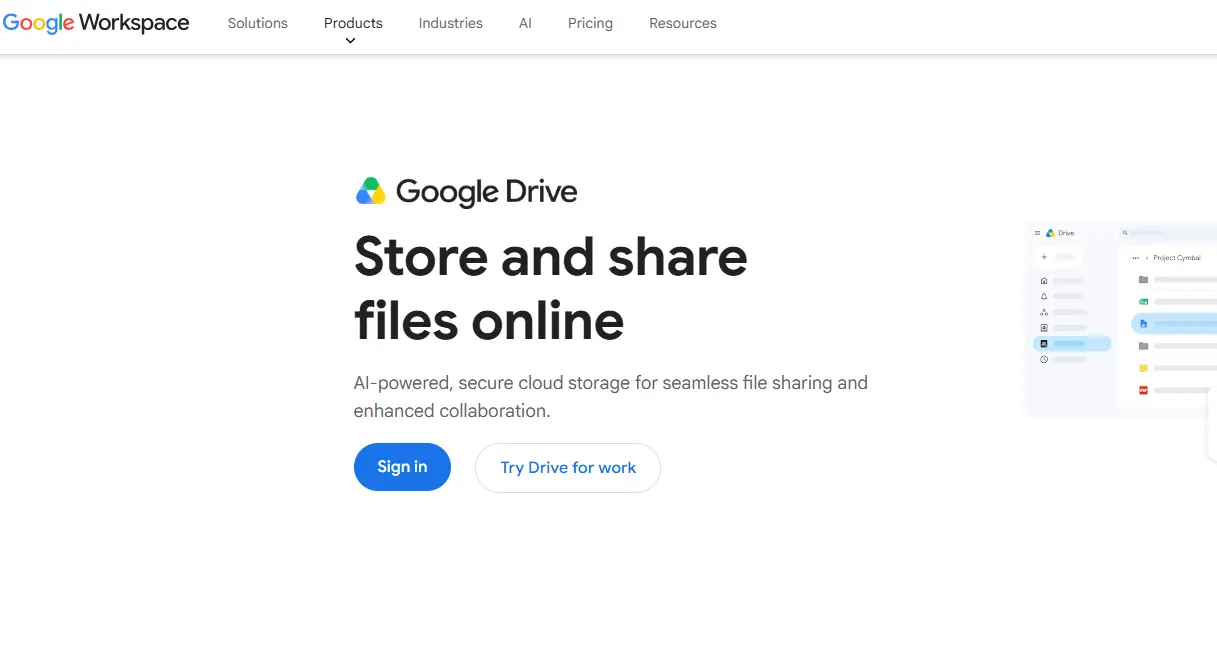
Google Drive remains the most widely used cloud storage platform for remote workers, and the reason is integration. Drive is the storage layer for the entire Google Workspace suite (Docs, Sheets, Slides, Forms, Calendar, Meet), so the tools most remote workers use daily are natively connected to the same storage environment, with no configuration required.
Real-time collaboration is where Google Drive genuinely leads: multiple people can edit a Google Doc simultaneously, see each other’s cursors in real time, leave and resolve comments, and maintain a complete version history, making it a two-click process to revert to any previous state.
Key Specs
- Platform: Web, iOS, Android, Windows, macOS (desktop sync app)
- Free Plan: 15GB shared across Google Drive, Gmail, and Google Photos
- Paid Plans: Google One from $1.99/month (100GB) to $9.99/month (2TB); Google Workspace Business Starter from $6/user/month with 30GB pooled storage
- Integrations: Full Google Workspace integration; Slack, Zoom, Asana, Trello, and 100+ others
- Offline: Yes (selected files available offline via desktop and mobile sync)
Why It Stands Out
- Real-time co-editing with cursor visibility and comment threads: the most collaborative document editing experience available in cloud storage.
- Version history on every document type allows reverting any file to any previous state without losing current work.
- Free 15GB is genuinely generous for individual remote workers.
- Shared drives for teams store files in a shared space rather than in individual accounts. Files don’t disappear when someone leaves the organization.
Honest Limitations
- 15GB fills up quickly if you store high-resolution images, video files, or large project archives.
- Google Workspace paid plans require administrator setup for teams, not a one-click experience for non-technical users.
- Files stored natively in Google Docs format don’t always export perfectly to Microsoft Office formats.
Best For
Remote workers and teams whose primary collaboration happens in documents, spreadsheets, and presentations, particularly those already using Google Workspace tools for email, calendar, and meetings.
2. OneDrive: Best for Windows-Based Remote Teams and Microsoft 365 Users
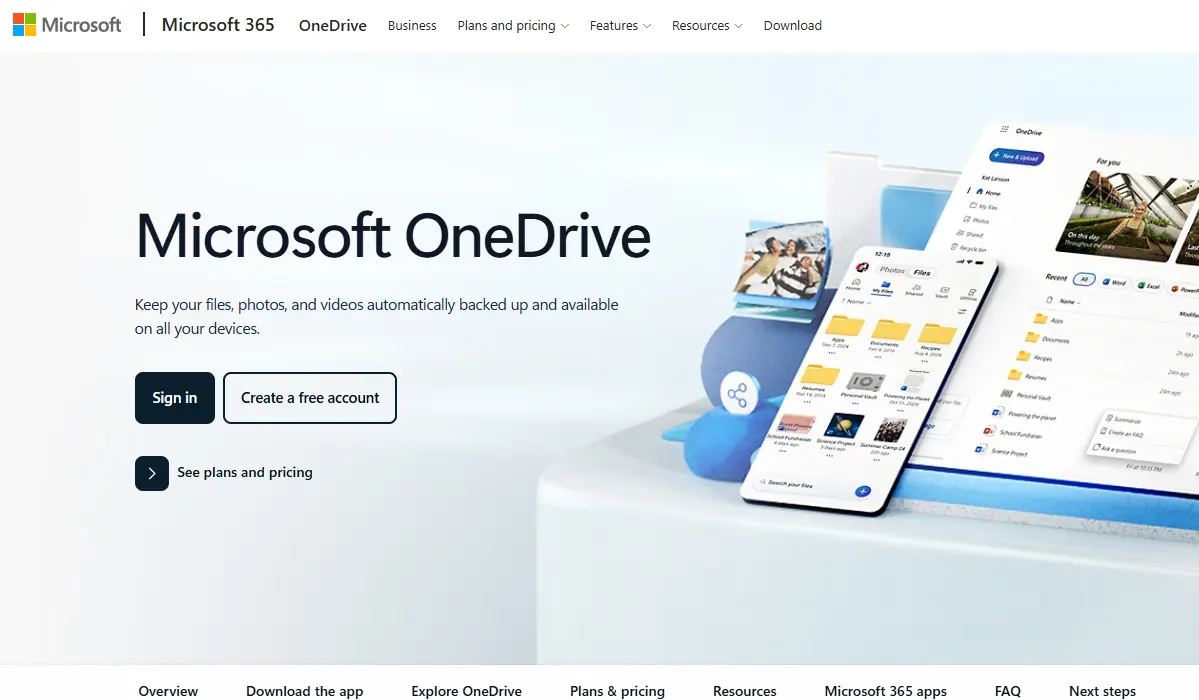
OneDrive is the natural cloud storage choice for remote workers operating in Windows environments and Microsoft 365 organizations. Its integration into Windows File Explorer means OneDrive files appear in the same file system as local files, no separate app interface to learn, no different context to switch to. Files sync transparently in the background.
For organizations on Microsoft 365, OneDrive includes 1 TB of storage per user on most plans, SharePoint integration for team-level document libraries, and real-time co-authoring in Word, Excel, and PowerPoint with full change tracking and version history.
Key Specs
- Platform: Web, iOS, Android, Windows (native), macOS
- Free Plan: 5GB storage for Microsoft account holders
- Paid Plans: Microsoft 365 Personal from $6.99/month (1TB + Office apps); Business from $5/user/month (1TB storage only) to $22/user/month (full Microsoft 365 suite)
- Integrations: Deep Microsoft 365 integration; Teams, SharePoint, Outlook, Office apps
- Offline: Yes (native Windows integration means offline access is seamless)
Why It Stands Out
- Native Windows Explorer integration. OneDrive files appear in the same file browser as local files with no context switching.
- 1 TB of storage per user on Microsoft 365 personal and business plans is among the most generous in the category.
- Co-authoring in Office applications is the most seamless feature on any cloud storage platform, especially in Word and Excel.
- Automatic camera upload and folder backup eliminate the need for manual file management on mobile devices.
Honest Limitations
- The macOS experience is functional but notably less integrated than the Windows version.
- Personal and business OneDrive plans are separate products; organizational deployment requires administrator configuration.
- Syncing very large folders or deep file hierarchies can be slow on initial setup.
Best For
Windows remote workers and Microsoft 365 organizations who want cloud storage that feels like local storage, with deep Office integration and 1TB of space included in plans that most organizations already pay for.
3. Dropbox: Best for Large File Handling and Creative Teams
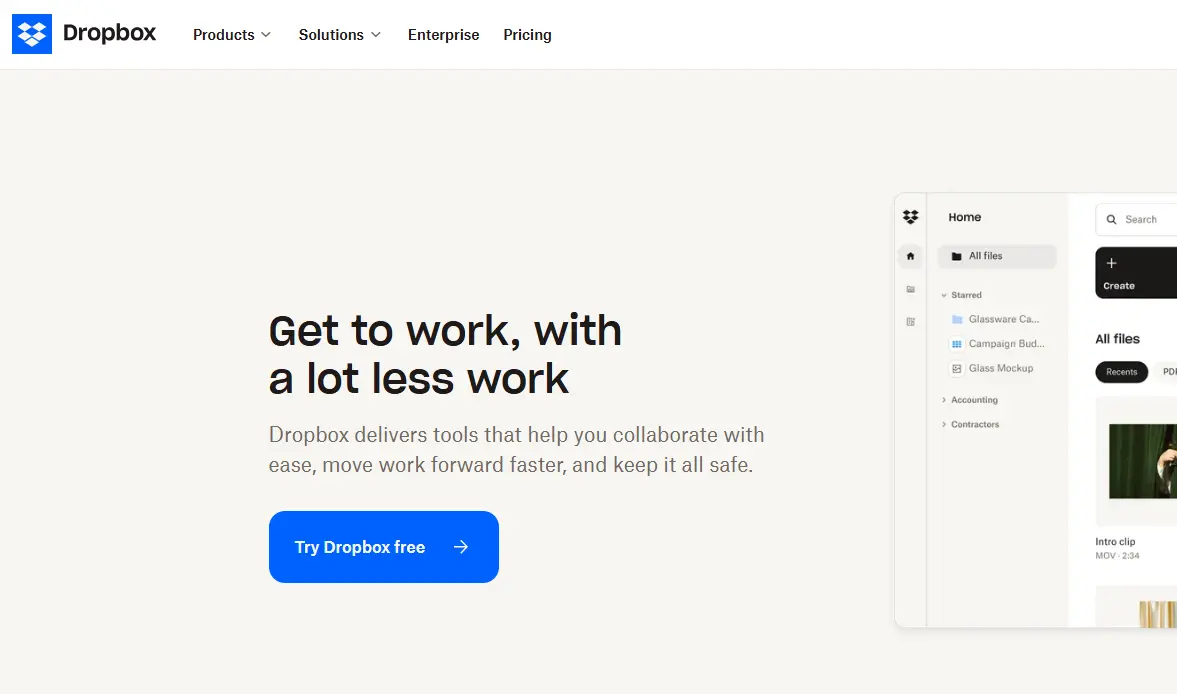
Dropbox built its reputation on one thing done exceptionally well: reliable file sync across every device you own. That foundation still holds, and for teams handling large files (video, audio, design assets, raw photography), Dropbox’s reliability and selective sync capabilities make it particularly practical.
Beyond storage, Dropbox Paper provides a lightweight collaborative document environment, and Dropbox Transfer allows you to send large files to external recipients (clients, contractors, partners) without requiring them to have a Dropbox account, useful for creative and agency workflows.
Key Specs
- Platform: Web, iOS, Android, Windows, macOS, Linux
- Free Plan: 2GB storage (significantly more limited than competitors)
- Paid Plans: Plus from $9.99/month (2TB); Professional from $16.58/month; Business from $15/user/month (annual billing)
- Integrations: Slack, Zoom, Google Workspace, Microsoft 365, Canva, Adobe Creative Cloud, Zapier
- Offline: Yes (selective sync allows specific folders offline on the desktop)
Why It Stands Out
- File sync reliability across devices is consistently rated among the highest in the category.
- Selective sync lets you keep only the folders you need locally, which is critical for laptops with limited SSD storage.
- Dropbox Transfer sends large files to external recipients without requiring Dropbox accounts.
- Version history and file recovery up to 180 days on paid plans.
Honest Limitations
- The free plan’s 2GB limit is the most restrictive among the major cloud storage options and is practically insufficient for real remote work.
- The price-to-storage ratio is less competitive than Google One’s for individual users who don’t need the extra features.
- Dropbox Paper (collaborative documents) is less feature-rich than Google Docs for heavy document collaboration.
Best For
Creative professionals handling large multimedia files (designers, video editors, photographers) and teams that need reliable sync with selective local storage and external client file sharing.
Note: If you’re a creative professional using mobile photo editing tools, cloud storage can serve as your secure backup solution for edited content. Also, if you are looking for more than simple file storage, especially when sharing presentations, reports, or training materials, you can use platforms like ZipFlipbook to transform static PDFs into interactive digital publications that integrate well with modern AI-powered productivity workflows.
Automation and Workflow Tools
The most valuable thing automation does for remote workers isn’t removing work; it’s removing the cognitive overhead of remembering to do repetitive things. These tools handle the recurring, mechanical parts of your workflow so your attention is available for the work that actually requires it.
1. Zapier: Best for Connecting Apps Without Code
Zapier connects 8,000+ apps and automates the workflows between them without writing a single line of code. A “Zap” is a trigger-and-action rule: when something happens in App A, Zapier automatically does something in App B. New Slack message in a specific channel? Create a Trello card automatically. New row in Google Sheets? Add a HubSpot contact. New Stripe payment received? Send a thank-you email and log the payment in Notion.
For remote workers, Zapier’s value is in eliminating the manual data transfer between tools: the copy-paste work that’s never interesting, often forgotten, and occasionally wrong. The free plan allows 100 tasks per month across a limited number of Zaps, which is meaningful for evaluating the tool before committing to a paid plan.
Key Specs
- Platform: Web-based
- Free Plan: 100 tasks/month, 5 Zaps, 2-step Zaps only
- Paid Plans: Professional from $19.99/month (750 tasks); Team from $69/month (2,000 tasks) (annual billing)
- Integrations: 8,000+ apps (the broadest integration library in automation)
- Offline: Not applicable (cloud-based automation)
Why It Stands Out
- 8,000+ integrations mean Zapier can almost certainly connect the specific tools in your stack.
- No-code interface makes automation accessible to non-technical remote workers without developer resources.
- An AI-powered Zap builder generates automation workflows from plain-language descriptions.
- Multi-step Zaps chain multiple actions across multiple apps in a single trigger event.
Honest Limitations
- Task-based pricing means complex multi-step workflows burn tasks quickly. A 5-action Zap uses 5 tasks per run.
- The free plan is genuinely limited (100 tasks/month, 5 Zaps) and is effectively a trial rather than a usable free tier for real workflows.
- At scale (complex workflows, high trigger frequency), Zapier becomes more expensive than alternatives like Make.
Best For
Remote workers and small teams who need to automate data transfer and notifications between the apps they already use, particularly non-technical teams who want automation without development resources.
2. Notion: Best All-in-One Workspace for Documentation and Project Management
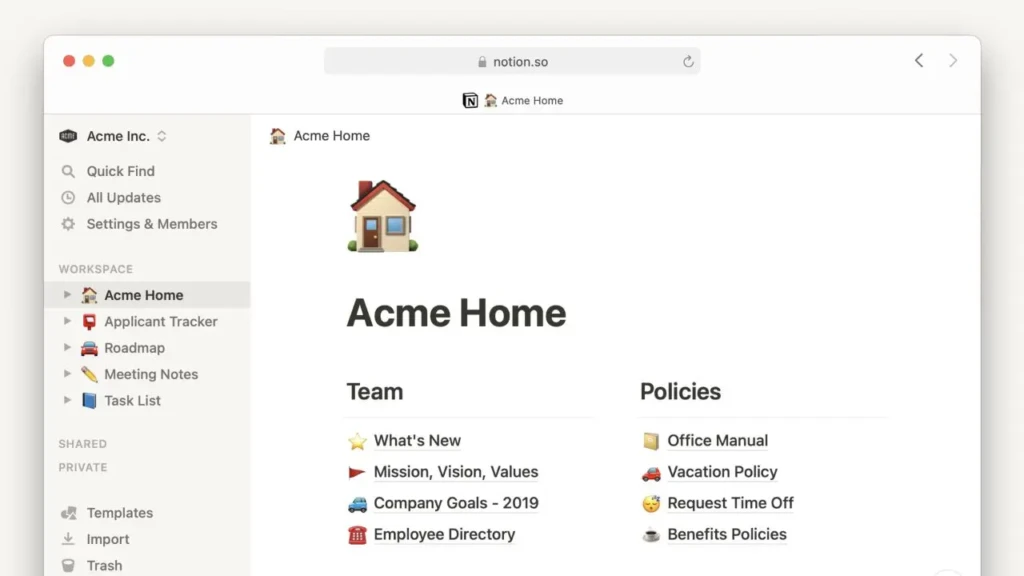
Notion has evolved from a note-taking app into a comprehensive workspace that combines documents, databases, wikis, project boards, and team collaboration in a single, highly customizable environment. It’s powerful but requires setup investment, and it’s worth it if you want an all-in-one solution.
For remote teams, Notion’s value is consolidation: instead of a separate notes app, a separate wiki, and a separate lightweight project manager, Notion handles all three with linked databases that connect information across contexts. A project brief in Notion can link to the meeting notes that produced it, the tasks that resulted from it, and the client database it belongs to, all of which are accessible from a single workspace.
Key Specs
- Platform: Web, iOS, Android, Windows, macOS
- Free Plan: Unlimited pages and blocks for individuals, limited sharing (10 guests), 5MB file upload
- Paid Plans: Plus from $10/user/month; Business from $20/user/month (annual billing); Business plan required for full AI access
- Integrations: Slack, Google Drive, GitHub, Zapier, Jira, Figma, and 60+ others
- Offline: Limited (recently added offline editing on mobile and desktop)
Why It Stands Out
- Combines notes, wikis, and databases in one place; eliminates tool-switching for documentation-heavy remote teams.
- Highly customizable templates for common workflows (editorial calendars, CRM, OKRs, meeting notes) are available on day one.
- Team wikis in Notion serve as a company knowledge base without requiring a separate tool or subscription.
- Notion AI (Business plan) searches your entire workspace to answer questions grounded in your team’s own documentation.
Honest Limitations
- Setup investment is real; Notion’s flexibility means there’s no prescribed workflow, which creates decision fatigue for new users.
- Full AI capabilities require the Business plan at $20/user/month; not included in the Plus tier.
- Performance can degrade on very large databases with thousands of entries.
Best For
Documentation-heavy remote teams, such as content teams, startups building internal wikis, and agencies managing client knowledge bases, who want one organized workspace rather than notes in one tool and projects in another.
3. Airtable: Best for Structured Data and Content Operations
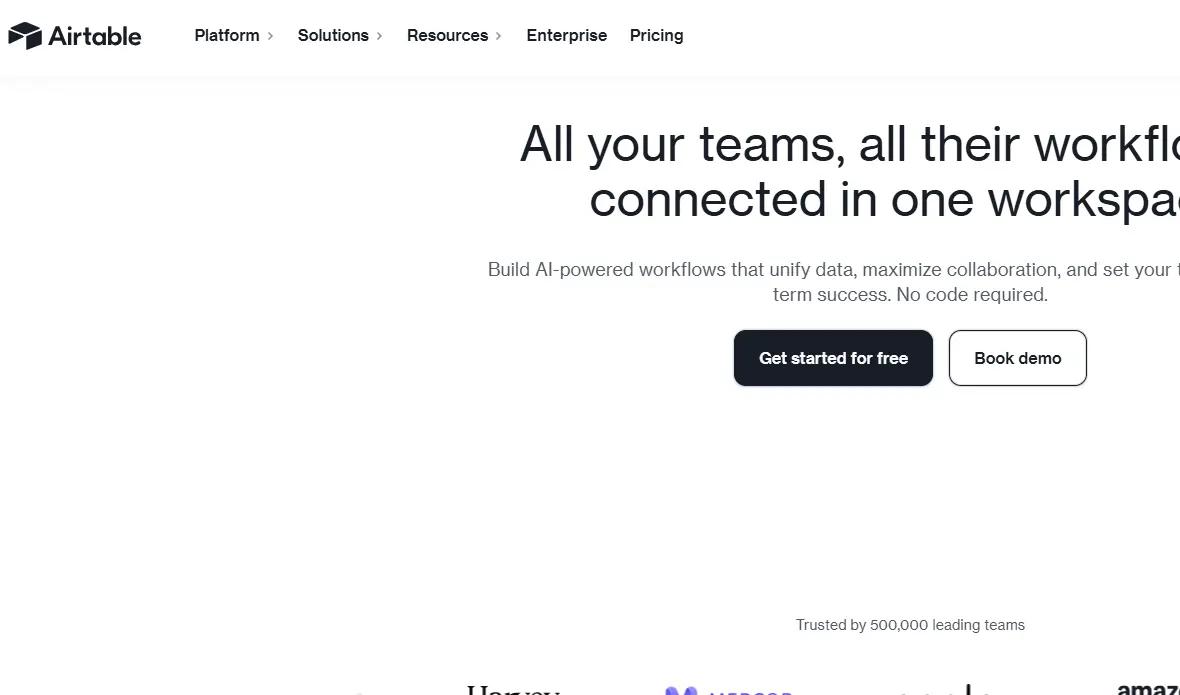
Airtable occupies a specific and underserved position in the remote productivity stack: it’s a database that looks like a spreadsheet and works like a project manager. If your work involves structured data, editorial calendars, content pipelines, vendor databases, product catalogs, event registrations, or CRM systems, Airtable offers more flexibility and visual power than a spreadsheet, with less setup complexity than a traditional database.
Airtable’s linked records allow you to connect related tables: link a Content table to a Client table, and every piece of content knows which client it belongs to without duplicating data. Views (Grid, Gallery, Kanban, Calendar, Gantt) give different stakeholders different perspectives on the same underlying data.
Key Specs
- Platform: Web, iOS, Android, Windows, macOS
- Free Plan: Unlimited bases, 1,000 records per base, 2GB attachments, 5 editors
- Paid Plans: Team from $20/user/month; Business from $45/user/month (annual billing)
- Integrations: Zapier, Slack, Google Drive, GitHub, HubSpot, Salesforce, and 100+ others
- Offline: Limited offline functionality on mobile
Why It Stands Out
- Linked records make Airtable genuinely relational, so information stays connected rather than duplicated.
- Gallery view for image-heavy content (product catalogs, portfolio tracking) has no equivalent in standard spreadsheet tools.
- Automations built into Airtable trigger actions when records meet specific conditions, without requiring a Zapier Zap.
- API access on all plans makes Airtable a practical data source for custom reporting and external tools.
Honest Limitations
- Paid plan pricing ($20–$45/user/month) is expensive relative to competitors for teams that primarily need project tracking rather than data management.
- The free plan’s 1,000-record limit fills up quickly for real content operations.
- Airtable is not a project manager; it manages structured data, not task workflows with dependencies and timeline tracking.
Best For
Remote teams with structured data operations, content managers, marketing operations, product teams tracking feature requests, and anyone managing information that a spreadsheet can’t organize but a full database would over-engineer.
How to Choose the Right Apps for Your Specific Situation
Before you install every tool on this list, take two minutes to think honestly about what’s actually breaking in your remote workflow. Choosing apps based on what sounds impressive rather than what solves your specific problem is how remote workers end up managing six tools and feeling less productive than before.
- If you’re a solo freelancer: Start with ClickUp (free, handles tasks and time tracking in one place), Toggl Track (free, accurate billing data), and Google Drive (free, document collaboration). Three tools, all free, covering your core needs. Add Zoom when you need client calls.
- If you’re part of a remote team: Slack for communication, Asana or ClickUp for project tracking, and Google Drive or OneDrive, depending on your document ecosystem. Everything else is optional until a specific pain point appears.
- If your biggest problem is distraction, use RescueTime to understand your actual habits and Forest to protect focus sessions from phone interruptions. Neither replaces a task manager; they complement it.
- If you handle a lot of files or media, use Dropbox for reliable large-file storage and Google Drive for document collaboration. Many professional remote teams use both for different purposes.
- Always try the free tier before paying. Every tool on this list has a free plan or free trial. Build your stack from what you actually use, not from what you downloaded in optimistic bulk.
FAQs
There isn’t one universal answer; it depends on your specific bottleneck. For task management, ClickUp’s free plan is the most capable starting point for solo workers. However, for teams, Asana handles cross-functional projects best. And for clarity on time, Toggl Track for freelancers and RescueTime for anyone who wants automatic habit data. The most effective remote productivity stack typically consists of 3–5 well-chosen tools, not one app trying to do everything.
Several on this list (Toggl Track, Google Drive, ClickUp, Forest) offer free plans that cover real daily needs without requiring an upgrade. Paid plans are worth considering when you hit specific free-tier limits (Asana’s 10-user cap, Zapier’s 100-task/month limit, Dropbox’s 2GB storage) or need features that directly affect your revenue, like Toggl Track’s project budgets for a freelancer who regularly underquotes.
Most experienced remote workers converge on 3–5 core tools: one for tasks, one for communication, one for file storage, one for video meetings, and optionally one for time tracking. More than that, the tools themselves become a distraction. The goal is a stack where each tool solves a specific problem and connects cleanly to the others.
ClickUp’s free plan supports unlimited users, multiple project views, and native time tracking; the most generous free tier in the task management category. Google Drive’s 15GB of free storage is the most practical free cloud storage available. Toggl Track’s free plan handles unlimited projects for up to 5 users. All three together cover core remote productivity needs at zero cost.
Conclusion
The best productivity apps for remote workers aren’t about doing more; they’re about doing better, with less friction. Remote work removes the structural guardrails that offices provide automatically, and the right digital toolkit replaces them deliberately: a task manager that keeps work visible, communication tools that replace hallway conversations, time trackers that reveal where hours actually go, cloud storage that makes files always accessible, and automation that handles the repetitive work so your attention is available for the rest.
The stack I’d start with for most remote workers: ClickUp for tasks, Slack for team communication, Toggl Track for time, and Google Drive for files. All four have genuinely useful free tiers. All four integrate with each other. Master that combination before adding anything else, and add new tools only when a specific, concrete friction point makes the case for them.
Every app review, tool comparison, and practical productivity guide worth bookmarking lives at YourTechCompass.com, where we cut through the noise and tell you what actually works for real people.