Running AI tools locally (on your own hardware, without sending your data to a cloud server) has shifted from a niche developer hobby to a genuinely practical choice for a growing number of people. Privacy is the most compelling driver: every prompt you send to ChatGPT or Claude is sent to a company’s server, logged, and potentially used to train future models. Local AI keeps everything on your machine (your code, your documents, your conversations, your proprietary data) with zero API costs and no internet dependency once your models are downloaded. Tools like Ollama, LM Studio, and Jan.ai have made the setup accessible enough that you no longer need to be a machine learning engineer to get a capable local model running within an hour.
That said, not every laptop handles local AI well, and the hardware mismatch is where most people go wrong. A 7B-parameter Llama model has fundamentally different hardware requirements than running Stable Diffusion, a multi-agent OpenClaw setup, or a 32B coding model. Buying the wrong machine means slow, frustrating token generation, thermal throttling after 5 minutes, or models that simply won’t load. This guide tells you exactly which specs matter and why, then gives you the best laptop options across every budget and use case, so you buy the right machine the first time.
A Quick Comparison Table
Laptop | Best For | RAM / VRAM | GPU Acceleration | 7B Model Speed | Stable Diffusion | Battery (AI Load) |
Overall best, LLM inference | 24–48GB unified | Metal (Apple) | 50+ tok/s | ⚠️ Slower (no CUDA) | 6–8 hrs | |
70B models, max LLM | 48–128GB unified | Metal (Apple) | 60+ tok/s | ⚠️ Slower (no CUDA) | 5–7 hrs | |
Windows, Stable Diffusion | 16–32GB DDR5 + 8 – 12GB VRAM | CUDA (NVIDIA) | 30–50 tok/s | ✅ Strong | 1.5–2 hrs | |
Enterprise, portability | 32GB LPDDR5X | Intel Arc (limited) | 15–25 tok/s | ❌ Not recommended | 4–6 hrs | |
Budget CUDA entry | 16GB DDR5 + 8GB VRAM | CUDA (NVIDIA) | 30–50 tok/s | ✅ Standard res | 1–2 hrs | |
Stable Diffusion | 64GB DDR5 + 16GB VRAM | CUDA (NVIDIA) | 50+ tok/s | ✅ Best-in-class | 1–2 hrs |
What Does “Running AI Locally” Actually Mean?
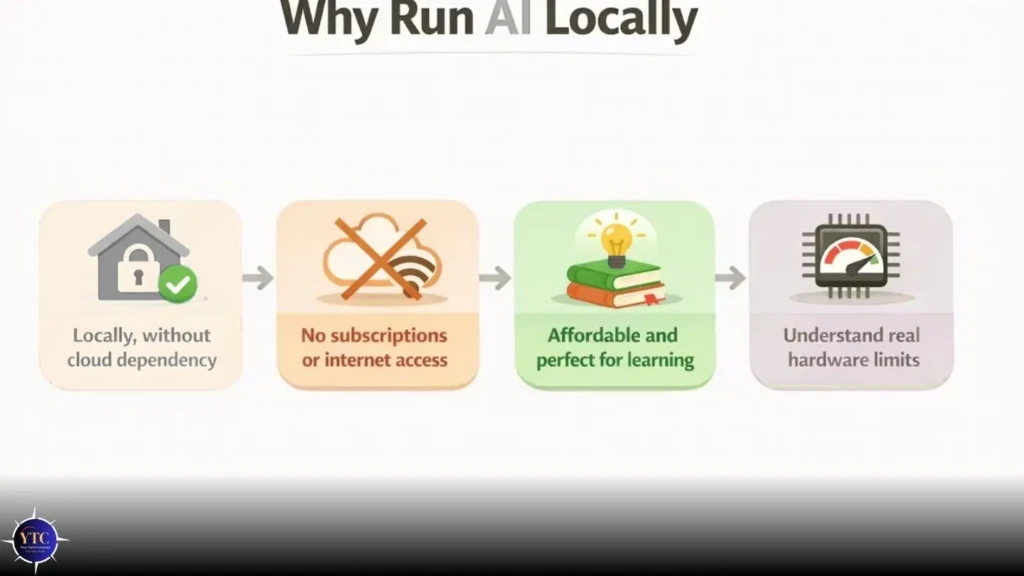
Running AI locally means downloading model weights to your own storage and running inference on your own CPU, GPU, or NPU, rather than sending queries to OpenAI, Anthropic, or Google’s servers and receiving a response. Tools like Ollama, LM Studio, Jan.ai, llama.cpp, AnythingLLM, PrivateGPT, and Stable Diffusion (via AUTOMATIC1111 or ComfyUI) all run entirely on your hardware. Consequently, once the model is downloaded, your laptop handles everything (generation, memory, computation) without any cloud involvement.
The honest trade-off is between capability and privacy. Local models are smaller and less capable than frontier cloud models like GPT-5.2 or Claude Opus 4.6; you’re trading raw intelligence for privacy and control. A local Llama 3.3 8B model handles summarization, code completion, writing assistance, and general Q&A competently; it won’t match GPT-5.2 on complex multi-step reasoning.
Quantized models are what make local AI practical on consumer hardware. A full-precision 7B model requires ~14 GB of memory. A Q4_K_M quantized version of the same model requires ~4 GB and yields a perceived-quality drop of less than 1% across most tasks. Ollama handles quantization automatically, so you don’t need to manage it manually.
For a broader picture of what frontier cloud AI can do, our ChatGPT-4 guide is worth reading alongside this to understand what you’re trading away. Also, in the broader AI tools landscape, our AI Unboxed section covers both local and cloud options in detail.
What Specs Actually Matter for Local AI?
RAM: The Most Critical Spec
RAM is the single most important spec for running local LLMs, and on Apple Silicon, all your RAM also serves as GPU memory. Here’s the practical breakdown you need:
- 16GB: runs 7B–8B parameter models (Llama 3.3 8B, Mistral 7B, Phi-4-mini) at 30–50 tokens/second on Apple Silicon; minimum viable for local AI.
- 32GB: runs 13B–14B models smoothly; also handles 7B models with ample headroom; sweet spot for most users.
- 64GB+: needed for 30B+ models; handles Qwen 2.5 32B at ~11–12 tokens/second; multi-agent workflows.
- 128GB (Apple Silicon M4 Max only): runs Llama 3 70B locally, previously only possible on workstations.
One critical caveat for Apple Silicon buyers: unified memory cannot be upgraded after purchase. Buy the RAM you’ll need now, not the minimum you can get away with today.
GPU and Neural Processing
Apple Silicon (M3/M4/M5 series) uses unified memory; all your RAM is available to the GPU simultaneously, with no VRAM ceiling. Metal GPU acceleration works natively with Ollama, LM Studio, and llama.cpp. That architecture is why a MacBook Pro M4 Max with 128GB handles 70B models while a Windows laptop with an RTX 4090 (24GB VRAM) can’t fit the same model entirely in GPU memory.
NVIDIA’s discrete GPUs bring CUDA acceleration, the most mature ecosystem for Stable Diffusion, PyTorch, and image- and video-generation workloads. VRAM is the binding constraint: 8GB VRAM supports 7B models and Stable Diffusion; 12GB supports 13B models; 16GB supports larger quantized models; 24GB (RTX 4090/5090) supports 30B models in VRAM. Beyond VRAM, memory bandwidth drives token generation speed; the RTX 5090’s 1.79 TB/s bandwidth is why it generates 213 tokens/second on Llama 3.3 70B.
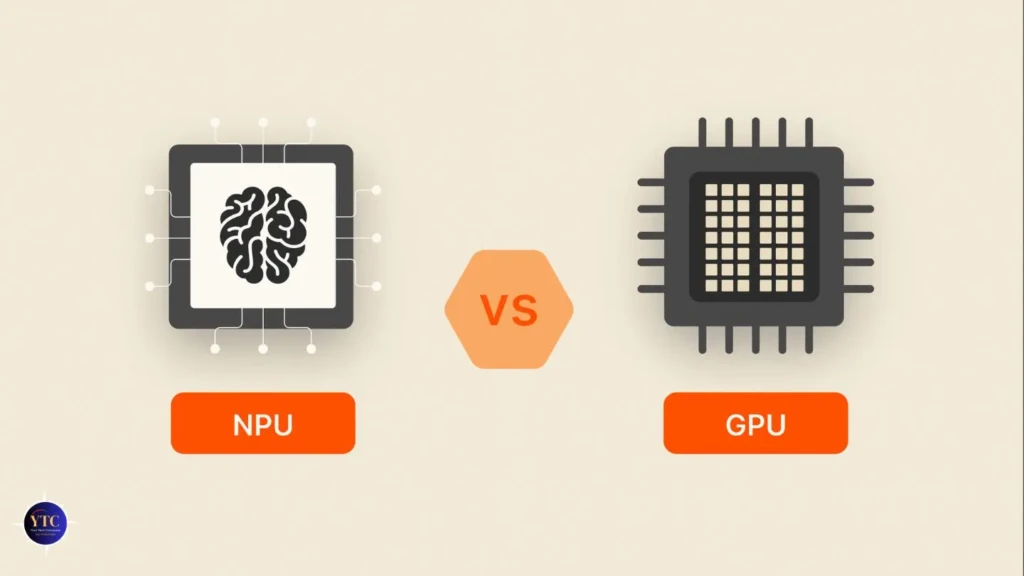
NPUs (present in Snapdragon X, Intel Core Ultra, Apple Silicon) currently offer limited direct acceleration for mainstream third-party local AI tools. They handle background Windows AI tasks well, but don’t replace GPU compute for Ollama, LM Studio, or Stable Diffusion in 2026.
Storage
Models consume significant disk space: a 7B Q4 model is ~4GB, a 13B Q4 model is ~8GB, and a 70B Q4 model is ~40GB. You’ll want multiple models available simultaneously, making a 1 TB NVMe SSD the practical minimum for serious local AI use. NVMe read speeds also meaningfully affect model load time: a fast NVMe loads a 7B model in under 10 seconds; a slower SATA SSD takes 30-60 seconds.
Thermal Management
Local AI inference sustains high CPU and GPU load for minutes to hours at a time, unlike a quick burst of web browsing. Thin-and-light fanless laptops (like the MacBook Air) throttle noticeably under sustained inference load.
Laptops with active cooling (vapor chambers, dual fans, robust thermal design) maintain consistent token generation speeds across long sessions. That distinction matters if you’re running multi-agent workflows, Stable Diffusion batch generations, or extended model sessions.
The Best Laptops for Running AI Tools Locally Review
1. Apple MacBook Pro 14-inch / 16-inch
M4 Pro
M4 Max
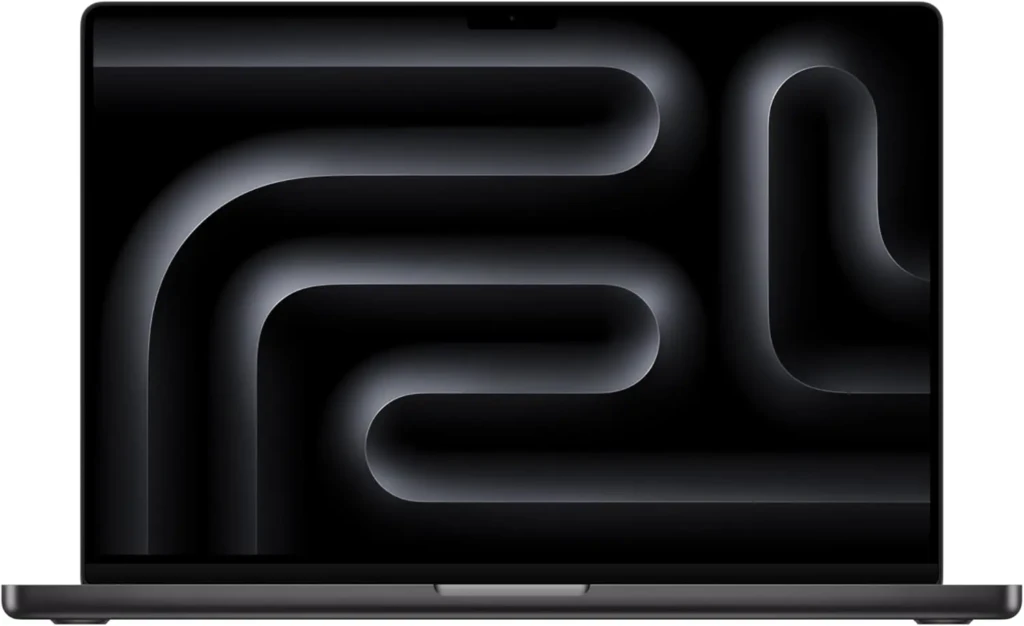
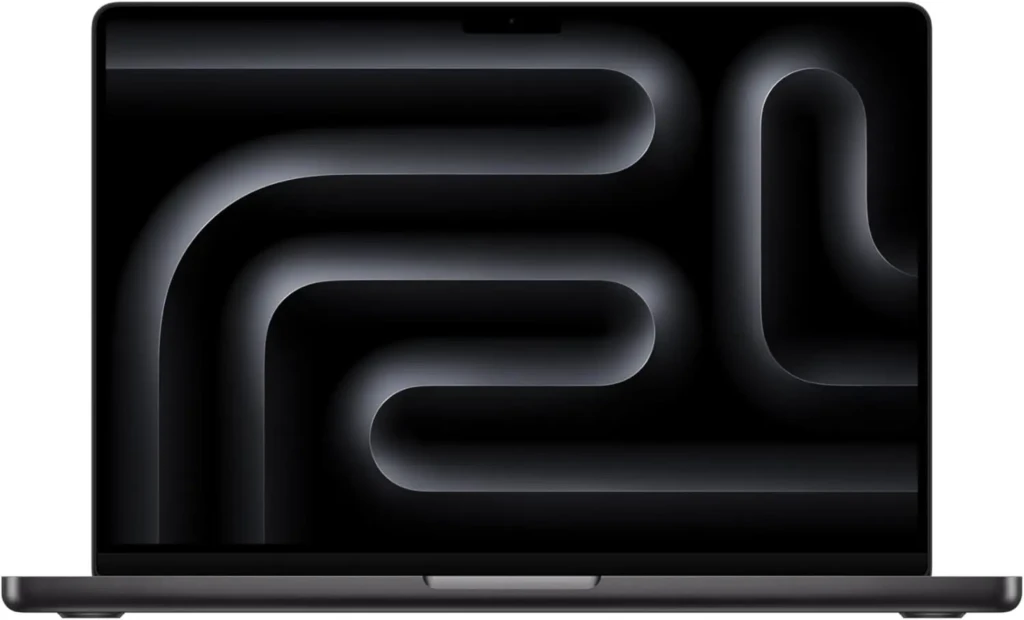
The MacBook Pro with M4 Pro or M4 Max is the best laptop for running AI locally, and it’s not particularly close. Apple Silicon’s unified memory architecture means all your RAM is available to the GPU simultaneously, active cooling handles sustained inference without throttling, and Metal acceleration works natively with every major local AI tool. Additionally, power consumption sits at roughly 30-45W under full AI load, compared to 350–450W for an equivalent RTX 4090 Windows laptop, a difference that shows directly in battery life under AI inference.
For local AI specifically, the M4 Pro 24GB runs Llama 3.3 8B at 50+ tokens per second and handles 13B models smoothly. The M4 Max 128GB configuration runs Llama 3 70B locally (the only consumer laptop to do so without workarounds). Consequently, if your primary goal is LLM inference with maximum model flexibility, no Windows laptop at any price comes close.
Key Specs
- Processor: Apple M4 Pro (12-core CPU, 20-core GPU) or M4 Max (16-core CPU, 40-core GPU)
- RAM: 24GB, 48GB unified memory (M4 Pro) / 48GB, 128GB unified memory (M4 Max)
- Storage: 512 GB–4 TB SSD
- Display: 14.2-inch or 16.2-inch Liquid Retina XDR, up to 3456×2234
- Battery Life: 6–8 hours under AI inference load; 22 hours general use
- Weight: 1.62kg (14-inch) / 2.14kg (16-inch)
Why It Stands Out
- Best performance per watt among laptops for LLM inference.
- Unified memory removes the VRAM ceiling that limits every Windows alternative.
- Active cooling; no thermal throttling under sustained multi-hour inference sessions.
- Every major local AI tool (Ollama, LM Studio, Jan.ai, llama.cpp) supports Metal natively.
- Only consumer laptop that runs 70B models locally (128GB M4 Max).
Best For: Developers, researchers, privacy-focused professionals, and anyone who wants the best all-around local AI performance on a laptop.
2. ASUS ROG Zephyrus G16 (RTX 4070 / RTX 4080)
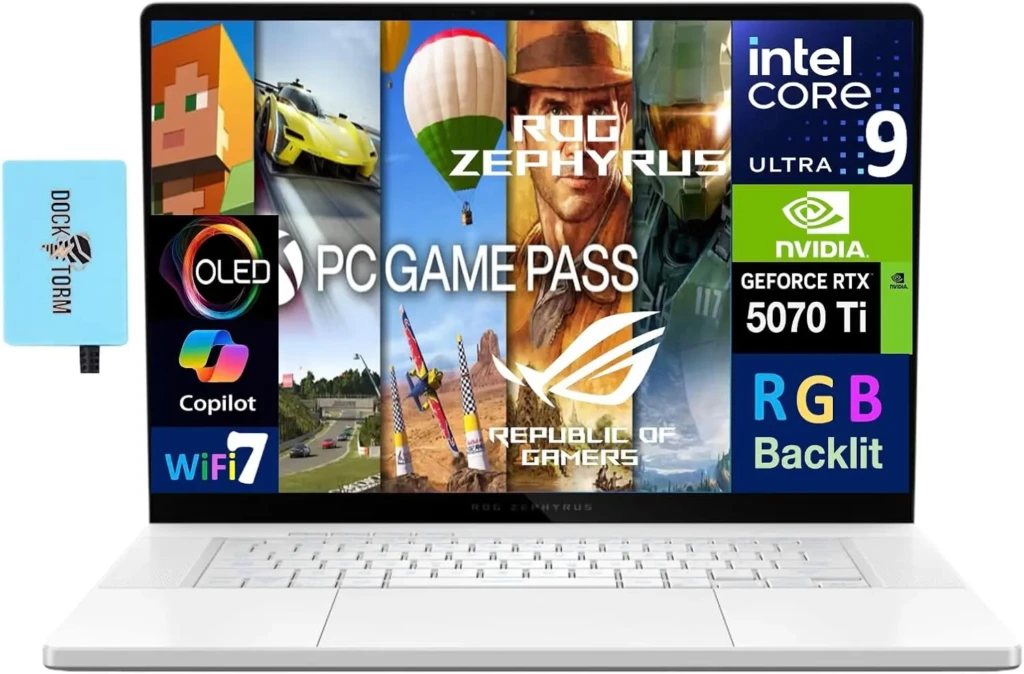
For Windows users, especially anyone whose primary local AI use case involves Stable Diffusion, ComfyUI, or any CUDA-dependent pipeline, the ASUS ROG Zephyrus G16 is the strongest laptop choice. NVIDIA’s CUDA ecosystem is where image and video generation workloads are most mature, and the Zephyrus manages sustained GPU load better than most thin-and-light Windows alternatives. Beyond performance, the thermal design keeps the GPU running at consistent clock speeds during extended Stable Diffusion batch jobs, whereas lower-cooled machines throttle significantly.
On LLM inference specifically, the RTX 4080 variant runs 13B models entirely in VRAM at 20–35 tokens per second, fast enough to be genuinely useful in a daily workflow. The 32GB DDR5 system RAM also provides CPU fallback for models that exceed VRAM limits, extending its versatility beyond the 12GB VRAM ceiling.
Key Specs
- Processor: Intel Core Ultra 9 185H or AMD Ryzen AI 9 HX 370
- GPU: NVIDIA RTX 4070 (8GB VRAM) or RTX 4080 (12GB VRAM)
- RAM: 16 GB–32 GB DDR5
- Storage: 1TB–2TB NVMe SSD
- Display: 16-inch 2560×1600 OLED, 240Hz
- Battery Life: 1.5–2 hours under AI/GPU inference load
- Weight: Approximately 1.9kg
Why It Stands Out
- CUDA acceleration covers the full Stable Diffusion ecosystem (AUTOMATIC1111, ComfyUI, ControlNet).
- 32GB DDR5 system RAM enables CPU fallback beyond the VRAM limit.
- Sustained GPU performance. Zephyrus thermal design prevents clock-speed throttling during extended inference.
- OLED display provides accurate color reproduction for evaluating image-generation output.
- RTX 4080 runs 13B models entirely in VRAM, without falling back to system RAM.
Best For: Windows developers, Stable Diffusion artists, and CUDA-dependent pipeline users who want the best Windows balance of AI performance, display quality, and thermal management.
3. Lenovo ThinkPad X1 Carbon Gen 13
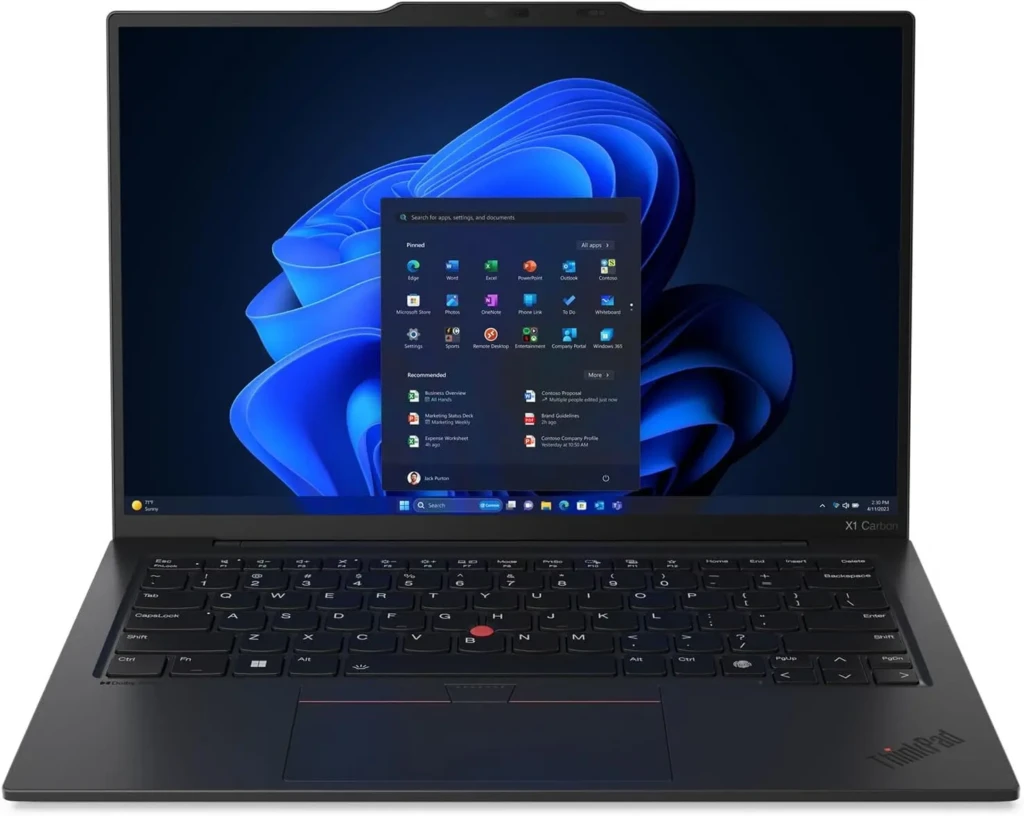
The ThinkPad X1 Carbon is the right choice if you need local AI capability without a gaming-laptop form factor, in a corporate environment, at client meetings, or anywhere a 2kg RTX machine would look out of place. Its 32GB LPDDR5X RAM configuration supports 7B and 13B models via Ollama and LM Studio, with ample headroom, and Intel Core Ultra’s integrated Arc GPU provides basic acceleration for lighter inference workloads. Beyond performance, enterprise security features such as the vPro platform, discrete TPM, IR camera, and physical shutter make it suitable for regulated industries in ways that gaming laptops simply aren’t.
That said, be honest with yourself about what you’re choosing here. The ThinkPad X1 Carbon prioritizes portability and professionalism over inference speed. It’s the right machine for someone who needs private local LLMs in a client-facing context; not for someone who wants to push Stable Diffusion or run 30B models at speed.
Key Specs
- Processor: Intel Core Ultra 7 165U or 255U
- GPU: Intel Arc integrated graphics with Intel AI Boost NPU
- RAM: 32GB LPDDR5X (most business configurations)
- Storage: 512 GB–2 TB NVMe SSD
- Display: 14-inch 2880×1800 OLED or 1920×1200 IPS touchscreen
- Battery Life: 4–6 hours under AI inference load; 12–14 hours general use
- Weight: Approximately 1.12kg
Why It Stands Out
- Lightest laptop on this list at approximately 1.12kg, genuinely portable for daily travel.
- 32 GB of RAM is standard on business configurations and comfortably handles 7B and 13B models.
- Enterprise security posture (vPro, discrete TPM, IR webcam, physical shutter) is well-suited to regulated environments.
- Professional aesthetic appropriate for client-facing and executive settings.
- Intel Core Ultra NPU accelerates Windows Copilot+ AI features alongside third-party inference.
Best For: Enterprise professionals, consultants, and travel-heavy users who want private local LLM capability in a business-appropriate machine without a gaming form factor.
4. ASUS Vivobook 16X (Ryzen 9 / RTX 4060)
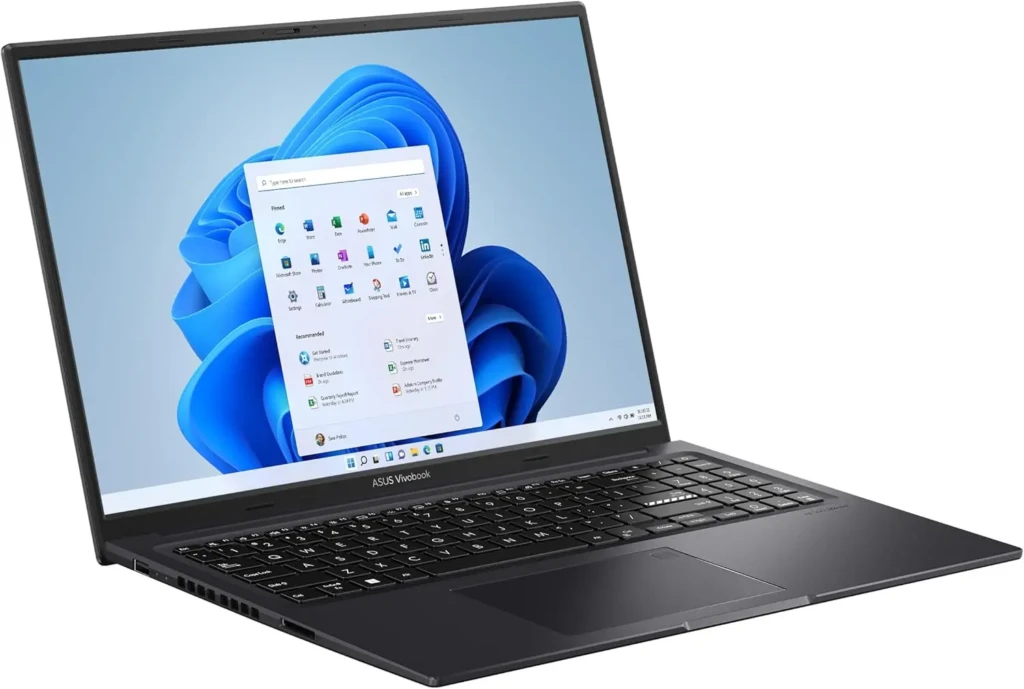
If your budget is under $1,000 and you want NVIDIA CUDA acceleration for local AI, the ASUS Vivobook 16X with an RTX 4060 is the most capable entry point. At this price, the 8GB VRAM limits you to 7B models in GPU memory and standard Stable Diffusion resolutions, but CUDA acceleration still runs both meaningfully faster than CPU-only alternatives on any competing machine at the same price. Additionally, the Vivobook 16X’s DDR5 RAM is user-upgradeable; upgrading from 16GB to 32GB immediately after purchase is the single best investment you can make on this machine and costs $30–$50.
Thermal throttling under sustained load is the most significant real-world limitation here. Under extended Stable Diffusion batch jobs or long LLM inference sessions, clock speeds drop as temperatures climb. Practical mitigation involves working in shorter sessions or elevating the back of the laptop to improve airflow (small adjustments that significantly extend thermal headroom).
Key Specs
- Processor: AMD Ryzen 9 7945HX or Intel Core i9
- GPU: NVIDIA RTX 4060 (8GB GDDR6 VRAM)
- RAM: 16 GB DDR5 (upgradeable to 32GB)
- Storage: 512 GB–1 TB NVMe SSD
- Display: 16-inch 1920×1200 IPS, 144Hz
- Battery Life: 1–2 hours under GPU inference load
- Weight: Approximately 1.88kg
Why It Stands Out
- NVIDIA RTX 4060 CUDA acceleration at under $1,000; no competing machine offers this combination.
- User-upgradeable RAM to 32GB; expand capability immediately after purchase.
- 16-inch display provides ample screen real estate for reviewing image generation output.
- RTX 4060 handles Stable Diffusion at standard resolutions without compromise.
- DDR5 system RAM enables CPU fallback for models with more than 8GB of VRAM.
Best For: Students, hobbyists, and first-time local AI users who want CUDA acceleration and plan to run Stable Diffusion or 7B LLMs on a budget.
5. ASUS ProArt Studiobook 16 (RTX 4090 Mobile)
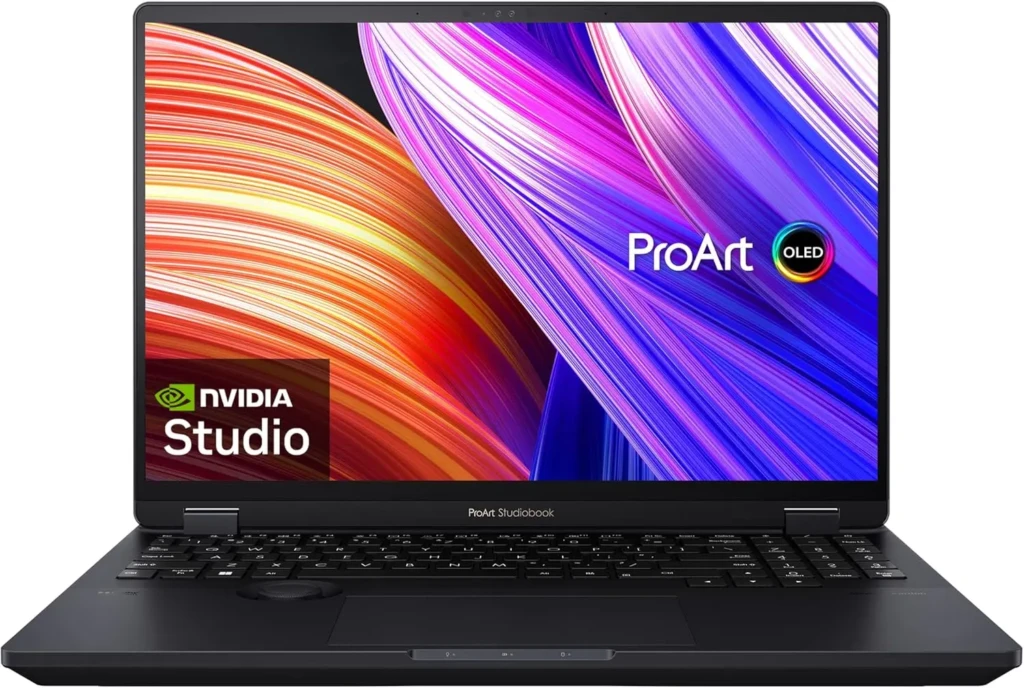
The ProArt Studiobook 16 with an RTX 4090 Mobile is the only laptop that removes the VRAM constraint that limits every other Windows option on this list. With 16 GB of dedicated GDDR6 VRAM (the most available in any consumer laptop as of 2026), full-precision Stable Diffusion inference, large batch sizes, high-resolution generations, and multi-ControlNet workflows become viable without the workarounds required by 8GB and 12GB VRAM cards. Beyond image generation, the 64GB DDR5 system RAM enables split GPU/CPU inference for 30B-quantized models that exceed VRAM capacity.
This is not a portable machine, and it’s not designed to be. It’s a workstation-class creative tool in laptop form, suited for professionals whose primary work involves sustained AI-generation workflows at the highest-quality level a laptop can deliver. If that matches your use case, nothing else on this list comes close.
Key Specs
- Processor: Intel Core i9-14900HX
- GPU: NVIDIA RTX 4090 Mobile (16GB GDDR6 VRAM)
- RAM: 64GB DDR5
- Storage: 2TB NVMe SSD
- Display: 16-inch 3200×2000 OLED, 120Hz, 100% DCI-P3
- Battery Life: 1–2 hours under full GPU inference load
- Weight: Approximately 2.4kg
Why It Stands Out
- 16GB VRAM, the highest available in any consumer laptop in 2026.
- Full-precision Stable Diffusion inference without workarounds or resolution compromises.
- 64GB DDR5 enables split GPU/CPU inference on 30B+ quantized models.
- Color-accurate OLED display designed for professional creative review.
- RTX 4090 runs 13B models entirely in VRAM at 50+ tokens per second.
Best For: Stable Diffusion artists, AI video creators, researchers running large multi-modal models, and creative professionals for whom VRAM is the primary constraint on their work.
Quick Decision Guide: Which Laptop Is Right for You?
Prioritize RAM over GPU. Apple Silicon M4 Pro with 24GB or 48GB is the strongest choice. For Windows, aim for 32 GB of system RAM and at least an RTX 4070 for CUDA acceleration on larger models.
Prioritize NVIDIA VRAM. RTX 4070 (8GB) is the minimum; RTX 4090 Mobile (16GB) is ideal if the budget allows. Apple Silicon works, but CUDA tools like AUTOMATIC1111 run faster on NVIDIA at the same generation level.
MacBook Pro M4 Pro is the only laptop that delivers sustained local AI performance alongside meaningful battery life. Windows AI laptops under sustained GPU inference typically run for 1.5-2 hours, regardless of rated capacity.
ASUS Vivobook 16X with RTX 4060. Upgrade RAM to 32GB immediately after purchase; it costs $30–$50 and significantly improves CPU fallback performance for models that exceed VRAM.
ThinkPad X1 Carbon for a professional form factor. MacBook Pro for the best combination of privacy and performance. Avoid gaming laptops in client-facing settings unless your role context supports them.
Minimum 32GB RAM; multi-agent architectures load multiple models or large context windows simultaneously. Apple Silicon 48GB+ is the laptop-class sweet spot; 64GB+ for heavy production multi-agent use.
FAQs
16GB is the practical minimum; it can run 7B–8B quantized models adequately. 32GB is the sweet spot for most users, handling 13B models smoothly. 64GB+ is needed for 30B models, and 128GB (Apple Silicon M4 Max only) runs 70B models locally.
For LLM inference on a laptop, Apple Silicon wins on efficiency and battery life, and on the ability to run very large models that exceed the VRAM of any consumer NVIDIA laptop. For Stable Diffusion and CUDA-dependent image generation tools, NVIDIA wins on raw speed and ecosystem maturity.
8GB of VRAM (RTX 4060 or better) for standard-resolution generations. 12GB+ for larger batch sizes and ControlNet workflows. 16GB VRAM (RTX 4090 Mobile) removes most practical limitations for creative workflows. Apple Silicon can run Stable Diffusion, but CUDA outperforms Metal on this specific workload.
Yes, but with meaningful limitations. A laptop with 16GB RAM runs 7B models via CPU-only inference at 3–8 tokens/second. An RTX 4060 GPU adds CUDA acceleration, enabling 7B models to run at 30-50 tokens/second. The ASUS Vivobook 16X is the best budget entry point with CUDA capability.
It depends on your use case. 16GB handles 7B–8B models well. It struggles with 13B models and cannot reliably run 30B models. On Apple Silicon, 16GB is the minimum, but upgrading to 24GB at purchase is worth it, since unified memory cannot be added later.
Conclusion

For most people who want to run AI tools locally, the MacBook Pro M4 Pro with 24GB or 48GB unified memory is the best laptop available; it handles 7B to 30B models with active cooling, no thermal throttling, real battery life under inference load, and native Metal acceleration across all major local AI tools. If you’re on Windows and Stable Diffusion or image generation is your primary use case, the ASUS ROG Zephyrus G16 with RTX 4080 is the strongest option at a price that doesn’t require a second mortgage. And if your budget starts and ends under $1,000, the ASUS Vivobook 16X with RTX 4060 gives you CUDA-accelerated local AI at an accessible entry point; just upgrade the RAM to 32GB right away.
The spec that matters most in every case is memory: RAM for LLMs, VRAM for image generation, and unified memory for Apple Silicon. Get that right, and local AI works well. Get it wrong, and you’ll spend money on hardware that throttles, refuses to load your models, or generates at speeds too slow to be useful. Use the decision guide above to match your use case to the right spec tier, and you’ll be running your first local model within an hour of unboxing.
At Your Tech Compass, we publish practical guides and honest tech reviews to help users make smarter decisions.