
In a world where ideas can strike at any moment and to-dos pile up faster than we expect, finding a simple yet effective tool to capture thoughts and organize tasks quickly becomes essential. Google Keep is one such tool: a lightweight note-taking and reminder app that syncs seamlessly across devices and integrates naturally with other tools in Google’s ecosystem. Whether you’re jotting down a grocery list, tracking project reminders, or saving quick voice memos, Keep is designed to be fast, flexible, and always at your fingertips.
This guide covers Google Keep as it actually works today, the core features that have always made it useful, the genuinely new AI capabilities that change how you interact with it, how it fits into the broader Google ecosystem, and an honest assessment of who it’s actually built for versus who should be reaching for something more substantial. By the end, you’ll know not just what Keep can do, but exactly how to make it a reliable, low-friction part of how you capture and organize your daily life.
A note before we begin: every YTC score is earned, never negotiated. If you want to understand exactly how we evaluate apps & tools and how we handle affiliate relationships, our Review Methodology lays it all out.
What Is Google Keep?
Google Keep is a digital note-taking app built around one core principle: capturing a thought should take seconds, not minutes. Unlike larger applications designed for deep document editing or complex project structures, Keep prioritizes speed above almost everything else. You can store text notes, checklists, voice recordings that get automatically transcribed, and annotated images, and because Keep is tied directly to your Google Account, every one of those notes syncs instantly across your phone, tablet, and browser the moment you create it.
That instant sync is genuinely the foundation on which everything else is built. A grocery list you start while still half-awake at breakfast is already on your phone before you’ve left the house.
A reminder you set from your laptop at work pings you on your phone exactly when and where you need it. Keep isn’t trying to replace the tools you use for serious writing or project planning; it’s trying to be the fastest possible bridge between “I just thought of something” and “that thought is safely captured somewhere I’ll actually see it again.”
Google Keep Core Features
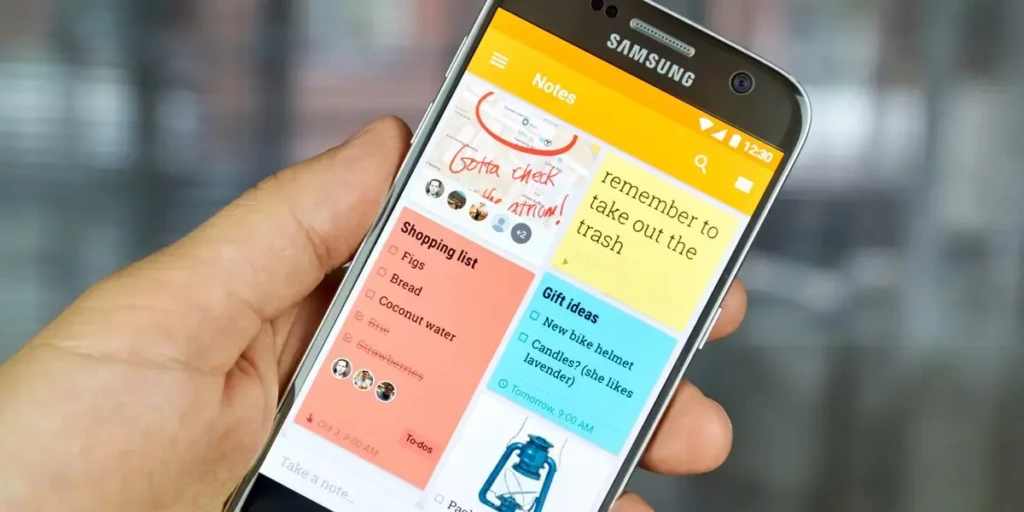
Google Keep packs a genuinely surprising amount of functionality into an interface that stays deliberately minimal. Here’s what each core feature actually does in practice.
Notes and Checklists
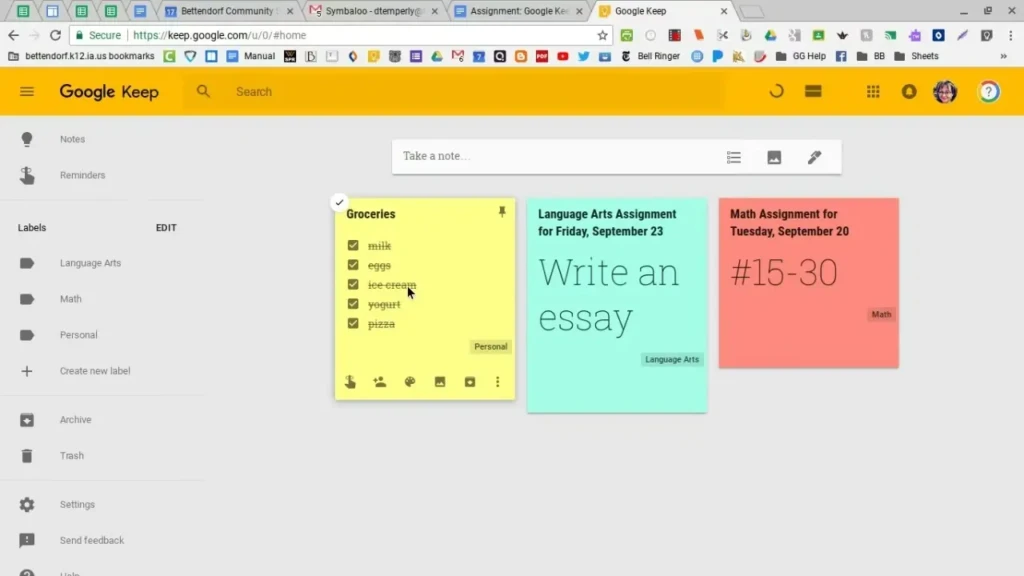
Keep supports both free-form text notes and structured checklists, and the distinction matters more than it sounds. A checklist isn’t just a list with checkboxes; items can be reordered by dragging, checked-off items automatically sink to the bottom of the note so your remaining tasks stay visually prioritized, and you can nest sub-items beneath a parent item for genuinely structured task breakdowns, like a packing list organized by category beneath broader headings. This makes checklists particularly effective for grocery runs, project task lists, and travel packing, where, anywhere visible, satisfying progress matters as much as the list itself.
Color-Coding and Labels
Keep gives you two distinct organizational layers that work best when used together rather than interchangeably. Colors provide instant visual separation at a glance, useful for marking priority or theme without reading a single word. Labels function more like tags, letting you group related notes by topic regardless of color, so a “Work” label can pull together notes of every color into one filtered view. Used together, you get a system that’s genuinely searchable and visually scannable.
Reminders
Keep’s reminder system supports both time-based triggers (“remind me at 3 PM”) and location-based triggers (“remind me when I arrive at the store”), and the location-based option is the feature most users underuse despite it being one of Keep’s most genuinely clever capabilities. A reminder tied to your location surfaces exactly when it’s actionable, rather than firing at an arbitrary time when you’re nowhere near being able to act on it. This is particularly effective for errands, where the actual trigger condition isn’t a clock but a place.
Voice Notes and Image Notes
When typing isn’t practical (driving, walking, hands full), Keep lets you record a voice memo that’s automatically transcribed into searchable text, so you’re not just storing audio; you’re storing something you can later find by searching for a word you remember saying. Image notes work similarly: you can capture a photo, a scanned document, or a whiteboard sketch, and Keep will extract any text present in the image, making even photographed content searchable later.
Drawing and Handwritten Notes
A capability that often gets overlooked in feature summaries: Keep includes a built-in drawing tool that lets you sketch a quick diagram, annotate a photo directly, or jot a handwritten note with a stylus on supported devices. It’s not a replacement for a dedicated drawing app, but for quick visual capture, a rough floor plan, or a hand-drawn diagram during a call, it removes the need to switch apps entirely.
Real-Time Syncing
Every feature above is meaningless without reliable sync, and this is genuinely where Keep earns its reputation. Changes propagate near-instantly across every device signed into your Google Account.
There’s no manual refresh, no “sync now” button to remember, no meaningful lag between editing on one device and seeing that edit on another. For a tool whose entire value proposition is frictionless capture, invisible sync is the feature that makes everything else actually work.
Gemini AI in Google Keep: What’s Genuinely New
This is the section that didn’t exist in older descriptions of Keep, and it represents the most significant functional shift the app has seen in years.
“Help Me Create a List”
Google has built a Gemini-powered list creation feature directly into Keep. Instead of manually typing out every item for a grocery list, a packing list, or a project task breakdown, you can select “Help me create a list,” describe what you need in plain language, and Gemini generates a structured, editable list for you in seconds. Ask for a packing list for a five-day beach trip, and Gemini builds one organized by category (clothing, toiletries, electronics) that you can immediately edit, reorder, or add to manually.
The Access Detail Worth Knowing Upfront
This feature is available to users with a Google AI Pro or Google AI Ultra subscription, or to anyone using a Pixel mobile device. If you’re on a free Google account without a Pixel phone, you won’t see this option in Keep itself, which is an important access gate to keep in mind before you look for a button that may not appear on your account.
Gemini Apps: Creating and Managing Keep Notes Directly
Beyond the in-app list generator, the standalone Gemini app can create and update notes and lists directly in Google Keep through conversation, as well as in several third-party note apps, including Samsung Notes and OnePlus Notes. In practice, this means you can ask Gemini in a completely separate conversation to “add eggs and milk to my grocery list,” and it will locate your existing Keep shopping list and update it accordingly, without you ever opening Keep itself. For anyone who already talks to Gemini throughout the day for other tasks, this turns Keep into something closer to a connected memory layer than a destination app you have to remember to open.
What This Means for Your Storage and Subscription Decision
Google’s broader AI subscription restructuring at I/O 2026 is relevant context here, even though it isn’t Keep-specific. Google AI Pro subscribers now get 5 TB of pooled storage across Gmail, Drive, and Photos (a meaningful increase from the previous 2 TB), along with expanded Gemini usage limits that extend to Keep’s list-creation features. If you’re already paying for Google AI Pro or Ultra for Gmail, Drive, or Gemini access, the Keep integration is essentially a free bonus layered on top of a subscription you may already have for other reasons, rather than an additional cost.
How Google Keep Works With Other Google Apps
Keep’s usefulness multiplies considerably once you understand how it connects to the rest of the Google ecosystem, rather than treating it as an isolated note app.
Integration With Google Drive
Google Keep and Google Drive share more than cloud infrastructure; they’re built to work together directly inside your documents. You can drag a Keep note straight into a Google Doc you’re actively writing, pulling quick research, a rough outline, or context notes directly into your composition without breaking your writing flow to go searching for where you’d jotted that idea down. This turns Keep into a genuine staging area for longer-form work rather than a separate, disconnected app you only visit on your own.
Google Calendar
Reminders set in Keep surface directly in Google Calendar, letting you see your quick-capture tasks alongside your scheduled commitments in one unified view, rather than needing to check two separate apps to understand what your day actually looks like.
Drag-and-Drop in Docs
Within Google Docs specifically, you can open a Keep side panel without leaving the document you’re working on, browse your existing notes, and drag relevant content directly into your draft. This is the workflow bridge between “quick capture” and “full composition” that makes Keep genuinely useful as a thinking tool rather than just a storage bin. The rough idea you captured on your phone during a commute can become a paragraph in a document an hour later with almost zero friction.
Common Use Cases for Google Keep
Google Keep shines in everyday scenarios because of its simplicity. Here are some common ways people use it:
Personal To-Do Lists
Whether you’re planning a weekend project or tracking daily chores, Keep’s checklists make progress visible without complexity.
Work and Project Notes
For quick project thoughts, meeting takeaways, or quick reminders, Keep is less cumbersome than opening a full document or project management tool.
Study and Revision Notes
Students often use Keep for:
- Lecture summaries
- Flashcard-style notes
- Quick revision reminders
Because Keep syncs instantly, study notes are available across devices.
Collaborative Notes
Keep supports sharing notes with others, which makes it useful for:
- Shared shopping lists
- Family reminders
- Group task coordination
It becomes a lightweight alternative to more complex team tools when the task at hand is simple.
Google Keep on Different Devices
Keep is accessible on nearly every platform you’re likely to use, with a few practical distinctions worth knowing about.
Android gets the full feature set, unsurprisingly, given that Keep is a native Google product. iPhone and iPad get near-full functionality through a dedicated app, with only minor platform-specific differences.
The web browser at keep.google.com offers the full experience with the most screen real estate, making it the best environment for any heavier organizing session. In addition, a Chrome extension adds quick capture directly to your browser toolbar, making it easy to save a thought or a webpage snippet without switching tabs.
Because every one of these surfaces syncs to the same underlying account, you can genuinely move between them mid-task without losing your place. Start a note on your phone, finish organizing it on the web, and reference it later from your tablet, all without a single manual transfer step.
Google Keep Tips and Best Practices
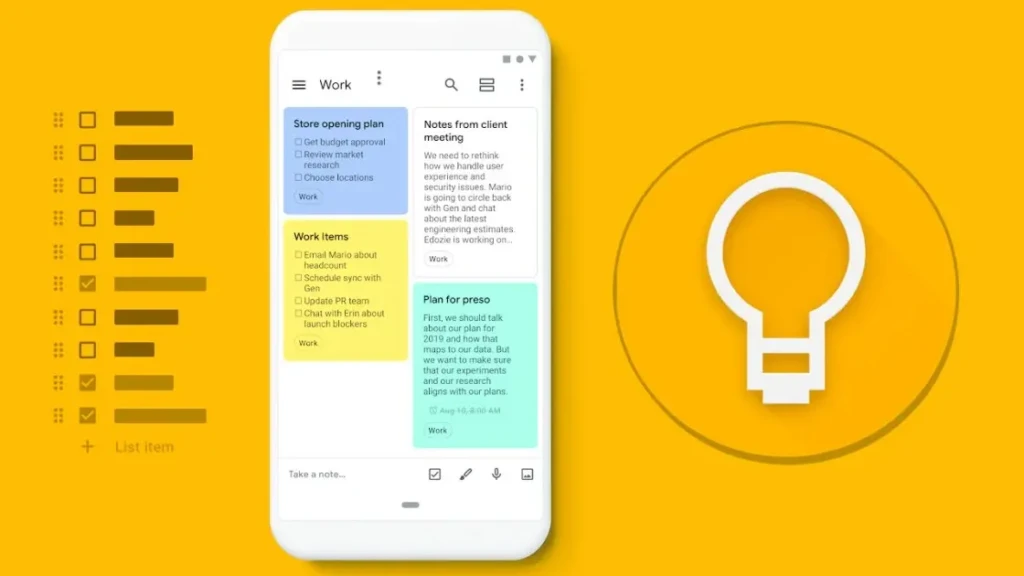
A handful of habits separate users who find Keep genuinely useful over the long term from those whose Keep accounts become an unmanageable pile of forgotten notes.
Combine Labels and Colors Deliberately, Not Randomly
Use labels to organize by topic (Work, Personal, Recipes) and colors to separate by priority or urgency within those topics. Used together rather than as competing systems, this keeps even a large collection of notes genuinely searchable and visually scannable at a glance.
Treat Checklists As Progress Trackers, Not Just To-Do Lists
Break larger tasks into sub-items rather than leaving them as a single vague line. “Plan birthday party” becomes far more actionable as a nested checklist covering venue, guest list, food, and decorations than as one unchecked box you’ll keep avoiding.
Actually Use Location-Based Reminders
This is the single most underused feature in Keep, relative to how genuinely useful it is. A reminder that fires when you’re near the relevant location (the hardware store, the pharmacy) gets acted on far more reliably than a time-based reminder that interrupts you at a moment when you’re nowhere near being able to do anything about it.
Archive Instead of Deleting
A note you don’t need visible right now but might genuinely want later should be archived, not deleted. Archived notes stay fully searchable while disappearing from your main cluttered view, giving you the best of both a clean workspace and a permanent record.
Try the Gemini List Generator Before Assuming You Don’t Need It
Even if you’re skeptical of AI features generally, asking Gemini to build a packing list or meal-prep shopping list from a single sentence is a genuinely fast way to get a structured starting point you can then edit, worth testing even briefly if you have access through a Google AI Pro or Ultra plan, or a Pixel device.
Google Keep vs Other Note-Taking Apps
App | Best For | Cross-Device Sync | AI Features | Deep Formatting | Price |
Google Keep | Fast, simple capture | Excellent | Gemini list generation (Pro/Ultra or Pixel) | Minimal | Free |
Apple Notes | Apple ecosystem users wanting more structure | Excellent (Apple devices only) | Limited | Moderate | Free |
Notion | Deep organization, databases and project tracking | Good | Strong (Notion AI) | Extensive | Free–paid |
Evernote | Long-term archiving, web clipping | Good | Moderate | Strong | Free–paid |
Obsidian | Linked, structured personal knowledge bases | Good (with sync add-on) | Plugin-dependent | Extensive | Free–paid |
Google Keep’s honest position in this table is “fastest entry point, lowest ceiling,” and that’s precisely why it works best as a complement to more structured tools rather than a replacement for them. Many Keep users pair it naturally with dedicated task managers for anything requiring real project structure, a dynamic covered in detail in our Todoist vs Things 3 comparison, or with writing-focused tools once a quick-captured idea needs to become a polished piece of writing, as explored in our Grammarly vs ProWritingAid comparison. Keep is rarely the only tool in a serious productivity stack; it’s the fast-capture layer that feeds the more structured tools alongside it.
Pros and Cons of Google Keep
The Pros:
- Genuinely lightweight and immediate, with a close-to-zero learning curve.
- Fast, reliable sync across all devices without manual configuration.
- Simple, satisfying checklist and reminder creation, including genuinely useful location-based triggers.
- Strong native integration with the broader Google ecosystem, particularly Docs and Calendar.
- Free Gemini-powered list generation for users with the right subscription or device.
The Cons:
- Formatting options remain genuinely limited; there’s no rich text, no headers, no tables.
- It’s not built for long-form writing or heavy documentation of any kind.
- It lacks the advanced organizational and project-tracking features that dedicated productivity tools offer.
- The newer Gemini features are gated behind a Google AI Pro or Ultra subscription or Pixel ownership, meaning free-tier users on non-Pixel devices don’t get the full current experience.
Who Google Keep Is Best For
Google Keep is perfect for:
- Users who want fast, simple note capture
- People who work across multiple devices
- Anyone already invested in the Google ecosystem
It’s less ideal for:
- Writers needing deep formatting
- Project managers who want advanced workflow tools
- Users who want dedicated offline workflows
FAQs
Yes. Google Keep itself is completely free and included with any standard Google Account, with no separate subscription required for its core note, checklist, reminder, and sync features. The newer Gemini-powered list generation feature requires a Google AI Pro or Google AI Ultra subscription or access via a Pixel mobile device, but Keep’s foundational functionality has no cost gate at all.
Yes. You can create, edit, and check off notes without an active internet connection, and Keep automatically syncs those changes as soon as your device reconnects. The one exception is Gemini-powered features, specifically AI list generation, which require an active connection to process your request, since the AI processing happens in the cloud rather than on your device.
Keep follows Google’s standard account security and encryption practices, including encryption in transit and at rest, using the same infrastructure that protects your Gmail and Drive data. That said, sensitive or genuinely confidential information deserves the same caution you’d apply to any cloud-synced tool. Enabling two-factor authentication on your Google Account and periodically reviewing which notes you’ve shared with others are the highest-value security habits for any Keep user.
For fast note capture and simple reminders, genuinely yes. Keep handles that specific job better than most heavier alternatives precisely because it doesn’t try to do anything else. For complex project management, deep document formatting, or structured long-term knowledge organization, no. Keep is intentionally minimal in those areas, and pairing it with a dedicated task manager or writing tool for those specific needs will serve you considerably better than trying to stretch Keep beyond what it’s built for.
Inside Keep, selecting “Help me create a list” lets you describe what you need in plain language: a packing list, a meal-prep shopping list, a project task breakdown, and Gemini generates a structured, fully editable list in seconds based on that description. Separately, the standalone Gemini app can create or update existing Keep notes and lists through ordinary conversation, meaning you can ask Gemini to add an item to your Keep shopping list without ever opening the Keep app directly. Both capabilities require a Google AI Pro or Ultra subscription or a Pixel device.
Archiving removes a note from your main view while keeping it fully intact and searchable, the right choice for anything you don’t need to see right now but might genuinely want to reference later. Deleting removes the note from your account and moves it to the trash, where it remains for a limited recovery window before being permanently removed. As a general habit, archive rather than delete a note unless you’re genuinely certain you’ll never need it again.
Final Thoughts
Google Keep’s enduring strength is that it has refused to become something it isn’t. While the broader note-taking app category keeps pushing toward more structure, more formatting, more features, Keep has stayed deliberately, almost stubbornly simple, and that simplicity is precisely why it remains the fastest possible bridge between having a thought and not losing it. The addition of Gemini-powered list generation doesn’t change that core identity; it extends it, letting you go from a single sentence to a structured, editable list in seconds, rather than typing every item by hand, without adding any complexity that would compromise what makes Keep useful in the first place.
Used well (labels and colors working together rather than competing, location-based reminders actually enabled, checklists broken into genuinely actionable sub-items, archiving instead of deleting), Keep becomes a reliable, almost invisible part of how you think through a day rather than another app competing for your attention. It was never trying to replace your task manager or your writing tool, and it still isn’t. It’s trying to be the place where a thought lands the instant you have it, safely, searchably, and exactly where you’ll look for it next.
There’s always more to learn about getting genuine value from the tools you already have access to. Head to YourTechCompass.com for more honest, detailed app guides and comparisons.