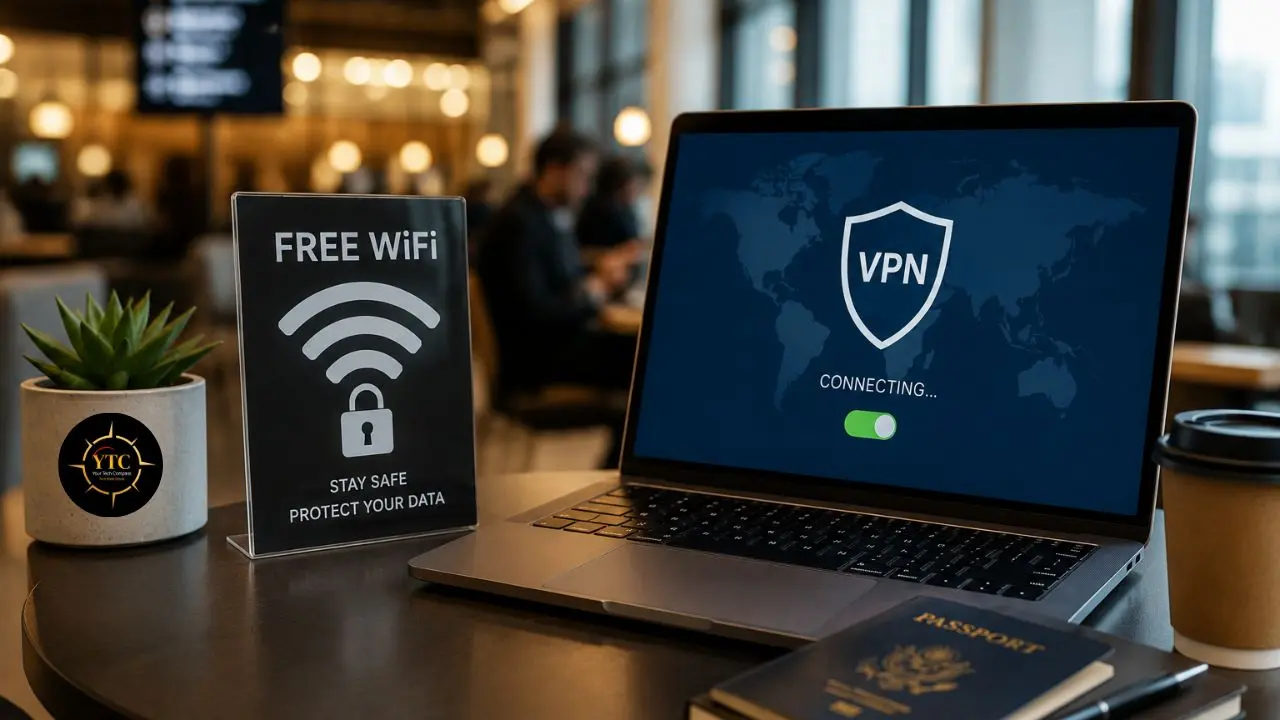
Picture this: you’re sitting in a café in Nairobi, a hotel lobby in Lagos, or an airport lounge in Accra. You need to send a client report, join a video call, or access your company’s internal system. The free WiFi on the wall is right there, and the deadline is in twenty minutes. That network could be completely legitimate. It could also be a spoofed access point set up by someone two tables away, running a WiFi Pineapple device — inexpensive, widely available hardware that lets even a technically novice attacker intercept every byte of traffic flowing through what appears to be a normal connection. The terrifying part is that you genuinely cannot tell the difference from the login screen.
I wrote this guide because “just don’t use public WiFi” is not practical advice for remote workers, digital nomads, and business travelers; it’s the kind of advice that sounds sensible until you’re three time zones from home with a client deliverable due. What is practical is understanding exactly which behaviors expose you to real risk, which tools genuinely reduce that risk, and how to build a default security posture that runs quietly in the background while you get actual work done. This guide is behavior-first. A VPN is important, but using it incorrectly while it’s active is still dangerous. By the end, you’ll have a clear, actionable security stack and a checklist you can screenshot and use before you connect anywhere.
Why Public WiFi Is Actually Risky: The Specific Threats Worth Understanding
Before jumping into precautions, I want to give you enough context to understand why each precaution exists, because security advice you understand is security advice you actually follow. These aren’t theoretical concerns from a cybersecurity textbook. They’re documented, common attacks that require minimal technical skill to execute.
Man-in-the-Middle (MITM) Attacks
A man-in-the-middle attack happens when a third party secretly intercepts connections and collects data as it travels to its destination. You connect to an authentic WiFi network, but a hacker can read or even modify traffic before it reaches its destination.
What makes this specifically dangerous on public WiFi is scale and ease. In MITM attacks, the hacker intercepts data flowing between your device and the destination server, positioning themselves in the middle to capture personal information such as passwords, bank details, emails, and credit card numbers. On a shared public network with dozens of connected users, an attacker can run these tools passively and collect credentials from multiple victims simultaneously without any of them being aware.
You might assume that HTTPS completely protects you here. It helps significantly, but it’s not a complete defense. ARP spoofing attacks manipulate the Address Resolution Protocol, making it appear as though your device is connected to the router when your traffic is actually being routed through the hacker’s device. SSL stripping attacks can additionally downgrade certain HTTPS connections to HTTP before you notice, which is precisely why HTTPS-only browser modes (covered later) are a meaningful additional layer rather than redundant protection.
Evil Twin / Rogue Access Points
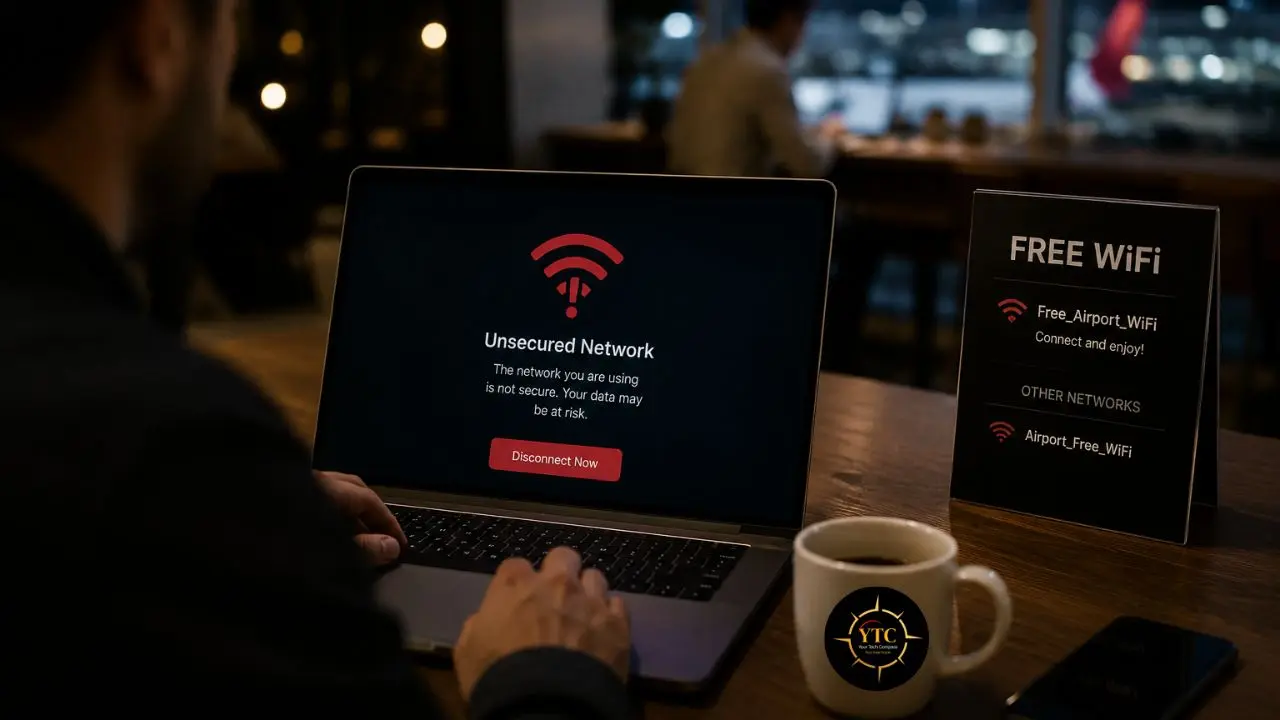
This is the attack that should make you pause before auto-joining any public network. A hacker may use a mobile hotspot to clone real networks, like the free WiFi at local coffee shops, so you mistakenly connect to a fake network rather than the real one. The cloned network appears in your device’s WiFi list with an identical or near-identical name, sometimes with a stronger signal than the legitimate network.
The real-world consequences are documented and serious. In September 2024, British Transport Police arrested a man in connection with a cyber incident that disrupted public Wi‑Fi at 19 Network Rail stations, including King’s Cross in London. Reporting said the attack altered the Wi‑Fi login page and that no personal data was compromised. This attack did not require sophisticated infrastructure; it could be set up with a mobile device running hotspot software and a network name that looked familiar.
Packet Sniffing on Unsecured Networks
Packet sniffing is the passive monitoring of network traffic and poses significant risks to public WiFi networks, even when no active attack is underway. Unencrypted public WiFi transmits all data in plaintext, making it readable to anyone with basic packet analysis software, such as Wireshark, available for free from legitimate sources like Wireshark.org.
What’s specifically exposed in a packet sniffing attack: login forms submitted over HTTP, session cookies from authenticated sites, metadata from encrypted sessions (which sites you’re visiting, when, for how long), and any API calls to services that don’t enforce encryption end-to-end. AI-assisted traffic analysis is an increasingly important cybersecurity risk in 2026 because attackers can process captured network data faster and on a much larger scale than manual review allows. It does not break encryption, but it can still help infer user activity from traffic patterns and metadata, which keeps public Wi‑Fi a meaningful privacy risk.
Session Hijacking
Session hijacking is a cyberattack in which a hacker intercepts your session ID, usually a cookie that websites use to keep you logged in. This allows them to take over your session and access your account without needing login credentials. The hacker can then make changes as if they were you, such as altering passwords or making purchases.
This attack is particularly consequential for remote workers because it targets the very workflows you rely on: logging into SaaS platforms, client portals, project management tools, and business communication platforms over an untrusted network. Your password itself may never be exposed, but your active, authenticated session can be hijacked and used as if you were logged in.
Before You Connect: The Habits That Matter Most
The single most effective thing you can do for your public WiFi security is to build the right habits before you connect, not after. Most attacks on public networks succeed because users connect first and think about security second, if at all.
Verify the Network Is Legitimate First
Identify fake networks through multiple similar names appearing in your list, unexpectedly strong signals indicating the attacker’s device is physically closer than the real router, missing passwords when previously required, portals requesting unnecessary information such as phone number, date of birth, or postal code, and spelling errors or broken images that reveal hastily created pages.
The Practical Habit
Ask a staff member for the exact network name before connecting. Not “What’s your WiFi?” but “What’s the exact name I should see in my network list?” Then verify it matches what you see. When two networks have similar names, such as “Airport_Free_WiFi” and “Airport Free WiFi,” one of them is likely a rogue network. Before connecting to any network, it’s crucial to verify that your WiFi is secure to protect your connection from potential cyber threats.
Disable Auto-Connect and Remove Stale Networks
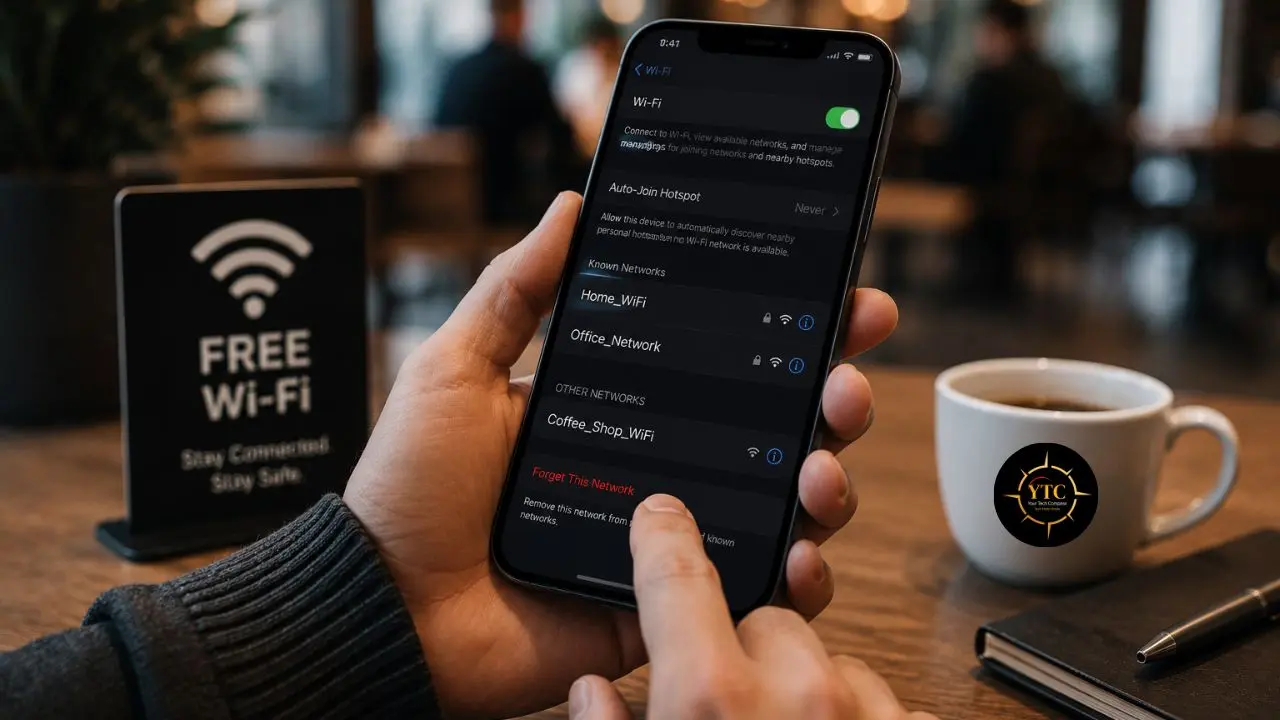
Your device’s auto-connect feature is exploitable precisely because it trusts network names rather than verifying network identity. An evil twin attack works most reliably against people whose devices automatically reconnect to “known” networks, because the rogue access point mimics the name of a network you’ve connected to before.
Turn this off permanently, and clean up saved networks you no longer actively use:
- Windows: Settings → Network & Internet → WiFi → Manage Known Networks → remove stale entries
- Mac: System Settings → WiFi → Known Networks → edit and remove
- iPhone: Settings → WiFi → tap the info (ⓘ) icon next to any network → disable “Auto-Join”
- Android: Long-press saved networks → Forget, or disable auto-connect per network in WiFi settings
Turn off Wi-Fi entirely when you’re not actively using it. Your device cannot be targeted for network-based attacks when it’s not broadcasting or scanning for networks — a simple habit that eliminates the exposure window while you’re in transit.
Enable Your Device Firewall and Set the Right Network Profile
Both Windows and macOS include built-in firewalls that limit which incoming traffic can reach your device, providing meaningful protection against lateral attacks from other devices on the same network.
Here’s how to enable your device firewall:
- Windows: Go to Windows Security → Firewall & Network Protection → confirm the firewall is active. Critically, when Windows asks, “Do you want to allow your PC to be discoverable?” during network join, always select No / Public Network. Setting a network to “Private” makes your device visible and accessible to other users on the same network, which is a serious security risk on any shared public connection.
- Mac: Go to System Settings → Network → Firewall and confirm it’s enabled. macOS also provides a Stealth Mode option within firewall settings that prevents the device from responding to network probes, which is worth enabling for regular public WiFi users.
For remote workers running security tools on high-performance hardware, our MacBook Pro M4 review covers the security architecture that underpins Apple Silicon’s built-in protections. Windows users, in particular, should also explore our Microsoft Defender guide, which covers the full scope of Windows’ native security stack and the additional configurations worth enabling before connecting to public networks.
Use a VPN: But Use It Correctly
A VPN is the most commonly recommended tool for public WiFi security, and for good reason, but “install a VPN” is incomplete advice without understanding what a VPN actually protects, what it doesn’t, and the specific behaviors that determine whether it’s effective.
What a VPN Actually Does on Public WiFi
A VPN encrypts all traffic between your device and the VPN server, creating a private tunnel through the public network that prevents packet sniffing and most MITM interception at the local network layer. For a coffee shop attacker running a packet sniffer or an evil twin attack, your traffic appears as an unreadable encrypted stream; they can see that you’re using a VPN, but not what you’re accessing or sending.
What a VPN does not protect against: malware already on your device before you connect, phishing attacks that manipulate you into handing over credentials voluntarily, the data-handling practices of the websites you visit, or, critically, the data practices of the VPN provider itself if it logs and sells usage data.
What to Actually Look for in a VPN for Public WiFi
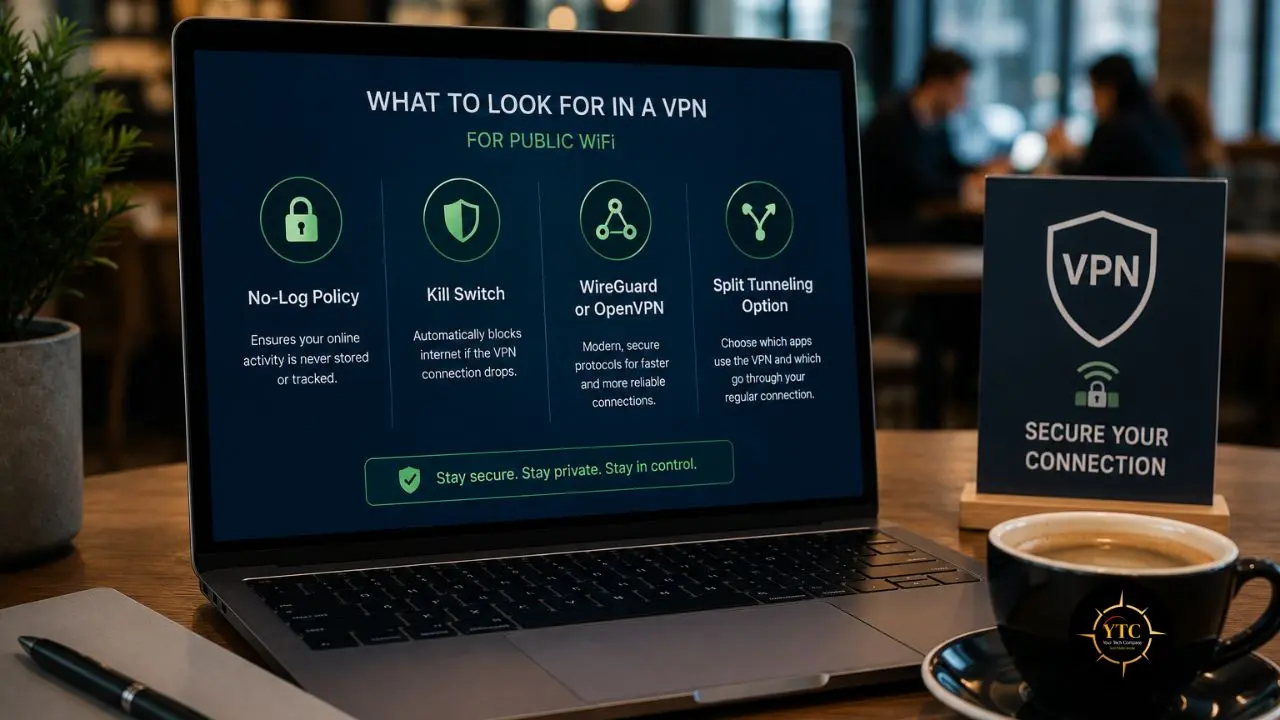
Not all VPNs offer meaningful security. These are the specific features that separate a genuinely protective VPN from one that gives you a false sense of security:
No-Log Policy, Third-Party Audited
“We respect your privacy” on a homepage is marketing copy, not a security commitment. A meaningful no-log policy is independently audited by a reputable security firm, and the audit report is publicly available. Check for it specifically before trusting a provider with your traffic.
Kill Switch
This is the feature that prevents your real traffic from leaking unencrypted during the gap when your VPN connection drops and reconnects, which happens more often on public WiFi than on stable home networks. If the kill switch isn’t active, a momentary gap during VPN reconnection exposes your traffic in the window when an attacker is most likely to be watching.
WireGuard or OpenVPN Protocol
Both are audited, open-standard protocols with well-documented security properties. Avoid VPNs that rely solely on proprietary, unauditable protocols, making independent security review impossible.
Split Tunneling Option
Routes only sensitive traffic through the encrypted VPN tunnel, allowing high-bandwidth, low-sensitivity traffic (video calls, file downloads) to use your direct connection, reducing performance impact on latency-sensitive work without compromising the protection of your important traffic.
VPN Behavior Tips That Actually Matter
Connect the VPN before opening any browser tab or application, not after you’ve already started browsing. Session data exposed in the first thirty seconds of an unprotected connection on a compromised network can be enough for session hijacking.
Visually confirm that the VPN is connected before entering any credentials. Don’t assume the connection is active; check the status indicator in your VPN app before logging into anything.
For a comprehensive breakdown of which free VPN options actually deliver meaningful protection versus which create additional privacy risks, our best free VPN guide covers current options with honest assessments of their security trade-offs.
What You Should Never Do on Public WiFi
Even with a VPN running and strong device settings in place, certain actions create a risk that the underlying protective tools can’t fully mitigate. These are the behavioral guardrails worth making non-negotiable:
1. Never Access Banking or Financial Accounts Without a VPN Active (Strongly Consider Mobile Data Instead)
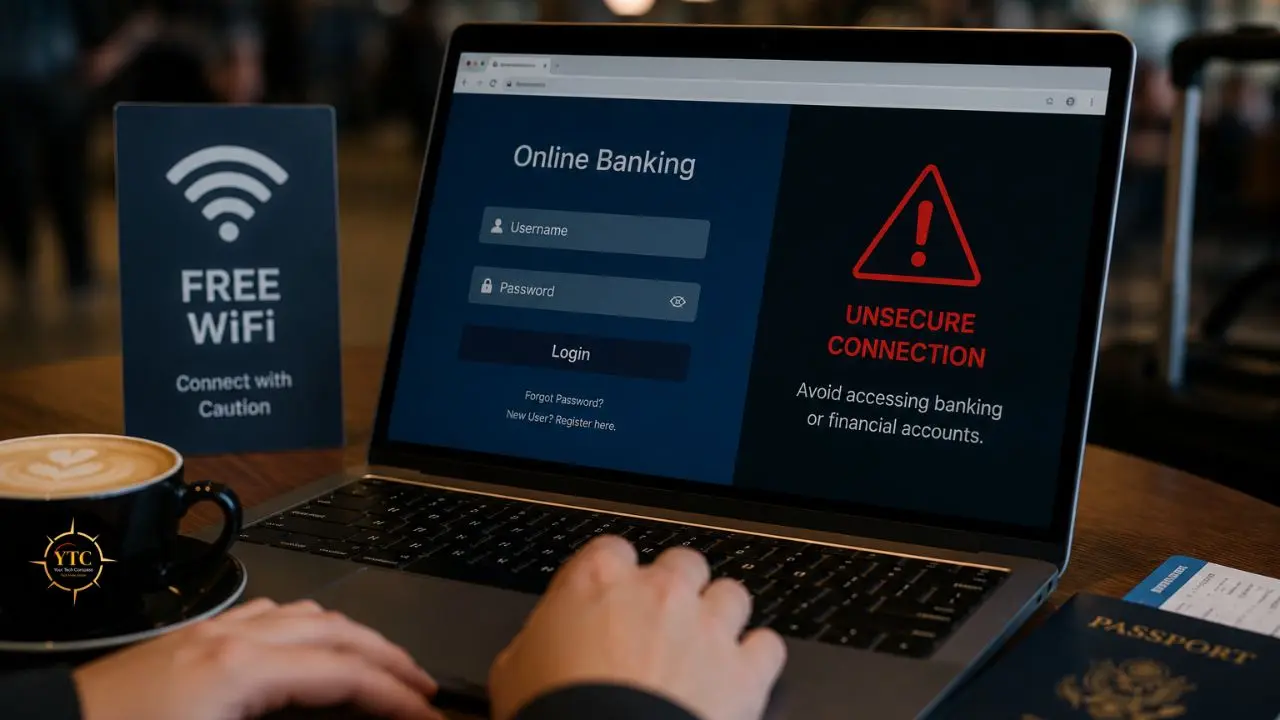
Doing online banking on public WiFi is generally not recommended. Even if the website uses encryption, unsecured networks can still expose your device to risks like data interception or fake login pages. For any transaction involving money or financial authentication, your phone’s mobile data is the simplest, most reliable protection; no network configuration is required.
2. Never Log Into Work Systems Without Your VPN Connected First
Many employees use hotel or airport Wi‑Fi for work tasks, and security experts warn that accessing sensitive accounts on public networks can increase the risk of credential theft and data exposure unless protections such as VPNs and MFA are used. Therefore, logging into an internal company portal, a client’s admin system, or a sensitive SaaS platform over unprotected public WiFi exposes your credentials directly.
3. Never Ignore Certificate Warnings
A browser warning that a site’s security certificate is invalid is one of the clearest signals that something is wrong with the network you’re on, potentially an SSL stripping or certificate spoofing attack in progress. Close the browser immediately, disconnect from the network, and investigate before reconnecting. These warnings exist precisely because the attack scenarios they flag are common on compromised networks.
4. Never Leave Your Screen Visible to People Behind You
Shoulder surfing is a low-tech yet widely used attack vector in cafés and co-working environments. A physical privacy screen filter for your laptop is an inexpensive tool that eliminates this exposure entirely for regular workers in public spaces.
5. Never Auto-Fill Passwords in Public Spaces
Screen-recording malware and physical shoulder surfing are both real risks, particularly in busy environments. Using a password manager that requires your master password or biometric confirmation before filling adds a friction point that prevents automated capture.
Your Practical Security Toolkit
The right security setup for public WiFi isn’t a single tool; it’s a layered stack where each component protects a different part of the attack surface. Here’s what each layer does and which options I’d point you toward first.
VPN: The Core Layer
- ProtonVPN: Swiss jurisdiction, open-source clients, independently audited, free tier with no bandwidth limits on a subset of servers. The most transparent option in the consumer VPN market for users who want verifiable privacy commitments rather than marketing promises.
- Mullvad: Accepts cash and anonymous payment, requires no email to create an account, and is independently audited. Consistently cited by independent security researchers as one of the most privacy-respecting options available.
Both support the WireGuard protocol and include a kill switch. Both are worth testing on the VPN’s free tier before committing to a paid plan.
Password Manager: Eliminates the Password Problem
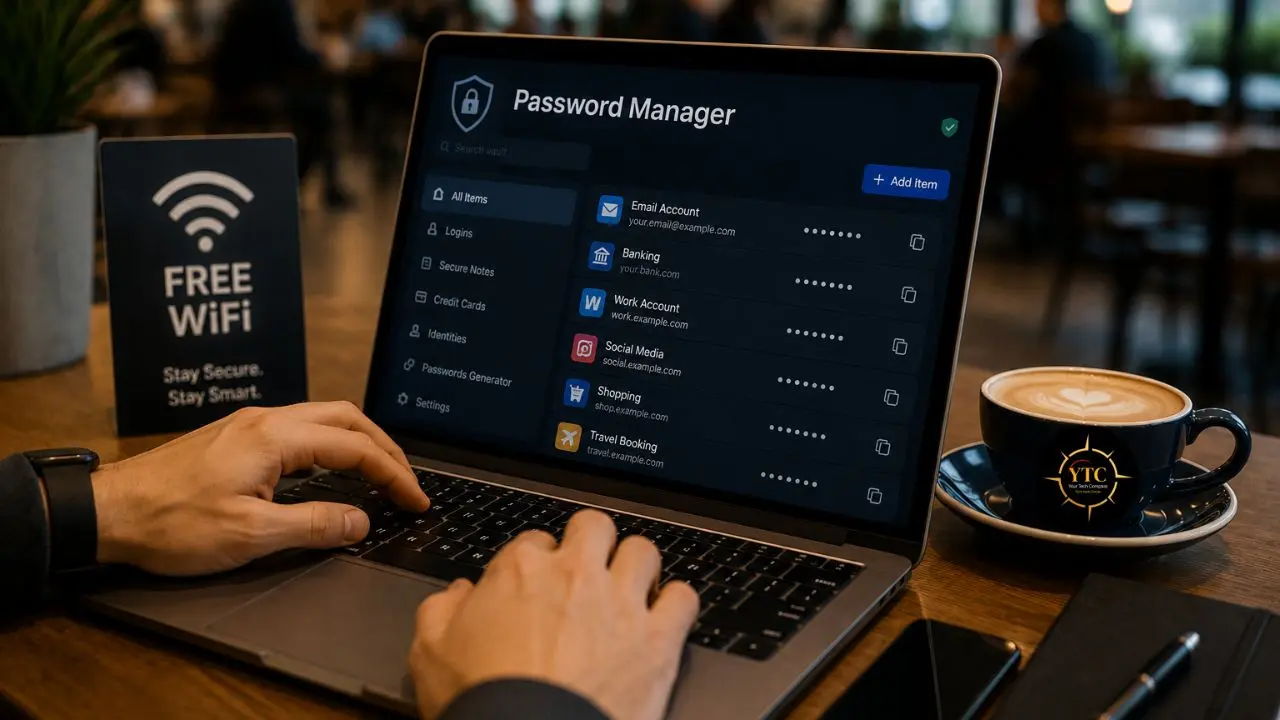
A password manager does two things that directly address public WiFi risk: it auto-fills credentials without you typing them (removing keyboard entry as a capture vector), and it enforces unique passwords across every account, meaning an intercepted credential from one site can’t be used to access another.
- Bitwarden: Open-source, independently audited, free for personal use. The transparency of the open-source codebase is a meaningful security signal.
- 1Password: Business-grade, Travel Mode specifically hides sensitive vaults when crossing borders, a feature genuinely useful for international remote workers.
Browser HTTPS-Only Mode: A Simple, High-Value Setting
Most modern browsers support a native HTTPS-Only mode that prevents loading any HTTP site without an explicit warning, catching sites that might otherwise silently load over unencrypted connections:
- Chrome: Settings → Privacy and Security → Security → Advanced → “Always use secure connections”
- Firefox: Settings → Privacy & Security → HTTPS-Only Mode → “Enable in all windows”
- Safari: Enabled by default for most sites on recent macOS and iOS versions
This setting costs nothing and takes under a minute to enable. On a compromised network where an attacker is attempting SSL stripping, the browser will warn you before loading the downgraded page rather than silently loading HTTP content you’d never notice.
Two-Factor Authentication: The Credential Backstop
Even if a password is intercepted on a compromised network, 2FA prevents immediate access to the account without the second factor. This backup limits damage even when other protections fail.
Microsoft has warned that AiTM phishing campaigns can steal session tokens and bypass phishable MFA methods such as push approvals, SMS OTP, and TOTP. As a result, phishing-resistant MFA such as FIDO2/WebAuthn security keys and platform passkeys is increasingly viewed as the preferred baseline for 2026.
For everyday accounts, authenticator apps (Authy, Google Authenticator) are a substantial improvement over SMS-based 2FA, since SIM-swap attacks can compromise SMS codes regardless of your WiFi security. For high-value accounts (work systems, email, banking), a hardware key such as a YubiKey provides the strongest currently available protection against credential theft, regardless of the underlying network.
DNS-over-HTTPS: The Often-Missed Layer
DNS queries (the requests your device makes to translate domain names into IP addresses) are often overlooked in discussions of WiFi security because they’re invisible to most users. On an unprotected public network, an attacker can monitor your DNS queries to see which sites you’re visiting, even when the actual content of those visits is encrypted.
DNS-over-HTTPS encrypts your DNS queries through the same HTTPS protocol that secures web traffic, preventing this metadata exposure:
- Firefox: Settings → Privacy & Security → DNS over HTTPS → Enable
- Chrome: Settings → Privacy and Security → Security → “Use secure DNS” → with your provider of choice (Cloudflare’s 1.1.1.1 or Google’s 8.8.8.8 both work well)
This complements rather than replaces a VPN; they protect different parts of the exposure surface, and enabling both takes under five minutes combined.
Mobile Data: The Simplest Option for High-Stakes Tasks
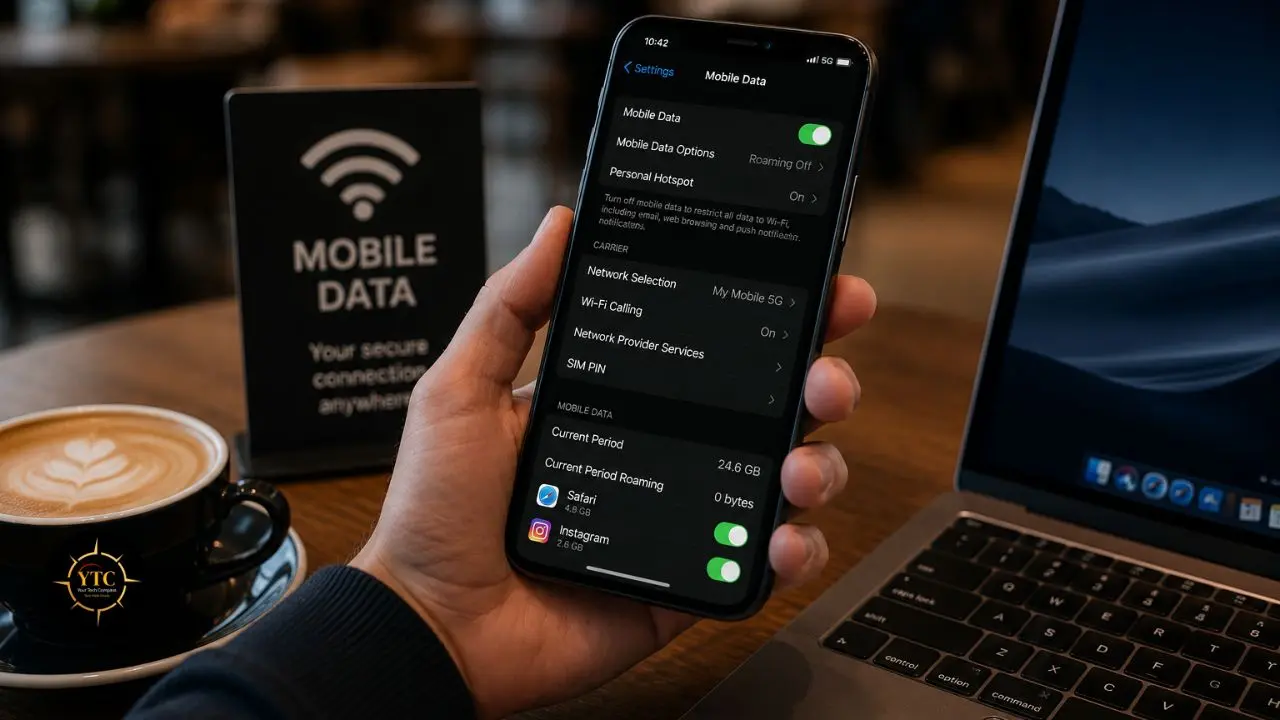
Your phone’s mobile data connection is the single most effective public WiFi precaution for genuinely sensitive tasks, such as financial transactions, accessing confidential client data, and sensitive work authentication, because it bypasses the public network entirely. There’s no network trust issue to resolve when you’re not on a public network at all.
For remote workers and digital nomads who regularly work across Africa, using a local SIM with a reasonable data plan is genuinely worth the cost, given the security risks of handling sensitive work over unverified public networks. When you’re choosing hardware for remote work that travels with you, our best laptops for running AI tools locally guide covers device recommendations for portable high-performance setups, including connectivity and security considerations.
Remote Work Specific Considerations
If you’re connecting to public WiFi specifically for work, not just casual browsing, a few additional considerations apply that individual security tools alone don’t fully address.
- Use Your Company VPN If One Is Provided: Corporate VPNs terminate traffic at the company’s own network infrastructure, creating a direct, encrypted tunnel to internal resources regardless of the underlying public network. This supersedes consumer VPN recommendations for work-specific traffic. If your employer provides a corporate VPN, use it before consumer VPN alternatives, not alongside them, to avoid routing conflicts.
- Verify Your Remote Work Tools Use End-to-End Encryption: Video conferencing and messaging platforms differ significantly in their encryption models. Tools like Zoom and Google Meet encrypt traffic in transit but not end-to-end, meaning a compromise at the platform level is possible, even if your local network connection is protected. For genuinely sensitive business discussions, platforms with real end-to-end encryption (Signal for team messaging, ProtonMail for email, Wire for video) provide protection that the VPN layer alone doesn’t.
- Before You Travel, Find Out Whether VPN Usage Is Restricted in Your Destination Country: Several countries legally restrict or prohibit VPN usage. Using a VPN in a country where it’s restricted can create legal risk entirely separate from the security benefits. Research this before you travel, not after.
For the full picture of remote work productivity tools that integrate securely with this setup, our best productivity apps for remote workers guide and Zapier review cover workflow tools alongside their security considerations. If you’re using Notion for remote work documentation, our Notion AI privacy settings guide is directly relevant to understanding how AI-assisted cloud tools handle your data in transit and at rest.
Broader cloud security principles that apply to your remote work stack are covered in our cloud security tips guide. The full collection of security-related tech guides is accessible through our Tech Guides category and our Apps and Tools section.
Comparison: Public WiFi Protection Methods

Protection Method | What It Protects | What It Doesn’t Cover | Difficulty | Cost |
VPN (Kill Switch Enabled) | Traffic encryption (prevents packet sniffing and MITM) | Malware on device; VPN provider’s own data practices | Low–Medium | Free–$10/month |
HTTPS-Only Mode | Prevents silent HTTP downgrade on certificate attacks | Only applies to browser traffic | Very Low | Free |
DNS-over-HTTPS | Encrypts DNS queries, hides which sites you visit | All other network traffic | Very Low | Free |
Password Manager | Prevents typing credentials, enforces unique passwords | Session hijacking after login | Low | Free–$3/month |
2FA (Authenticator App) | Protects accounts even if the password is intercepted | Sophisticated AiTM attacks | Low | Free |
Hardware Security Key (YubiKey) | Phishing-resistant MFA (resists AiTM) | Very few scenarios that defeat it | Medium (setup) | $25–$55 one-time |
Mobile Data (Hotspot) | Removes public network risk entirely | Data cost; roaming charges | Very Low | Depends on the plan |
Firewall (Public Mode) | Limits incoming connections from other network users | Outbound traffic; VPN gaps | Very Low | Free (built-in) |
Quick Reference: The Public WiFi Safety Checklist
Print this, screenshot it, or save it somewhere you’ll see it before connecting anywhere public.
Before Connecting:
- ☐ Verify the exact network name with staff or posted signage
- ☐ Confirm no duplicate or similarly named networks appear (if they do, ask)
- ☐ Disable auto-connect for any public network you’re joining
- ☐ Connect your VPN before opening any browser or app
- ☐ Confirm kill switch is enabled in your VPN settings
While Connected:
- ☐ Verify VPN shows as actively connected before entering any credentials
- ☐ Use HTTPS-Only mode (treat any certificate warning as a disconnect signal)
- ☐ Use mobile data for banking and financial transactions, not public WiFi
- ☐ Keep your screen angled away from public view
- ☐ Use 2FA for every account that supports it
After Disconnecting:
- ☐ Use “Forget This Network” in your device’s WiFi settings immediately
- ☐ Review any accounts accessed for unexpected activity or login alerts
- ☐ Clear browser session cookies if you were accessing sensitive accounts without full VPN coverage
FAQs

Significantly safer, but not unconditionally safe. A VPN encrypts your traffic, preventing packet sniffing and most MITM attacks at the local network level. What it doesn’t protect against: malware already on your device; phishing attacks; certificate spoofing if you’ve already been diverted to a fake network before the VPN connects; or the VPN provider’s own data practices if you’re using an unaudited service. A VPN is the most important single tool, but it works best as part of the complete layered approach covered in this guide.
A MITM attack occurs when an attacker positions themselves invisibly between your device and the network router, intercepting all traffic you send and receive. On public WiFi, this is easier to execute than on private networks because of the shared, often unencrypted nature of public connections. The attacker can passively read your traffic, capture login credentials, steal authenticated session cookies, or modify traffic before it reaches you, often without any visible sign that anything unusual is happening.
No, or at minimum, only over a confirmed, kill-switch-enabled VPN on a network you’ve verified as legitimate. The cleaner approach is to use your phone’s mobile data for any financial transaction, which bypasses the public network question entirely. No, it’s not safe to do banking on public WiFi. Even with encryption, unsecured networks expose your device to risks like data interception or fake login pages.
ProtonVPN’s free tier is the most frequently recommended by independent security researchers because it has no bandwidth limit on free accounts, uses audited security practices, and doesn’t monetize user traffic data. Our best free VPN guide covers this comparison in detail. Broadly: free VPNs with no clear revenue model should be avoided, since the service costs real money to operate; if you’re not paying, your traffic data is likely the product.
Signs of a fake network include: multiple similar-named networks appearing simultaneously, an unexpectedly strong signal relative to the stated network (which may indicate the attacker’s device is physically closer than the legitimate router), portals requesting unnecessary personal information such as phone numbers or dates of birth, and missing password requirements on networks that previously required one. The most reliable check is to ask staff for the exact network name and visually match it, character by character, against the network name that appears in your device’s network list.
Final Thoughts
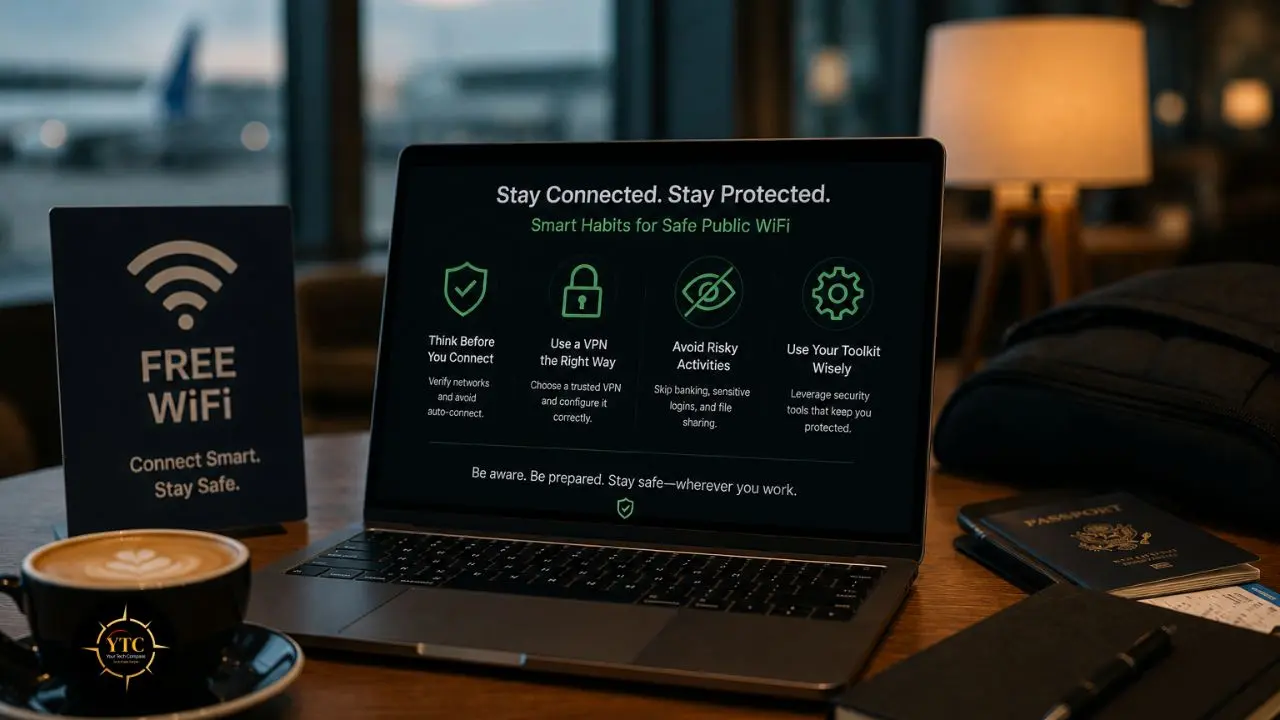
The remote workers and travelers who stay genuinely safe on public WiFi aren’t the ones who know the most about cybersecurity theory; they’re the ones who’ve turned these precautions into automatic habits. A VPN is connected before any tab opens. An HTTPS-only browser setting that never gets turned off. A password manager that fills credentials without exposing them to keyloggers or observers. Two-factor authentication on every account that supports it. Automatic forget-this-network when you disconnect. None of these takes more than five minutes to set up, and once configured, most of them run invisibly in the background without adding friction to your actual work. IBM’s 2025 Cost of a Data Breach report says the global average cost of a data breach was $4.44 million in 2025. Therefore, investing in a reliable VPN subscription and making a few behavioral changes is a straightforward, rational response to that exposure.
The honest bottom line is that the risk of public WiFi isn’t going away, and neither is the need for remote workers and travelers to use it. The gap between a user who’s built these habits and one who hasn’t is meaningful, and it closes quickly once you’ve actually set up the tools rather than just knowing you should. Start with the precautions that require no spending at all: HTTPS-only mode, kill-switch-enabled VPN (free tier if needed), disabling auto-connect, and your device’s firewall set to Public Network. Build from there. By the time you’re sitting in the next café or hotel lobby with a deadline approaching, the security stack should already be in place and running transparently, so you can focus on the work.
Whether you’re building a secure remote work setup from scratch or auditing what you’ve already got, YourTechCompass covers the tools, guides, and practical reviews you need. Visit YourTechCompass.com for more.