Losing contacts, or finding half of them missing on one device and duplicated on another, is one of those quiet frustrations that builds over time. It usually happens when contacts are saved in different places without you realizing it: some on a phone, some tied to an email account, and others living only on a SIM card. The good news is that syncing contacts across devices is far simpler than it looks once everything points to a single, reliable source.
This guide explains how to sync contacts across devices in a way that actually sticks. Instead of dumping you into technical steps right away, it starts by clarifying how contact syncing really works, then walks through the most practical approaches for Android, iPhone, and mixed setups. By the end, you’ll know exactly which method makes sense for your devices, and how to avoid the common mistakes that cause contacts to disappear in the first place.
What Contact Syncing Really Means
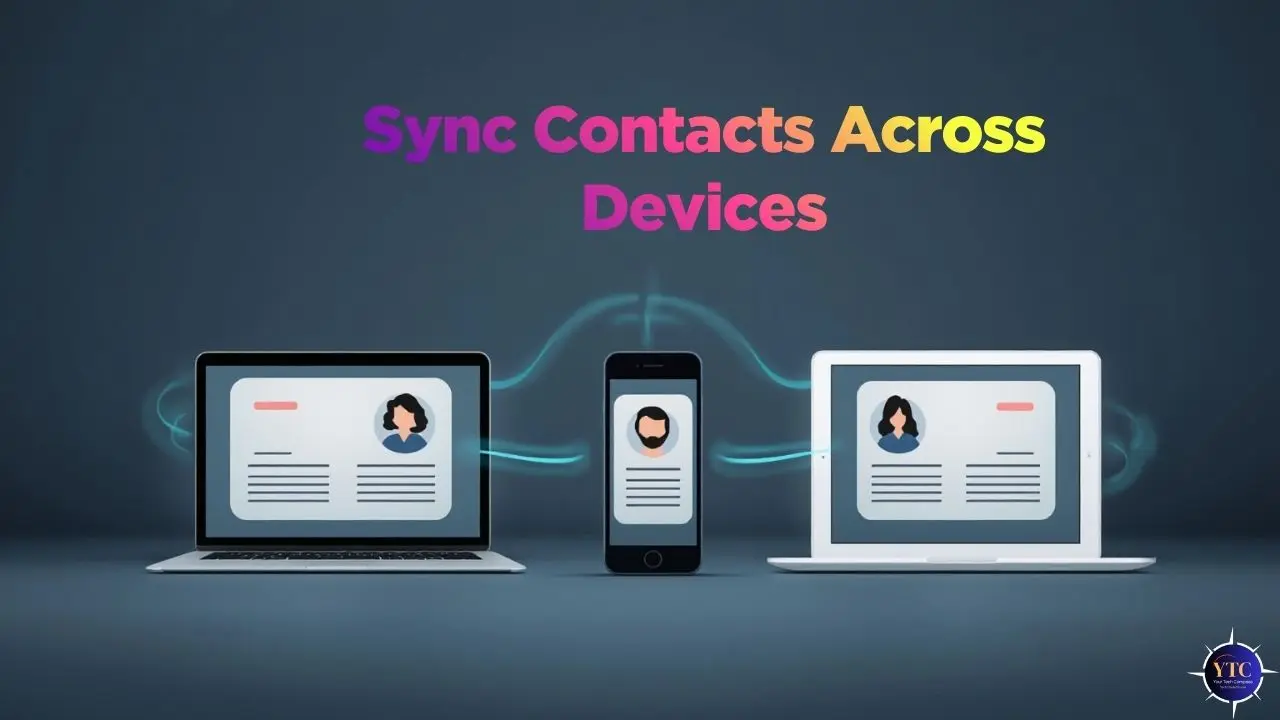
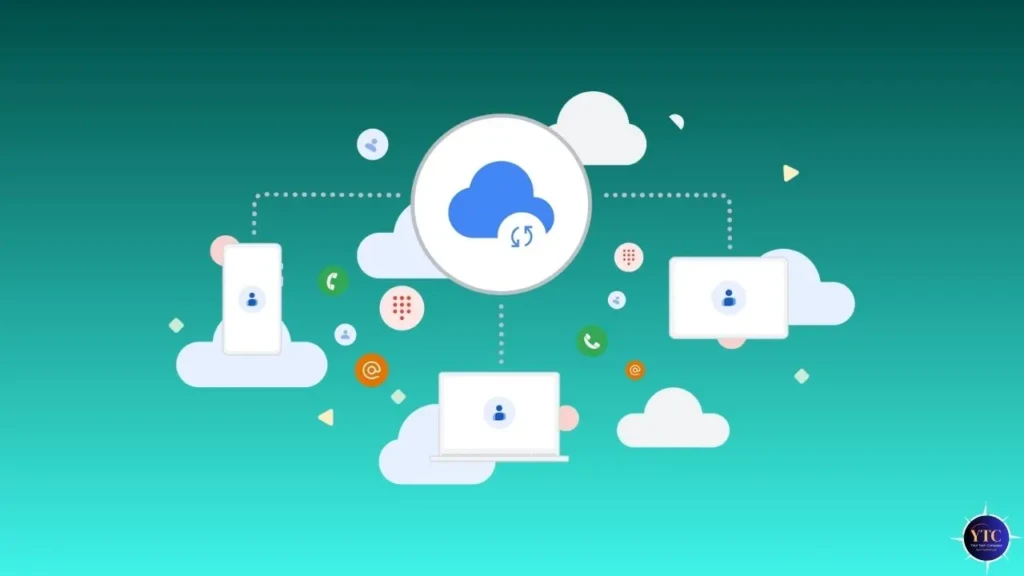
Contact syncing is simply the process of keeping one master contact list in the cloud and letting all your devices pull from it automatically. When everything is set up correctly, adding or editing a contact on one device updates it everywhere else: your phone, tablet, laptop, and even web apps.
Problems usually start when contacts are stored in multiple places. For example, some contacts might be saved directly on your phone, others inside a Google account, and a few more inside an Apple ID or Outlook account. Those lists don’t automatically talk to each other, which is why syncing feels unreliable. The goal is to stop that fragmentation and choose one account to handle everything.
How Contact Syncing Works Behind the Scenes
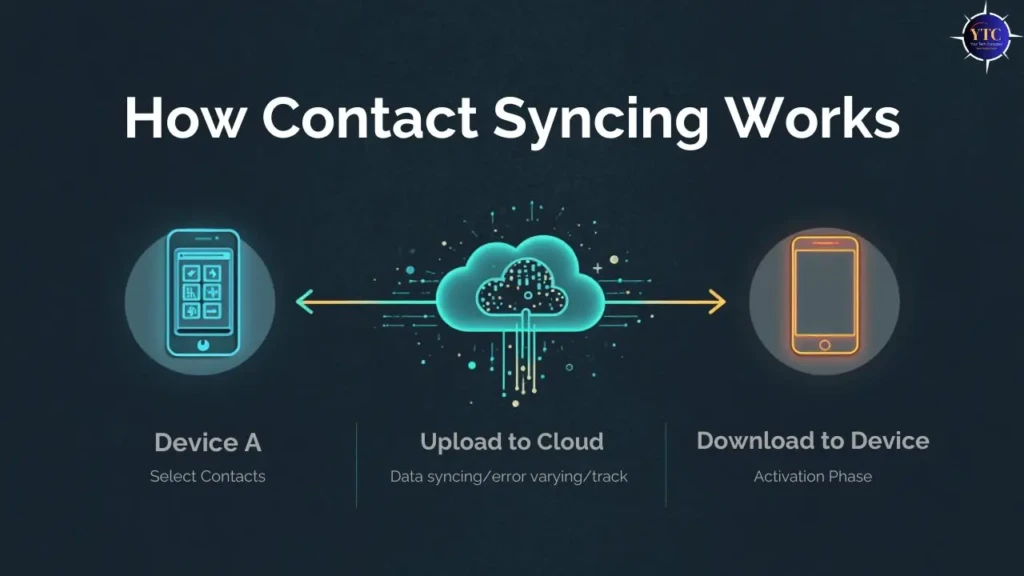
Every major platform, Android, iOS, Windows, and macOS, relies on cloud accounts to sync contacts. These accounts act as the middle layer between your devices. When syncing is enabled, your device uploads contact changes to the cloud, and the cloud pushes them to your other devices.
This is very similar to how cloud files work. If you’ve used services like Google Drive to keep files consistent across devices, the concept is the same, just applied to your address book. If that idea sounds familiar, the explanation in our Google Drive explained guide follows the same logic.
Syncing Contacts on Android (the Cleanest Approach)
On Android, Google Contacts is the backbone of contact syncing. When contacts are saved to your Google account, they automatically appear on any Android phone or any other device signed into that account.
The key thing to check is where new contacts are being saved. If contacts are saved locally rather than in your Google account, they won’t sync. Once you set Google as the default location and enable contact sync, Android handles the rest quietly in the background.
This approach works especially well if you also use Google services on a computer, since you can view and manage all contacts directly from Google Contacts in a browser.
Syncing Contacts on iPhone and Apple Devices
Apple uses iCloud in much the same way Google uses Google Contacts. When iCloud Contacts is turned on, your iPhone, iPad, and Mac automatically share the same contact list.
Most issues happen when iCloud is disabled or when contacts are accidentally saved to another account, such as Gmail or Outlook, without realizing it. Once iCloud is enabled and set as the default account for new contacts, syncing across Apple devices becomes seamless and largely invisible.
Syncing Contacts Between Android and iPhone
This is where many people get stuck, but it’s actually straightforward if you pick the right bridge.
The simplest cross-platform solution is to use one Google account as the master contact list. Android already uses Google by default, and iPhones can sync contacts from a Google account just as easily. Once the Google account is added to the iPhone and contact sync is enabled, both devices stay in sync.
This approach avoids constant exporting and importing, and it works well if you switch phones or use both platforms regularly. It’s also a good fit if you rely on Google services for email, files, and collaboration.
Syncing Contacts Across Phones, Tablets, and Computers
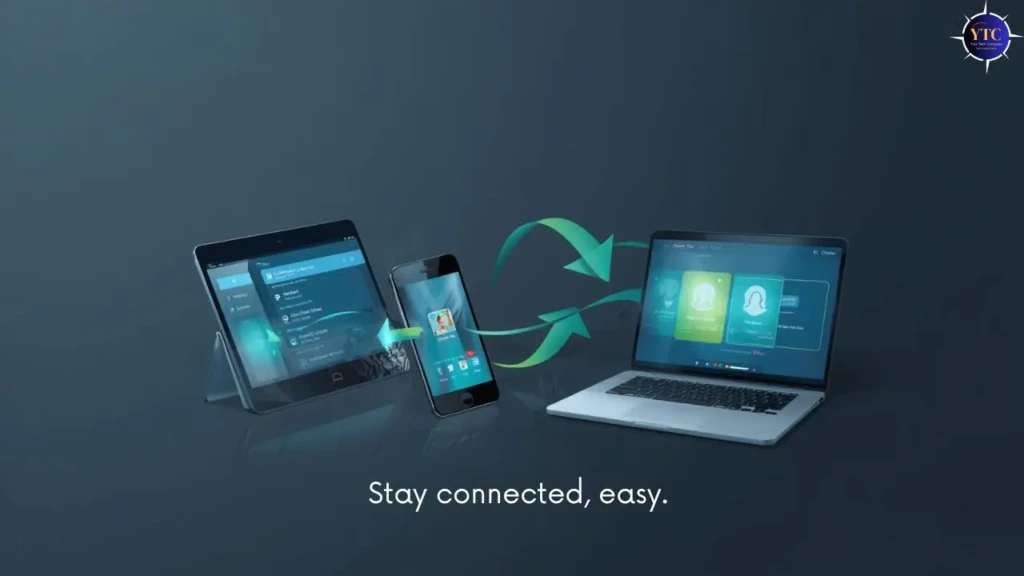
Once contacts live in the cloud, adding more devices becomes effortless. Phones, tablets, and computers simply mirror what’s already there, as long as you sign in with the same account and enable contact syncing.
On computers, contacts usually appear through:
- Web interfaces (Google Contacts, iCloud.com)
- Email and calendar apps linked to your account
- Native contacts apps on macOS or Windows
At this point, syncing becomes “set it and forget it,” which is exactly how it should feel.
Choosing the Right Cloud Service for Contact Syncing
Here’s a high-level comparison to help you decide which option fits best:
Service | Best For | Why It Works Well |
Google Contacts | Android & mixed devices | Excellent cross-platform support |
iCloud Contacts | Apple-only setups | Deep system integration |
Outlook / Microsoft | Work & enterprise users | Strong email and calendar pairing |
If you regularly switch between devices or platforms, Google Contacts is the most flexible option. If you’re fully inside Apple’s ecosystem, iCloud is the smoothest option.
Common Contact Syncing Problems (and Why They Happen)
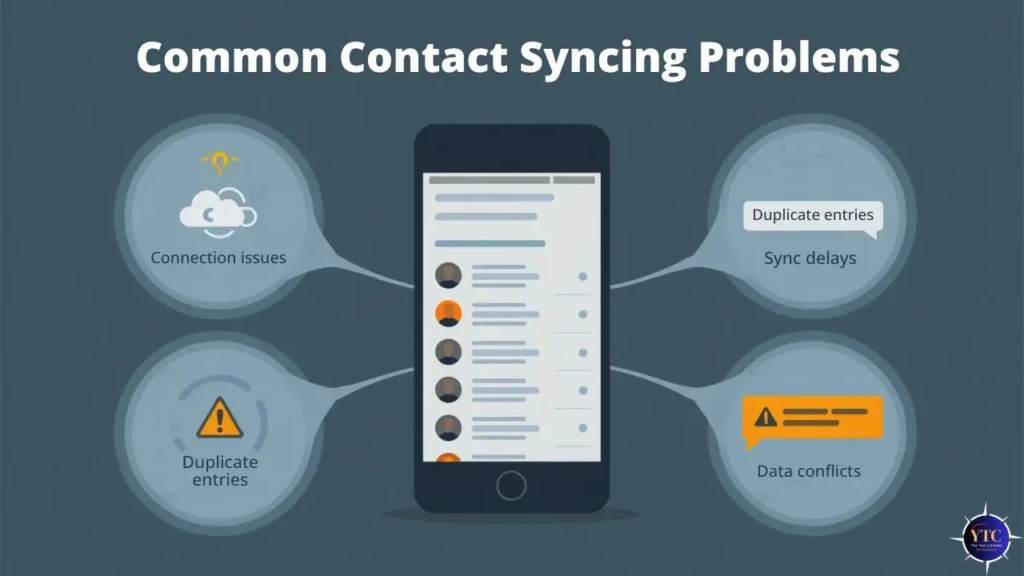
Most syncing issues fall into a few predictable categories. Contacts don’t appear because they were saved locally. Duplicates show up because contacts were imported multiple times. Sync stops working because the account password changed or syncing was turned off after a system update.
The fix is almost always the same: confirm which account is acting as the master list, clean it up once, and let everything else sync from there. Trying to “fix” syncing by repeatedly importing contacts usually makes the problem worse, not better.
Keeping Your Contacts Secure While Syncing
Because contacts include personal information, security matters. The safest setup uses:
- One trusted cloud account
- Strong passwords
- Two-factor authentication
- Minimal third-party apps with contact access
If you ever plan a major change, such as switching platforms, exporting a backup contact file beforehand gives peace of mind. It’s the contact equivalent of a safety net.
How Synced Contacts Improve Everyday Productivity
Once contacts are reliably synced, they quietly support everything else you do. Messaging apps recognize contacts correctly. Calendar invites pull the right details. Task and collaboration tools feel more connected, especially if you use productivity apps like Todoist vs Things 3.
It’s one of those foundational setups that makes digital life feel calmer without demanding constant attention.
Final Thoughts
Syncing contacts across devices isn’t about technical perfection; it’s about choosing one system and letting it do its job consistently. When contacts live in a single cloud account, and every device points to it, the frustration disappears, and updates happen quietly in the background.
If you take just one thing from this guide, let it be this: pick one account, make it your default everywhere, and stop manually moving contacts around. Once that foundation is in place, your devices finally feel like they’re working together instead of against you, and that’s exactly how I use it myself.
FAQs
Yes. If sync is enabled and the device is online. You can also trigger a manual sync.
No. Initial changes need connectivity to upload/download to the cloud, though you can mark files offline for other data types.
Sign in to your cloud account on the new phone and enable Contacts; the cloud copy will populate the device.
Yes. Outlook and other cloud services offer sync; however, cross-platform convenience is highest when using Google (Android) or iCloud (Apple) as your primary account.
At Your Tech Compass, we publish practical guides and honest tech reviews to help users make smarter decisions.