Every Mac user I know has some version of the same problem. The desktop gradually fills up with files that don’t yet have a permanent home: screenshots, downloaded PDFs, images from emails and exported reports. The clipboard only ever remembers the last thing you copied, so anything you copied 20 minutes ago is gone, and you’re opening old documents to find it again. And whenever a quick thought needs capturing, you end up opening a full notes app, waiting for it to load, creating a new note, and then closing it, all for two sentences. These aren’t catastrophic workflow problems. They’re small frictions that happen dozens of times every day. Unclutter solves all three of them in a single gesture.
I’ve been using Unclutter as part of my regular Mac workflow, and what strikes me most is how quickly it becomes invisible in the best possible sense. After the first day, you stop thinking about it as an app you need to open; it’s just there, a swipe away from wherever you are, ready the moment you need it. This review covers everything you need to make a confident decision: what each of the three panels actually does, the specific features that make each one useful, honest limitations, how it compares to standalone alternatives, verified pricing, and a clear verdict on who should and shouldn’t buy it.
A note before we begin: every YTC score is earned, never negotiated. If you want to understand exactly how we evaluate apps & tools and how we handle affiliate relationships, our Review Methodology lays it all out.
What Unclutter Actually Is
Unclutter is a Mac utility that lives invisibly in your menu bar and reveals itself with a single gesture: move your cursor to the very top edge of your screen and scroll down with two fingers. A panel drops down: clean, immediate, and divided into three side-by-side sections. On the left is a file storage area. In the middle is a scratchpad for notes. On the right is your clipboard history. Move your cursor away or click elsewhere, and the panel disappears. Nothing stays in your way. Nothing demands your attention. It’s there when you need it and gone when you don’t.
Unclutter runs natively on Apple Silicon and Intel-based Macs and requires macOS 10.13 or later. It’s fully compatible with the latest macOS 26 Tahoe, meaning it’s been actively maintained across multiple macOS generations rather than left to stagnate. It was featured by Apple in “Apps and Games We Love” in 2018 and “Spark Your Productivity” from 2020 through 2023 on the Mac App Store, which is meaningful curation recognition in a category full of alternatives. The app is available directly from unclutterapp.com or the Mac App Store.
Key Specs
- Platform: macOS 10.13 (High Sierra) and later; Apple Silicon and Intel native
- Price: $19.99 one-time purchase (no subscription)
- Free trial: Yes (free demo available from unclutterapp.com before purchasing)
- Mac App Store: Available
- Bundle: Also available in the Mac App Bundle with 11 other apps at significant savings
- Sync: Dropbox sync for notes and files across multiple Macs; iCloud Drive compatible
- Panel access: Mouse gesture (scroll down from the top of the screen) or keyboard shortcut
- Works in full screen: Yes (accessible even when apps are running in full screen mode)
- System resource impact: Minimal (runs quietly in the background with negligible CPU and memory usage)
The Three Panels: What Each One Does and Why It Matters
The Files Panel: A Temporary Drawer for Files That Don’t Have a Home Yet
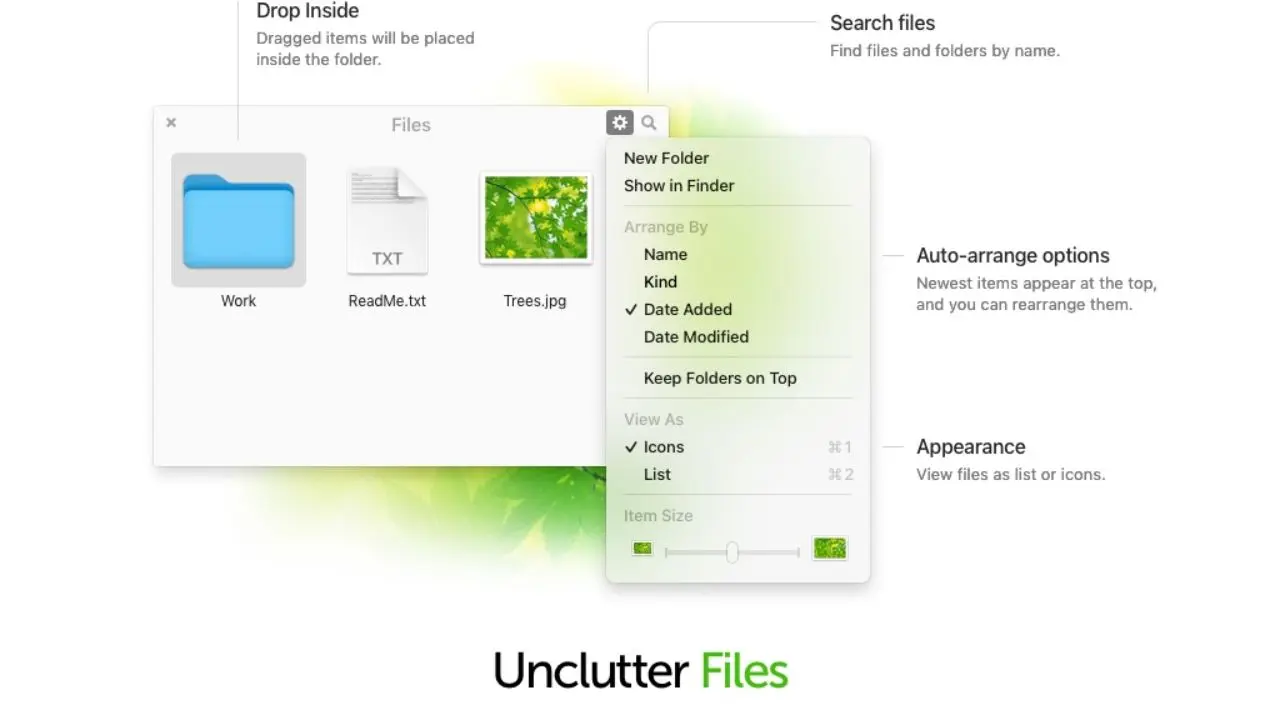
The Files panel is a designated drop zone for files you’re actively working with, things that need to be accessible right now but don’t have a permanent place in your file system yet. Think of it as a physical inbox tray, except it’s always just one gesture away, no matter which app you’re using.
The way you use it is natural: you drag a file from your desktop, Finder, or another app directly onto the top of your screen, and it drops into Unclutter’s file storage area. From there, it remains available until you either drag it to its permanent location or decide you no longer need it. You can also create folders inside the Files panel to separate files by project, client, or context, so if you’re working on three different things simultaneously, each one has its own organized section inside the panel.
Previewing files works exactly as you’d expect on macOS: Quick Look appears in the panel without opening Finder or any external app. And if you need to drag a file from Unclutter directly into another application (a design file into Figma, an image into an email, a PDF into a presentation), you can do that without first moving it to your desktop as an intermediate step.
Recent updates have fixed Unclutter Files freezing on launch and during use when your storage folder is in iCloud Drive or another cloud drive. Previously, Unclutter waited for these files to fully download to disk before they became accessible; this is no longer required, making iCloud-synced storage significantly more reliable than in earlier versions.
The honest context for this panel is that it’s designed for temporary storage, not as a permanent file management system. It doesn’t replace Finder, doesn’t provide deep folder hierarchies, and isn’t built for archiving large numbers of files. Its value lies in the specific situation it solves: files you’re actively using that shouldn’t live on your desktop but don’t yet have a permanent destination. That narrow use case is exactly where it excels.
The Notes Panel: A Scratchpad That’s Always One Gesture Away
The Notes panel is a lightweight text scratchpad that opens in the same gesture as everything else, which is the entire point. When a thought needs capturing during a phone call, when you need to note a URL someone just mentioned, when you want to save a reference number before you forget it, the Notes panel is open and ready in the time it takes to move your cursor to the top of the screen.
You can maintain multiple notes; they appear as a list on the left side of the notes panel, and you can click between them freely. Full-text search across all your notes means you can find anything you’ve written by typing a keyword rather than scrolling through every note you’ve ever created. You can sort notes by name, date, or kind. On macOS 26 Tahoe, the text editor no longer leaves a trace of the last line when deleting lines, a subtle visual polish fix that reflects ongoing active development.
Unclutter lets you access everything you store on one device from another via Dropbox sync. This applies to both the notes and files you keep, which is excellent if you use multiple Macs. The sync setup is manual rather than automatic.
You point Unclutter to a Dropbox or iCloud folder in settings, and it uses that as its storage location. That means your notes sync between your MacBook and your desktop Mac with no additional configuration after the initial setup.
What the Notes Panel Is Not
It’s not a replacement for Notion, Bear, or Obsidian for any kind of structured, long-term note-taking. There’s no rich text formatting, no headers, no task checkboxes, no image embedding.
It’s a plain text scratchpad; deliberately so. The note-taker is basic and, by design, lacks formatting options.
That limitation is also its strength: there’s nothing to configure, nothing to learn, and nothing that slows down the act of capturing a thought. If you need deeper note-taking capability alongside Unclutter, a dedicated app handles that layer while Unclutter handles the “capture it right now” moments.
The Clipboard History Panel: The Feature That Changes Daily Workflows Most
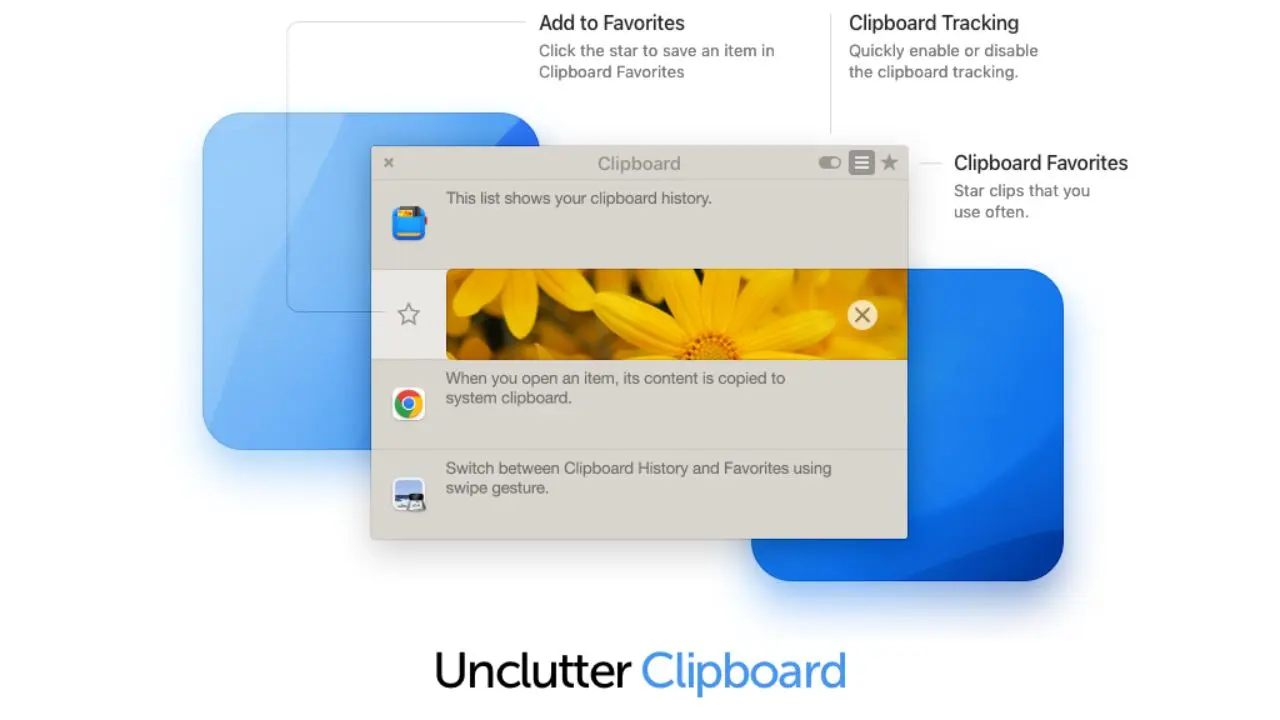
If I had to choose one panel from Unclutter to keep, it would be this one, and most people who use the app report the same instinct after the first week. The clipboard history panel solves a genuinely frustrating macOS limitation: by default, your Mac’s clipboard holds exactly one item.
Copy something new, and the previous item is permanently gone. If you need it, you’re retracing your steps.
Unclutter’s clipboard history panel automatically tracks everything you copy throughout the day. Text, images, files, URLs: all of it appears in a scrollable, searchable list organized chronologically.
When you need something you copied earlier, you scroll to it and click to paste it into whatever app you’re currently using. No keyboard shortcut to remember, no menu bar dropdown to navigate, no separate app to open.
The search function is the feature that makes the clipboard history genuinely powerful, not just convenient. Rather than scrolling through a list to find something you copied hours ago, you type a keyword, and it surfaces immediately. If you copied a client’s email address earlier in the day and need it again now, type the first few letters, and it will appear.
Pinning (also called Favorites) lets you keep specific items permanently accessible at the top of the clipboard history, regardless of how many new items you’ve copied since. This is the mechanism for storing frequently reused content: your standard email signature, a code snippet you use regularly, a URL you share constantly. Pinned items don’t expire with your clipboard history cycle; they stay until you remove them manually.
If a certain app contains potentially sensitive text that you may not want to be stored in Unclutter’s history, you can configure Unclutter to conceal this data and avoid saving it to disk. This per-app exclusion is an important privacy control; password managers like 1Password, banking apps, or any application whose clipboard content you’d prefer not to persist can be added to an exclusion list, and Unclutter will skip logging their clipboard output entirely.
One important note about macOS Tahoe 26: Apple has upgraded Spotlight to include a built-in clipboard history search. This allows Mac users to find recently copied items without any third-party software. In addition, this is a relevant development for anyone evaluating whether Unclutter’s clipboard manager is worth paying for in 2026.
The native Tahoe clipboard history is functional but requires manual activation, supports only text (not images or files), and lacks Unclutter’s pinning system, per-app exclusions, and integration with the Files and Notes panels. For users on macOS 14 or earlier, there is no native clipboard history. And for users on Tahoe who only want basic clipboard recall, the native option is worth trying first. However, for anyone who wants the full three-panel integrated experience, Unclutter is still meaningfully different.
How the Panels Work Together
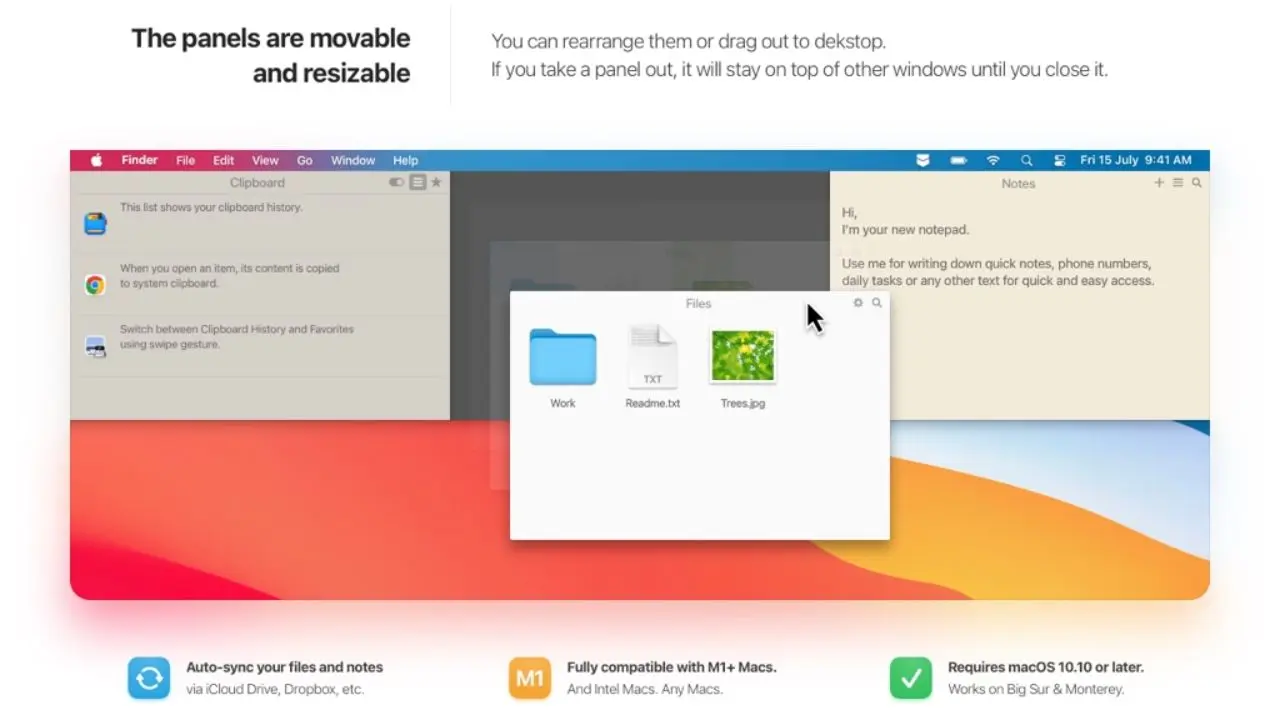
The integrated three-panel design is what makes Unclutter worth more than the sum of its parts. If clipboard history, notes, and temporary file storage were three separate menu bar apps, each would be solving its problem in isolation. Unclutter solves all three in a single gesture and on a single screen, which means the overhead of managing your workspace organization drops to almost nothing.
Consider a real research workflow. You’re writing an article and pulling information from multiple sources. A reference PDF you’ll need for the next hour is in the Files panel, accessible with one gesture without cluttering the desktop.
Notes about the structure and key points you’re capturing go into the Notes panel, no separate app to open, no context-switching. URLs, quotes, and code snippets you’ve copied along the way appear in the clipboard history, searchable and recallable whenever you need them. All three panels are available with the same gesture, at the same moment, from any app you’re using, even in full-screen apps that would normally block access to other tools.
That integration is what makes the $19.99 price easy to justify. You’re not buying a clipboard manager. You’re buying a workspace organization layer that includes a clipboard manager, a scratchpad, and a file drop zone.
Performance and System Impact
Unclutter is lightweight and does not impact system performance. This is one of those claims that’s often made and rarely verified, so it’s worth being specific about what “lightweight” means in practice.
Unclutter runs as a background process with no visible Dock icon. Its menu bar presence is a single small indicator. In regular daily use, it consumes less than 50 MB of RAM (comparable to a browser tab), and CPU usage is effectively zero when the panel isn’t open.
When you activate the panel, there’s a brief rendering event that completes within milliseconds on any modern Mac. On older Intel Macs that might show strain from demanding applications, Unclutter doesn’t add meaningful load.
The app runs natively on Apple Silicon, which means it uses the M-series chip’s efficiency cores rather than drawing from the performance cores that demanding tasks need. On M-series Macs specifically, the resource footprint is negligible even over long work sessions.
Interface and Customization
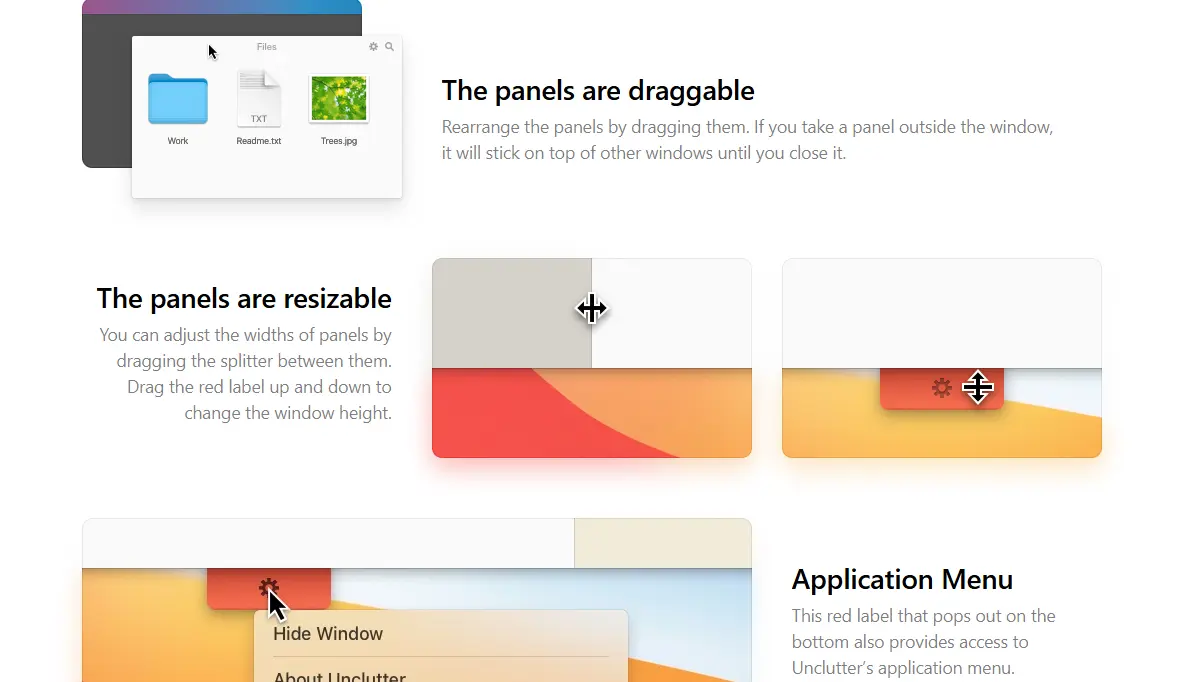
Unclutter’s design philosophy is deliberate restraint. The panel uses macOS system fonts, respects the system’s light and dark mode settings, and looks as if it were built by Apple rather than a third-party developer. There’s no visual complexity to navigate; three clearly labeled panels are immediately understandable.
The customization options available are exactly the ones you’d want:
Panel Arrangement and Sizing
You can rearrange the three panels by dragging them into any order that matches your preferred workflow. If you use the clipboard history most often, put it first. You can resize each panel by dragging the dividers between them.
However, if you never use one of the panels, you can disable it entirely to free up more screen real estate for the other two. If you take a panel outside the window, it will stay on top of other windows until you close it, a useful feature for situations where you want a specific panel to float persistently rather than hide and reveal on demand.
Themes
Light and dark modes automatically follow macOS system settings, or you can set them independently. Several background color options are available if you want to visually distinguish Unclutter from other panels or simply prefer a specific aesthetic.
Activation Method
The scroll gesture from the top of the screen is the default. You can also assign a keyboard shortcut to the mouse gesture, or configure a specific mouse button. Both activation methods work in full-screen app mode.
Clipboard History Settings
Configure how many items to retain, set the automatic deletion period for items you haven’t pinned (useful if you handle sensitive information), and configure per-app exclusions for apps whose clipboard content you don’t want logged.
Storage Folder Location
The file panel’s storage folder can be set to any location, including a Dropbox or iCloud Drive folder, enabling sync across multiple Macs without additional configuration.
Unclutter vs The Alternatives
Understanding how Unclutter compares with dedicated tools in each category helps clarify exactly what you’re getting and the trade-offs involved.
📊 Unclutter vs. Standalone Alternatives

Feature | Maccy (Clipboard Only) | Paste (Clipboard Only) | ||
Clipboard History | ✅ Yes | ✅ Yes | ✅ Yes (best-in-class) | ❌ No |
File Drop Zone | ✅ Yes | ❌ No | ❌ No | ❌ No |
Quick Notes Scratchpad | ✅ Yes | ❌ No | ❌ No | ✅ Yes (more depth) |
Per-App Clipboard Exclusions | ✅ Yes | ✅ Yes | ✅ Yes | N/A |
Pinned/Favorited Clips | ✅ Yes | ✅ Yes | ✅ Yes | N/A |
Rich Text Formatting | ❌ No | ❌ No | ✅ Yes | ✅ Yes |
Cross-Device Sync | ✅ Via Dropbox/iCloud | ❌ No | ✅ iCloud | ✅ Yes |
Price | $19.99 one-time | Free | $3.99/month (subscription) | Free / from $10/month |
Activation Gesture | ✅ Single swipe | Menu bar click | Menu bar click | App launch |
macOS Integration | ✅ Native feel | ✅ Native | ✅ Native | ⚠️ Web-style UI |
Against Maccy (Free Clipboard Manager)
Maccy is genuinely excellent for pure clipboard history management and is free, which makes it the right recommendation for someone who only needs clipboard history. Where Unclutter has the advantage is everything beyond the clipboard: the integrated file storage, the notes panel, and the single-gesture access to all three. If you’re already using Notion for notes and have no file-clutter problem, Maccy covers the clipboard use case at no cost.
Against Paste ($3.99/Month Subscription)
Paste has a richer clipboard history interface with better visual design for images and files, iCloud sync, and more organizational features within the clipboard panel specifically. If clipboard history is your primary or only need, and you want the most polished dedicated clipboard manager available, Paste is the better tool, at $48/year versus Unclutter’s $19.99 one-time fee.
Over two years, Unclutter is cheaper. However, over the course of one year, they’re comparable. For users who want file storage and notes alongside clipboard history, Unclutter has no equivalent among the options in this comparison.
Against Notion/Bear (Notes Apps)
Neither replaces the other. Notion and Bear provide deep, structured, long-form note-taking that Unclutter’s scratchpad doesn’t attempt to offer.
Unclutter’s notes panel is for the moment-of-capture situation: the thought that needs to be written down in the next five seconds. Those two use cases don’t compete; they complement each other.
Pricing and Value

Unclutter for Mac is available for $19.99. You can also purchase the app from the App Store. It’s also offering a free trial of the tool for a few days, which you may want to check out before committing to the full version.
The one-time pricing structure is worth appreciating in a software landscape that has moved aggressively toward monthly subscriptions. $19.99 paid once means your cost is fixed; there are no future renewal decisions, no annual price increase emails, and no re-evaluation of whether the tool is worth its monthly fee. As long as you use the app, you own it.
Updates are included in the purchase. Unclutter has been actively updated from macOS 10.13 through macOS 26 Tahoe, spanning eight major macOS versions and several years of maintenance. The most recent update fixed the iCloud Drive freezing issue, resolved a text editor rendering artifact on macOS 26 Tahoe, and improved window positioning on MacBooks with the notch, suggesting that the developer is actively maintaining compatibility with current hardware and software.
Unclutter is also available in the Mac App Bundle, a curated collection of premium Mac productivity apps offered at a significant discount compared to purchasing them individually. If you’re building out a Mac productivity stack and are considering multiple tools at once, the bundle is worth checking before buying anything individually.
The free demo from Unclutter lets you test the full feature set before paying. I’d encourage you to use it for at least three full working days before forming an opinion; the value of Unclutter is cumulative, not immediately apparent in the first hour. By day three, the gesture becomes habitual, the clipboard history is stocked with the day’s working context, and the files panel has replaced the desktop pile you’d otherwise be managing.
Who Should Buy Unclutter
Unclutter is the right purchase if you:
- Work across multiple sources throughout the day (research, writing, design, development, client management) and find yourself regularly needing to reference something you copied earlier, temporarily store a file without deciding where it lives, or capture a quick note without opening a separate app. The three-panel integration is most valuable when all three pain points are active in your workflow, rather than just one.
- Use a Mac as your primary work machine and want a utility that feels native rather than like a third-party addition. Unclutter’s design respects macOS conventions in a way that makes it feel like a feature that should have been there all along.
- Prefer a one-time purchase to a subscription. The $19.99 permanent-ownership model is increasingly rare and genuinely valuable compared to clipboard managers and note apps that have moved to monthly billing.
- Handle sensitive information on your Mac and want explicit control over what gets logged in the clipboard history. The per-app exclusion system lets you use password managers and banking apps without worrying that their clipboard output is being stored.
Who Shouldn’t Buy Unclutter
Unclutter is not the right fit if you:
- Need only one of the three functions. If your only problem is clipboard history, Maccy handles it for free. If your only problem is notes, Apple Notes or Notion does it better. Unclutter earns its price when two or three of its panels are solving active daily problems, not when only one is relevant.
- Need rich formatting in your notes: headers, checkboxes, images, tables. Unclutter’s notes panel is plain text by design. For structured, formatted notes, a dedicated app is the right choice.
- Are primarily a light Mac user who doesn’t copy and paste frequently, rarely handles temporary files, and doesn’t need quick-capture notes. The app’s value scales directly with how intensively you use your Mac; lighter users will find it useful but less transformative.
FAQs
Unclutter gives your Mac three tools in one always-available panel: a clipboard history manager that tracks everything you copy throughout the day, a file drop zone for temporary file storage that keeps your desktop clean, and a plain-text notes scratchpad for quick capture. The panel slides down from the top of your screen with a two-finger scroll gesture and disappears when you’re done. It works in any app, including full-screen apps.
No. Unclutter runs as a lightweight background process with no Dock presence. Its RAM usage is under 50MB in typical daily use, and CPU usage is effectively zero when the panel isn’t open. It runs natively on Apple Silicon and Intel Macs, meaning it’s optimized for both chip architectures rather than running under Rosetta emulation.
One-time purchase at $19.99. No recurring fees, no subscription, no renewal decisions. Active development and macOS compatibility updates are included in the purchase price for eight major macOS versions.
Yes, via Dropbox or iCloud Drive. In Unclutter’s settings, you point the file storage and notes folders to a location in your Dropbox or iCloud Drive. After the initial setup, your files and notes sync automatically between any Macs where Unclutter is installed and connected to the same folder. Clipboard history does not sync across devices; it’s local to each machine.
Yes. A free demo is available directly from unclutterapp.com, letting you test all features before purchasing. The Mac App Store version doesn’t offer a trial, so downloading the demo from the developer’s website is the recommended way to evaluate it.
Yes. Unclutter is fully compatible with macOS 26 Tahoe, and recent updates have specifically addressed Tahoe-specific issues, including a text editor rendering artifact and improved window positioning for MacBooks with the notch.
Unclutter provides per-app exclusions: go to Unclutter’s preferences, add any app whose clipboard content you don’t want logged (your password manager, for example), and Unclutter will skip recording anything copied from that app. This means using 1Password or any other sensitive app while Unclutter is running is safe as long as you’ve added the exclusion.
Conclusion
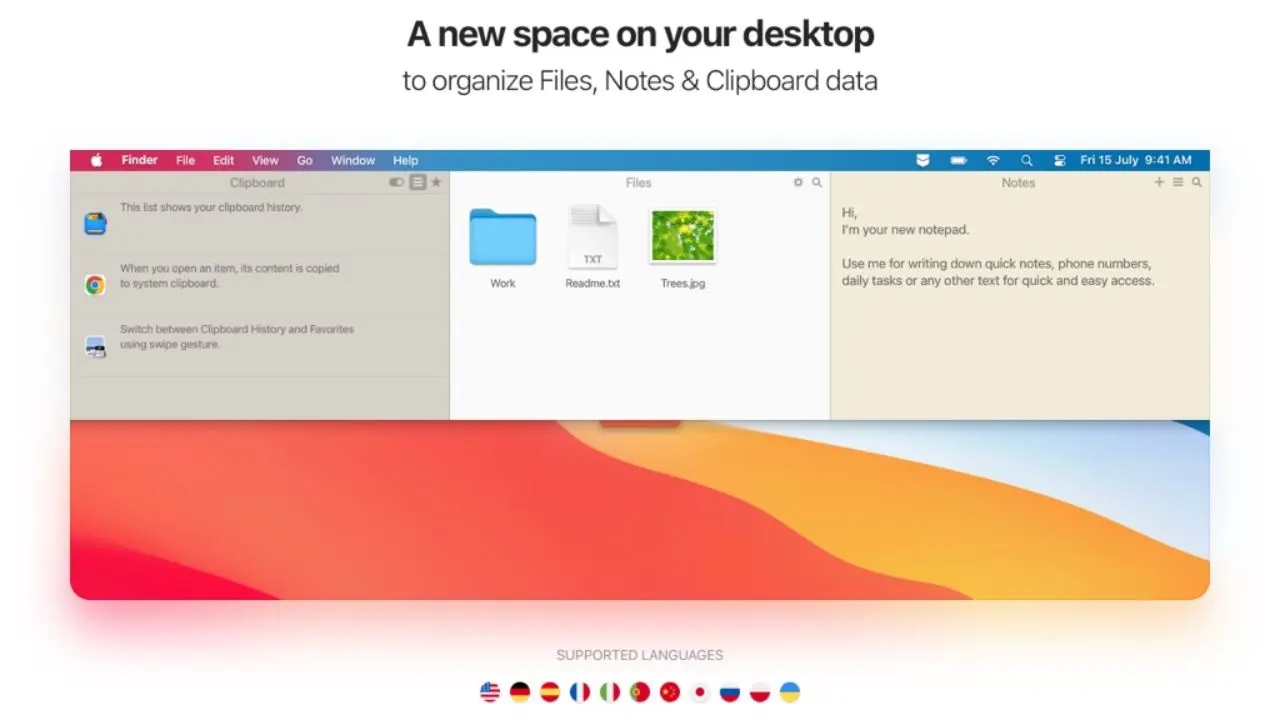
Unclutter is one of those rare utilities that solve real problems without creating new ones. The clipboard history panel eliminates the daily frustration of losing copied content. The file drop zone keeps temporary working files off the desktop, where they would otherwise accumulate. The notes scratchpad captures thoughts in the time it takes to move a cursor, without opening a separate app. All three are available with a single gesture from anywhere on your Mac. And at $19.99 with no subscription, the ownership model respects your budget in a way that most comparable tools no longer do.
The honest picture is that Unclutter’s value scales with how intensively you work on your Mac. Heavier users: writers, researchers, developers, designers, and anyone who spends long hours with many tabs and files open will feel the difference within a day. Lighter users will appreciate it without finding it transformative. The free demo removes the risk of finding out which category you fall into. Three days of real use will tell you everything you need to know about whether it belongs in your permanent workflow.
Every Mac app review, honest tool comparison, and practical productivity guide worth bookmarking lives at YourTechCompass.com, where we review what actually works for how real people work every day.