Sharing your location on an iPhone is incredibly useful in everyday life. It helps you meet friends, let family know you arrived safely, or share your live location while traveling. Apple makes this easy, but only if you know where to look and which method best fits your situation.
In this guide, I’ll walk you through every reliable way to share location on iPhone, using clear steps you can follow without guessing. I’ll also explain how long location sharing lasts, how to stop it, and what to do when things don’t work as expected.
What You Need Before Sharing Location on iPhone
Before anything else, make sure these basics are in place:
- Turn on Location Services
- Go to Settings → Privacy & Security → Location Services
- Make sure the toggle is ON
- Confirm Find My is enabled
- Go to Settings → [your name] → Find My
- Turn ON Share My Location
- Sign in to your Apple ID
- Location sharing relies on iCloud
- Check your internet connection
- Wi-Fi or cellular data is required for live updates
Once these are set, you can share your location using any of the methods below.
How to Share Location on iPhone Using Find My (Best for Live Sharing)
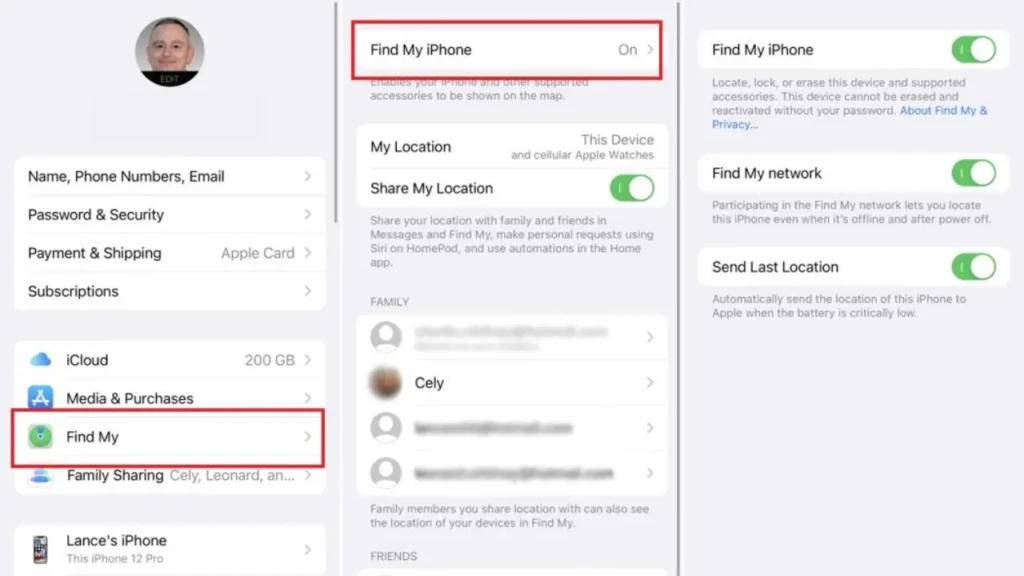
The Find My app is the most powerful and reliable way to share your live location.
Step-by-Step Instructions
- Open the Find My app
- Tap the People tab at the bottom
- Tap Share My Location
- Select the contact you want to share with
- Choose a duration:
- One Hour
- Until End of Day
- Share Indefinitely
- Tap Send
The recipient will receive a notification and can see your live location in their Find My app.
How to Share Location on iPhone Using Messages (Fast and Convenient)
This option is perfect for quick sharing during conversations.
Step-by-Step Instructions (Live Location)
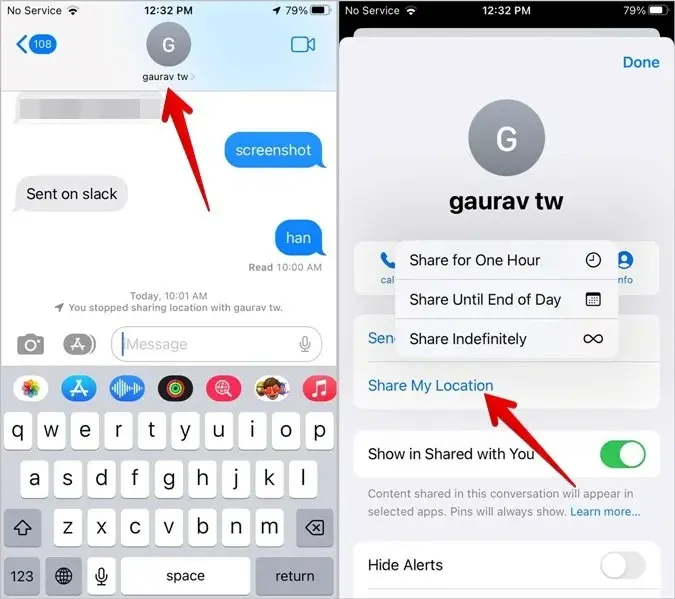
- Open the Messages app
- Open the conversation
- Tap the contact’s name or profile photo at the top
- Tap Share My Location
- Choose how long you want to share:
- One Hour
- Until End of Day
- Indefinitely
Step-by-Step Instructions (One-Time Location Pin)
- Open the Messages app
- Open the conversation
- Tap the contact’s name
- Tap Send My Current Location
This sends a single location snapshot with no ongoing tracking.
How to Share Location on iPhone Using Apple Maps (Great While Traveling)
Apple Maps works best when you’re already navigating. Check out the steps to follow below.
Step-by-Step Instructions
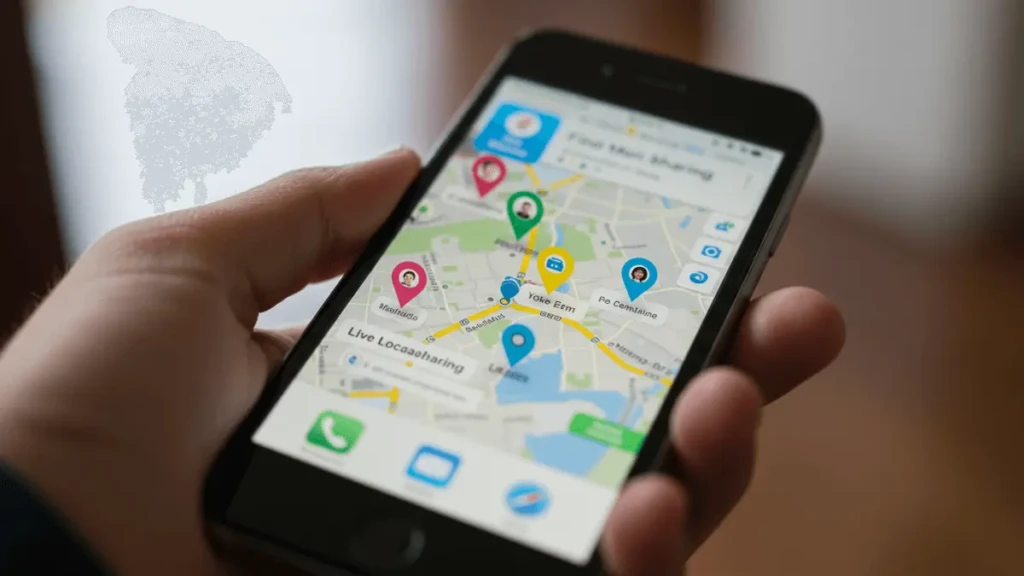
- Open Apple Maps
- Enter your destination
- Tap Go to start navigation
- Tap the route bar at the bottom
- Select Share ETA
- Choose the contact you want to share with
The person will see your progress and estimated arrival time in real time.
How to Stop Sharing Location on iPhone
In case you want to stop sharing your location, here are the steps to follow:
Stop Sharing via Find My
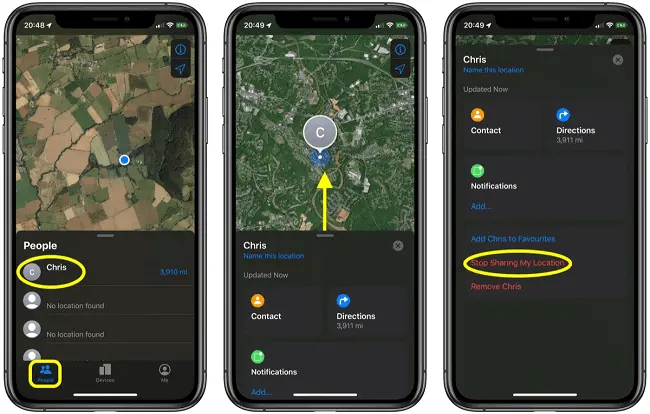
- Open Find My
- Tap People
- Select the contact
- Tap Stop Sharing My Location
To Stop Sharing via Messages
- Open the conversation
- Tap the contact’s name
- Tap Stop Sharing My Location
Stop Sharing with Everyone
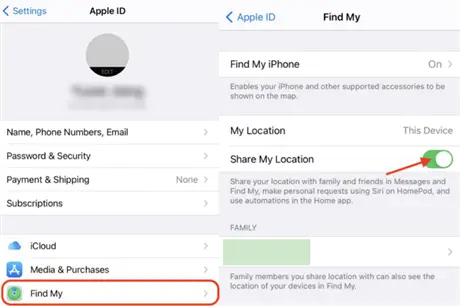
- Go to Settings → [your name] → Find My
- Turn OFF Share My Location
Temporary vs Permanent Location Sharing
Here’s how the options compare:
Sharing Option | Best Use Case |
One Hour | Quick meetups |
Until the End of the Day | Travel or events |
Indefinitely | Family or trusted contacts |
Temporary sharing offers more privacy, while indefinite sharing is ideal for close relationships.
Privacy and Safety Tips When Sharing Location
To stay safe and in control:
- Review shared contacts regularly in Find My
- Avoid sharing indefinitely unless necessary
- If location updates behave oddly, issues like iPhone overheating can disrupt GPS and background services
- Limited connectivity can also affect sharing, which is why understanding what SOS means on iPhone matters
Apple’s Safety Check feature can instantly stop all sharing if needed.
Troubleshooting Location Sharing Issues
If location sharing doesn’t work, follow these steps:
- Confirm Location Services are ON
- Check Find My → Share My Location is enabled
- Ensure you’re signed into iCloud
- Verify the correct contact was selected
- Restart your iPhone if updates lag
If Messages shows an incorrect location but Find My is accurate, trust Find My; it updates more reliably.
Final Thoughts
Once you know where to tap and which method to use, sharing location on iPhone becomes simple and predictable. Find My works best for live tracking, Messages is perfect for quick sharing, and Apple Maps shines during navigation.
Understanding these step-by-step methods removes the guesswork, and after using them regularly in real situations, it’s clear how much easier coordination becomes when you know exactly what to do.