Manus AI can browse the web, write and run code, synthesize research across dozens of sources, and plan multi-step workflows entirely on its own. But here’s the thing: if it can’t see your local files, you’re leaving half its power sitting idle. Every time you manually upload a document, copy a file path, or export data just to paste it into a prompt, you’re doing work the agent was built to handle. That friction compounds across every session. And it’s entirely avoidable once you know how to connect the local filesystem to Manus MCP.
That’s exactly what this guide covers. Model Context Protocol (MCP) is the open standard that enables Manus to access your designated folders, read your files, write outputs directly to your file system, and operate as a genuine extension of your local environment. Once connected, you no longer need to manually bridge the gap between your files and your AI agent. This guide walks you through two practical methods for setting that up: Manus’s built-in Custom MCP Connector for hosted or remote servers, and the official MCP Filesystem Server for direct access to a local folder. You’ll also get the security rules that matter, real-world use-case examples, and a troubleshooting section for the friction points that catch most people off guard. Let’s get into it.
What Is Manus AI and Why Does Local Filesystem Access Matter?
Manus AI is a general-purpose autonomous AI agent developed by the Chinese startup Butterfly Effect (the team behind Monica.im), officially launched on March 6, 2025. Unlike a chatbot that responds to questions and waits for your next input, Manus plans and executes complex, multi-step workflows on your behalf, using specialized sub-agents for planning, web browsing, code execution, and file management. It runs in the cloud, so tasks continue even after you close your browser or step away from your desk.
That cloud-native architecture is both a strength and a limitation. On the strength side, you get a powerful agent that can handle long-running research tasks, build web apps from prompts, and synthesize information from dozens of live web sources in minutes.
On the limitation side, Manus operates in a sandboxed cloud environment by default, so it can only work with what you explicitly upload or paste into a session. There’s no persistent connection to your actual working files. Consequently, if your work lives in local folders (client documents, research archives, data exports, project directories), the default Manus experience forces you to manually recreate that context every single time.
Connecting your local filesystem via MCP solves this permanently. You define the allowed folders once. From that point forward, Manus can read, process, and write to them as part of any workflow (no uploads, no manual handoffs, no rebuilding context from scratch). However, if you want a broader picture of Manus before diving into the technical setup, our Manus AI review covers the platform’s full capabilities, pricing, and honest limitations in depth.
What Is MCP and How Does It Work With Manus?
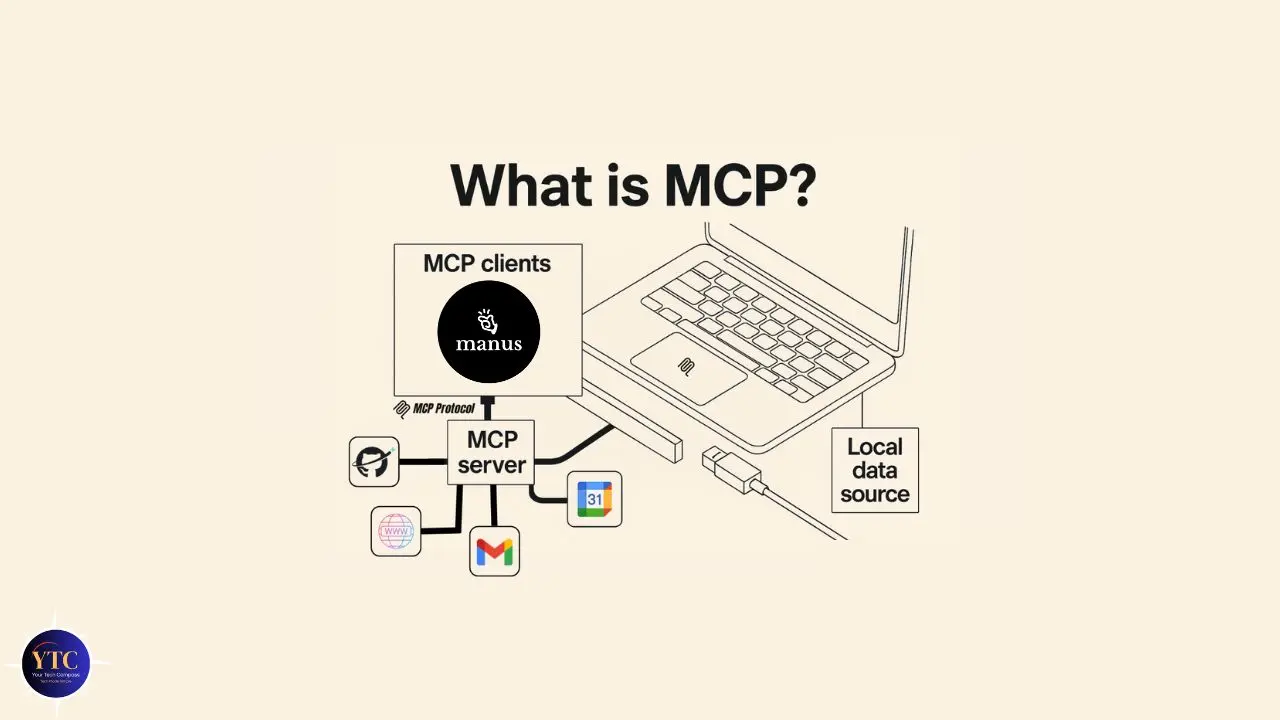
Before you touch a config file, it’s worth understanding what MCP actually is, because understanding the protocol makes troubleshooting straightforward when something doesn’t connect properly.
MCP (Model Context Protocol) is an open standard originally developed by Anthropic in November 2024 and donated to the Linux Foundation in December 2025. Think of it as a universal adapter for AI tools: the USB-C of AI integrations, as some developers have described it.
Before MCP, every AI platform had its own custom plugin system. Each one required a different setup, a different configuration format, and vendor-specific code. MCP replaces all of that with a single standardized protocol.
Any MCP-compatible AI agent can connect to any MCP server using the same format. That’s why adoption has accelerated across OpenAI, Google, Anthropic, and most major AI platforms since the Linux Foundation transfer.
In Manus specifically, MCP servers unlock two things. First, they bring external context into Manus, so instead of you uploading files, Manus reads them directly from the source. Second, they enable Manus to take follow-up actions in connected tools (updating records, creating files, writing outputs) as part of a complete workflow. Manus includes several prebuilt MCP connectors on all plans (Gmail, Notion, Slack, HubSpot, GitHub, and more), but for local filesystem access, you need to go one step further: either deploy a custom MCP server that Manus can reach over HTTP, or run the official MCP Filesystem Server on your machine and expose it via a tunnel.
The architecture of the connection looks like this:
Your Local Files → MCP Filesystem Server (running on your machine) → Tunnel (ngrok/Cloudflare) → Manus AI Agent
Manus never reaches directly into your machine. It calls your MCP server via an exposed endpoint; the server handles the actual file operations within the directories you’ve permitted, and the results come back to Manus through the same channel. You stay in control of what gets exposed at every step.
Prerequisites: What You Need Before You Start
There are two practical approaches to connecting your local filesystem to Manus MCP, each suited to a different user profile. Here’s how they compare at a glance before you decide which one to follow.
🔌 Two Connection Methods Compared
Method | Best For | Technical Requirement | Estimated Setup Time | Verdict |
Manus Custom MCP Connector | Hosted or remote servers, cloud-stored files | Publicly accessible server URL (HTTP/SSE) | 5–10 minutes | ✅ Cleanest option if the server is already deployed |
MCP Filesystem Server (Local) | Direct access to files on your machine | Node.js, terminal, tunneling tool | 15–25 minutes | ✅ Best for most individuals working with local folders |
Before you start either method, confirm you have all of the following:
- A Paid Manus Account: Custom MCP Server integration is only available on paid plans (Pro or higher). The free plan does not include access to the Custom MCP Servers section in Settings.
- Node.js Is Installed on Your Machine: Open your terminal and run node –version. If you see a version number, you’re good to go. If not, download the LTS (Long Term Support) version from nodejs.org; it’s the most stable for this kind of setup.
- A Terminal or Command Prompt: macOS users have Terminal built in. Windows users can use Command Prompt or PowerShell. You don’t need any coding knowledge, but you do need to be comfortable running a few commands.
- Clear Folder Decisions: Before you connect anything, decide exactly which folder(s) you want Manus to access. You’ll enter these as absolute paths. More on what “absolute path” means when we get to the steps.
For Method 1 only: A deployed, publicly accessible MCP server with an HTTP or SSE endpoint. If you don’t already have one, skip straight to Method 2.
How to Connect Local Filesystem to Manus MCP
Method 1: Using Manus’s Built-In Custom MCP Connector
This is the most straightforward option if you already have an MCP server deployed, whether it’s hosted on your own infrastructure, a cloud VM, or a service that exposes an MCP endpoint over HTTP. Everything happens through the Manus Settings UI. No config files, no terminal commands.
Step 1: Open Manus Settings
Log in to your account at manus.im. In the top-right corner, click your profile icon and select Settings. From the left-hand menu, navigate to Integrations, then Custom MCP Servers. Click the “Add Server” button to begin.
Step 2: Enter Your Server Details
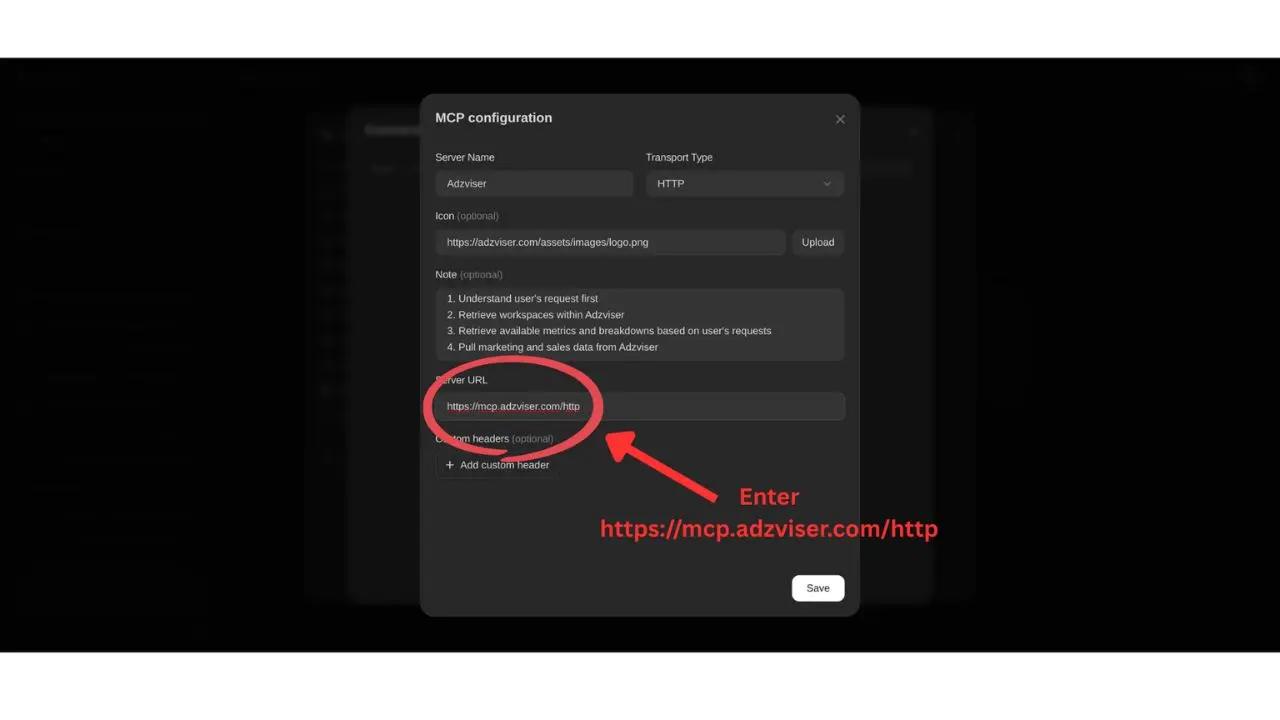
You’ll see a simple form asking for a server name and a server URL. The name is just a label; call it something descriptive like “Local Reports Folder” or “Project Files Server” so you can reference it clearly in prompts later.
The server URL must be a publicly accessible endpoint. This is the most important requirement of Method 1. A localhost address (like http://localhost:3000) will not work because Manus’s cloud infrastructure cannot reach your local machine directly. However, if you’re using a hosted server, paste that URL. But if you want to expose a locally running server, you’ll need a tunneling tool, which is covered in Method 2.
If your server requires authentication, add the appropriate credentials: an API key in the Authorization header (formatted as Bearer your-api-key) or an OAuth token if required. Manus protects your privacy by hiding connector outputs in shared sessions and automatically redacting sensitive information, such as API keys.
Step 3: Save and Verify the Connection
Click Save. Manus will immediately attempt to communicate with your server by sending a discovery request to retrieve the list of tools your server exposes. If the connection succeeds, you’ll see a success notification, and your custom server’s tools will appear alongside Manus’s built-in connectors.
If verification fails, work through this checklist in order: confirm the URL is publicly accessible by opening it in a browser, check that your server is actively running, verify the transport type matches what Manus expects (HTTP streaming or SSE, not raw stdio), and double-check that any authentication headers are formatted correctly.
Step 4: Use It in Your Prompts
Once connected, you don’t need to do anything special in your prompts. Simply mention the file, folder, or data you want Manus to work with, and it automatically invokes the appropriate connector tool. For example: “Read all the PDF files in my Q1 reports folder and produce a summary by department.” Manus picks the fastest path using the available tools and delivers the output to your specified location.
Method 2: Running the MCP Filesystem Server Locally
This is the method most individuals will use. It installs the official @modelcontextprotocol/server-filesystem package on your machine, exposes your designated folders as MCP-accessible tools, and connects that server to Manus via a public tunnel. The setup takes 15–25 minutes the first time and runs automatically after that.
Step 1: Install the MCP Filesystem Server
Open your terminal and run the following command, replacing the path with the absolute path to the folder you want Manus to access:
npx -y @modelcontextprotocol/server-filesystem@latest /absolute/path/to/your/folder
An absolute path is the full path from your root directory, not a relative shortcut. On macOS, it looks like /Users/yourname/Documents/ProjectFiles. On Windows, it looks like C:\Users\yourname\Documents\ProjectFiles.
You can add multiple folders by listing their paths separated by spaces:
npx -y @modelcontextprotocol/server-filesystem@latest /path/to/folder1 /path/to/folder2
The server will start and display a confirmation message in your terminal. Keep this terminal window open; closing it stops the server.
Step 2: Expose the Server via a Public Tunnel
This is the step that trips up most first-time users, so let’s be clear about why it’s necessary. The MCP Filesystem Server runs locally on your machine, but Manus operates in the cloud. Manus can’t reach localhost; it needs a publicly accessible URL to communicate with your server. A tunneling tool creates a temporary public URL that routes to your local server.
Option A: ngrok (recommended for most users):
Download and install ngrok from ngrok.com. Create a free account if you don’t have one. Then run:
ngrok http 3000
Replace 3000 with the port your filesystem server is running on (check the terminal output from Step 1 to confirm). ngrok will generate a public URL that looks like https://a1b2c3.ngrok.io. Copy this URL; you’ll paste it into Manus in the next step.
Important ngrok caveat: Free ngrok sessions expire after a set time window (typically 2 hours). If you plan to use this connection regularly, consider upgrading to a paid ngrok plan or switching to Option B.
Option B: Cloudflare Tunnel (for persistent setups):
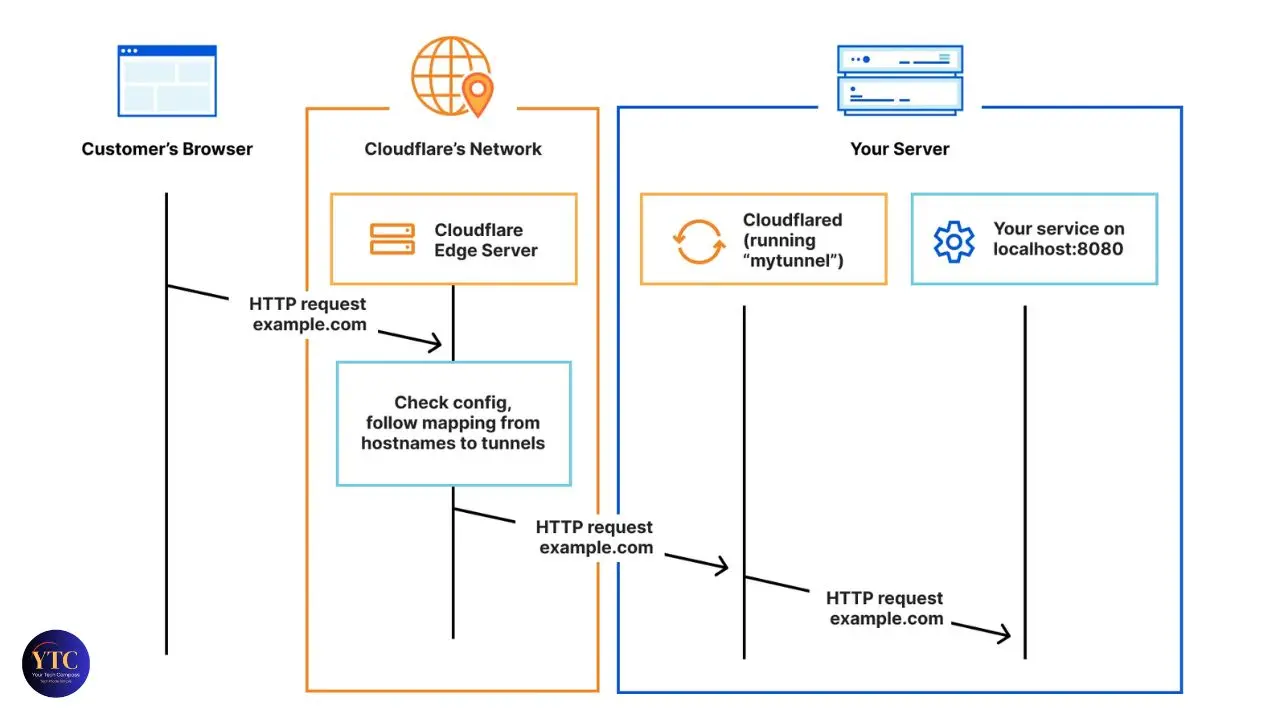
Cloudflare Tunnel is free and has no session expiry, making it more reliable for ongoing use. It requires installing cloudflared from Cloudflare’s documentation and running:
cloudflared tunnel –url http://localhost:3000
Cloudflare will generate a stable public URL that persists as long as the tunnel process is running.
Step 3: Connect Your Tunnel URL to Manus
Now go back to Manus. Navigate to Settings → Integrations → Custom MCP Servers → Add Server. Enter a descriptive name for your server and paste the ngrok or Cloudflare public URL as the server URL. Click Save and wait for Manus to verify the connection. If successful, your filesystem tools will appear in the integrations list.
Step 4: Confirm What the Filesystem Server Can Do
Once connected, here’s exactly what Manus can do with files in your permitted folders, and only those folders:
- Read files: Text, PDFs, Markdown, CSV, code files, and other text-based formats
- Write and create new files: Manus can produce outputs and save them directly to your folder
- List directory contents: Get a structured view of what’s in any permitted folder
- Search for files: By name or by content within the permitted directories
- Move and rename files: Reorganize your folder structure on demand
- Delete files: Only with your explicit approval at the time of the action
That last point is worth emphasizing. Every action that modifies or deletes files requires your approval before it executes. The server does not act silently on your data.
Security Considerations You Cannot Skip
This section is not optional reading. Before you grant Manus access to any folder on your machine, you need to fully understand what that access means in practice and where the real risks lie.
- Only Grant Access to Directories You’re Comfortable with the Agent Reading and Modifying: The MCP Filesystem Server runs with your user account’s permissions. That means it can perform any file operation you can perform manually. It respects no boundaries beyond the directory paths you explicitly specify.
- Start with a Dedicated, Non-Sensitive Test Folder: Before you point Manus at your Documents folder or any directory containing important files, create a dedicated, non-sensitive test folder. Move only the files relevant to your current task into it. Grant Manus access to that folder only. Expand the scope only after you’ve observed how the agent behaves on low-stakes material.
- Do Not Connect Folders Containing Passwords, SSH Keys, API Tokens, Financial Records, or Regulated Data: The same prompt-injection risk category that applies to other AI agents applies here. If Manus processes a file containing malicious hidden instructions (e.g., invisible white-on-white text), those instructions could attempt to redirect its actions. It’s rare, but it’s a documented attack vector and worth taking seriously.
- Tunneling Services Expose Your Local Server to the Internet: When you use ngrok or Cloudflare Tunnel, your server is accessible at a public URL. Anyone who has that URL can attempt to communicate with your server. Use short-lived tunnels for individual sessions, rotate your tunnel URLs regularly if you leave the server running unattended, and consider adding authentication to your server if you run it persistently.
- Monitor What Manus Is Doing Before You Approve Actions: Manus surfaces a plan before executing any significant step. Read it. Especially before bulk file modifications, deletions, or any operation that touches a folder you haven’t tested before.
What You Can Actually Do Once Connected
The setup pays off the moment you run your first real task. Here’s what becomes possible, and how it compares to the manual workflow it replaces.
📁 With vs Without Filesystem MCP
Task | Without Filesystem MCP | With Filesystem MCP |
Synthesize 20 Local PDFs Into a Report | Upload each manually, prompt, download output | Point Manus at the folder → finished report delivered |
Organize a Chaotic Downloads Folder | Manual sorting, renaming one by one | Describe the rules → Manus executes across all files |
Build a Spreadsheet from Raw Data Files | Export, upload, prompt, reformat, download | Single prompt → spreadsheet saved directly to folder |
Run Recurring Research Tasks | Rebuild context from scratch every session | Scheduled task reads and writes directly to your folder |
Analyze Files Across a Project Directory | Copy-paste relevant sections into chat | Manus reads the full directory and synthesizes across all files |
Beyond the table, here are specific examples worth knowing about:
- Document Synthesis from Local Files: Point Manus to a folder containing meeting transcripts, research PDFs, or client notes, and ask it to produce a structured briefing document. Manus reads each file, identifies the relevant information, and delivers a finished output, without you touching a single upload button.
- Data Extraction and Spreadsheet Creation: Connect a folder of invoices, receipts, or survey exports. Manus reads each file, extracts the relevant fields, and builds a clean, organized spreadsheet in your folder. One user documented turning a folder of receipt screenshots into a complete expense spreadsheet in under five minutes.
- Content Pipeline Work: Grant Manus access to your drafts folder. Ask it to read what’s there, identify topic gaps based on a keyword list you provide, and generate new outlines or draft sections aligned with what already exists. The output lands directly in the same folder.
- Code Analysis and Documentation: Connect a local project directory. Ask Manus to audit the file structure, identify repeated patterns, flag anything that looks like an error, or generate documentation for existing functions. Manus reads across the entire directory and produces a structured report.
For more advanced ways to combine Manus with other AI tools and automation platforms, our Tech Guides section covers practical integration workflows worth exploring once this setup is running.
Troubleshooting Common Issues

Even with clean steps, a few friction points consistently arise. Here’s how to work through each one.
- Server Not Showing Up in Manus After You Save It: The most common cause is a localhost URL. Manus cannot reach http://localhost:anything; it needs the public tunnel URL. Confirm that your ngrok or Cloudflare Tunnel is running, then paste that URL instead.
- “Verification Failed” Error: This usually means one of four things: the server isn’t running when you try to verify, the URL has expired (common with free ngrok sessions), the transport type is wrong (Manus expects HTTP streaming or SSE, not raw stdio without a tunnel), or your authentication header is malformed. Work through each one in order.
- Files Not Found By Manus: Verify the absolute path you entered is exactly correct, with no typos and no relative references. On Windows, try using forward slashes in path strings (C:/Users/yourname/Documents) rather than backslashes, which sometimes cause parsing issues.
- Large Files Being Skipped or Ignored: The MCP Filesystem Server has been reported to skip files above certain size thresholds in some configurations. If you’re working with large files, test with a small batch first to confirm the connection is working, then scale up.
- ngrok Session Expired Mid-task: Free ngrok tunnels expire and generate a new URL each session. If Manus loses connection mid-task because the tunnel expired, you’ll need to restart ngrok, get the new URL, update the Manus connector with the new address, and re-run your task. To avoid this, upgrade to a paid ngrok plan or switch to Cloudflare Tunnel, which has no session expiry.
- Manus Accessing Files or Taking Actions You Didn’t Expect: Stop the task immediately using the stop/pause control in the Manus interface. Review the task log to see what the agent did. Then narrow your folder permissions to a specific subdirectory containing only the files relevant to your current task.
FAQs
Yes. The Custom MCP Servers section in Manus Settings is only available on paid plans. The free plan is limited to prebuilt connectors. You’ll need at a minimum a Pro subscription to add a custom MCP server.
Yes. The MCP Filesystem Server accepts multiple directory paths as arguments when you launch it. List them separated by spaces in the same command, and all of them become accessible through the single server connection. You don’t need to run a separate server for each folder.
When Manus reads a file through your MCP connection, the file’s contents enter the Manus session context, meaning they’re processed by Manus’s cloud infrastructure. Do not connect folders containing sensitive, regulated, or confidential business data.
Yes. The @modelcontextprotocol/server-filesystem package runs on both macOS and Windows. On Windows, use absolute paths with proper formatting in your commands, and confirm that Node.js is installed and accessible from your Command Prompt or PowerShell.
Built-in connectors (Google Drive, Notion, Slack, etc.) are prebuilt cloud-to-cloud integrations that require no local setup. A custom MCP filesystem server gives Manus access to files physically stored on your local machine, which is not possible through any cloud connector. The two approaches complement each other; you can run both simultaneously.
Yes. Because MCP is an open standard, the same filesystem server can serve Claude Desktop, Cursor, and other MCP-compatible clients through separate connections. You configure each client independently, but the underlying server is shared. This is one of MCP’s core advantages over proprietary integration systems.
Final Thoughts
Connecting your local filesystem to Manus MCP is a one-time setup that compounds in value across every workflow you run afterward. The gap between having a capable AI agent and having one that actually works inside your file environment is a configuration file and a tunnel away. Once it’s done, Manus stops being a cloud tool you hand-feed documents to and starts being an agent that knows your folders, reads your files in context, and delivers finished outputs where they need to land. That shift (from manual uploads to seamless file access) is what makes the difference between using Manus occasionally and making it a genuine part of your workflow.
Start small. Create a dedicated test folder, move a few non-sensitive files into it, and run your first task before expanding access. Method 1 is the cleaner long-term option if you can host a server; Method 2 gets you running faster with nothing but Node.js and ngrok. Either way, the security rules are non-negotiable. Know what you’re connecting, review what the agent plans to do before you approve it, and never point Manus at folders containing regulated or sensitive data. Everything else is iteration.
Every practical AI setup guide, tool breakdown, and step-by-step tutorial worth bookmarking lives at YourTechCompass.com, where we cut through the complexity so you can spend less time configuring and more time getting things done.