If you’ve been trying to decide between Figma and Canva, the most important thing to understand upfront is that this comparison is less like choosing between two smartphones and more like choosing between a scalpel and a Swiss Army knife. Both are genuinely excellent tools. Both help you create visual output. But they are built for fundamentally different users doing fundamentally different work, and choosing the wrong one doesn’t just mean paying for suboptimal software. It means spending real hours fighting with a tool that wasn’t designed for your use case, producing results that feel harder than they should be, and eventually abandoning the platform for one that actually fits. Understanding which workflow each tool is designed for immediately resolves the comparison for most people.
This guide cuts through the noise and gives you a clear, practical answer: what Figma does, what Canva does, how they compare across every major feature category, what each one costs in 2026, and exactly which one belongs in your workflow based on who you are and what you’re trying to build. By the end, you’ll know not just which tool wins on paper, but which one will actually save you time on a Tuesday afternoon when you need to get something done.
A note before we begin: every YTC score is earned, never negotiated. If you want to understand exactly how we evaluate apps & tools and how we handle affiliate relationships, our Review Methodology lays it all out.
What Is Figma?
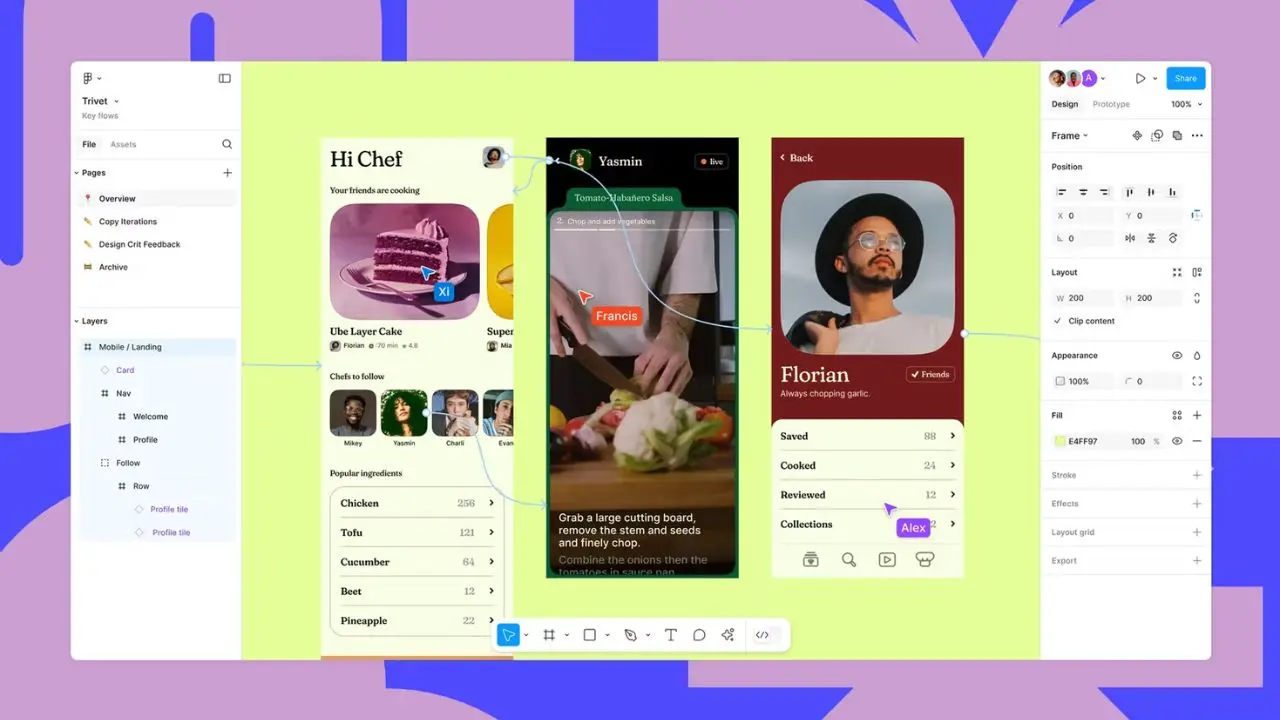
Figma was founded in 2012 by Dylan Field and Evan Wallace and launched publicly in 2016. Adobe attempted to acquire it in a deal that regulators ultimately blocked, and Figma has operated as an independent company since that deal fell apart in December 2023. Today, Figma holds approximately 40.65% market share in the UI/UX design tool space and is the standard design platform at companies including Google, Microsoft, Airbnb, Slack, Dropbox, and virtually every major technology company’s product design team.
At its core, Figma is a browser-based professional UI/UX design and prototyping tool built specifically for designing digital products: websites, mobile apps, web applications, design systems, and interactive prototypes. It’s available on any web browser and through desktop apps for Mac and Windows.
The most important thing to understand about Figma is its design philosophy: vector-based, pixel-perfect precision, with components, auto layout, design systems, and developer handoff as core infrastructure features, not afterthoughts. Figma also includes FigJam (a collaborative whiteboarding tool for brainstorming and user journey mapping), Figma Slides (for presentations), Figma Sites (to publish designs as live websites), and Figma Buzz (for quick social media asset creation). The platform is used by over 4 million users globally, and its AI features, including visual search, auto-renaming layers, prompt-based design generation, and prototype generation, continue to expand.
What Is Canva?

Canva was founded in 2012 in Perth, Australia, by Melanie Perkins, Cliff Obrecht, and Cameron Adams, and launched in 2013. It is currently valued at approximately $26 billion.
Unlike Figma’s targeted professional user base, Canva’s scale is staggering in a different way, with over 220 million monthly active users across 190+ countries and nearly $2.7 billion in revenue. It is the most-used design platform on Earth by user count, and its mission has always been explicit: make professional-looking visual content accessible to everyone, regardless of design training or technical skill.
Canva is a browser-based graphic design platform built for non-designers. The entire product is designed to help you produce finished, publish-ready visual content as quickly as possible. In addition, templates are the primary entry point, not blank canvases.
The drag-and-drop editor, pre-licensed asset libraries, and AI features such as Magic Design, Magic Write, Magic Edit, and Background Remover are designed to eliminate decisions that would otherwise require design expertise. Canva covers over 600,000 templates across social media graphics, presentations, documents, videos, websites, print materials, email headers, and infographics. Furthermore, 92% of business leaders now report that even employees without formal design training are expected to have some level of design skills, and Canva is precisely the tool that addresses that reality.
The Core Difference You Need to Understand First
Before any feature comparison makes sense, you need to understand the philosophical gap between these two tools, because it changes how you interpret every other difference.
- Figma Is A Design Tool: Its output is typically a design file that gets handed to a developer to build into a real product. You design components, screen flows, and interactive prototypes that an engineering team will translate into code. The collaboration model is built around designer-to-developer handoff.
- Canva Is A Production Tool: Its output is typically a finished file, an image, a PDF, a video, or a presentation that goes directly to print, social media, email, or publication. You design finished assets that are immediately usable without any further technical steps. The collaboration model is built around marketing teams and content creators who produce and publish visual content.
The workflow difference is equally significant. In Figma, you’re building components that will become software. However, in Canva, you’re building assets that will be shared directly. Consequently, Figma assumes design knowledge: understanding of grids, spacing systems, responsive behavior, and component architecture.
Canva assumes no design knowledge, replacing those decisions with templates and preset layouts. However, a marketer using Figma to create social media graphics is fighting a tool designed for something completely different. A product designer using Canva to prototype a mobile app is working against its intentional constraints in the same way. Knowing this makes the rest of the comparison immediately clear.
Feature-by-Feature Comparison
Design Flexibility and Precision

Figma gives you vector-based control over every element; pixel-perfect positioning; auto-layout for responsive component behavior; constraints for responsive design; boolean operations for complex shape creation; and an infinite canvas with no limits on element positioning. When you need to build something that must work across multiple screen sizes and devices, with consistent spacing and component reuse, Figma’s precision tools make it possible to do so efficiently.
Canva, by contrast, offers template-constrained flexibility. The drag-and-drop editor with snap-to-grid is genuinely intuitive, but element positioning is less granular, and vector path editing doesn’t go as deep. That said, this is a feature, not a bug, for Canva’s target user: a non-designer who needs guardrails to produce something that looks professional without having to make design judgments on every decision. The constraint is the point.
Templates and Starting Points
Canva wins decisively here. Over 600,000 professionally designed templates organized by content type, industry, and platform size (Instagram Story dimensions, LinkedIn post dimensions, A4 document layouts, and hundreds more), all free on paid accounts. The templates are constantly updated and immediately usable by someone with zero design background.
Figma has a strong community template library through Figma Community, with thousands of free UI kits, icon sets, and design system starters. However, many Figma templates come with additional costs ranging from $2 to $500, making them expensive to use.
Additionally, Figma’s community templates require design knowledge to adapt effectively. Canva’s template library is bigger, fully free on paid plans, and requires no design expertise to use well.
Prototyping and Interactivity
This is where the comparison isn’t even close. Figma is the industry standard for UX prototyping.
You link screens, define transitions, add micro-interactions, build scrollable prototypes, and share clickable flows with stakeholders for user testing, simulating the actual product experience before a single line of code is written. Additionally, Figma’s prototype flows are the primary reason product teams use it as their central design tool.
Canva offers basic presentation-style transitions and simple interactive PDFs. It is not designed for app or website prototyping, and there is no equivalent to Figma’s interactive prototype flows. Therefore, if your work involves designing how a product behaves, not just how it looks, Figma is the only realistic option here.
Collaboration and Team Features
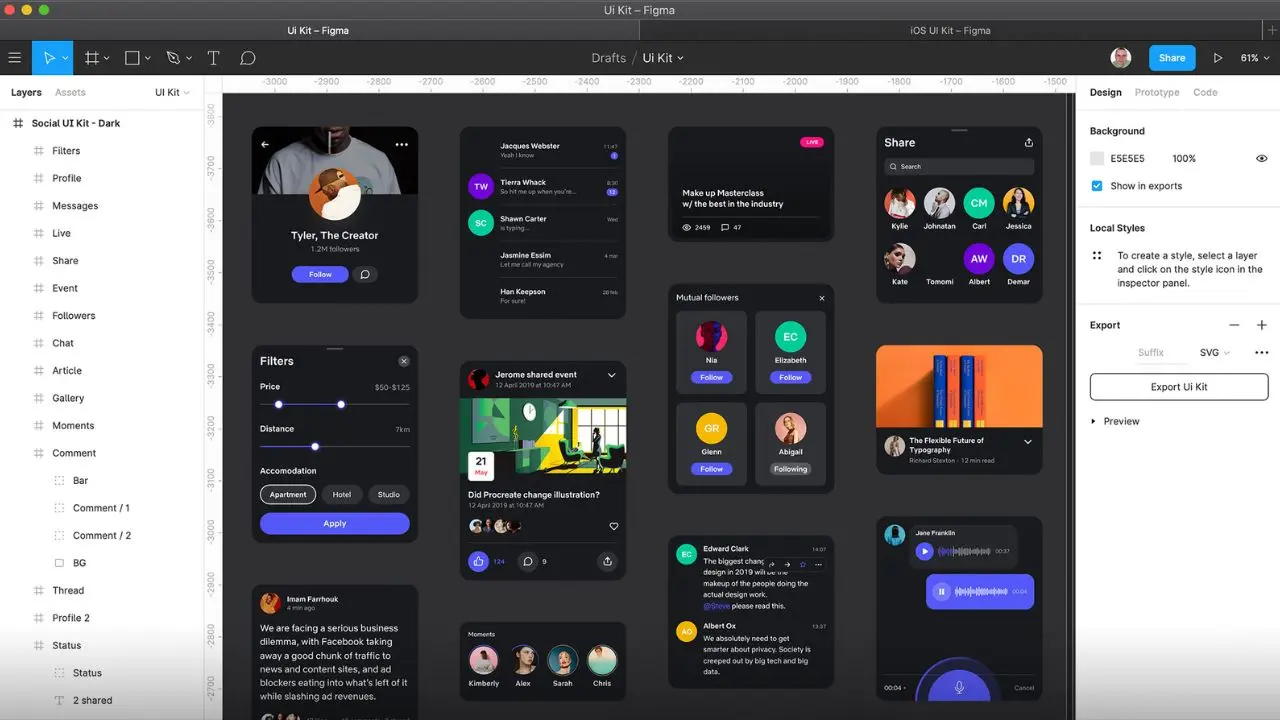
Both tools offer real-time collaboration, but the collaboration models serve completely different workflows. Figma’s real-time multiplayer editing, comment and annotation tools, version history, branching and merging for design systems, Dev Mode for developer handoff, and Observer mode for stakeholder presentations are all built around designer-developer-stakeholder collaboration on a shared product.
Canva’s collaboration features (real-time editing, comments, brand kits that lock logos and colors at the team level, shared folders, approval workflows, and content scheduling) are built around the workflows of marketing and communications teams. Therefore, if your team’s collaboration need is “everyone uses the same brand colors, and nobody publishes unapproved assets,” Canva’s brand kit and approval workflow serve that need more directly than Figma does.
Asset and Content Libraries
Canva’s built-in library is one of its clearest competitive advantages for content creators. Over 141 million stock photos, videos, audio tracks, and graphics are available directly inside the editor; free on paid accounts, with 4.7 million available on the free tier. You add a stock image to your design without leaving the app or paying a separate licensing fee.
On the other hand, Figma relies on component libraries that your team builds and maintains, as well as external plugins from the Figma community for icons and illustrations. There is no equivalent built-in stock asset library. And, for designers building product interfaces, this isn’t a limitation, as you’re not typically pulling stock photos into a mobile app design. But for content creators producing social media graphics or marketing materials, Canva’s asset library is a significant practical advantage.
Export and Production
Figma exports to PNG, JPG, SVG, PDF, and WebP, with developer-optimized asset export and CSS code generation for handoff. It does not have a native print production workflow with bleed marks and crop guides.
Canva, on the other hand, exports to PNG, JPG, print-ready PDF (with bleed and crop marks), MP4, GIF, SVG, and PowerPoint/Word formats. It also supports direct social media publishing, presentation mode, and print ordering through Canva Print.
Therefore, for production-ready multi-format export, particularly print, Canva leads. But for developer-ready asset export, Figma leads.
AI Features
Both platforms have invested heavily in AI, but with different priorities. Figma AI covers visual search across assets, auto-renaming layers, first-draft generation from prompts, prototype generation, and design suggestions (tools that improve professional design workflow efficiency). However, as of March 2026, AI credit limits are enforced on Figma’s plans, with additional credits available as paid add-ons.
Canva’s AI suite, Magic Studio, is broader and more beginner-friendly: Magic Design (generates full designs from text prompts), Magic Write (AI copy generation), Magic Edit (AI image editing), Background Remover, Text to Image, Magic Presentations, Magic Morph, and more. Canva’s AI features are designed for users who want to skip the design process entirely; describe what you want and get a finished result. Figma’s AI is designed for professionals who want to accelerate a design process they already understand.
Pricing Breakdown
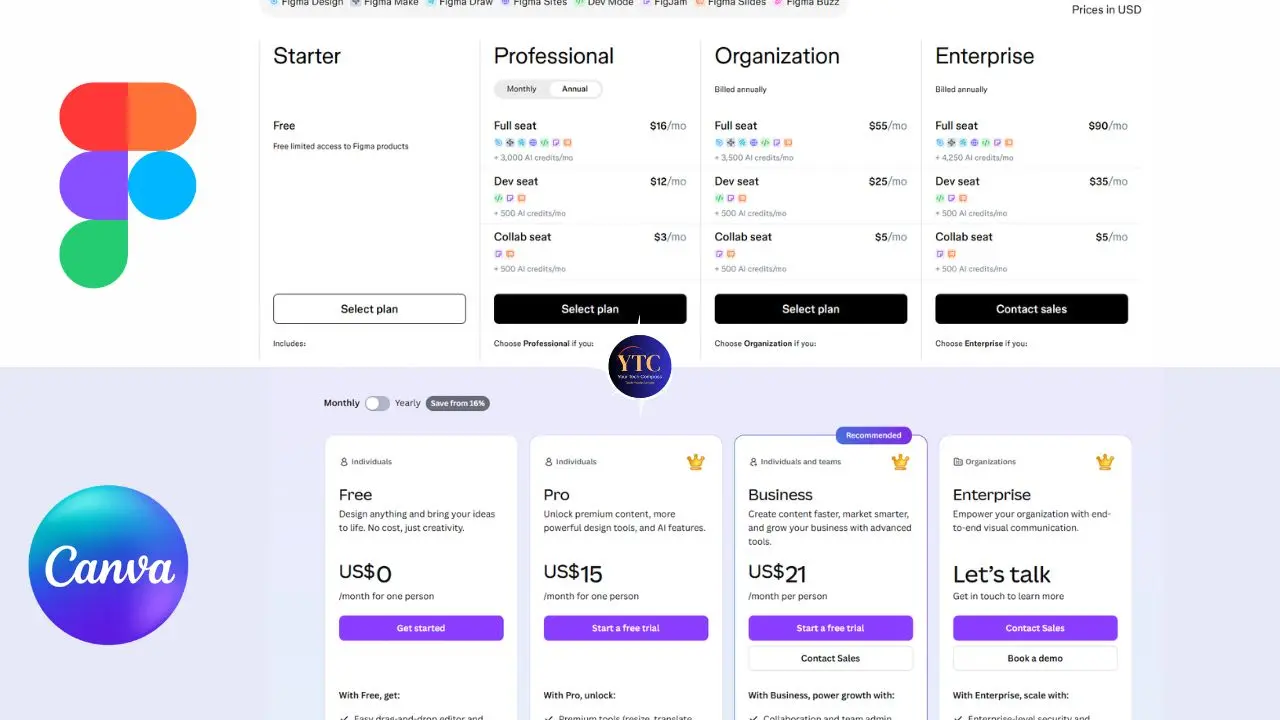
Understanding the current pricing for both tools is essential before making a decision.
Figma Pricing (April 2026)
Plan | Price | Best For |
Starter | Free | Individuals (up to 3 design files and 3 FigJam files) |
Professional | $16/editor/month (monthly) or $12/editor/month (annual) | Small to medium design teams (unlimited files, team libraries, advanced prototyping) |
Organization | $55/editor/month (annual only) | Businesses with org-wide design systems, SSO and centralized admin |
Enterprise | $90/editor/month (annual only) | Large enterprises (advanced security, custom contracts, dedicated support) |
Dev Seats | $12–$35/month | Developers who need design specs without a full editor seat |
View Seats | Free on all plans | Stakeholders who only need to view and comment |
The Figma free tier (Starter) is limited to 3 files per team, a meaningful constraint that pushes most professional teams toward the Professional plan. Importantly, viewer seats are included with every plan, so you only pay for team members who actively create and edit designs. Figma is also free for verified students and educators.
Canva Pricing (April 2026)
Plan | Price | Best For |
Free | $0 | Individuals (thousands of templates, 5GB storage, basic AI tools) |
Pro | $15/month or $10/month (annual, ~$120/year) | Solopreneurs, freelancers, content creators (full template library, Brand Kit, 1TB storage, all AI features) |
Business | $21/person/month (annual, minimum 3 people) | Small to medium businesses (centralized Brand Kit, approval workflows, shared templates) |
Enterprise | Custom pricing | Large organizations (advanced security, compliance, centralized brand control) |
Education/Nonprofits | Free | Verified students, educators, and nonprofits |
The Honest Pricing Comparison
Canva’s free tier is substantially more useful than Figma’s free tier for non-designer use cases. Thousands of templates and 5GB of storage make it a genuinely functional standalone tool.
However, at the professional paid tiers, Figma Professional costs $12–$16/editor/month, and Canva Pro costs $10–$15/month, making pricing similar enough that it should not be the deciding factor. The decision is entirely about workflow match, not cost.
Figma vs Canva: Head-to-Head Summary
Category | Figma | Canva | Winner |
Design Precision | ✅ Pixel-perfect vector control | ⚠️ Template-constrained | Figma |
Templates | ⚠️ Community-based, some paid | ✅ 600,000+ free templates | Canva |
Prototyping | ✅ Industry standard | ❌ Basic only | Figma |
Developer Handoff | ✅ Dev Mode built-in | ❌ Not applicable | Figma |
Stock Asset Library | ⚠️ Plugin-dependent | ✅ 141M+ built-in assets | Canva |
Ease of Use | ⚠️ Steep learning curve | ✅ No experience needed | Canva |
AI Features | ✅ Design workflow AI | ✅ Magic Studio suite | Tie |
Print Production | ❌ Limited | ✅ Bleed marks, Canva Print | Canva |
Free Tier | ⚠️ 3 files per team | ✅ Thousands of templates | Canva |
Team Collaboration | ✅ Designer-developer | ✅ Marketing team workflows | Depends on the team |
Best For | UI/UX, product design | Content, marketing, non-designers | Use case dependent |
When to Use Each Tool
Rather than vague guidance, here’s the direct breakdown based on who you actually are.
Use Figma If You Are A:
- Product designer, a UX designer, or a UI designer building websites, mobile apps, or digital products that developers will code.
- Design team maintaining a shared design system. Or someone who needs to create interactive prototypes for user testing or stakeholder sign-off.
- Front-end developer who uses Dev Mode to inspect specifications and export assets.
- Startup team designing a product interface before writing code.
However, Use Canva If You Are:
- A marketer, social media manager, content creator, or small business owner who needs professional-looking results quickly without design training.
- An HR team producing internal communications and reports.
- An educator creating visual learning materials.
- A business owner managing their own brand visuals.
- Anyone producing high-volume content across multiple formats (social graphics, presentations, print materials, and email assets) regularly.
Use Both If:

Your organization has a product design team and a marketing or communications team. This is the most common setup at mid-to-large companies: product designers use Figma for digital products, and marketers use Canva for campaign content. The tools occupy genuinely different parts of the workflow without overlapping.
For a comprehensive look at the design and productivity landscape, our apps and tools section covers everything in one place.
Can They Replace Each Other?
This is the question most comparison articles avoid answering directly. Here’s the truth.
- Can Canva Replace Figma? For UI/UX design, prototyping, and developer handoff, no. Canva’s accessibility constraints make it genuinely impractical for professional product design. You cannot build a responsive component library, create realistic interactive prototypes, or produce developer-ready specifications in Canva. For marketing content creation, Canva was already better than Figma for that use case before the question was even asked.
- Can Figma Replace Canva? A skilled designer can technically produce social media graphics and marketing materials in Figma. In practice, it takes significantly longer than using a Canva template, lacks the built-in stock asset library that makes Canva fast, and requires design expertise that most marketing teams don’t have. For non-designers, Figma is not a realistic alternative to Canva at any skill level.
The Honest Answer: These tools don’t compete for the same user. For most people, the “vs” framing is a false choice; your role and workflow decide for you before you even evaluate features.
Quick Role-Based Verdict

If you’d rather skip straight to the answer for your specific job:
- Product designer / UX designer: Figma, no question.
- Front-end developer: Figma (the Dev Mode is specifically built for you).
- Social media manager: Canva.
- Marketing team: Canva.
- Small business owner creating your own content: Canva free tier or Pro.
- Content creator / YouTuber: Canva for thumbnails, graphics, and presentations.
- Startup founder designing an MVP: Figma (expect a learning curve).
- Educator or student: Canva free tier for content; Figma free tier for design education.
- Agency: Both. Figma for client product work, Canva for client content production.
FAQs
Neither is objectively better; they serve different users. Figma is better for professional UI/UX design, prototyping, and developer handoff. Canva is better for non-designers to produce fast visual content. The right answer depends entirely on what you’re building and on your role.
Yes, but expect a real learning curve. Figma’s interface is organized around concepts (frames, components, auto-layout, constraints) that require design knowledge to use effectively. Beginners can learn it, but it won’t feel intuitive in the first week, unlike Canva. Figma’s free tier and extensive YouTube tutorial community make self-learning accessible.
It depends on what you mean by professional. Canva consistently produces professionally polished output for marketing materials, social content, presentations, and brand assets. For professional UI/UX design, product interfaces, or developer handoff, Canva is not designed for those use cases, and the output reflects that constraint.
Canva has templates for website pages and simple site-building features, but it is not designed for UI/UX design in the way Figma is. You can create a basic visual concept in Canva, but you cannot build interactive prototypes, design responsive component systems, or produce developer-ready handoff files. For serious app or website design work, Figma is the appropriate tool.
It depends on what your team does. Figma’s team collaboration is built for design teams working on shared digital products, with features such as version control, branching, developer handoff, and design system management. Canva’s team collaboration is built for marketing and communications teams that manage brand consistency, approvals, and content production at scale. Both are genuinely strong for their respective team types.
Conclusion
The Figma vs Canva comparison resolves quickly once you’re clear about one thing: what your output needs to be. If your output is a design file that a developer will build into a real product, Figma is the tool to use. This is because its prototyping capabilities, design system infrastructure, developer handoff features, and industry-standard adoption make it the only serious choice for product design work. If your output is a finished visual asset that goes directly to publication, print, or social media, Canva is the tool for you. Its templates, built-in asset library, AI suite, and zero-learning-curve accessibility make it consistently faster and more practical for content production than any professional design tool.
The good news is that for most people, this isn’t actually a hard decision. Your role and workflow tell you which tool fits before you open either one. Figma for building digital products. Canva for creating visual content. And for organizations with both product and marketing teams, both (without conflict) are doing genuinely different work in parallel. Therefore, start with the free tier that matches your workflow, use it for 2 weeks, and the answer will become clear.
The design tools, productivity apps, and tech platforms worth your time are all reviewed honestly at YourTechCompass.com, your straight-talking guide to making smarter decisions in a world full of options.