Cookies in browsers help websites remember your preferences, but over time, they can also lead to privacy concerns, slower performance, or issues with website loading. On an iPhone, clearing cookies can help you boost speed, protect your privacy, and troubleshoot browser problems.
In this article, I’ll guide you through how to clear cookies on Safari, Chrome, and other browsers, and explain why this simple step is worth doing regularly.
Why Clear Cookies on iPhone?
Before we dive into how to clear cookies, it’s helpful to understand why you might want to do it. Here are some of the benefits of clearing cookies:
- Improve Privacy: Cookies often include tracking data from websites. Removing them reduces the amount of tracking and ad‑profiling.
- Free Up Storage & Boost Performance: Though cookies are small individually, accumulated website data can slow things down. Clearing them can help speed up the process. You can also read about other ways to speed up iPhone performance.
- Fix Website Issues: Corrupted cookies or stale site data can cause websites to misbehave; clearing cookies often resolves login problems or failed page loads.
- Reset Browsing State: If you’re troubleshooting other issues, such as needing to reset the iPhone to factory settings or dealing with app crashes, managing browser cookies is part of the clean‑up process.
How to Clear Cookies on Safari (iPhone)
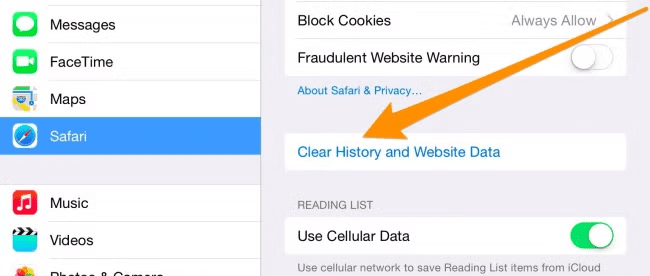
Since Safari is the default iPhone browser, here’s how to clear cookies in it:
- Open Settings on your iPhone.
- Scroll down and tap Safari.
- Tap Clear History and Website Data.
- Confirm by tapping Clear History and Data.
- This removes history, cookies, and other browsing data.
- This removes history, cookies, and other browsing data.
- (Optional) To clear cookies for specific sites only:
- In Settings > Safari > Advanced > Website Data, tap Edit, find the site, and tap Delete.
Why This Matters: Clearing all cookies resets your browsing history and website data, which helps free up space and remove tracking data. If certain web pages aren’t loading properly, this reset often resolves the issue.
How to Clear Cookies on Chrome (iPhone)
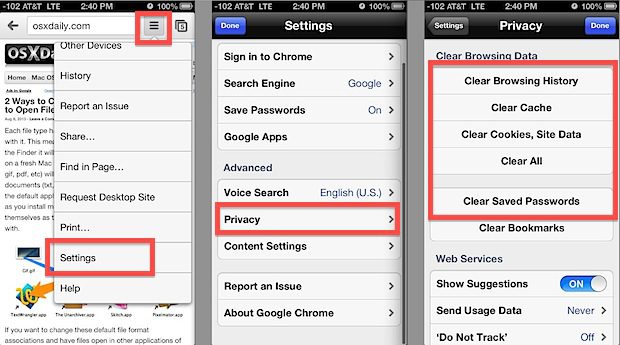
If you use Google Chrome on your iPhone, follow these steps:
- Open the Chrome app.
- Tap the three‑dot menu icon at the bottom right.
- Select Settings.
- Tap Privacy and security (or just Privacy).
- Tap Clear Browsing Data.
- Check the box for “Cookies, Site Data” (you can also select “Cached Images/Files” if you prefer).
- Tap Clear Browsing Data, then confirm.
Note: Clearing cookies will sign you out of most sites and reset preferences. If you’re troubleshooting app crashes on your iPhone or login issues on a site, this step is useful.
How to Clear Cookies on Other Browsers (Firefox, Edge, etc.)
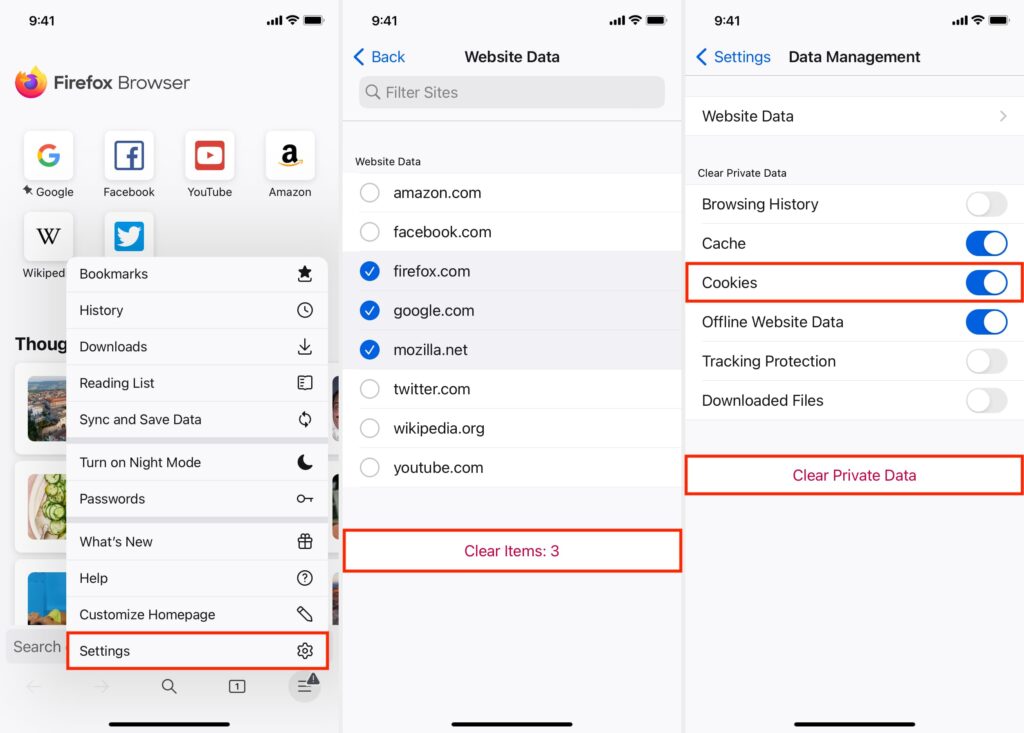
For other browsers installed on your iPhone (Firefox, Microsoft Edge, Opera, etc.), the process is similar:
- Open the browser app.
- Go to Settings > Privacy or Data Management.
- Find Clear Cookies & Site Data, or similar wording.
- Confirm the deletion.
Because each browser has its own interface, the wording and location might vary slightly, but “cookies”, “site data,” and “clear browsing data” are the keywords to watch for.
Automatic Cookie Management
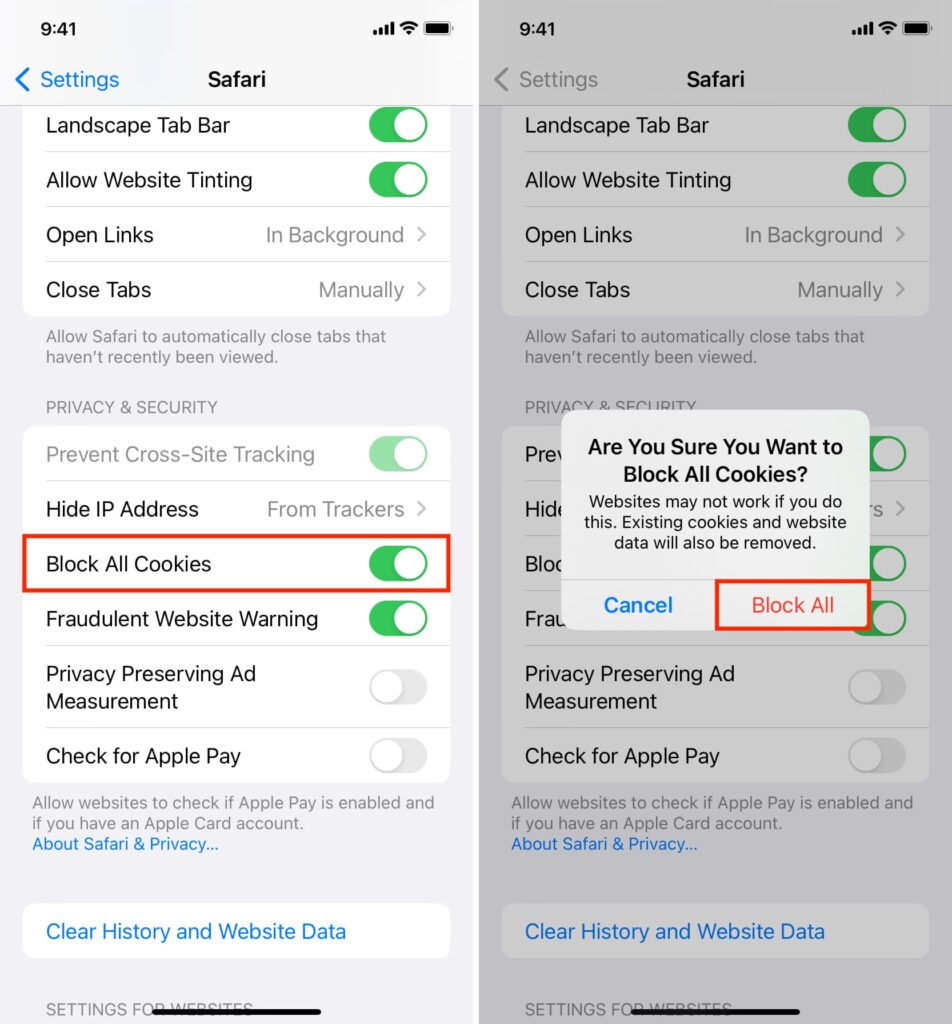
If you’d rather not manually clear cookies each time, consider these options:
- Block Cookies Automatically: In Safari, go to Settings > Safari and toggle “Prevent Cross-Site Tracking” and “Block All Cookies” (note: blocking all cookies may cause some sites to stop working properly).
- Periodic Clearing: Set a reminder (e.g., monthly) to clear cookies, just as you would remind yourself to unhide hidden apps on your iPhone or manage other settings.
- Use Private Browsing: Open a Private tab in Safari, Chrome, or other browsers. This mode doesn’t store cookies after the session ends.
Troubleshooting Common Issues
Sometimes clearing cookies causes its own issues. Here’s how to handle them:
- Websites won’t load or keep asking for login: After clearing cookies, sign in again and allow essential cookies for that site.
- Session lost or preferences reset: Browsing data deletion removes saved user settings. Re‑configure any site preferences you need.
- Unexpected sign‑outs: If you’re working with multiple browsers and need to screen record on iPhone or share workflows, keep credentials in a password manager for quick re‑sign in.
- Still slow or buggy: If your browser remains sluggish after clearing cookies, consider clearing the cache, updating the browser, or, as a last resort, resetting the device.
Comparison Table: Manual vs Automatic Cookie Management
Method | Best For | Trade-Offs |
Manual Clearing (Safari/Chrome) | Accurate, full control over data | Requires remembering to do it |
Private Browsing Mode | Temporary browsing without saving cookies | Needs to open private mode each time |
Automatic Block & Clear | Minimal effort, more privacy | Some websites may break or behave oddly |
Conclusion

Clearing cookies on your iPhone is a simple yet effective way to enhance privacy, improve performance, and resolve browsing issues. Whether you use Safari, Chrome, or another browser, following the right steps can make a noticeable difference. For optimal maintenance, pair this approach with routine tasks such as clearing the cache, updating apps, and managing background processes.
I use cookie‑clearing as part of my monthly iPhone tune‑up, and I recommend you do the same, especially if you notice slower browsing or unexpected issues.