Before you try to delete your Tinder account, there are two things you need to know, and most people find out about them the hard way. First, deleting the Tinder app from your phone does not delete your account. Your profile stays fully active, fully visible, and fully swipeable by other users the moment you uninstall the app, because Tinder’s account data lives on their servers, not on your device. Removing the app is like walking out of a party; the party keeps going without you. Second, deleting your Tinder account and canceling your Tinder subscription are two completely separate actions on two completely separate systems, and if you only do one without the other, you’ll either keep getting charged every month with no active account, or you’ll keep a live profile running that you thought you’d already removed.
This guide walks you through both steps completely and in the right order: subscription cancellation first, account deletion second, for every platform, including iPhone, Android, and web browser. You’ll also find the steps to pause your account for a temporary break rather than permanent deletion, a clear explanation of what happens to your data after you delete it, and direct solutions for every common problem people run into during the process. By the time you finish this guide, nothing will still be running in the background.
Before You Delete: What You Need to Know
Taking two minutes to understand these details before you start prevents the mistakes that cause most of the frustration people experience when trying to leave Tinder.
Deleting the App Is Not the Same As Deleting the Account
This is the most common misconception about Tinder, and Tinder’s official support documentation explicitly confirms it. When you uninstall Tinder from your home screen, your profile remains completely active on Tinder’s servers. Therefore, other users can still find you, swipe on you, and match with you.
Your photos, bio, and match history all stay intact. The app being gone from your phone has no effect on your account’s status whatsoever. You have to delete the account through the app settings or through Tinder’s website, not through your phone’s app management.
Deleting Your Account Is Not the Same As Canceling Your Subscription
These are two independent actions controlled by two different systems. Your Tinder account lives on Tinder’s servers. However, your subscription billing is handled by Apple’s servers (if you subscribed on iPhone), Google’s servers (if you subscribed on Android), or Tinder’s own payment system (if you paid directly on the website).
Therefore, when you delete your Tinder account, Tinder’s system has no automatic connection to Apple’s or Google’s billing systems, so the charges keep coming every month until you cancel through the correct platform. That’s why the subscription cancellation step must happen first.
Deletion Is Permanent and Unrecoverable
Once you delete your Tinder account, your profile, photos, matches, and all conversations are gone permanently. Your matches also lose the conversation on their side simultaneously because the chat thread is tied to your account.
Tinder does retain your data internally for a 90-day safety retention window for legal compliance and security purposes, but that data is not accessible to you and cannot be used to restore your profile during that period in most markets. Therefore, if you might want to return to Tinder within the next few months, the Pause feature, covered later in this guide, is the more practical choice.
You Can Download Your Data Before Deleting
If you want a copy of the information Tinder holds about you before permanently closing your account, go to Settings → Privacy → Download My Data before proceeding. Tinder provides that data package within 30 days of the request. Once the account is deleted, you can no longer request it.
How to Delete Your Tinder Account
Step 1: Cancel Your Tinder Subscription First
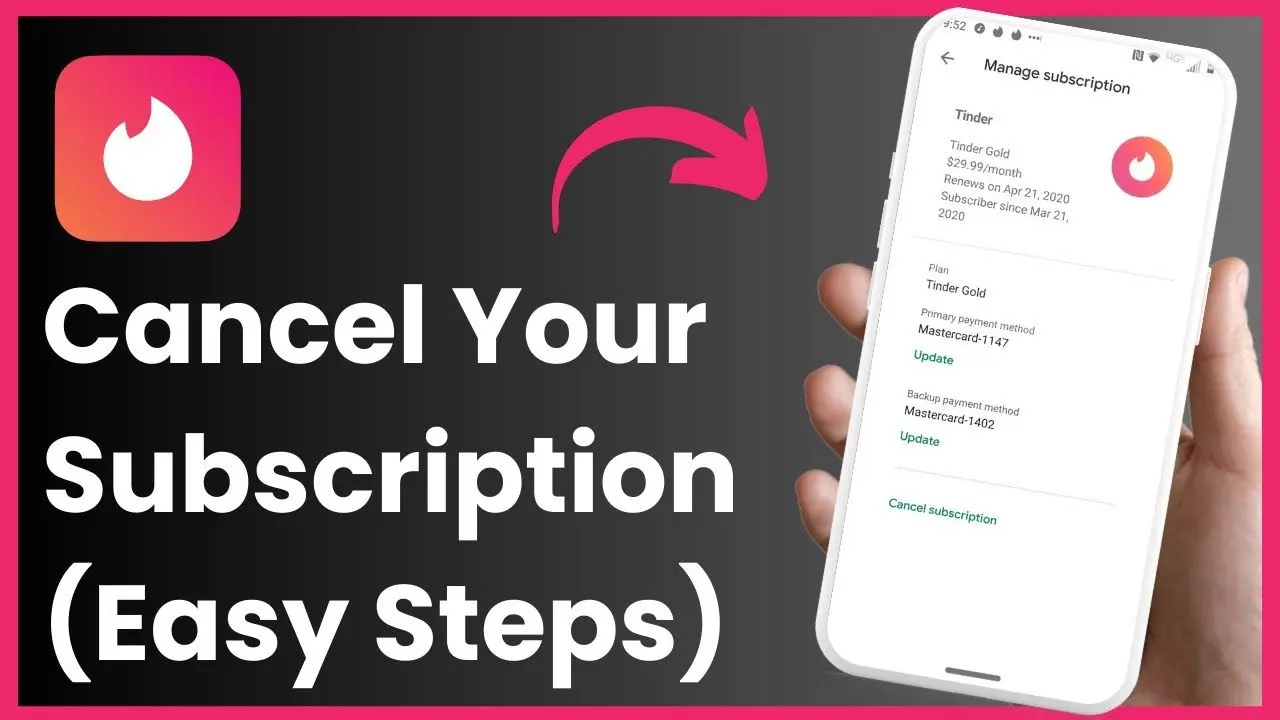
This is the step most people skip, and it’s the one that keeps them getting charged after they thought they were done. Complete this before you touch the account deletion steps. The platform you cancel through depends entirely on where you originally subscribed.
- How to Find Out Where You Subscribed: Check your email inbox and search for “Tinder.” Look at any receipt you received. And if your order number starts with MK, you subscribed through Apple. However, if it starts with TNDR, you subscribed through Google Play, directly on the Tinder website, or via credit card. If you’re still unsure, check your Apple ID subscriptions and your Google Play subscriptions; whichever one shows Tinder is the right platform.
If You Subscribed on iPhone (Apple / App Store)
Apple manages all purchases made through the iOS app, so Tinder cannot cancel this subscription for you; you have to do it in your Apple ID settings, not in the Tinder app itself.
- Open the Settings app on your iPhone (not the Tinder app)
- Tap your name at the very top of the screen
- Tap Subscriptions
- Find Tinder in the list of active subscriptions
- Tap Cancel Subscription
- Confirm the cancellation when prompted
After canceling, your Gold or Platinum subscription remains active until the end of the billing period you already paid for. Tinder does not prorate refunds based on the cancellation date; you paid for the full month, and you get to use it. The charges simply stop renewing after that final period ends.
If You Subscribed on Android (Google Play)
Google Play manages all Android in-app purchases independently of Tinder’s systems, so cancellations occur in the Play Store, not in the Tinder app.
- Open the Google Play Store app on your Android device
- Tap your profile icon in the top right corner
- Tap Payments & Subscriptions
- Tap Subscriptions
- Find Tinder in the list
- Tap Cancel Subscription
- Follow the on-screen prompts to confirm
The same timing rule applies; your subscription stays active until the end of the billing period you already paid for, then stops renewing automatically.
If You Subscribed Directly on Tinder’s Website (Credit Card)
If you paid with a credit card directly on Tinder.com rather than through Apple or Google, there’s an important difference: deleting your account on the website will automatically cancel your direct web subscription. However, if you want to cancel the subscription first without deleting the account yet, follow these steps.
- Open the Tinder app and tap your profile icon
- Tap Settings
- Tap Manage Payment Account
- Find your subscription and tap Cancel Subscription
Alternatively, log in at tinder.com, click your profile icon, go to Settings, and find Manage Payment Account.
Step 2: Delete Your Tinder Account
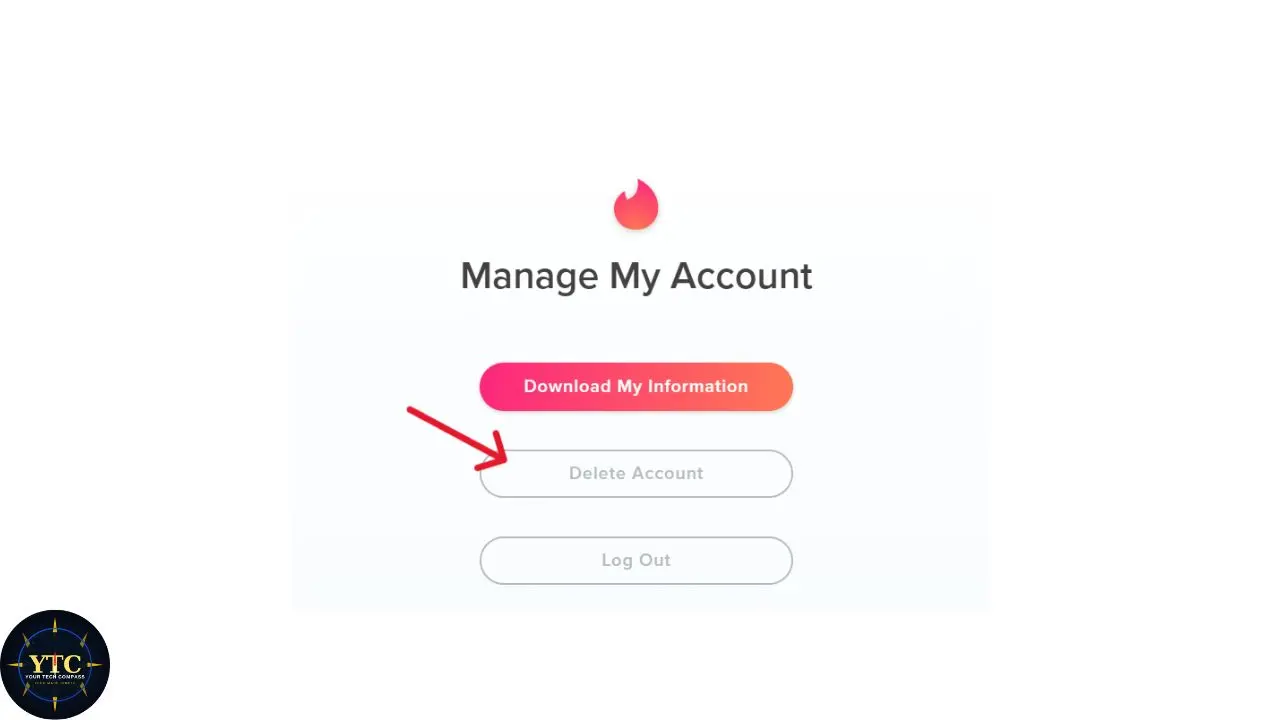
Once the subscription is canceled, you can delete the account. There are three methods depending on how you prefer to access Tinder.
Method 1: Delete Through the Tinder App (iOS and Android)
This is the most straightforward method and works identically on both iPhone and Android.
- Open the Tinder app and make sure you’re logged in
- Tap the profile icon at the bottom of the screen
- Tap the gear icon (Settings) in the top right corner
- Scroll all the way down to the bottom of the Settings menu
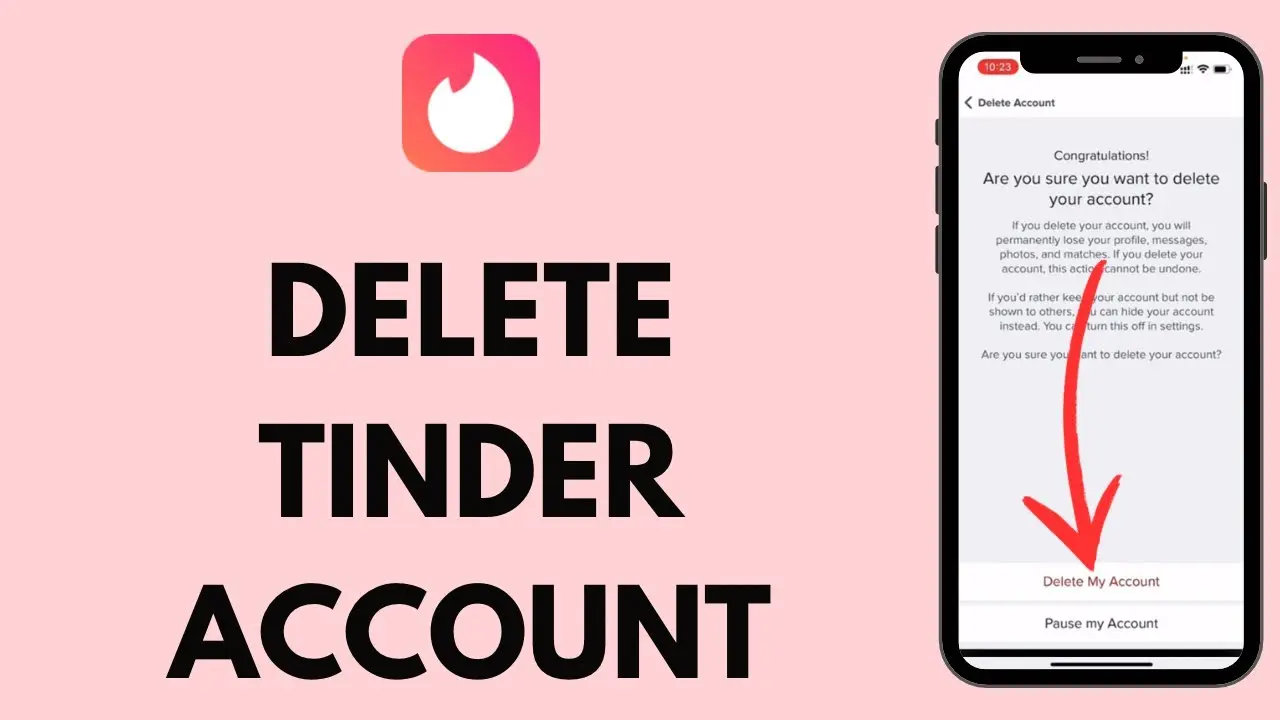
- Tap Delete Account
- Select a reason for leaving from the list, or tap Skip in the top right corner
- Tap Delete My Account
- Confirm when prompted
Your profile disappears from other users’ Discovery feeds immediately. You’ll receive a confirmation email from Tinder. Your matches lose the conversation on their end simultaneously.
Method 2: Delete Through the Tinder Website (Desktop or Mobile Browser)
Use this method if you prefer a larger screen, if the app isn’t working correctly, or if you don’t currently have the app installed.
- Go to tinder.com in any browser and log in
- Click your profile icon labeled “You” at the top left
- Click Settings
- Scroll down and click Delete Account
- Click Delete My Account to confirm. Note that the website version does not ask you to confirm a second time; clicking once deletes immediately.
One Important Note Specific to Web Deletion: If you subscribed directly via credit card on tinder.com (not through Apple or Google), deleting your account through the website automatically cancels that subscription. And, if you subscribed through Apple or Google, deleting your account on the web does not affect those subscriptions; they must still be canceled separately through the correct platform.
Method 3: Contact Tinder Support (If You Can’t Access Your Account)
If you’ve lost access to the phone number or email address tied to your account, you can’t log in and can’t delete it through the app or website without being logged in. In that case, contact Tinder Support directly at help.tinder.com and provide as much account identification information as possible. Tinder’s support team can assist with manually deleting your account after verifying your identity.
What Happens to Your Data After Deletion
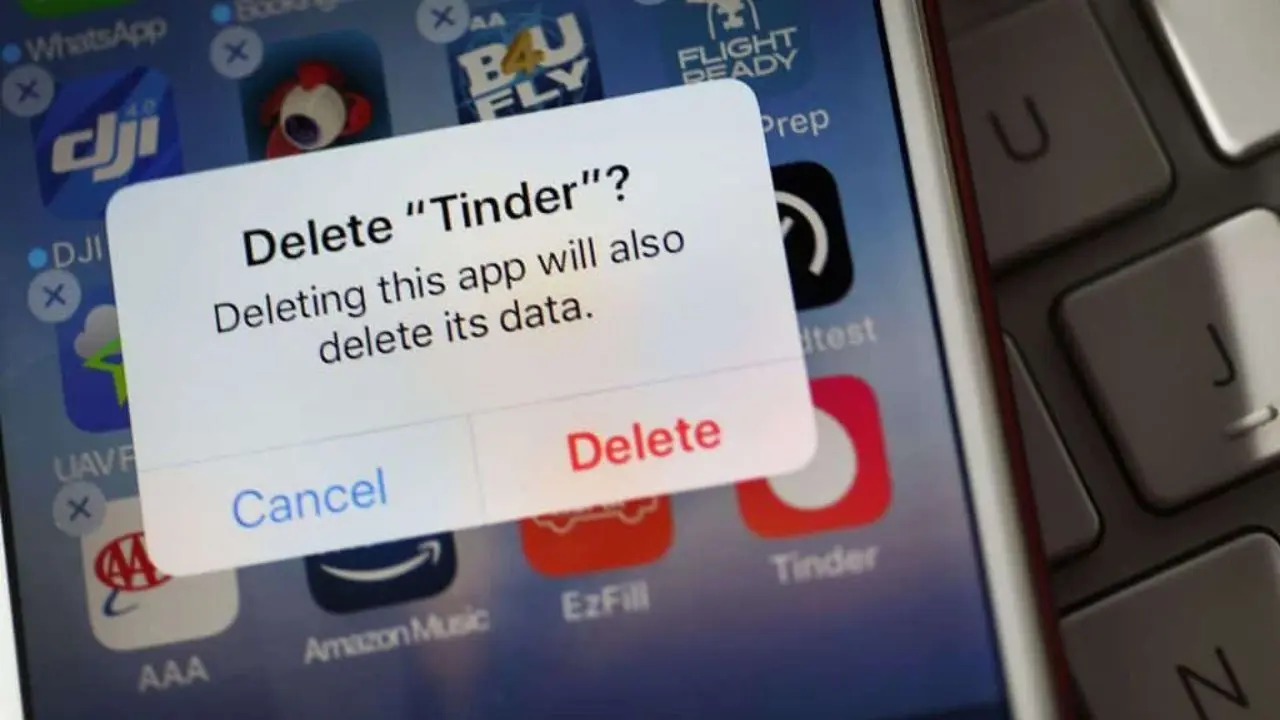
Your profile, photos, matches, and messages are gone immediately and permanently from Tinder’s public-facing system the moment you delete them. Other users cannot find you, see your profile, or access any conversation history you shared with them. However, Tinder retains your account data for a 90-day safety retention window; this is Tinder’s terminology, as confirmed in its official help documentation.
That 90-day window exists so Tinder can investigate any harmful or illegal activity that may have occurred on the account before deletion and support account recovery in select test markets where a restore feature is available. After 90 days, your data is permanently deleted from Tinder’s servers in accordance with their Privacy Policy. During that 90-day period, your data is inaccessible to you, and your profile is not visible to other users; the window exists solely for Tinder’s internal safety and compliance purposes.
If data privacy is a priority for you and you want to know exactly what Tinder holds before you delete, request your data export through Settings → Privacy → Download My Data before proceeding with deletion. Once the account is deleted, that option is gone.
Delete vs Pause vs Hide: Quick Comparison
Action | Profile Visible? | Data Saved? | Reversible? | Subscription Affected? |
Delete Account | ❌ No (immediately) | ❌ No (permanent) | ❌ No | ❌ No (cancel separately) |
Pause Account | ❌ No (while paused) | ✅ Yes (fully intact) | ✅ Yes (instantly) | ✅ No change |
Hide Profile | ❌ No (while hidden) | ✅ Yes (fully intact) | ✅ Yes (instantly) | ✅ No change |
Uninstall App | ✅ Yes (still active) | ✅ Yes (fully intact) | ✅ Yes (reinstall) | ✅ No change |
Troubleshooting: Common Problems When Deleting Tinder

You Can’t Find the Delete Account Option in the App
The most likely cause is that you’re running an outdated version of the Tinder app. Tinder updates its settings layout with each app version, and older versions may have the Delete Account option in a different location or may not display it correctly.
Update the app to the latest version via the App Store or Google Play, then return to Settings and scroll to the bottom. And, if it still doesn’t appear, log out of your account completely, log back in, and try again. As an alternative, the web method at tinder.com has the delete option in Settings regardless of app version.
Your Account Is Deleted, But You’re Still Being Charged
This is the most common Tinder deletion mistake, and it happens specifically because the account deletion and subscription cancellation are separate systems. Deleting your Tinder account does not automatically stop billing through Apple or Google; those subscriptions keep renewing until you cancel them through the correct platform.
Therefore, if you’re still seeing Tinder charges after deleting your account, open your Apple ID subscriptions (iPhone) or Google Play subscriptions (Android) immediately, find Tinder, and cancel the subscription. In addition, if the charge appeared within the last 14 days, you may be eligible for a refund.
Contact Apple Support at reportaproblem.apple.com, Google Play Support, or Tinder Support, depending on where the charge originated.
You Can’t Log In To Delete the Account
Use the “Trouble Logging In” option on the Tinder login screen; it sends a verification code to your registered phone number or email address. However, if you no longer have access to either of those, contact Tinder Support directly with as much account information as you can provide (email address used, phone number, approximate account creation date) and request manual deletion. Tinder’s support team handles these requests for users who have permanently lost access to their login credentials.
You Want a Refund After Deleting

Tinder’s general policy is that subscriptions are non-refundable, regardless of when you cancel during the billing cycle. The exception is refund requests submitted within 14 days of the original transaction date. Tinder will review these on a case-by-case basis.
Additionally, users in certain US states, including California, New York, and Illinois, have additional consumer protection rights that allow cancellation without penalty within the first three business days of subscribing.
For Apple purchases, submit a refund request at reportaproblem.apple.com. Apple’s process operates independently of Tinder’s policy and is sometimes more successful for recent charges.
FAQs
No. Deleting the Tinder app from your phone only removes it from your device. Your profile remains fully active and visible to other users on Tinder’s servers until you delete the account through the app Settings or through tinder.com. Those are two completely different actions.
No, with one exception. Deleting your account through the app does not cancel subscriptions managed by Apple or Google. Those must be canceled separately through your Apple ID settings or Google Play. The exception is if you subscribed directly via credit card on tinder.com; in that case, deleting your account through the website cancels the web-based subscription simultaneously.
In most markets, no. Tinder account deletion is permanent and unrecoverable. Your profile, photos, matches, and messages cannot be restored after deletion. Tinder retains your data internally for a 90-day safety window, but that data is not accessible to you and cannot be used to restore your account. If you think you might want to return to it, use Pause instead of Delete.
Your matches won’t receive a notification that you deleted your account. They will simply find that your conversation thread has disappeared from their match list. The chat thread is removed from both sides simultaneously when you delete it. They won’t see a “this account was deleted” message; the conversation just vanishes.
Tinder retains your profile data for a 90-day safety retention window after deletion, as confirmed in their official help documentation. After 90 days, your data is permanently deleted from their servers in accordance with their Privacy Policy. Banned accounts are retained for up to one year. During the 90-day window, your profile is not visible to other users.
Conclusion
Deleting your Tinder account correctly requires two separate actions, completed in the right order: first, cancel your subscription through Apple, Google Play, or Tinder’s website, depending on where you originally subscribed, and then delete your account through the app or the Tinder website. Skipping the subscription cancellation is the single most common mistake and the one that results in continued charges after you thought you were done.
If you subscribed on an iPhone, that cancellation happens through your Apple ID settings. However, if you subscribed on Android, it happens through Google Play. And, if you paid directly on tinder.com, deleting your account through the website handles both steps simultaneously. For anyone exploring other dating apps after leaving Tinder, our best dating apps guide covers every major platform with honest comparisons, and our Tinder app review explains everything about how Tinder works if you’re considering returning. Additionally, the full range of app guides and reviews is available in our apps and tools section.
Found this helpful? Browse more in-depth tech guides, honest reviews, and step-by-step tutorials at YourTechCompass; your go-to resource for making smarter tech decisions.