Recording a phone call on an iPhone is something many people want to do, but Apple doesn’t make it obvious how to do so. Whether it’s for work, interviews, important instructions, or personal records, the need is real, and so is the confusion. Between legal restrictions, iOS limitations, and third-party workarounds, it’s easy to end up unsure about what actually works.
In this guide, I’ll show you how to legitimately record calls on iPhone, including built-in options (where available), reliable third-party apps, and external alternatives. I’ll also cover legal considerations, troubleshooting tips, and best practices so you know exactly what you’re doing before you hit record.
Is It Legal to Record Phone Calls on iPhone?
Before getting into the how-to steps, legality matters, and it’s not optional.
Phone call recording laws vary by country, state, and region, but they usually fall into two categories:
- One-Party Consent: Only one person on the call (usually you) needs to consent.
- Two-Party Consent: Everyone on the call must agree to being recorded.
In two-party consent regions, recording a call without informing the other person can be illegal, even if the conversation involves you. This is why Apple is cautious and why some recording methods automatically play a notification that the call is being recorded.
Best Practice: Always tell the other person you’re recording the call and get verbal confirmation before continuing. Even where it’s legally allowed, this avoids problems and keeps things transparent.
What You Need Before Recording a Phone Call on iPhone
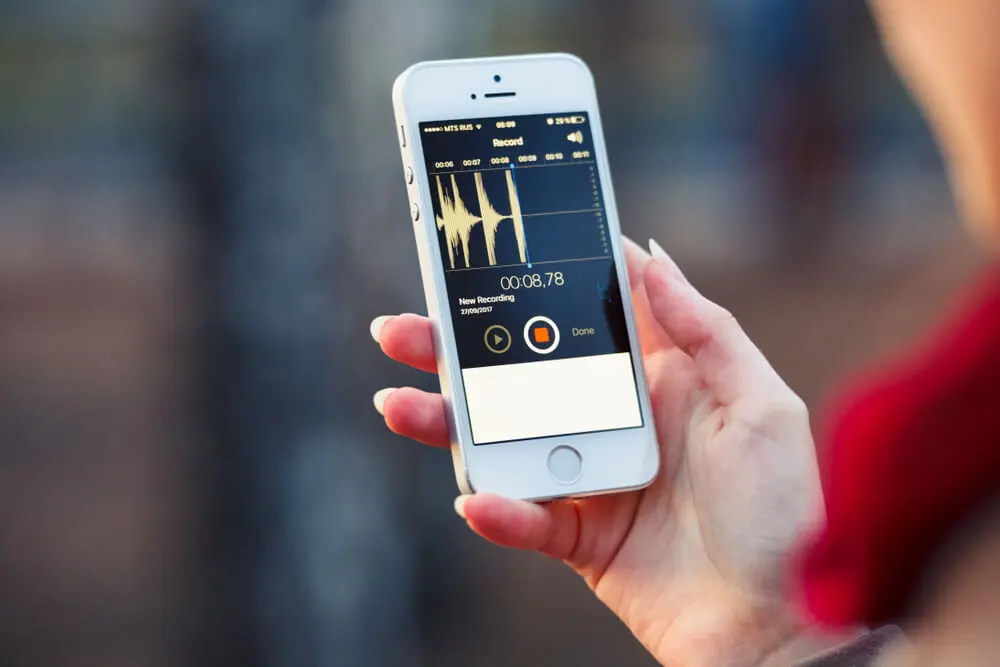
Before choosing a recording method, make sure the basics are covered.
- Check your iPhone and iOS version
- Some iPhones and regions support built-in call recording.
- Others do not and require third-party or external methods.
- Free up storage space
- Call recordings can take up significant space, especially for long calls.
- Stable network connection (for app-based methods)
- Many third-party apps rely on call-merging or cloud recording.
- Microphone access enabled
- Go to Settings → Privacy & Security → Microphone, then confirm access is allowed for the app you’re using.
Once these are in place, you can choose the method that fits your situation.
How to Record a Phone Call on iPhone Using Built-In Options
Apple has started rolling out native call recording in certain regions and on supported iOS versions. If your iPhone supports it, this is the cleanest and safest option.
Step-by-Step: Built-In Call Recording
- Open the Phone app.
- Make or answer a call.
- During the call, tap the More (•••) button.
- Tap Record Call (or Call Recording, depending on region).
- An automated message announces that the call is being recorded.
- Continue your conversation.
- End the call to automatically stop the recording.
- Open Notes or the designated Call Recordings section to find the saved audio.
Important:
- This option may not appear if your region restricts call recording.
- Apple intentionally notifies all participants of their obligation to comply with consent laws.
If you don’t see this option, move on to the next method discussed below.
How to Record a Phone Call on iPhone Using Third-Party Apps
When built-in recording isn’t available, third-party apps are the most common solution. These apps usually work by creating a three-way call between you, the other person, and a recording service.
Step-by-Step: Using a Third-Party Call Recording App
- Download a reputable call recording app from the App Store.
- Open the app and complete any setup or account creation.
- Start a new recording inside the app.
- The app will prompt you to call a recording line.
- Call the person you want to record.
- Tap Merge Calls once both lines are connected.
- Speak as usual, the app records the merged call.
- End the call when finished.
- Open the app to access, rename, or download the recording.
Pros and Cons of App-Based Recording
The Pros
- Works in most regions
- Good audio quality
- Easy access to recordings
The Cons
- Often requires a subscription
- Depends on call merging
- An internet connection is usually required
This method works well for business calls, interviews, and recurring use.
How to Record a Phone Call on iPhone Using an External Device
If you want a method that works everywhere, doesn’t rely on apps, and avoids software restrictions, using an external device is the most reliable fallback.
Step-by-Step: Recording with an External Device
- Answer the call on your iPhone.
- Tap Speaker to enable speakerphone.
- On a second device (another phone, tablet, or recorder), open a voice recording app.
- Place the recording device near the iPhone speaker.
- Start recording on the second device.
- Continue your call.
- Stop the recording when the call ends.
- Save and label the recording.
When This Method Makes Sense
- Built-in recording is unavailable
- You don’t want to pay for an app
- You need a quick, no-setup solution
Audio quality depends on the environment, but for many users, this method works perfectly.
Comparison: iPhone Call Recording Methods
Method | Ease of Use | Audio Quality | Legal Transparency | Cost |
Built-In Recording | Very easy | High | Automatic notification | Free |
Third-Party Apps | Moderate | High | App-based notice | Paid |
External Device | Easy | Medium | Manual consent | Free |
This table makes it clear that no single method is perfect; your choice depends on availability, frequency, and comfort level.
Where Recorded Phone Calls Are Saved
- Built-In Recording: Saved automatically to Notes or a call recordings section.
- Third-Party Apps: Stored inside the app, often with export options.
- External Devices: Saved on the recording device used.
Always confirm where recordings are stored before deleting apps or clearing storage.
Troubleshooting Call Recording Issues
If recording fails or doesn’t sound right, go through these steps:
- Confirm microphone access is enabled.
- Check available storage space.
- Restart your iPhone.
- Recheck region or carrier restrictions.
- Test with a short call before recording anything important.
If your iPhone is acting unusually, sluggish performance or dropped features, system issues like iPhone overheating can interfere with call handling and background processes. Limited connectivity can also affect recording availability, which is why understanding what SOS means on iPhone is useful when features suddenly disappear.
Best Practices for Recording Calls on iPhone
- Always inform the other person before recording.
- Test your method ahead of essential calls.
- Label recordings clearly for easy reference.
- Secure recordings that contain sensitive information.
- Delete recordings you no longer need.
If you’re already comfortable sharing location responsibly, the same mindset applies here: transparency and control matter, just as when following guides like how to share location on iPhone.
Final Thoughts
Recording phone calls on an iPhone is easier today than it was in the past, but it still requires awareness of both legal responsibilities and technical limitations. Where available, built-in options offer the smoothest experience. Third-party apps deliver flexibility when native tools aren’t available, and external devices provide a reliable fallback. Each method has its place, and after trying them firsthand, I’ve found the best option usually depends on how often you record and how you plan to use the recordings.
With the right approach and clear consent, you can capture essential conversations without confusion, and that’s something everyone can appreciate.
At Your Tech Compass, we publish practical guides and honest tech reviews to help users make smarter decisions.