Accidentally deleting photos on your Android device can be frustrating, especially when they’re essential memories or work-related files. Fortunately, Android offers multiple ways to recover deleted photos, whether they were stored on your device, an SD card, or in cloud backups. Knowing how to recover deleted photos on Android quickly can save you from permanent data loss.
In this guide, I’ll walk you through reliable methods for retrieving deleted images, step by step. From built-in trash folders to recovery apps and cloud services, you’ll learn practical ways to restore your photos. I’ve personally used these methods myself, and they’ve helped me recover lost photos more than once.
Check the Trash or Recently Deleted Folder
Many Android devices automatically store deleted photos in a trash or recently deleted folder for a limited time, usually 30 days. This is the easiest and fastest place to recover lost photos.
Steps to restore photos from the trash folder:
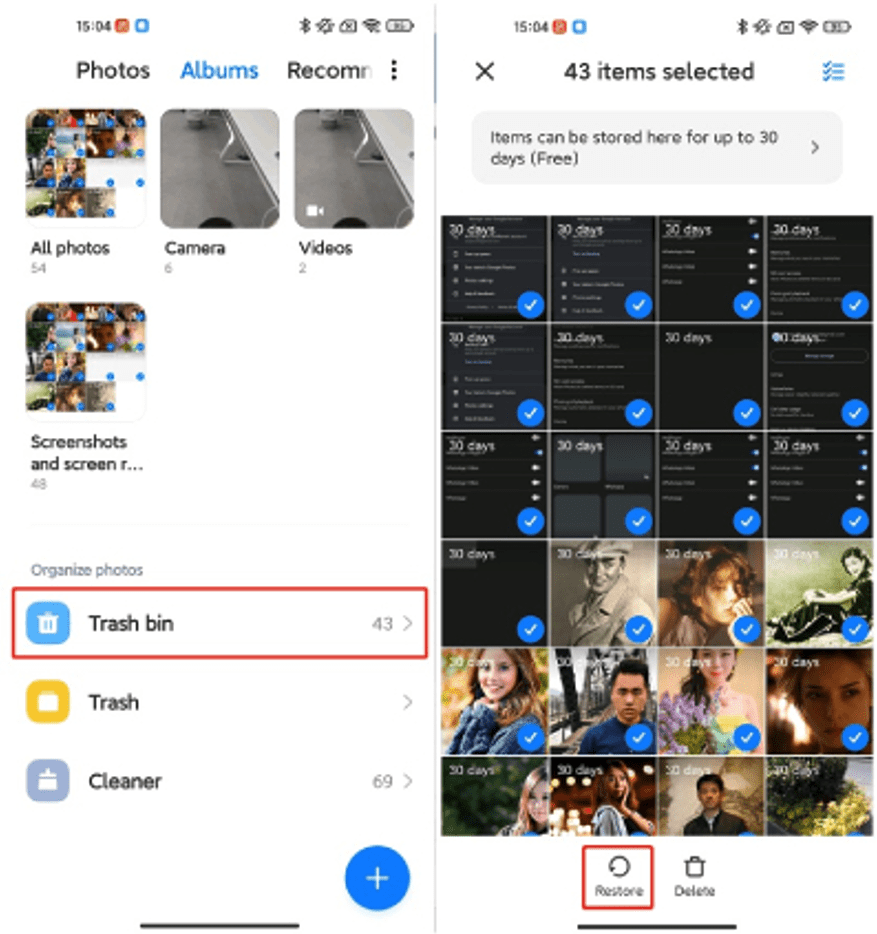
- Open your default Gallery or Photos app.
- Look for a folder labeled “Trash,” “Bin,” or “Recently Deleted.”
- Select the photos you want to restore.
- Tap “Restore” or “Recover,” and the photos will return to your main gallery.
This method works without any additional apps or backups, making it the first step in photo recovery.
Restore Photos Using Google Photos
Google Photos is one of the most common ways Android users back up their images. Deleted photos in Google Photos also go to a Trash folder, which stores files for 60 days.
Steps to recover photos from Google Photos:
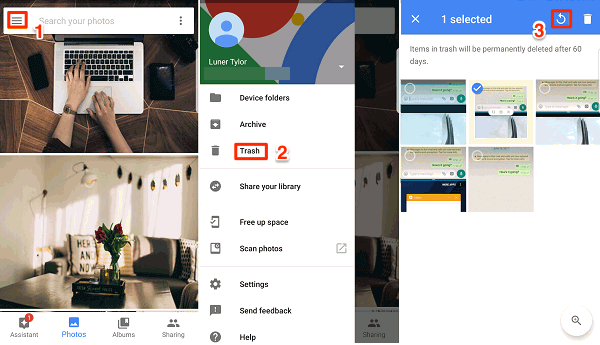
- Open the Google Photos app.
- Tap “Library” > “Trash.”
- Select the images you want to recover.
- Tap “Restore” to move them back to your gallery.
If you regularly back up photos to Google Photos, this method can recover even older deleted images. Cloud backups act as a safety net, ensuring your photos are protected even if your device fails.
Use File Recovery Apps
If your photos aren’t in the trash or backed up, file recovery apps can help. Popular options include DiskDigger, Dr.Fone, and EaseUS MobiSaver. These apps scan your Android device’s storage for deleted files and often let you restore them without root access.
Steps to use recovery apps:
- Install a trusted recovery app from the Google Play Store.
- Grant the app the necessary storage permissions.
- Scan your device for deleted images.
- Select the photos you want to recover and save them.
Pros and cons of using recovery apps:
App Type | Pros | Cons |
Free version available, easy to use | Limited to JPEG in the free version | |
Comprehensive recovery & supports multiple file types | Paid version required for complete recovery | |
User-friendly, supports SD cards | Limited recovery on unrooted devices |
These apps are handy when your photos are no longer in the trash folder or in the cloud.
Recover Photos from SD Card
If your Android device uses an SD card, deleted photos may still be recoverable using PC-based recovery software. Avoid saving new files to the card to prevent overwriting deleted images.
Steps to recover photos from an SD card:
- Remove the SD card from your Android device.
- Insert it into a card reader connected to your PC.
- Use recovery software like Recuva, Disk Drill, or PhotoRec to scan the card.
- Restore any found images to your computer or device.
This method works best for accidental deletions or corrupted SD cards.
Use Cloud Backups and Other Services
Aside from Google Photos, other cloud services such as OneDrive, Dropbox, or Samsung Cloud may have copies of your deleted photos. Regularly backing up to these services adds an extra layer of protection.
Steps to restore photos from cloud backups:
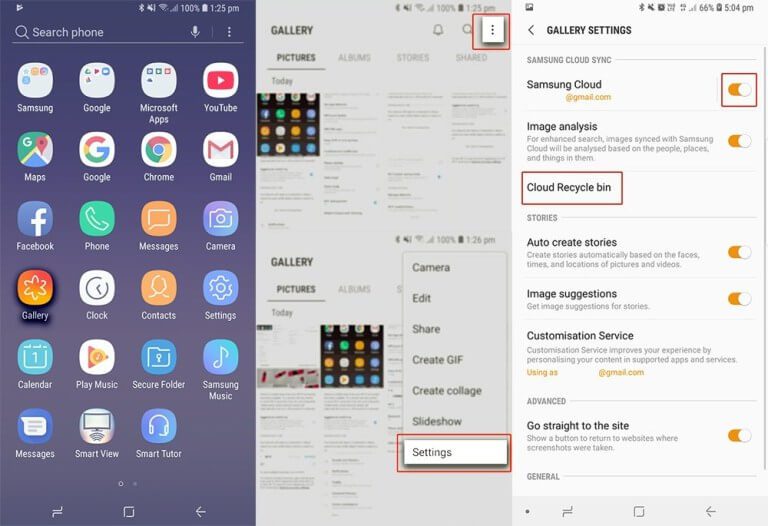
- Open the cloud app where your photos were backed up.
- Navigate to the cloud backup or trash folder.
- Select and restore the photos to your device.
Using multiple cloud services reduces the risk of permanent photo loss.
Prevent Future Photo Loss
Recovery is always easier when prevention is in place. To avoid losing photos in the future:
- Enable automatic cloud backups on Google Photos or other services.
- Regularly clear and organize device storage (how to clear cache on Android) to reduce the chance of app crashes (fix apps that keep crashing on Android).
- Use multiple backup options for essential media.
- Ensure hidden apps or folders aren’t accidentally storing photos (how to unhide apps on iPhone), in case you are switching between devices.
These habits create a strong safety net for your photos.
Conclusion
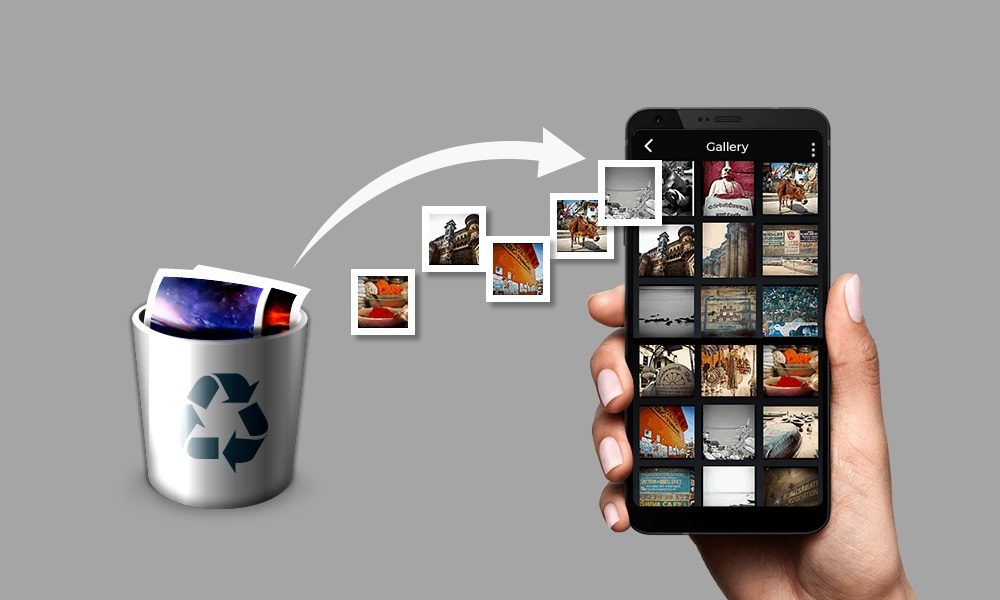
Recovering deleted photos on Android doesn’t have to be stressful. By checking the trash folder, using Google Photos, relying on recovery apps, restoring from SD cards, and leveraging cloud backups, you can efficiently recover lost images. Taking preventative steps ensures you won’t have to worry about permanent photo loss in the future.
Implementing these methods has helped me recover photos multiple times, and I encourage you to adopt them on your devices as well. I’ve found that staying proactive and using multiple recovery paths is the most reliable way to safeguard my memories.