Video editing used to mean hours in front of a timeline, cutting clips, matching audio, fixing color, and writing captions manually. AI hasn’t eliminated that work, but it has dramatically compressed it. The tools covered in this guide can auto-transcribe and caption a video in under a minute, automatically remove silences from a recording, convert a blog post into a narrated video, and reframe footage for different aspect ratios without a single manual cut.
The result is that video creation is now accessible to people who couldn’t previously justify the time cost. Marketers, educators, solo creators, and small teams are producing content at a volume that would have required a dedicated editor two years ago. This guide covers the five best AI video editors in 2026, what they actually do, who they’re built for, and which one fits your workflow.
What Makes a Video Editor “AI”?
The term gets applied loosely. In practice, AI features in video editors fall into a few distinct categories, and knowing which ones you actually need helps you choose the right tool.
- Auto-Editing: Analyses your raw footage and assembles a rough cut based on detected scene changes, audio peaks, or pacing algorithms. Useful for social clips and event highlights where you have a lot of footage to triage quickly.
- Speech-to-Text and Auto-Captions: Transcribe spoken audio and generate subtitle files automatically. This used to take hours manually; AI tools do it in under a minute with high accuracy.
- Background Removal and Replacement: Detects the subject in a video and removes or replaces the background without green screen equipment.
- Silence Removal: Detects and cuts dead air from recordings automatically, a genuine time-saver for podcasters, educators, and tutorial creators.
- Text-to-Video: Converts a written script or article into a video by pairing text with stock footage, AI voiceover, and transitions. Most useful for content marketing teams repurposing written content.
- Smart Reframing: Automatically adjusts the crop and composition of footage to fit different aspect ratios, such as converting a 16:9 YouTube video into a 9:16 Instagram Reel.
Not every tool does all of these. The best match depends on which of these you actually need.
Best AI Video Editors Compared
Tool | Platform | Free Tier | Starting Price | Best For | Standout AI Feature |
CapCut | Web, mobile, desktop | ✅ Generous | $9.99/month | Social creators | Auto Captions, Background Removal |
InVideo | Web, mobile | ✅ (watermark) | $30/month | YouTubers | AI Script Generator, Templates |
Pictory | Web only | 3 videos | $25/month | Content marketers | Text-to-video, Auto Highlights |
Filmora | Windows, macOS, mobile | ✅ (watermark) | $49.99/year | Beginners | Smart Scene Detection, Noise Removal |
Adobe Premiere Pro | Windows, macOS | Trial only | $37.99/month | Professionals | Enhance Speech, Auto Reframe |
Best AI Video Editors Reviewed
A note before we begin: every YTC score is earned, never negotiated. If you want to understand exactly how we evaluate apps & tools and how we handle affiliate relationships, our Review Methodology lays it all out.
CapCut
CapCut is the most widely used AI video editor in the world right now, and for good reason. It’s free, runs in the browser and on mobile, and its AI features are genuinely impressive for a no-cost tool. It was built by ByteDance (the company behind TikTok), which explains its exceptionally strong capabilities in short-form social content.
The AI features that define CapCut: Auto Captions transcribes and styles captions in seconds, with font options optimized for social video. Auto Cut to Beat automatically synchronizes your clips to a music track. Background Removal works on both video and images without a green screen. AI Script to Video converts a written prompt or script into a rough video with stock footage and voiceover. And Smart Crop instantly reframes footage for any aspect ratio.
For mobile editing specifically, there’s nothing close to CapCut at this price point. Our CapCut vs InShot comparison covers the mobile landscape in detail.
Key Specs
- Platform: Web, iOS, Android, Windows, macOS
- Pricing: Free; CapCut Pro from $9.99/month
- Free Tier: Yes (generous, most core AI features available free)
- Best For: Social media creators, short-form content, TikTok and Instagram Reels
Why It Stands Out
- Most generous free tier among AI video editors (professional-quality outputs at no cost).
- Auto Captions are best in class for styling social video.
- Cross-platform: same project accessible on phone, tablet, and desktop.
- Constant feature updates driven by short-form video trends.
Best For: Social media creators, content marketers, and anyone producing short-form video who wants professional results without paying for software.
InVideo

InVideo sits between CapCut and Pictory in the market. It’s a template-driven web editor with AI features strong enough to produce YouTube videos, ads, and social content quickly, but not as specialized as Pictory for text-to-video or as capable as CapCut for short-form social. Its core strength is speed: with over 5,000 pre-built templates and an AI script generator that structures your content before you start editing, InVideo lets you go from idea to finished video in under an hour.
The AI script-to-video feature is the most useful starting point. Describe your topic, and InVideo generates a structured script with scene breakdowns, then populates those scenes with stock footage and voiceover. From there, you customize rather than build from scratch.
For YouTubers and marketers who need consistent output without spending hours in an editor, this template-first workflow is efficient.
Key Specs
- Platform: Web, iOS, Android
- Pricing: Free (with watermark); Business from $30/month; Unlimited from $60/month
- Free Tier: Yes (watermarked exports)
- Best For: YouTubers, marketers, small businesses producing regular video content
Why It Stands Out
- 5,000+ templates cover almost every video format and use case.
- AI script generator structures content before you start editing.
- Auto-generates intros, outros, and transitions based on brand settings.
- Good balance between guidance and flexibility for non-editors.
Best For: YouTubers and small-business marketers who need to produce regular video content quickly, using structured templates and AI assistance.
Pictory
Pictory does something none of the other tools on this list do: it converts written content directly into video. Paste in a blog post, article, or script, and Pictory matches each section to relevant stock footage, adds AI-generated or uploaded voiceover, and applies captions, producing a finished video ready for upload. For content marketing teams with a library of written content they want to repurpose, this is the tool that makes that practical at scale.
The quality ceiling is lower than Premiere Pro or CapCut. The stock footage matching isn’t always perfect, and the AI voiceover is convincing but not human. But for its specific use case, turning written content into video efficiently, nothing else on the market competes. It’s also the strongest tool here for auto-summarising long videos into short highlight clips, which is genuinely useful for webinar and podcast content.
Key Specs
- Platform: Web only
- Pricing: From $25/month (Starter); $49/month (Professional)
- Free Tier: Trial available (3 videos)
- Best For: Content marketers, bloggers, B2B brands repurposing written content
Why It Stands Out
- Text-to-video pipeline is the most polished of any tool (paste text, get video).
- The auto-highlights feature automatically summarizes long videos into short clips.
- Strong for repurposing blog posts, webinars, and podcast episodes.
- Built-in branded template system for consistent visual identity.
Best For: Content marketing teams and bloggers who need to convert written content into video at scale, without manual editing expertise.
Filmora
Filmora (by Wondershare) is the strongest option for beginners who want a proper desktop editor rather than a web-based tool. It has a full non-linear timeline, real color grading tools, multi-track audio, and a library of effects. But its interface is significantly less intimidating than Premiere Pro, and its AI features handle the tasks most beginners find hardest.
The AI features that matter most here are Smart Cutout, which removes backgrounds and isolates subjects without a green screen. AI Noise Removal automatically cleans up audio. Auto Beat Sync matches clip cuts to music. AI Portrait applies filters and adjustments specifically to faces in the video. Additionally, Smart Scene Detection automatically splits long recordings into individual scenes, saving significant time when working with interview or event footage.
For creators who want more control than CapCut’s mobile-first experience but aren’t ready for Premiere Pro’s complexity, Filmora is the right middle ground.
Key Specs
- Platform: Windows, macOS, iOS, Android
- Pricing: Free (with watermark); Annual plan from $49.99/year; Perpetual license from $79.99
- Free Tier: Yes (watermarked exports)
- Best For: Beginners, students, hobbyists, and creators stepping up from mobile editing
Why It Stands Out
- Full desktop timeline editor with AI features (not a simplified web tool).
- Most affordable perpetual license of any desktop editor on this list.
- Smart Scene Detection saves significant time on long recordings.
- Regular AI feature updates are included with the subscription.
Best For: Beginner and intermediate creators who want a full-featured desktop editor with AI assistance, without the cost or complexity of Premiere Pro.
Adobe Premiere Pro
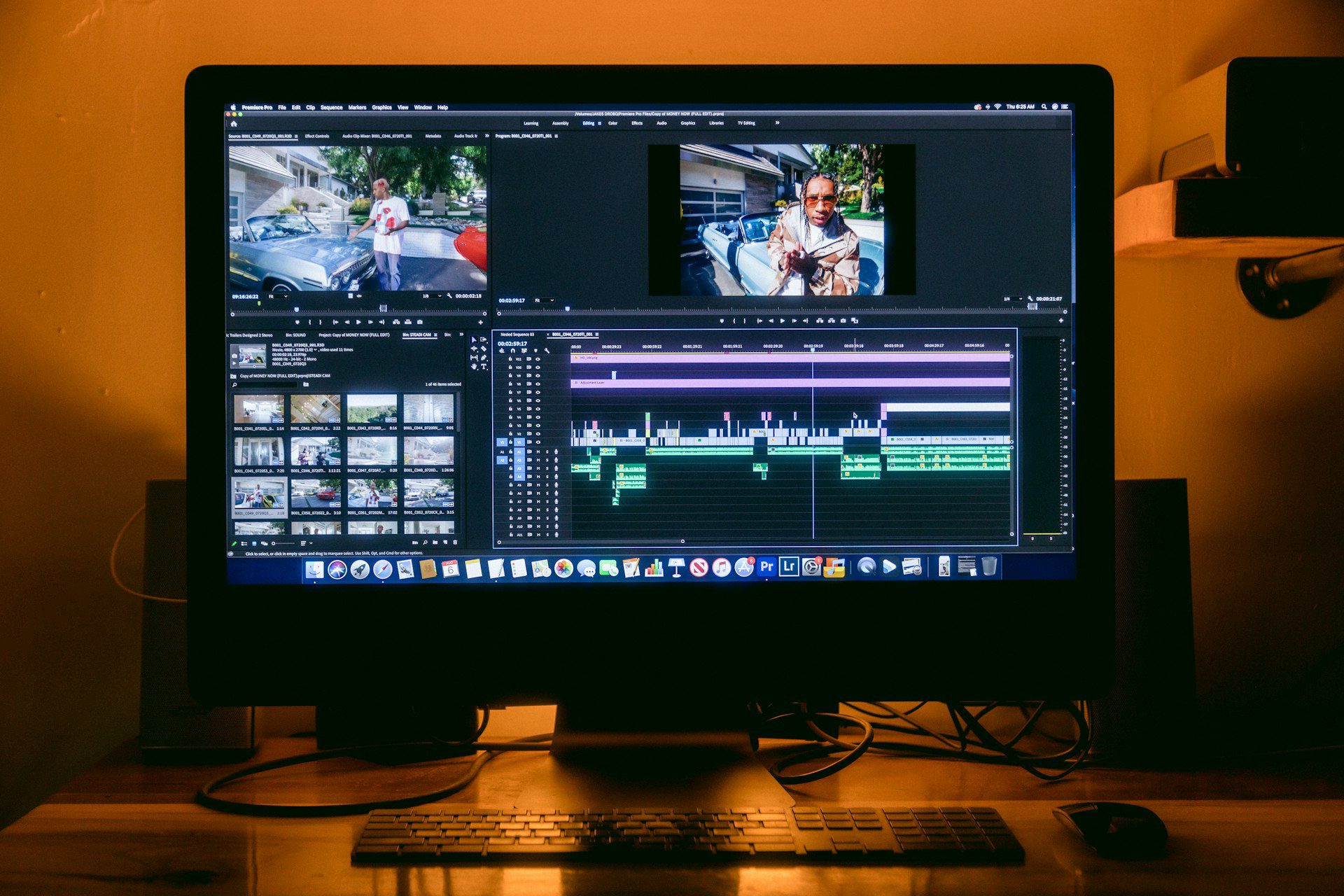
Adobe Premiere Pro is the professional standard for video editing, and its AI features (formerly branded as Adobe Sensei and now integrated across the platform as Adobe AI) are the most powerful of any tool on this list. If you’re producing commercial work, broadcast content, or anything where output quality is non-negotiable, Premiere Pro is the answer.
The AI features that matter most in practice: Auto Reframe automatically crops and repositions footage for different aspect ratios, preserving the subject in frame across YouTube, Instagram, and TikTok formats simultaneously. Speech-to-text generates searchable transcripts and captions directly in the timeline with high accuracy. AI-powered color matching analyses a reference image or clip and applies its color grade to your footage. And Enhance Speech (formerly AI Denoise) removes background noise and improves audio clarity with a single click; the kind of result that used to require dedicated audio software.
Key Specs
- Platform: Windows, macOS
- Pricing: Included with Adobe Creative Cloud from $54.99/month; standalone from $37.99/month
- Free Tier: 30-day trial
- Best For: Professional videographers, filmmakers, agencies, and anyone in the Adobe ecosystem
Why It Stands Out
- Industry-standard timeline with the deepest AI feature set of any professional editor.
- Auto Reframe handles multi-platform export without manual cropping.
- Enhance Speech produces broadcast-quality audio cleanup in seconds.
- Full Adobe ecosystem integration (After Effects, Audition, Firefly) in one workflow.
Best For: Professional video editors and creative agencies who need maximum quality, control, and the ability to handle complex multi-track projects.
How to Choose the Right Tool
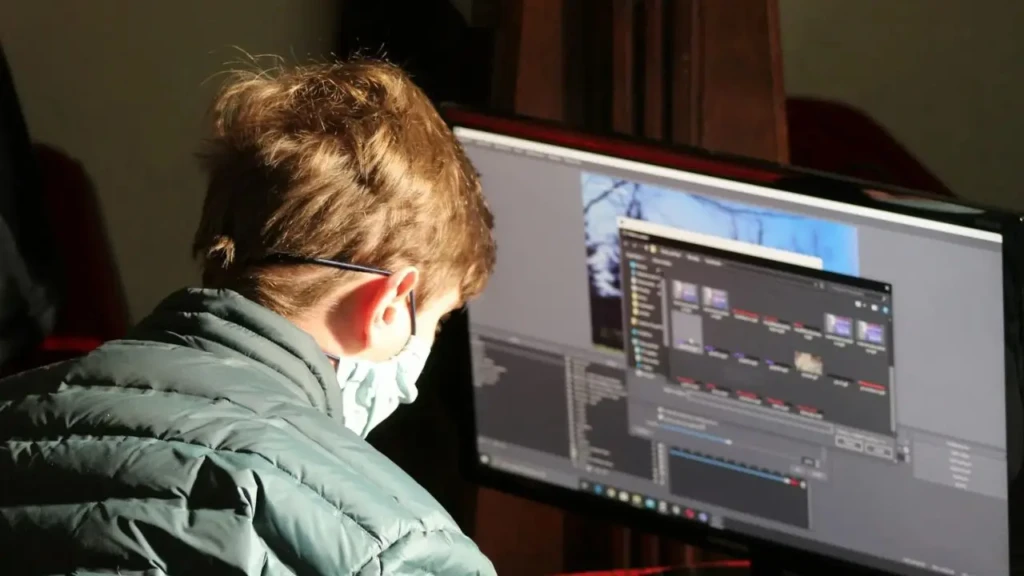
Choose Adobe Premiere Pro if you produce professional or commercial video work, already use Adobe Creative Cloud, and need the deepest feature set available. The cost is high, but it is justified by the quality ceiling and professional support.
Choose CapCut if you primarily create short-form social content and want the best AI features at no cost. It’s the default choice for creators on TikTok, Instagram Reels, and YouTube Shorts.
Choose Pictory if your primary use case is converting written content (blog posts, articles, scripts) into video. Nothing else on this list does that as cleanly.
Choose InVideo if you produce regular YouTube or marketing videos and want a template-driven workflow to structure your editing process. Good for consistent output without deep editing expertise.
Choose Filmora if you’re a beginner who wants a proper desktop editor with a manageable learning curve and AI features that handle the hardest parts of editing.
FAQs
For straightforward tasks, such as social clips, captions, rough cuts, and content repurposing, yes, AI editors handle these well with minimal human input. For complex narrative work, brand campaigns, and anything requiring creative storytelling judgment, professional editors remain essential. Most working editors now use AI tools to speed up the repetitive parts of their workflow rather than being replaced by them.
CapCut for mobile and social content; it’s free, intuitive, and produces strong results quickly. Filmora for desktop editing; it has a proper timeline and enough AI features to handle the most basic beginner tasks, like audio cleanup and scene detection.
CapCut, InVideo, and Filmora all have iOS and Android apps that support AI features. CapCut’s mobile app is particularly strong because it was originally built as a mobile editor before expanding to desktop.
CapCut’s free tier currently does not add watermarks to exports. Filmora and InVideo’s free tiers do. Adobe Premiere Pro’s trial adds no watermark but expires after 30 days.
CapCut has the best auto-caption feature for social video: accurate transcription, multiple font styles, and automatic positioning optimized for vertical and horizontal formats. Adobe Premiere Pro’s Speech to Text is more accurate for complex audio but produces plain captions that require manual styling.
Yes. Pictory is purpose-built for this. InVideo also has a text-to-video feature, but it’s less polished. Neither tool produces broadcast-quality results, but both are genuinely useful for content marketing teams who need video at volume.
Final Thoughts
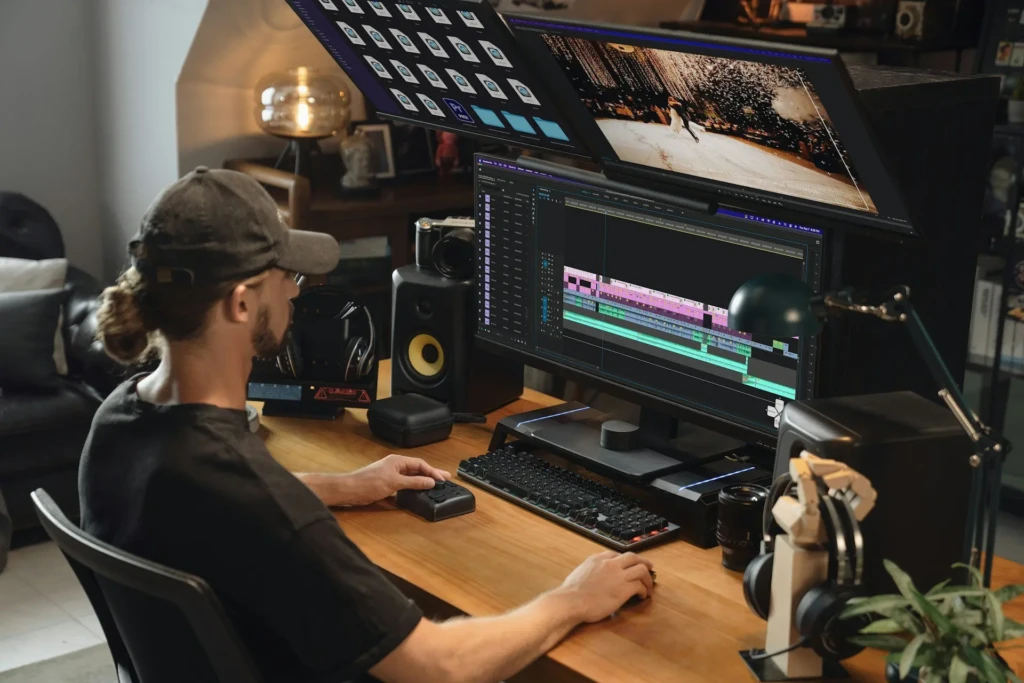
AI video editors have changed the economics of video content. Tasks that once required either a professional editor or significant personal time investment can now be handled in minutes. The right tool depends entirely on what you’re making and where you are in your editing journey. For instance, a solo social media creator and a professional post-production team have completely different needs, and the tools above reflect that range.
If you’re building out a broader AI creative workflow beyond video, the best AI image generation tools guide covers the visual side of content creation, and together these tools cover most of what a modern content creator needs to produce without a full production team.
Ready to explore more? Visit YourTechCompass for hands-on reviews, buying guides, and how-to articles that cut through the noise and give you exactly what you need.