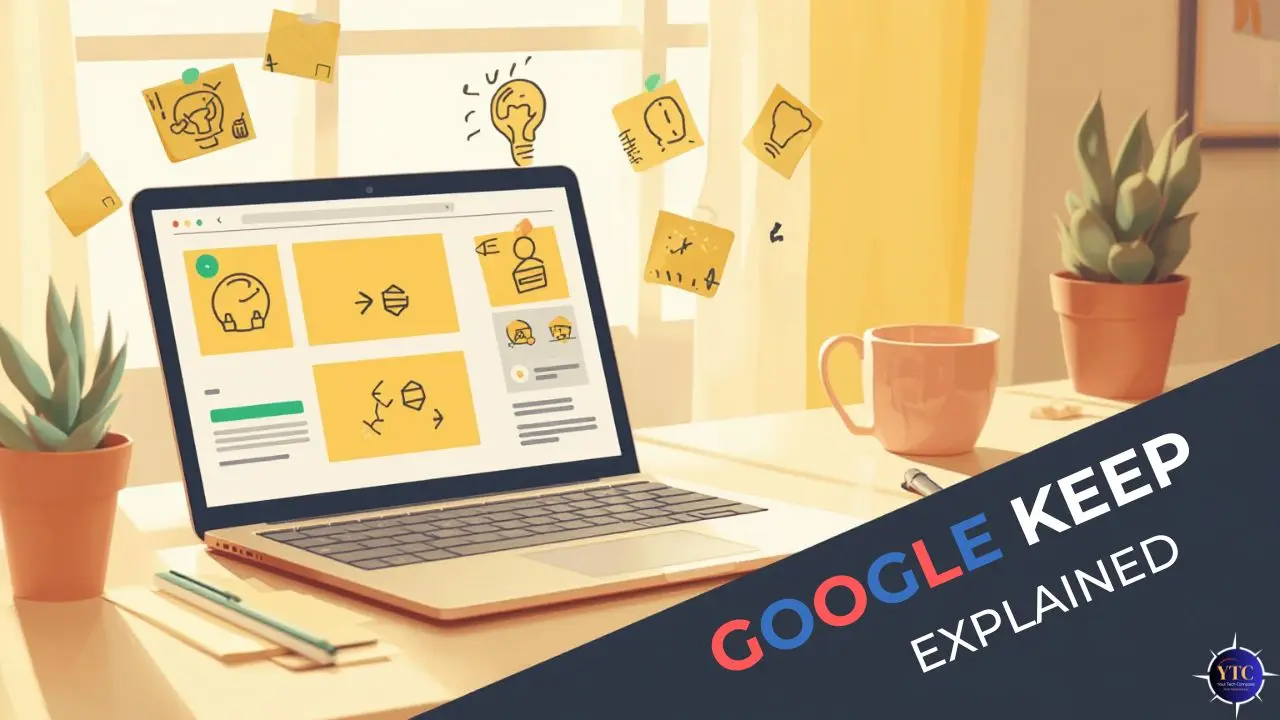
In a world where ideas can strike at any moment, and to-dos pile up faster than we expect, finding a simple yet effective tool to capture thoughts and organize tasks quickly becomes essential. Google Keep is one such tool: a lightweight note-taking and reminder app that syncs seamlessly across devices and integrates naturally with other tools in Google’s ecosystem. Whether you’re jotting down a grocery list, tracking project reminders, or saving quick voice memos, Keep is designed to be fast, flexible, and always at your fingertips.
This guide will take you through everything you need to know about Google Keep, what it is, the features that set it apart, practical ways people use it, and how it compares with other productivity apps. By the end, you’ll not only understand what Google Keep can do, but also how to make it a reliable part of your productivity stack.
What Is Google Keep?
At its core, Google Keep is a digital note-taking app that helps you capture ideas and tasks quickly and access them across all your devices. Unlike larger and more complex applications designed for deep document editing, Keep prioritizes speed and simplicity. It’s a place where you can store:
- Text notes
- Checklists and to-dos
- Voice recordings
- Images with annotations
Because Keep is part of the Google ecosystem, it automatically syncs your notes to your Google Account and makes them instantly available on your phone, tablet, or web browser. This means that a list you start during breakfast shows up before you leave the house, and a reminder you set on your laptop alerts you on your phone.
Google Keep Core Features
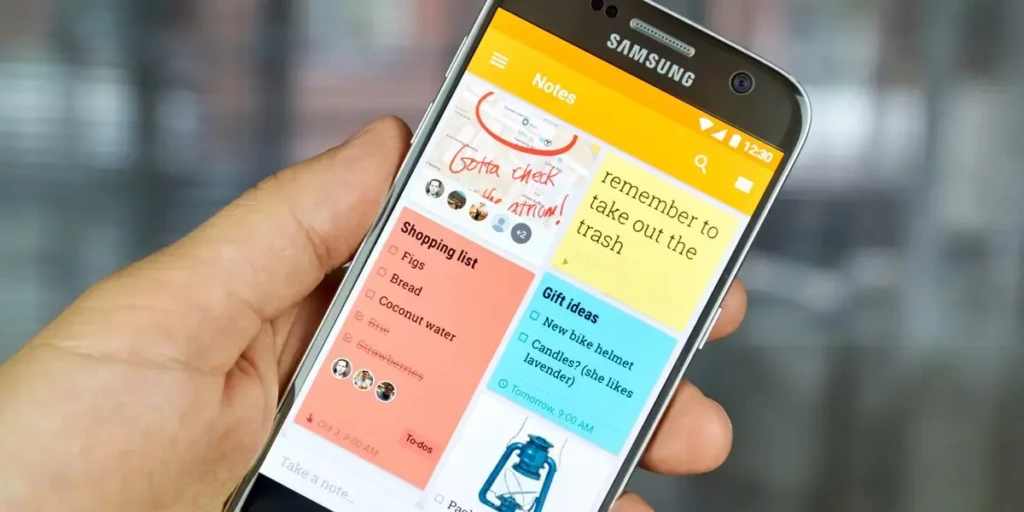
Google Keep packs a surprising amount of functionality into a clean and minimal interface. Here’s a detailed look at its core capabilities:
Notes and Checklists
Keep lets you write free-form notes or structured checklists. Checklists are especially useful for:
- Grocery lists
- Project task lists
- Travel packing lists
Each item can be checked off as you complete it, making progress visual and satisfying.
Color-Coding and Labels
To keep your notes organized, you can:
- Assign colors to notes
- Add labels (like tags)
Color coding provides quick visual separation, while labels let you group related notes by topic.
Reminders
Keep supports reminders that can be:
- Time-based, such as “Remind me at 3 PM.”
- Location-based, such as “Remind me when I arrive at the store.”
Location reminders are especially helpful for context-sensitive tasks, such as errands.
Voice Notes and Image Notes
When you’re on the go, Keep allows you to:
- Record a voice memo and have it transcribed
- Capture images with notes, including scanned documents or photos with annotations
These make sure you never lose a thought, whether it’s typed, spoken, or photographed.
Real-Time Syncing
One of Keep’s biggest strengths is real-time syncing across devices. Thanks to integration with your Google Account, your notes are available instantly on your phone, tablet, and in your web browser.
How Google Keep Works With Other Google Apps
Because Keep is part of the broader Google suite, it works well with other productivity tools:
Integration With Google Drive
Google Keep and Google Drive share more than just cloud storage; they work together to help you stay organized. For example:
- You can drag and drop your Keep notes into Google Docs.
- Keep notes can serve as quick research or context inside a document.
This interoperability turns Keep into more than just a note app; it becomes part of a fuller productivity ecosystem in Google’s suite.
Google Calendar
Keep reminders can show up in Google Calendar, helping you see your tasks alongside your schedule.
Drag-and-Drop To-Do In Docs
In Google Docs, you can pull up Keep notes as a side panel and drag content directly into your document, a workflow that helps bridge quick capture and full composition.
Common Use Cases for Google Keep
Google Keep shines in everyday scenarios because of its simplicity. Here are some common ways people use it:
Personal To-Do Lists
Whether you’re planning a weekend project or tracking daily chores, Keep’s checklists make progress visible without complexity.
Work and Project Notes
For quick project thoughts, meeting takeaways, or quick reminders, Keep is less cumbersome than opening a full document or project management tool.
Study and Revision Notes
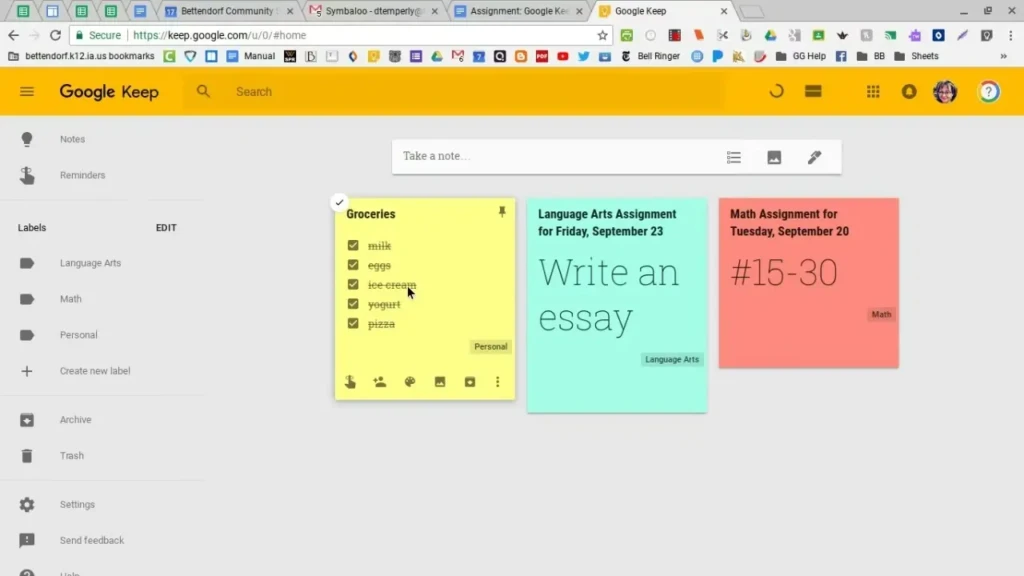
Students often use Keep for:
- Lecture summaries
- Flashcard-style notes
- Quick revision reminders
Because Keep syncs instantly, study notes are available across devices.
Collaborative Notes
Keep supports sharing notes with others, which makes it useful for:
- Shared shopping lists
- Family reminders
- Group task coordination
It becomes a lightweight alternative to more complex team tools when the task at hand is simple.
Google Keep on Different Devices
Google Keep is accessible on nearly any platform:
- Android: Full app with all features
- iPhone/iPad: App with near-full functionality
- Web browser: Accessible at keep.google.com
- Chrome extension: Quick note capture from the browser
Because Keep syncs across all these devices, you can switch context without losing your place.
Google Keep Tips and Best Practices
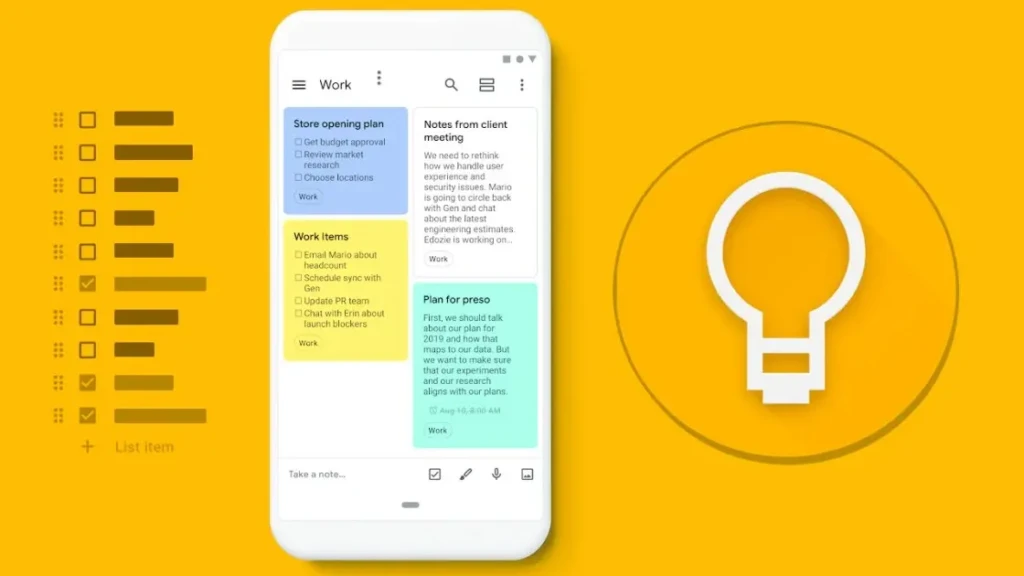
To make the most of Google Keep, consider these tips:
Organizing Efficiently
Use a combination of labels and colors:
- Labels organize by topic
- Colors separate by priority or theme
This keeps your workspace tidy and searchable.
Using Checks Strategically
Checklists are more than to-dos; they’re progress trackers. Use sub-items to break down big tasks.
Leveraging Reminders
Take advantage of location-based reminders. For example:
- “Remind me to buy milk when I’m near the store.”
These situational triggers help you act at the right time.
Archive, Don’t Delete
If a note isn’t needed now but might be later, archive it. It stays searchable without cluttering your main view.
Google Keep vs Other Note-Taking Apps
Here’s how Google Keep stacks up against other common tools:
Feature | Google Keep | Traditional Notes | Full-Featured Tools |
Simplicity | Excellent | Excellent | Moderate to Low |
Cross-Device Sync | Strong | Varies | Varies |
Reminders | Good | Moderate | Good |
Collaboration | Simple | Varies | Advanced |
Deep Formatting | Minimal | Moderate | Strong |
Unlike heavy note apps that focus on deep editing, Keep is all about quick capture and quick recall, which is precisely why many users pair it with more structured tools like task managers (seen in comparisons such as Todoist vs Things 3) or writing assistants (as discussed in Grammarly vs ProWritingAid) for more demanding workflows.
Pros and Cons of Google Keep
The Pros
- Lightweight and easy to use
- Fast sync across devices
- Simple checklist and reminder creation
- Integrates well with Google apps
The Cons
- Limited formatting options
- Not ideal for long-form writing or heavy documentation
- Few advanced productivity features compared to specialized tools
Who Google Keep Is Best For
Google Keep is perfect for:
- Users who want fast, simple note capture
- People who work across multiple devices
- Anyone already invested in the Google ecosystem
It’s less ideal for:
- Writers needing deep formatting
- Project managers who want advanced workflow tools
- Users who want dedicated offline workflows
Final Thoughts
Google Keep may look simple at first glance, but its strength lies in how easily it fits into everyday thinking and task capture. For quick notes, checklists, reminders, and context-based triggers, it’s hard to beat the convenience of Keep’s lightweight design and seamless syncing.
Rather than replacing full-featured tools for long-form writing or complex project tracking, Keep complements them. It excels when you just need to get something down first and worry about organization later. When used thoughtfully, especially alongside broader productivity tools, it becomes a reliable, intuitive part of your digital workflow, and I hope this guide helps you use it with confidence and clarity.
FAQs
Yes. Google Keep is included for free with a Google account.
Yes. Notes created offline sync once you’re connected.
Keep follows Google’s account security and encryption standards, though sensitive information should still be managed carefully.
For simple note capture and reminders, yes, but it pairs best with dedicated tools for complex task management or writing workflows.