I want to describe a scene that most freelancers know intimately. It’s 10 pm. You’ve just wrapped the final deliverable on a project that took three weeks of focused work. The client is happy. You should be done for the day. Instead, you open a blank Google Doc, locate the invoice template you’ve been recycling since 2022, and spend the next 35 minutes copying project details, writing a professional email that doesn’t sound robotic, triple-checking the numbers, and finally sending it, hoping the client doesn’t reply with “Could you send this as a PDF?” Those 35 minutes are stolen time. The work is already done. You’re just performing a mechanical translation of information you already have into a format you’ve already built. That’s exactly what automation should eliminate.
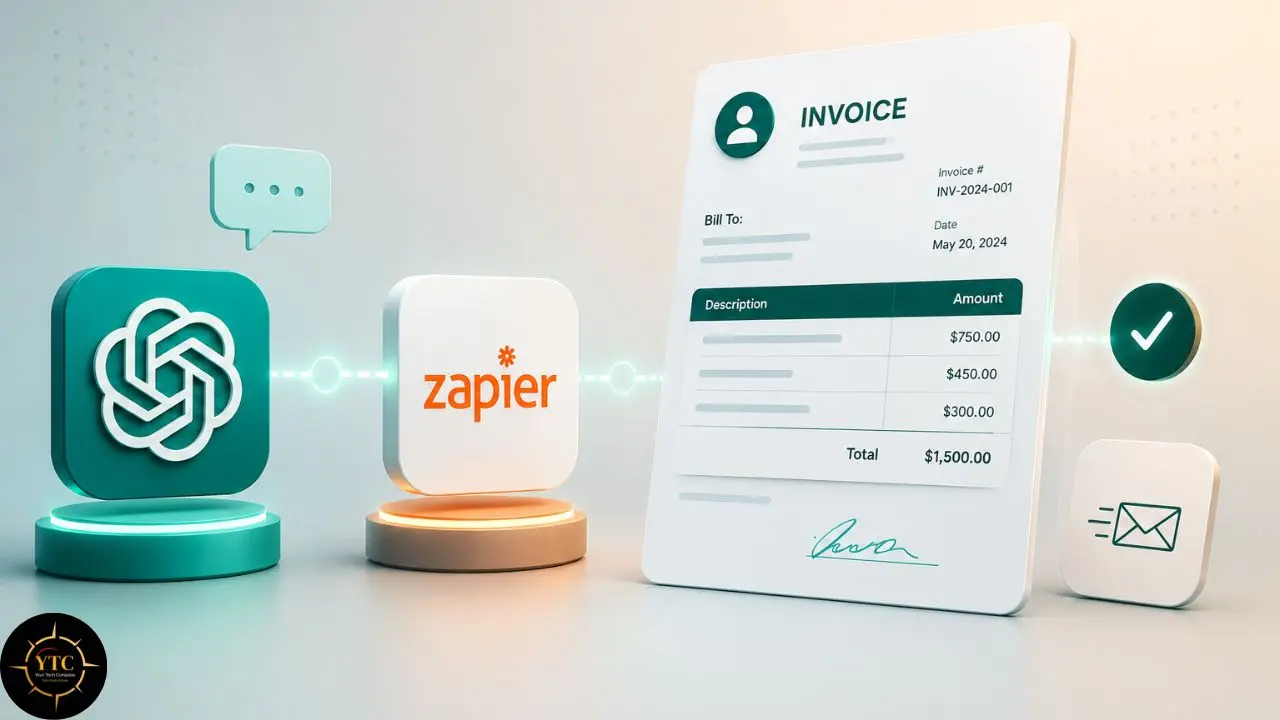
Here’s what the workflow in this guide does: when a project is marked complete in your tracking system, whether that’s a Google Sheet row, a form submission, or a status change in your project management tool, ChatGPT automatically generates a professional invoice description and a polished cover email using the project details as input. Zapier then routes that content to your inbox as a draft or sends it directly to your client. No writing. No formatting or forgetting. The workflow runs in the background while you move on to the next project. You’ll need a Zapier account, an OpenAI API account, and a Google account, and zero lines of code.
The Real Cost of Manual Invoicing
Before building the solution, it’s worth naming the problem precisely, because most freelancers underestimate how much this specific task costs them.
The average time to manually create, format, and send a single client invoice runs between 20 and 45 minutes. That includes opening the template, updating project details, writing a cover email that doesn’t sound like it was copied from a 2015 blog post, and confirming the numbers are correct before hitting send. For a freelancer billing 8–12 clients monthly, that’s three to nine hours per month spent on a task that generates zero additional revenue. Freelancers in 2025 who master ChatGPT and Zapier automation earn more, work less, convert more leads, and reclaim time, and invoice automation is one of the highest-ROI starting points.
The compounding problems that manual invoicing creates deserve specific attention.
- Delay is the most financially costly: invoices sent two or three days after project completion because “I’ll do it tomorrow” introduces payment delays that compound over a quarter.
- Inconsistency means some clients receive detailed, professional invoices while others receive bare-bones templates, and both affect how clients perceive your business.
- Mental load is the quieter cost: the invoice task sits at the back of every project close-out, adding cognitive overhead that bleeds into your next creative session.
- Human error is the most embarrassing: the wrong rate, the wrong project name, the wrong bank details. Each error requires a correction exchange, further delaying payment and eroding professional credibility.
The automation in this guide doesn’t just save time. It produces more professional, more consistent invoice communications than most freelancers write manually. Automation can save content teams and freelancers six to ten hours per week, and billing administration is among the highest-value targets for that time recovery.
What ChatGPT Does in This Workflow
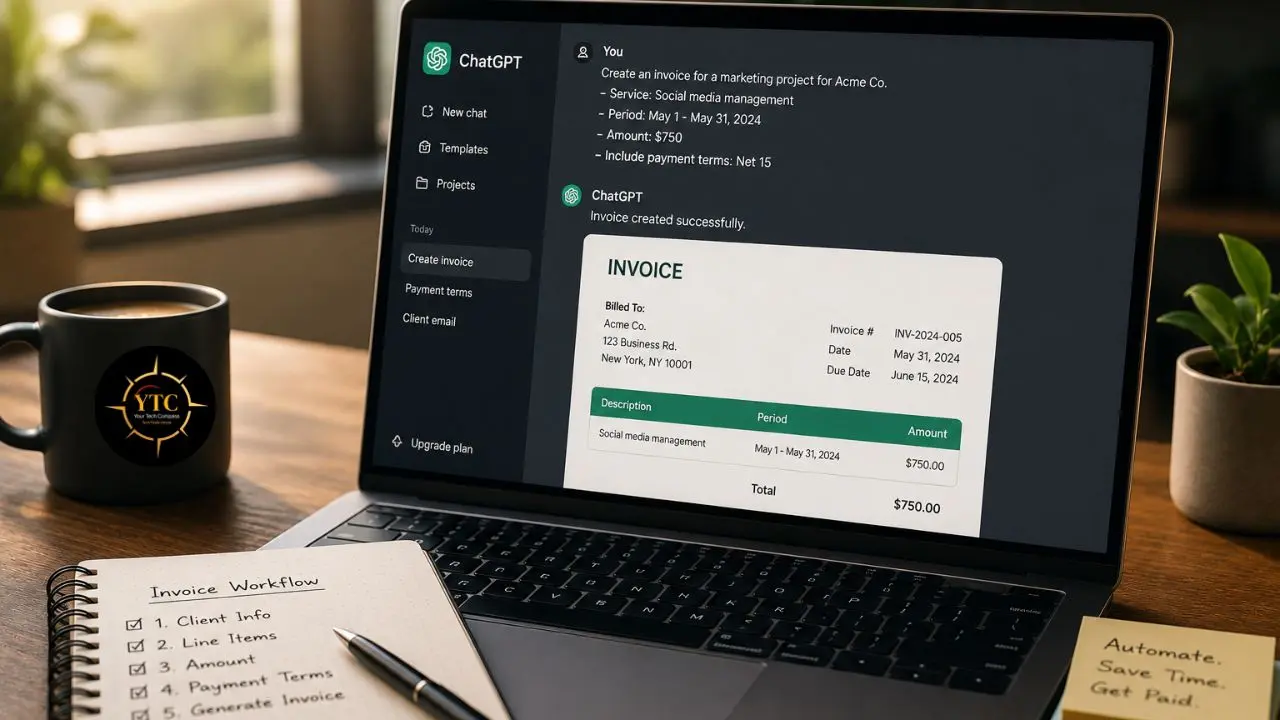
ChatGPT’s role in this workflow is on-demand content generation. Given structured input (client name, project details, amount, due date, payment terms), ChatGPT generates a professional invoice description and a polished cover email in seconds. Not a generic template. A specific, contextual, professional output every time.
The two outputs ChatGPT generates are worth understanding separately.
Output 1: Invoice Line Item Summary
This is the professional description of the services rendered that appears on your invoice. Instead of a vague “Design Services: $2,400” line item that gives clients nothing to reference, ChatGPT writes a clear, specific description: “Brand identity design including logo suite (primary, secondary, horizontal variants), brand guidelines document, and social media asset templates, delivered per project scope agreed [date].” That’s the difference between an invoice that gets paid immediately and one that prompts a “can you clarify what this covers?” email, delaying your payment by a week.
Output 2: Invoice Cover Email
This is the professional email addressed to your specific client, confirming the invoice amount, due date, and payment method. ChatGPT handles the professional language, the courteous tone, and the clear call to action, and does it consistently on every invoice, without the variation that comes from writing emails when you’re tired.
The connection between ChatGPT and Zapier is facilitated by the OpenAI integration in Zapier’s action library. The integration works with both free and paid ChatGPT accounts, though API usage is billed separately by OpenAI based on the number of tokens processed, approximately $0.002 per 1,000 tokens. For invoice-scale text generation, a typical run costs under $0.01. The monthly API cost for this workflow is negligible, typically $0.10 to $0.50, depending on invoice volume.
One clarification that saves confusion later: your ChatGPT Plus subscription and your OpenAI API account are two different things. The API account (created at platform.openai.com) is what Zapier uses. You need both a verified API account and a funded API balance to connect ChatGPT to Zapier. Setup takes approximately five minutes.
What Zapier Does in This Workflow
If ChatGPT is the writer, Zapier is the delivery system. Zapier watches for the trigger event that signals a project is complete, passes the project data to ChatGPT, receives the generated content back, and routes it to your email platform, invoicing tool, or content calendar. Every step is visual: dropdown menus, field mapping, point-and-click configuration.
The trigger options define when the workflow fires. The most common for freelancers are:
- Google Sheets Trigger: This is when a new row is added to a “Completed Projects” spreadsheet. Best for freelancers who already track projects in a spreadsheet and want the simplest possible trigger setup. You add a row when a project closes; the invoice generates automatically.
- Typeform or Tally Trigger: This is when a client completes a project sign-off form. Best for freelancers with a formal client offboarding process where the invoice trigger is a client action rather than an internal one.
- Notion or Airtable Trigger: This is when a status field in a project database changes to “Complete.” Best for freelancers who live in a project management tool and want zero-friction triggering without a separate spreadsheet step.
The delivery options determine where the invoice content is sent. The most common configurations: Gmail or Outlook to send or draft the invoice email; Stripe to create a draft invoice in your payment platform; Google Docs to generate a formatted invoice; and Slack to notify yourself or your team when an invoice is generated.
Zapier’s pricing matters here. Zapier’s Professional Plan starts at $19.99 per month, billed annually, and includes 750 tasks; it’s the minimum tier for multi-step Zaps. This workflow has three to four steps and requires the Starter or Professional plan. The free tier’s 100-task limit and single-step constraint won’t allow this workflow to run end-to-end.
For a full assessment of Zapier’s capabilities and its place in a broader automation stack, our Zapier review covers it in depth.
Before You Build: What You Need to Prepare
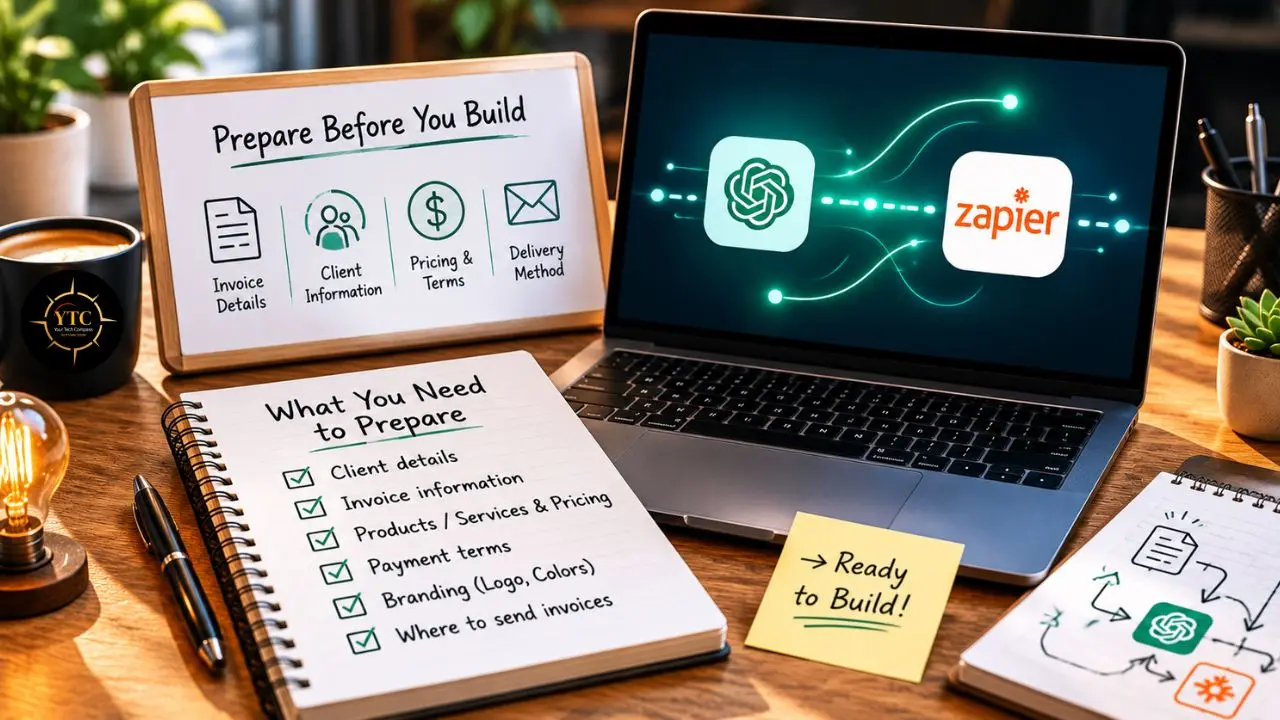
Setting up the wrong way and backtracking wastes time. Spend ten minutes on these preparations before opening Zapier, and the build itself takes under an hour.
Accounts You Need
- Zapier account (Starter plan or above; free plan won’t work).
- OpenAI API account at platform.openai.com (free to create; requires a payment method for billing).
- Google account (for Google Sheets trigger and Gmail delivery).
- Optional, depending on your variation: Typeform, Notion, Airtable, Stripe, or FreshBooks.
Data You Need to Define in Advance
Your standard payment terms (“Net 14 days,” “Due on receipt,” etc.) need to be decided before you write the prompt; they appear in every invoice ChatGPT generates. Your payment method details (bank transfer, Stripe link, PayPal address) need to be in a consistent format so ChatGPT can include them accurately.
In addition, your invoice numbering format (INV-001, 2026-001, or a date-based system) needs to be consistent; the trigger spreadsheet will supply this automatically once you decide on the format. Furthermore, your preferred email tone matters: add “formal,” “professional but warm,” or a short description of your brand voice to the prompt, and ChatGPT will match it consistently.
Your trigger source needs real data in it before you start building. Zapier requires a sample record to complete trigger setup, and testing with a realistic sample (real project name, real amount, real client name) lets you evaluate the ChatGPT output quality during the test phase rather than discovering issues after you go live.
The Full Workflow: Step by Step
Here is the complete build using the Google Sheets trigger → ChatGPT → Gmail path. This is the most universally accessible version; it requires only tools most freelancers already have. Work through Part A first, then Part B.
Part A: Setting Up Your Trigger Source (Google Sheets)
Step 1: Create Your “Invoice Triggers” Spreadsheet
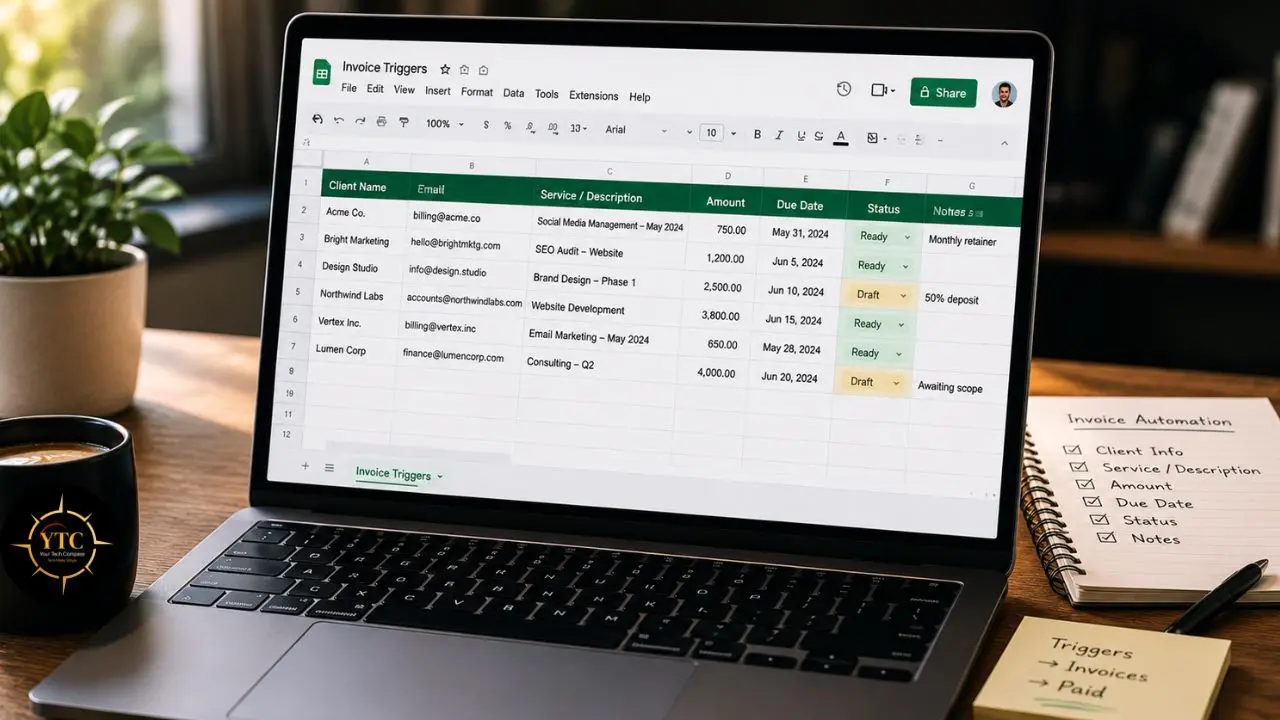
Open Google Sheets and create a new spreadsheet named “Invoice Triggers.” In Row 1, add the following column headers exactly as written; consistent naming prevents field mapping errors in Zapier later:
- Column A: Client Name
- Column B: Client Email
- Column C: Project Name
- Column D: Project Description
- Column E: Invoice Amount
- Column F: Currency
- Column G: Due Date
- Column H: Payment Instructions
- Column I: Invoice Number
Every field here feeds directly into ChatGPT’s prompt. Incomplete fields produce incomplete invoices; the quality of the output is directly proportional to the completeness of the input.
Step 2: Add a Complete Test Row
Enter a full, realistic test row using a real project structure. Don’t use “Test Client” or “Project Name” as placeholders; use actual project details from a recently completed job. The realism of your test data determines how accurately you can evaluate the quality of ChatGPT’s output during the Zapier test phase.
Part B: Building the Zap
Step 3: Create the Zap and Set the Trigger
Log in to Zapier. Click Create Zap. Set the trigger app to Google Sheets. In addition, set the trigger event as New Spreadsheet Row.
Next, connect your Google account when prompted. Select your “Invoice Triggers” spreadsheet and confirm that the correct sheet tab is selected. Click Test Trigger and verify your test row appears in the data preview; all nine fields should be visible and correctly populated.
Step 4: Add the OpenAI (ChatGPT) Action
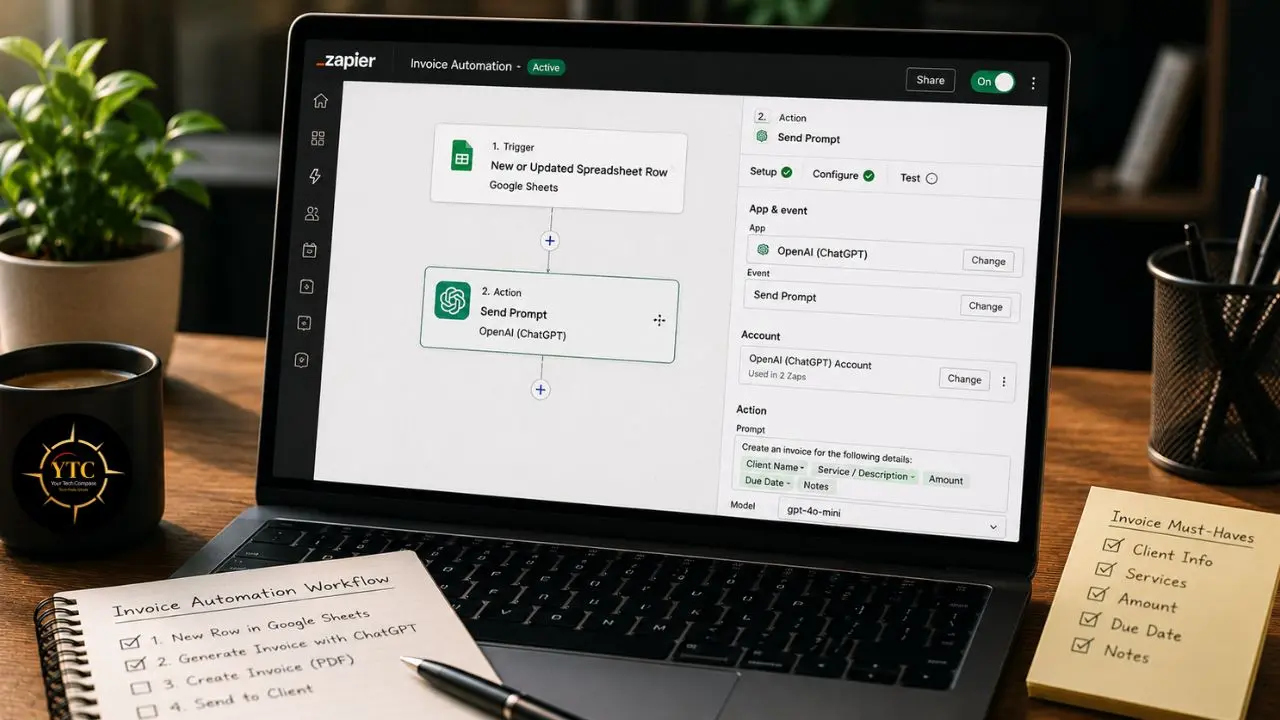
Add a new action step. Search for and select OpenAI (ChatGPT). Set the action event to Send Prompt.
Next, connect your OpenAI API account by navigating to App Connections in Zapier’s left menu, clicking Add Connection, searching for ChatGPT, and entering your API key from platform.openai.com; the connection process takes less than two minutes.
In the Prompt field, paste the following template. Replace the bracketed fields with Zapier’s dynamic data tokens from your Google Sheets trigger, and click the purple data icon to insert mapped fields:
“You are a professional freelance invoicing assistant. Generate two outputs based on the following project details:
Client: [Client Name] Project: [Project Name] Description: [Project Description] Amount: [Currency] [Invoice Amount] Due Date: [Due Date] Invoice Number: [Invoice Number] Payment Instructions: [Payment Instructions]
Output 1 – INVOICE SUMMARY: Write a professional, itemized invoice summary (3–5 lines) describing the services rendered in clear business language. Be specific about deliverables.
Output 2 – INVOICE EMAIL: Write a professional email from me to [Client Name] notifying them that Invoice [Invoice Number] for [Currency][Invoice Amount] is attached. Include the due date, payment instructions, and a courteous call to action. Keep the tone professional but warm. Close with a brief thank-you.“*
Set the Model to GPT-4o for the best output quality. Set Max Tokens to 600; this is sufficient for both outputs without over-generating. Next, click Test Action and review the result carefully.
The output should show both a clean invoice summary and a professional email. If the tone or format isn’t right, adjust the prompt before proceeding.
Step 5: Add a Filter Step
Between the OpenAI action and your email send, add a Zapier Filter step. Set the condition as: OpenAI Output → Text → Is Not Empty. This prevents the Zap from sending a blank email if the API call fails or returns an error. One minute of configuration here prevents an embarrassing blank email from reaching a client.
Step 6: Set the Gmail Send Action
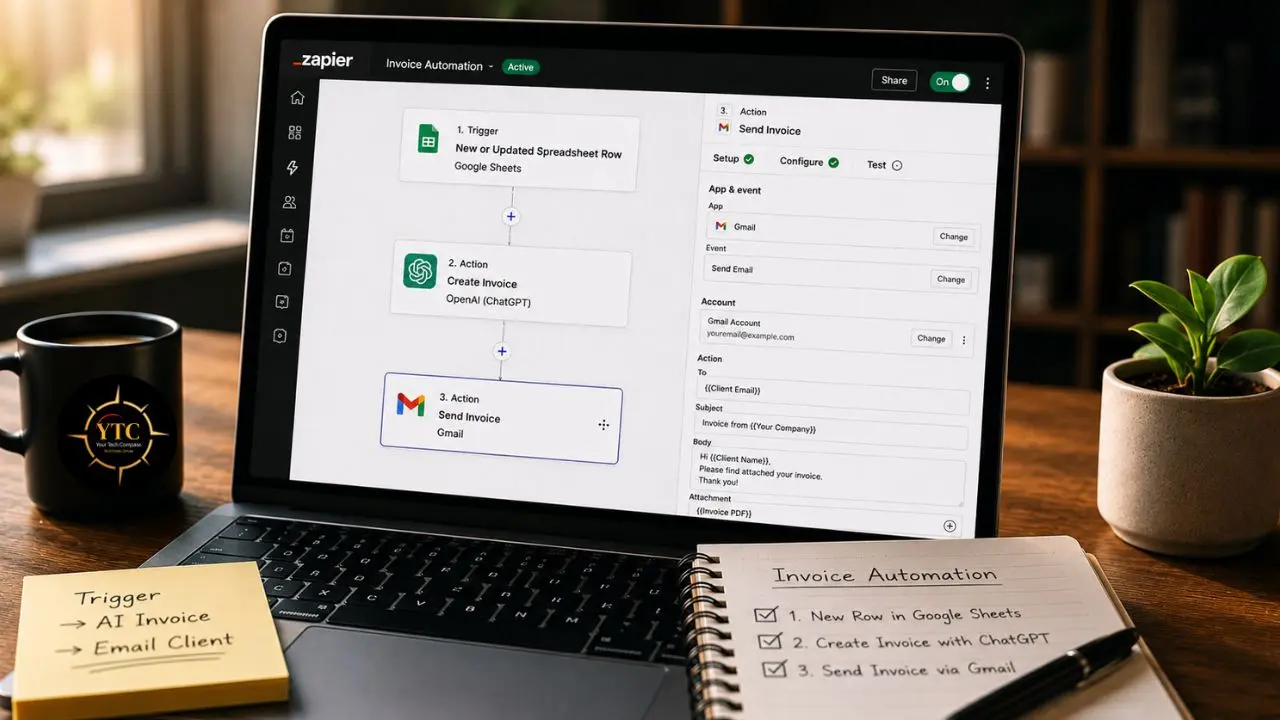
Add a new action step. Select Gmail. Set the action event to Create Draft (recommended for your first week of use, which gives you a final review before sending) or Send Email once you’re confident in the output quality.
Configure the fields:
- To: Map from [Client Email] in your Google Sheets trigger.
- Subject: “Invoice [Invoice Number] – [Project Name]” – map both fields from your trigger.
- Body: Map the ChatGPT output. Extract the “Output 2 – INVOICE EMAIL” section — you may need to use Zapier’s text formatter to isolate it from the full ChatGPT response.
- From Name: Your business or personal name.
Test the action. Confirm that the draft appears in your Gmail drafts folder with the correct recipient, subject, and body.
Step 7: (Optional) Create a Google Doc Invoice
For a more formal deliverable, add a second action: Google Docs → Create Document from Template. Use a preformatted invoice template stored in Google Drive that includes placeholder fields. Map your spreadsheet data to the corresponding template placeholders. This generates a PDF-ready invoice document in a designated folder. Share the Drive file link in the Gmail body by adding it as a mapped field in Step 6.
Step 8: Activate and Test End-to-End
Turn the Zap on. Add a new row to your Google Sheet with complete real project data. Wait 2–5 minutes.
Then check your Gmail drafts (or the sent folder if you chose automatic sending) and confirm that the invoice email has arrived with the correct content. If the formatting needs adjustment (e.g., missing line breaks or a slightly off tone), refine the prompt in Step 4 and rerun the test.
Workflow Variations: Configure for Your Setup
The core build sends one email to one destination. Most freelancers need variations based on their existing tools. Here are the most common configurations.
Variation A: Notion or Airtable Trigger
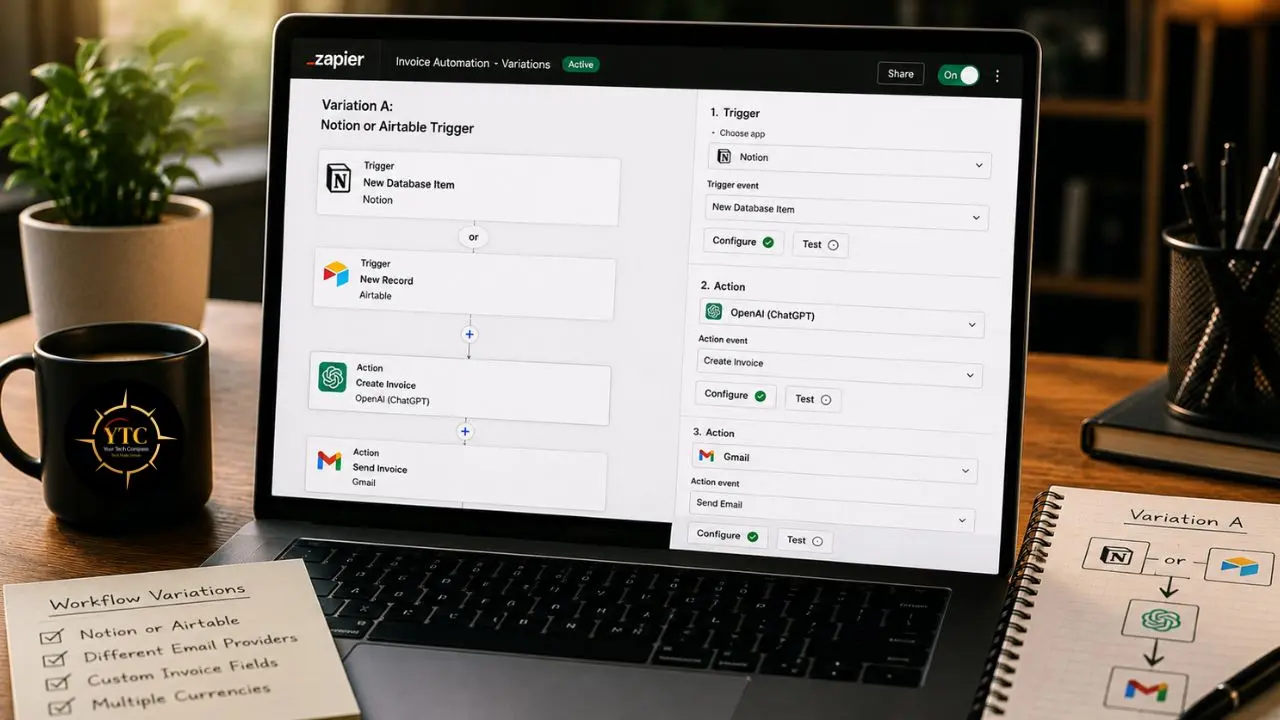
If you manage projects in Notion or Airtable, replace the Google Sheets trigger with a status-change trigger. In Airtable: trigger on Record Updated when the Status field changes to “Complete.” In Notion: trigger on Updated Database Item when the Status property changes.
The rest of the workflow is identical to the core build. This is the cleanest setup for freelancers who already live in a project management tool, with zero additional steps required between completing a project and triggering the invoice.
Variation B: Typeform or Tally Trigger
For agencies or freelancers with a formal client offboarding process, replace the Google Sheets trigger with a form submission trigger. Build a Typeform or Tally form that clients complete when approving the final deliverable; the form captures the project name, amount confirmation, and approval sign-off.
Zapier automatically triggers the invoice workflow when the form is submitted. This makes the invoice trigger a client action rather than an internal one, which is particularly useful for larger projects with formal approval processes.
Variation C: Stripe Draft Invoice Creation
Replace the Gmail action with a Stripe → Create Invoice action. ChatGPT generates the line-item description; Zapier maps it to a Stripe draft invoice with the correct amount and due date.
The invoice appears in your Stripe dashboard, ready to finalize and send through Stripe’s payment infrastructure. Best for freelancers who use Stripe as their primary payment platform and want the invoice to reside within their payment system rather than in an email thread.
Variation D: Parallel Routing (Slack + Gmail simultaneously)
Add a Slack action as a second action alongside the Gmail step. The Slack notification: “Invoice [Invoice Number] generated for [Client Name] – [Currency][Invoice Amount] due [Due Date].” This creates a running log of every invoice generated, visible to you or your team in real time.
For solo freelancers, it doubles as a personal accountability system. However, for small agencies, it gives the whole team visibility into billing status without anyone having to check a spreadsheet.
Variation E: High-Value Invoice Review Gate
Add a Zapier Paths step (branching logic) before the Gmail send. Path A: Invoice Amount greater than $5,000 → Create Gmail Draft (manual review before sending).
Path B: Invoice Amount $5,000 or less → Send Gmail (fully automated). This gives you automation on standard invoices and human oversight on high-value ones, the best of both worlds for freelancers who want efficiency without removing judgment from their largest client relationships.
The ChatGPT Prompt: How to Refine It for Your Voice
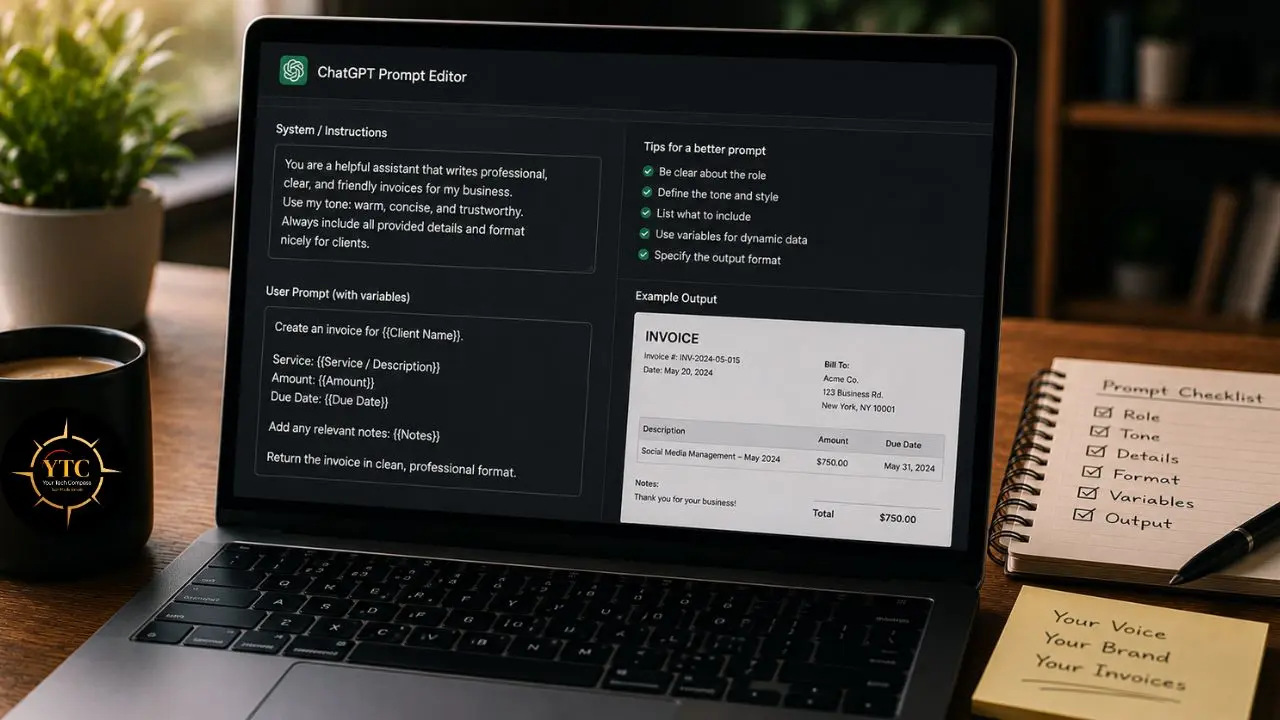
The prompt template in Section 5 is a solid working default. But spending 15 minutes personalizing it (matching your actual communication style) produces significantly better output that needs almost no editing.
Here’s how.
Adjusting Tone
Add a single line to your prompt: “Write in the style of a [boutique creative studio / independent technology consultant / friendly design freelancer].” Or paste two or three sentences from your best previous client emails and add: “Match this writing style.” ChatGPT is remarkably good at tone-matching when given a concrete reference.
Adding Brand-Specific Language
If you always close with a particular phrase, add it: “Always end the email with: ‘Looking forward to your continued partnership.'” If you call your work something specific, for instance, “creative retainer” instead of “monthly services,” add that too. These small customizations make the output feel genuinely yours rather than AI-generated.
Handling Retainers Differently from Project Invoices
Create a second, separate Zap for retainer clients. In the retainer prompt variant, replace “services rendered” with “services provided during [Month/Period]” and remove any language implying project completion. One trigger spreadsheet for retainers; a different one for project-based work; two Zaps with slightly different prompts.
International Clients
ChatGPT handles multi-currency and multi-language invoicing cleanly. Add: “Generate the invoice email in [French/German/Spanish/Arabic]” for non-English-speaking clients. Add: “Format the currency as [€/£/₦/KES/R]” for non-USD billing. The prompt handles currency formatting without any additional Zapier configuration.
The Rule of Thumb
Carefully evaluate the first five generated invoices. Refine the prompt based on what feels off. After five iterations, you’ll have a prompt that produces output you’d be proud to send to your best client, and you’ll never need to touch it again.
Time and Cost: The Real Numbers
I find it’s more useful to see a specific calculation than a general claim about “saving hours.” Here’s the honest math for a freelancer billing ten clients monthly.
Task | Manual Workflow | Automated Workflow |
Invoice Content Creation | 15–25 minutes | 0 minutes (ChatGPT) |
Professional Email Writing | 10–15 minutes | 0 minutes (ChatGPT) |
Formatting and Sending | 5–10 minutes | 0–5 minutes (review only) |
Total Per Invoice | 30–50 minutes | 0–5 minutes |
Monthly (10 invoices) | 5–8 hours | 30–50 minutes |
Annual Time Recovered | — | 58–90 hours |
At an effective billing rate of $75 per hour, recovering five hours per month generates $375 in recovered capacity. The tool costs: Zapier Starter at approximately $19.99 per month, plus the OpenAI API at approximately $0.10–$0.50 per month, depending on invoice-generation volume. Total monthly investment: approximately $20–$21. That’s a 17x return in the first month; every month.
The less quantifiable benefit is the signal of professionalism. Automation forces a consistent, repeatable output every single time, and consistently professional invoices, sent promptly after project completion, reduce the time-to-payment cycle for most freelancers.
Clients who receive vague or delayed invoices often deprioritize payment. On the other hand, clients who receive immediate, clear, professional invoices tend to pay faster.
For the full landscape of AI tools that complement this workflow, from content automation to productivity stack building, our best AI productivity apps guide covers the most current options. If you’ve already built the podcast show notes automation covered in our Descript + Zapier guide, the invoice automation uses the same Zapier foundation; you’re building on infrastructure you already understand.
Honest Limitations: What This Workflow Doesn’t Fix

Every workflow guide that omits limitations is incomplete. Here’s what you need to know before going live.
ChatGPT Doesn’t Access Your Billing History
Every invoice is generated from the data you provide in the trigger. The AI has no memory of previous invoices, no access to your project management tool, and no awareness of outstanding balances.
Data quality in equals data quality out; a spreadsheet row with a missing field produces an invoice with a missing field. Therefore, audit your trigger source before activating the Zap.
The OpenAI API Is a Separate Account from ChatGPT Plus
Your $20/month ChatGPT subscription doesn’t grant access to Zapier. You need a separate API account at platform.openai.com with a payment method on file. Setup takes five minutes; cost is minimal at invoice generation volume.
This Workflow Doesn’t Generate Legally Binding Invoices in Regulated Contexts
If your jurisdiction requires specific invoice fields, such as VAT registration numbers, legal entity identifiers, or specific formatting requirements, build them as static elements in your prompt, or use a dedicated invoicing platform (Stripe, FreshBooks, or QuickBooks) as the final destination rather than Gmail.
For African freelancers and small businesses navigating varying invoicing requirements across multiple countries, our African fintech ecosystem covers the payment and billing infrastructure considerations to understand.
Multi-Step Zaps Require a Paid Zapier Plan
Budget for the $19.99/month Starter plan from the outset; don’t build on the free tier and discover limitations mid-workflow. If your automation needs extend to more complex branching or higher task volumes, our Make app review covers a more powerful alternative that handles complex multi-path workflows at a significantly lower per-task cost.
The Draft-First Configuration Is Strongly Recommended for the First Two Weeks
Running the Zap in draft mode, where emails land in your drafts folder rather than being sent automatically, lets you catch tone or formatting issues before they reach clients. Once you’ve reviewed 10–15 generated invoices and confirmed the quality of the output, switch to automatic sending with confidence.
For adjacent automation workflows worth building alongside this one, such as content repurposing, client communication, or social scheduling, our Castmagic and Buffer reviews cover two tools that extend the same no-code automation philosophy to content and social media workflows. In addition, our broader Apps and Tools section has additional options worth exploring.
FAQs
No, and this workflow was specifically designed for that reality. Every step uses visual, point-and-click interfaces. Zapier’s Zap builder is a dropdown-and-field-mapping system that requires no code. The most technical step is pasting your OpenAI API key into Zapier’s connection manager, which takes under two minutes. With ChatGPT and Zapier, you don’t need a team to scale; you need a system. This guide is for that system.
No, they’re separate products. A ChatGPT Plus subscription gives you access to ChatGPT’s web interface and mobile app. The OpenAI API, accessed at platform.openai.com, is a programmatic interface that Zapier uses to send prompts and receive outputs. API usage is billed separately by OpenAI based on the number of tokens processed, at approximately $0.002 per 1,000 tokens. For invoice generation volume, expect to spend $0.10–$0.50 per month.
Yes, cleanly and reliably. Add the currency symbol or code to your trigger spreadsheet (USD, EUR, GBP, NGN, KES) and map it into the ChatGPT prompt. Add a language instruction — “Generate the email in French” or “Generate the email in Arabic” — and ChatGPT produces fully localized invoice emails. For freelancers billing international clients across multiple currencies, create separate trigger spreadsheet tabs for each currency and build separate Zaps with slightly different prompt configurations.
Yes. Zapier integrates with all three platforms. For Stripe: replace the Gmail action with Stripe → Create Invoice and map ChatGPT’s line item description into the Stripe invoice item field. And, for FreshBooks: use FreshBooks → Create Invoice and map accordingly. For QuickBooks: use QuickBooks Online → Create Invoice. Each integration requires approximately 5 minutes of field-mapping configuration. The ChatGPT prompt and Google Sheets trigger remain identical regardless of the destination platform.
Conclusion
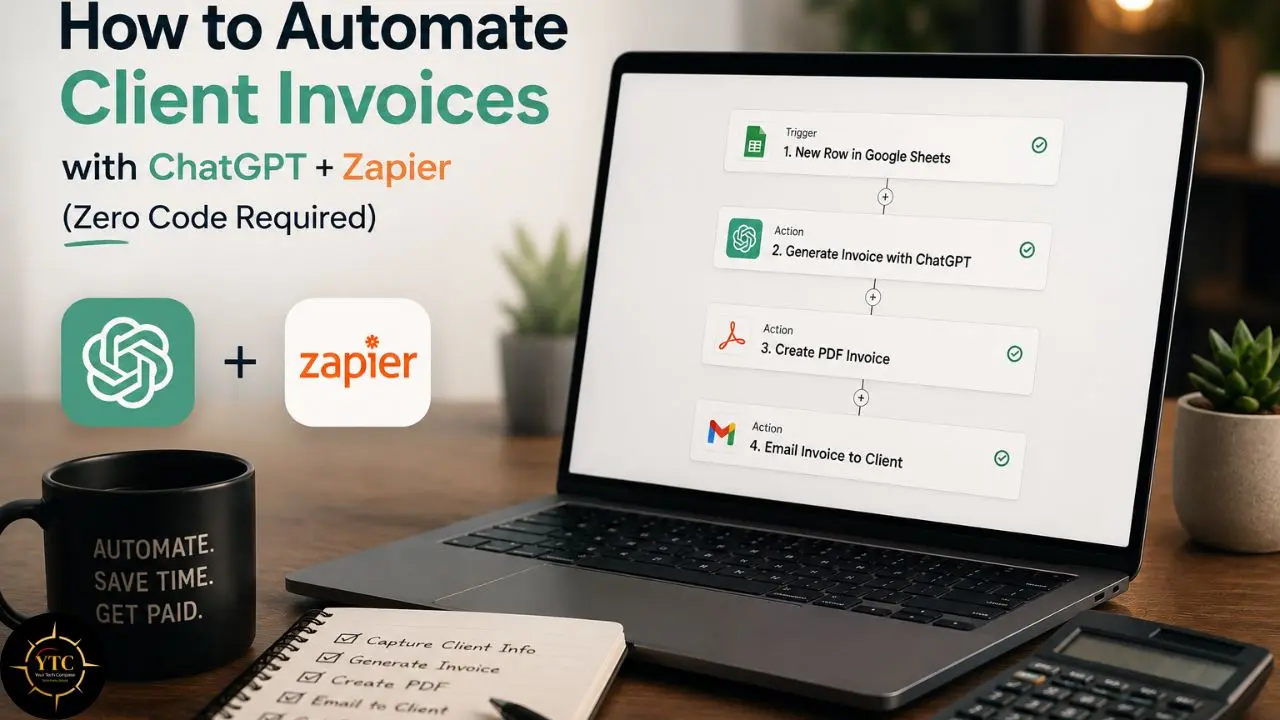
The ChatGPT + Zapier invoice workflow works because it solves a precisely defined problem at the right layer. Invoice administration is mechanical: it takes known inputs (client, project, amount, terms) and produces a known output (a professional invoice and email). That’s the exact category of work AI handles with high consistency and zero fatigue. What the automation doesn’t replace is the judgment that determines the inputs: what the project was worth, what the terms should be, and whether this client relationship warrants a different tone. That judgment remains yours. Everything between “project complete” and “invoice sent” becomes the system’s job.
I’ll give you the honest takeaway on investment: $20 per month in tool costs saves 58 to 90 hours annually for a freelancer with 10 clients. That’s the time you can bill, rest, or spend building the next level of your business. Furthermore, once the invoice automation is running, the same ChatGPT + Zapier foundation extends naturally to client onboarding emails, project scope confirmations, follow-up sequences, and payment reminder messages. This isn’t a one-task fix. It’s the foundation of a fully automated AI freelancer workflow, and invoice automation is the highest-friction starting point, which is exactly why it’s the right first build.
Your best automation is the one you actually build. Start with this workflow, spend an afternoon configuring it, and put those recovered hours toward work that actually moves your business forward. For more no-code automation guides, AI tool reviews, and productivity workflows, head to YourTechCompass.com.