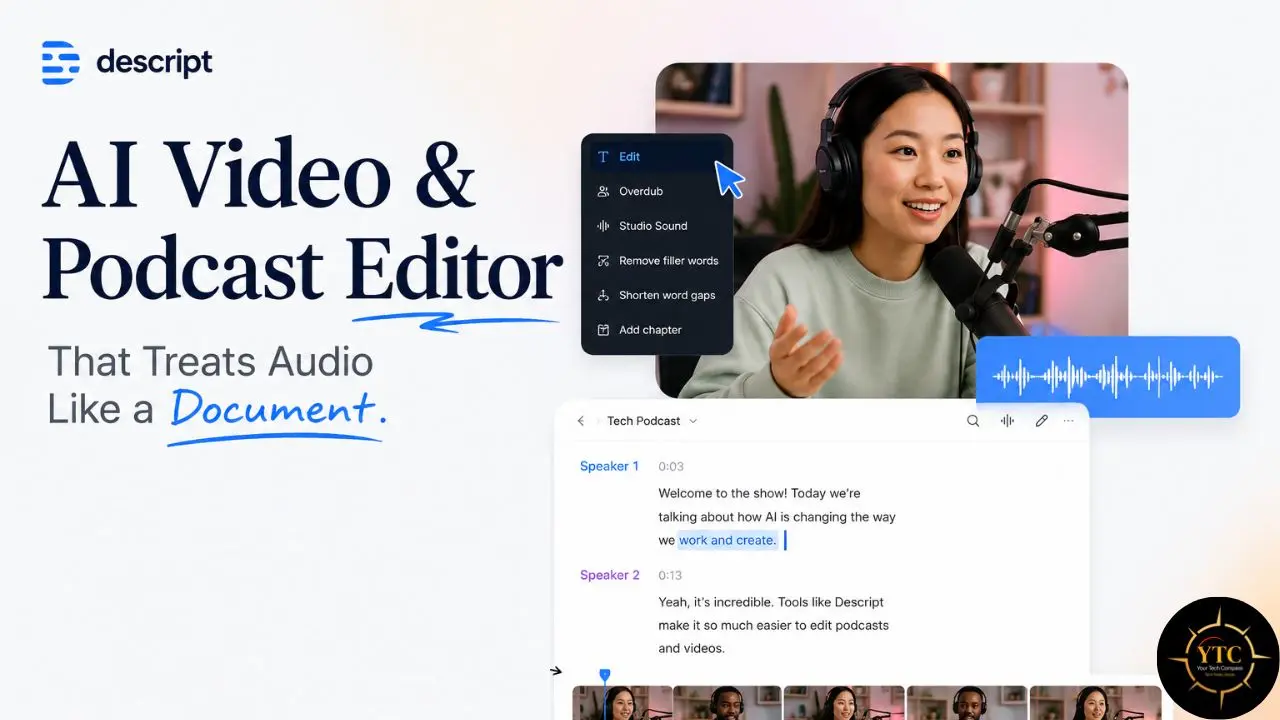
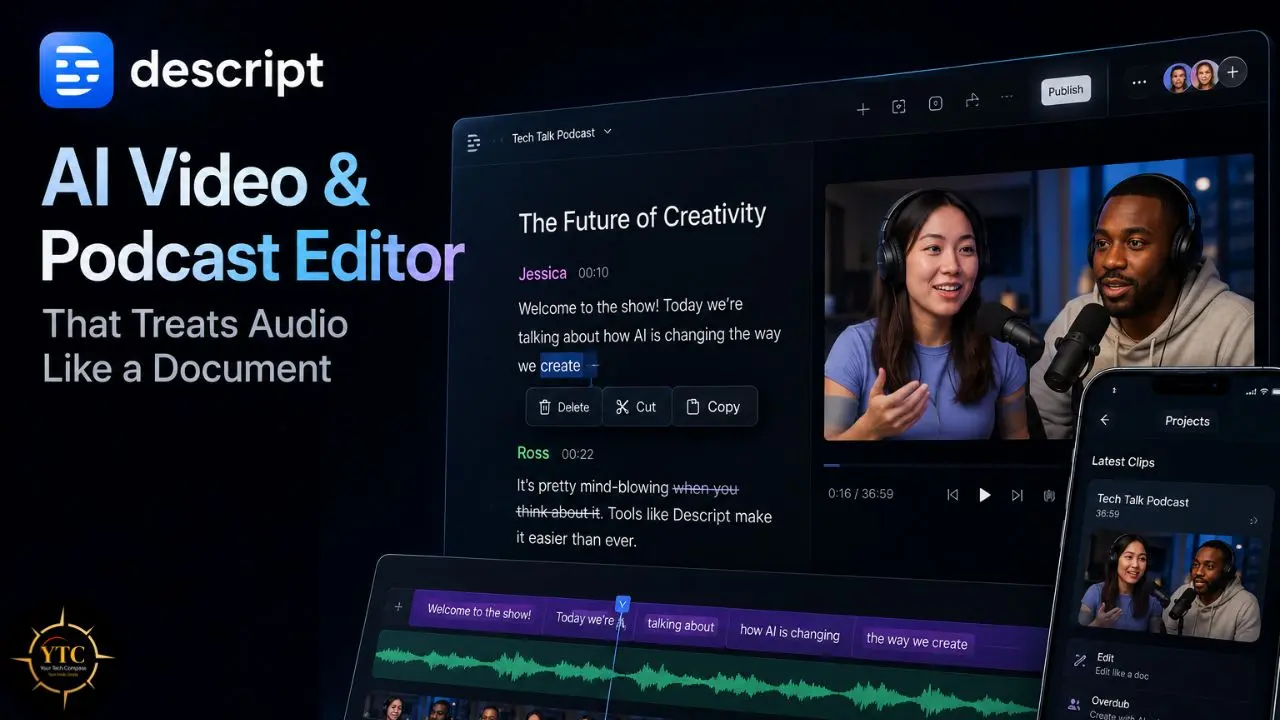
Here’s the editing insight that changed how I think about producing spoken-word content, and it’ll make total sense the moment you try it. Traditional video editing asks you to think in time. You scrub a waveform, drag clips along a timeline, set in-points and out-points with keyboard shortcuts, and make cut decisions by watching milliseconds of footage in a preview window. Descript asks you to think in words. Every second of audio and video you upload is automatically transcribed, and the transcript becomes your editing interface. You want to cut a paragraph where you stumbled over your explanation? Highlight it in the transcript and hit delete. The audio and video disappear, and the remaining content splices together seamlessly. You said “basically” forty-seven times in a fifteen-minute video? Descript counts them, highlights every instance, and removes them all with a single click.
I want to be upfront about what kind of tool Descript actually is, because clarity matters before you invest time evaluating it. Descript isn’t better than Audacity for audio purists, CapCut for short-form vertical video, or Premiere for cinematic editing. But for anyone making talking-head content, podcasts, tutorials, courses, and interviews, Descript wins on speed by a massive margin. That specificity is what this review is organized around: what Descript does extraordinarily well, where it genuinely falls short, what the September 2025 pricing overhaul actually means for your monthly costs, and whether the Creator plan at $24/month earns its subscription price for your specific workflow.
A note before we begin: every YTC score is earned, never negotiated. If you want to understand exactly how we evaluate apps & tools and how we handle affiliate relationships, our Review Methodology lays it all out.
What Is Descript?
Founded in 2017 by Andrew Mason, Descript has expanded well beyond a basic editor. The 2025 Season 6 release introduced Underlord, an agentic AI co-editor that handles complex editing tasks from natural-language prompts. The platform now includes AI audio enhancement via Studio Sound, voice cloning via Overdub, screen recording, AI-generated social clips, and a public API that launched in open beta in 2026.
Andrew Mason is also the founder of Groupon, a consumer product background that explains a lot about Descript’s design philosophy. This is not a tool built for professional film editors who already know Premiere and just want something slightly cheaper. It’s built for people who have real content to produce and want the editing friction between “I recorded something” and “it’s ready to share” to be as low as possible.
The Document-Style Editing Concept: Explained Simply
If you have never used transcript-based editing before, the idea is worth a minute of your time because it changes how you think about editing.
- Traditional Video Editing: You work on a timeline, drag clips, scrub waveforms, and make decisions visually. Time is the main interface.
- Descript Editing: You work on a document. Your recording becomes a transcript, and you edit it as you would a Google Doc or Word file: select text, delete sections, rearrange paragraphs, or use find and replace. When you delete a sentence in the transcript, Descript removes the corresponding audio or video from the project.
For anyone whose main editing challenge is content rather than cinematography, this is often a more natural interface. You are making editorial decisions in the same cognitive space where you evaluate which words should stay and which should go: the words themselves.
Descript is a strong beginner-friendly option because it removes much of the timeline learning curve. If you can edit a document, you can usually get started much faster in Descript than in a traditional nonlinear editor.
Core Features: What Descript Actually Does
AI Transcription: The Foundation of Everything
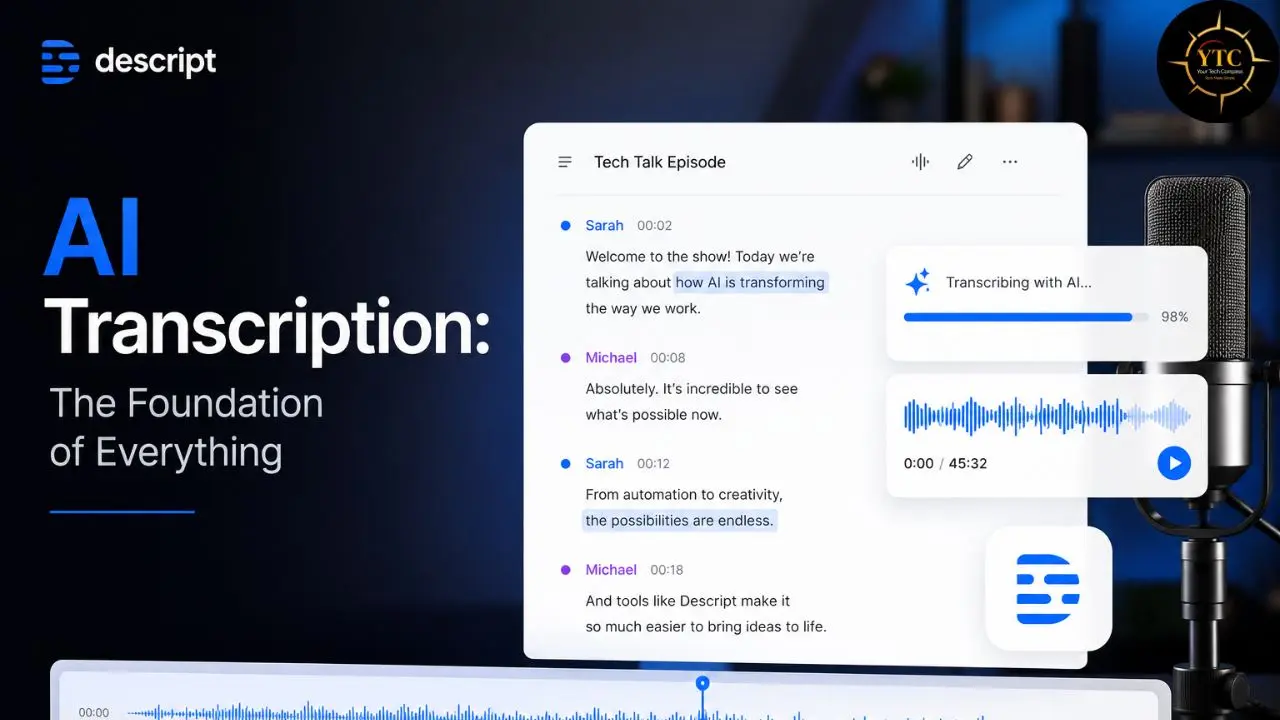
Every Descript feature depends on transcription quality. If the transcript is off, the document-style workflow becomes less reliable: you may cut the wrong line, filler-word cleanup can miss edge cases, and any transcript-based outputs will need more manual review.
Descript says its transcription can reach up to 95% accuracy, with actual performance depending on audio quality, speaker clarity, and recording conditions. In practice, clean single-speaker recordings usually require fewer corrections than recordings with strong accents, technical jargon, or overlapping voices. Brand names, technical terms, and personal names are still the most common problem areas.
For spoken-word content, that level of accuracy is often enough to make editing much faster than a traditional timeline-first workflow. Speaker labeling is generally manageable in simple interview formats, but more speakers usually mean more manual review and occasional label correction.
Transcript-Based Editing: The Core Workflow
Highlight a section of text, hit delete, and that section of the audio or video is removed. Rearrange the paragraphs and the project updates to match. Beyond that basic mechanic, transcript-based editing gives you a few operations that are much easier than in a timeline-first editor. They include:
- Filler-Word Removal: Descript detects filler words like “um” and “uh” and makes it easy to remove them in bulk.
- Silence Cleanup: You can tighten pauses and trim dead air more quickly than scrubbing manually through a timeline.
- Find and Replace: Search the transcript for a word or phrase and jump straight to every instance.
- Regenerate: This feature, formerly known as Overdub, lets you replace or correct spoken words with AI-generated speech that matches the speaker’s voice, subject to the constraints of the clip and workflow.
For interviews, solo recordings, and tutorial content, this is often much faster than traditional editing because the editor matches the way you already think about the content: as words, not just a waveform.
Underlord: The AI Editing Co-Pilot
Underlord is Descript’s agentic AI co-editor: you describe what you want in plain language, and it helps execute the editing work. It can write, edit, design, and generate visuals or voiceovers under your direction. You tell it what you need in plain language, and it handles the technical work.
Operating from natural-language prompts, Underlord can remove filler words and silence across a full recording in one step, identify bad takes for review, suggest B-roll placements based on transcript content, generate show notes and chapter markers, and create short social clips by flagging the most shareable moments in a longer recording.
One useful mode is Edit for Clarity, where you can ask Underlord to review the project at different intensity levels and surface filler words, retakes, and other rough spots for approval. You still review and accept the changes, which keeps the workflow fast without making it fully autonomous.
The social clip generation specifically is worth highlighting: Underlord scans a longer recording and identifies the most standalone-worthy segments, such as moments with clear, quotable statements that would make effective audiogram clips or short-form social video. For podcasters and video creators who want to distribute each episode across multiple formats, this automated clip identification streamlines what used to be a separate, manual workflow.
For those running automated Descript + Zapier workflows to publish show notes and podcast assets, our guide on automating podcast show notes with Descript and Zapier covers the integration in detail.
Studio Sound: One-Click Audio Rescue
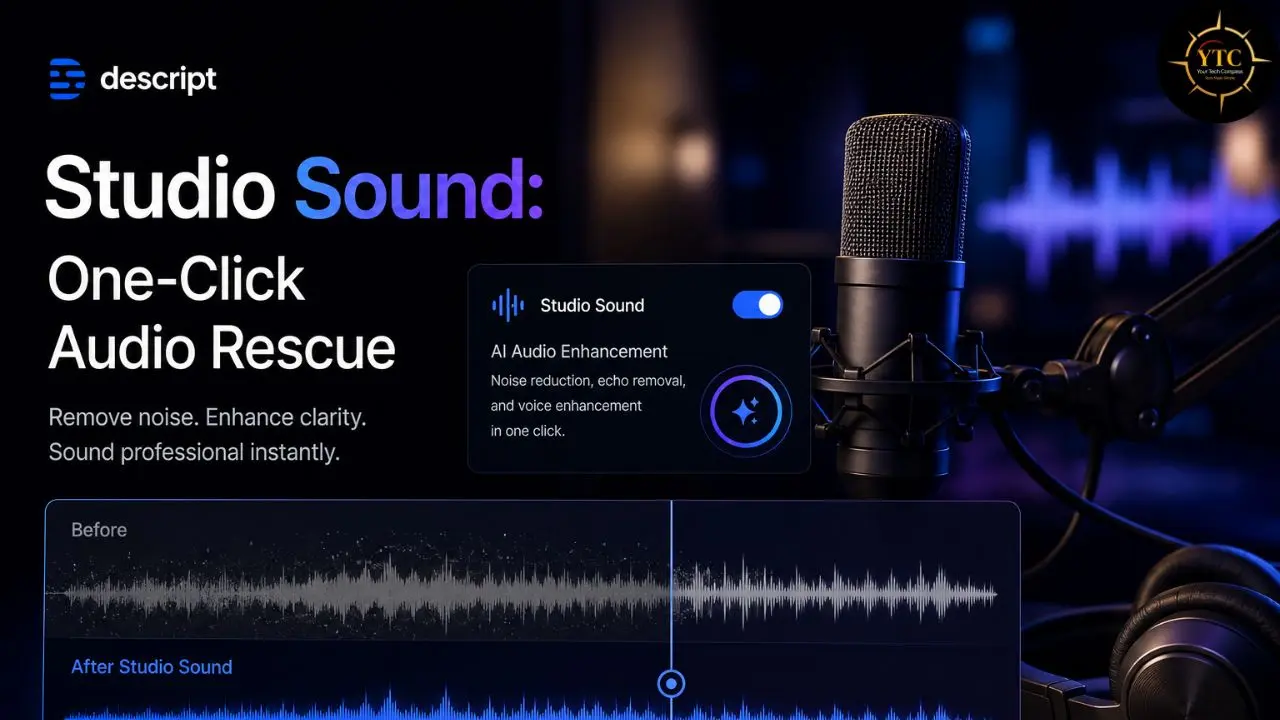
Studio Sound is one of the most impressive AI features I’ve seen in any content tool. You click one button, and it removes background noise, reduces echo, enhances vocal clarity, and evens out your audio levels. It’s been described as having “arguably the best sound-fixing enhancement” available.
Studio Sound is competitive with Adobe Enhance Speech and ElevenLabs’ audio cleanup tools. Works best on speech; less effective on music or environmental sounds.
The Practical Value
Recording environments that would previously require expensive acoustic treatment or significant post-processing to sound professional can produce usable, clean audio through Studio Sound. A recording made on a laptop microphone in a room with echo and background HVAC noise can sound substantially cleaner with Studio Sound; not perfect, but often good enough for podcast publishing and course content without additional processing.
Eye Contact: The Gaze Correction Tool
If you recorded while reading your notes instead of looking at the camera, Eye Contact uses AI to redirect your gaze to the camera.
- Results: Effective enough that viewers didn’t notice, but a close inspection reveals slightly uncanny-valley eyes.
- Use Case: Saving videos when you accidentally look away too much. Not for publishing content where perfect quality matters, but fantastic for internal training videos or when re-shooting isn’t an option.
The Honest, Practical Assessment
Eye Contact works well enough to salvage a recording in which eye contact issues are the only problem preventing publication. It’s not a replacement for looking at the camera during recording. Therefore, for client-facing, high-visibility content, the subtle artifacting under scrutiny is worth noting.
AI Green Screen and Background Removal
Descript’s Green Screen feature uses AI to remove or replace the background in talking-head footage, letting you place the speaker on a custom background. It is best viewed as a compositing tool rather than a simple blur effect, since it gives you more control over the final scene.
It works best in well-lit, stable recording setups and can become less reliable in low light, with motion, or around difficult edges like hair and foreground objects. In practice, it is a useful cleanup and presentation tool, but not a magic fix for poor source footage.
Descript Rooms: Collaborative Review
Descript Rooms allows team members, clients, or stakeholders to view a video project and leave comments timestamped to specific moments, without requiring a Descript subscription. For content teams or freelancers sharing work in progress with clients, Rooms removes friction from the review cycle so clients don’t have to learn a new editing tool.
Screen Recording and Remote Recording
Descript’s built-in screen recorder feeds directly into its transcript-based editing workflow, making it especially useful for software tutorials, SaaS demos, and course content. It lets you capture the screen, webcam, microphone, and computer audio, then edit the result inside the same app.
For interviews and guest recordings, Descript also supports multitrack recording workflows, so you can work with separate inputs rather than a single flattened file. That makes it a strong all-in-one option for creators who want recording and editing in one place, even if it is not as remote-interview-specific as dedicated tools.
Descript Pricing: The September 2025 Overhaul Explained
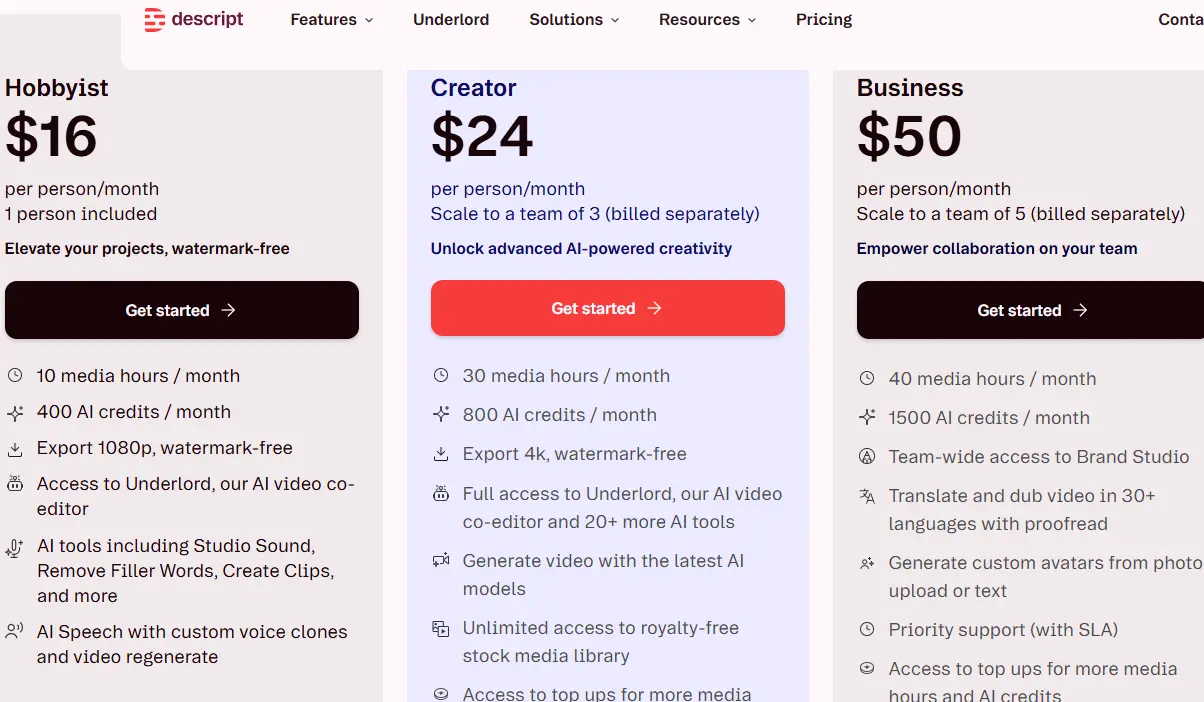
This is the section where clarity matters most, because Descript changed how usage is tracked in September 2025. Instead of a single transcription-hours bucket, plans now revolve around two meters: media minutes and AI credits.
Media minutes cover the audio or video you upload or record in Descript, while AI credits are consumed by features such as Studio Sound and other generative tools. In simple terms, the media bucket measures how much content you bring in, and the AI bucket measures how much machine-assisted editing you use.
Understanding both meters before choosing a plan helps prevent the most common new-user surprise: a plan can look generous on paper yet run out quickly once you start using AI features heavily.
Current Plan Structure (2026)
Plan | Typical Price | Media Minutes | AI Credits | Export Quality | Best For |
Free | $0 | 60 min/month | Limited / restricted | Watermarked, lower-res export | Evaluation only |
Hobbyist | $16/month billed annually or $24/month billed monthly | About 10 hours/month | 400/month | No watermark, 1080p | Occasional creators |
Creator | $24/month billed annually or $35/month billed monthly | About 30 hours/month | 800/month | No watermark, 4K | Regular podcasters/YouTubers |
Business | $50/month billed annually or $65/month billed monthly | Higher allocation | Higher allocation | Team-oriented, higher-end export options | Production teams |
Enterprise | Custom | Custom | Custom | Custom | Large organizations |
The Creator plan at $24/month billed annually is the sweet spot for many serious creators. It includes enough media minutes for regular production, 4K exports, and a strong feature set for weekly video podcasts or YouTube channels. The Free plan is also generous enough to genuinely test the platform before you pay.
Students and educators may also qualify for a discount, which makes Descript more accessible for course creators and academic use.
The Honest Pricing Assessment
If you currently pay for separate tools for transcription, editing, audio cleanup, and clip generation, Descript can be a cost-effective all-in-one workflow. The Creator plan may be a strong fit for serious creators, but its real value depends on how many AI-powered actions you use each month.
The main thing to watch is AI credit consumption. Heavy use of Studio Sound, Underlord, and other generative features can push you toward a higher tier or require top-ups, so it is worth estimating your monthly usage before subscribing.
Real-World Workflow: How Creators Actually Use Descript
The Podcaster Workflow
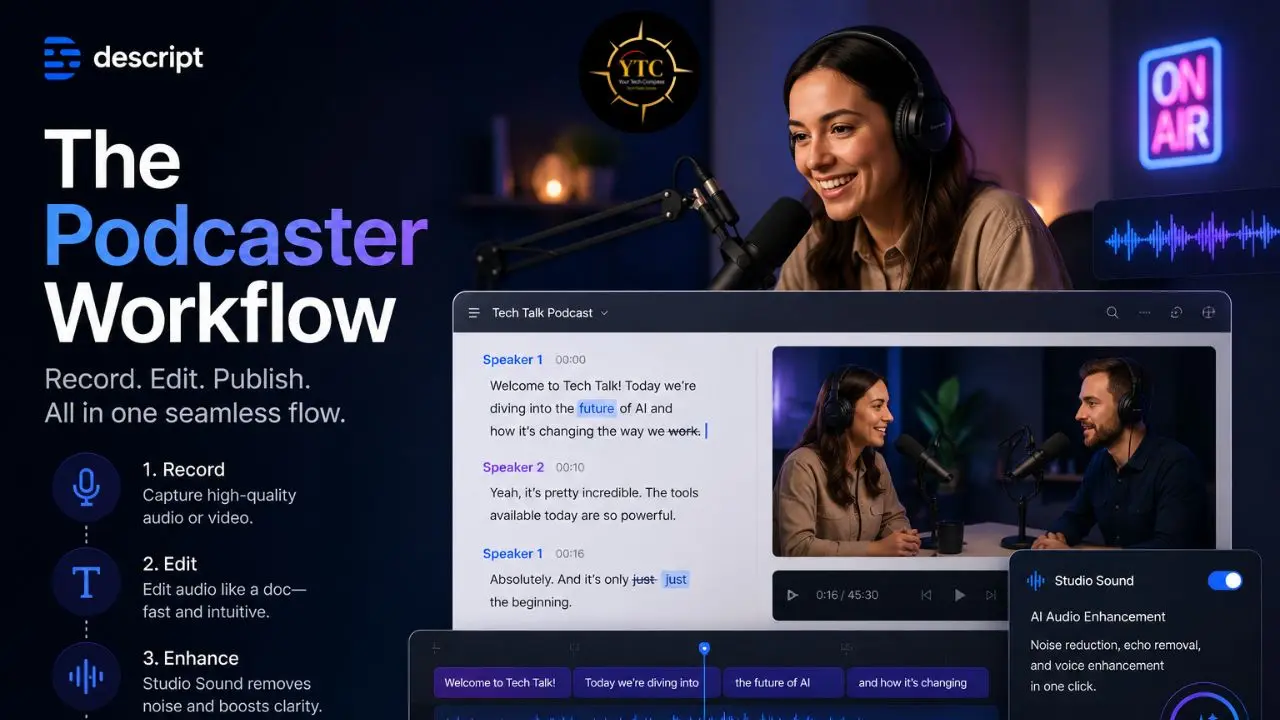
A typical Descript podcast workflow looks like this: record the episode, upload it to Descript, let the transcription generate, clean the audio with Studio Sound, remove filler words and long silences, scan the transcript for awkward passages, use Regenerate for small fixes, generate notes or chapters, identify clip-worthy moments, and export the final audio.
For well-recorded interview episodes, this workflow can be dramatically faster than a traditional timeline-first edit, especially if you previously used separate tools for transcription, cleanup, and social clipping. The biggest gains usually come when the episode needs light-to-moderate editing rather than heavy structural rewriting.
The Video Content Creator Workflow
For YouTubers, course creators, and video marketers producing talking-head and tutorial content regularly: record video → upload to Descript → transcription generates → cut sections by editing transcript text → apply Eye Contact correction where needed → use background removal when appropriate → use Underlord for clarity cleanup and clip generation → identify highlight moments for Shorts or Reels → export the main video and social clips.
The real value is that Underlord can surface the strongest short-form moments without forcing you to manually rewatch the entire recording, which is often the most time-consuming part of repurposing long-form content.
The Remote Team Workflow
Record team meetings, client calls, or training sessions → import into Descript → transcript generated → run Underlord to generate summary, action items, and chapter markers → share via Descript Rooms for stakeholder review → export final video for team distribution. The Rooms feature specifically removes the requirement that non-editing stakeholders have software access to review and comment.
For teams running podcast or video production workflows that extend beyond Descript into broader automation stacks, our best AI productivity apps guide and Apps and Tools category on YourTechCompass cover the broader tooling ecosystem that Descript integrates with. Castmagic is a direct AI content-repurposing alternative worth knowing about; our Castmagic review covers how it handles show notes and the social content-generation workflow, compared to Descript’s Underlord approach.
Descript vs The Competition
Descript vs Adobe Premiere Pro
This comparison is less about which tool is “better” and more about which one fits the job. Premiere Pro is designed for advanced visual post-production, including color work, multi-camera editing, and motion-heavy workflows. However, Descript is designed for transcript-first editing, making it a better fit when the main challenge is what was said rather than how the footage looks.
Premiere Pro is often preferred by filmmakers, agencies, and editors who need deep visual control. On the other hand, Descript is often the better choice for podcasters, YouTubers, and other creators working with interviews, tutorials, and talking-head content. The two can also work together: many creators use Descript for rough cuts and transcript-based cleanup, then move the project into Premiere for final polish.
Descript vs CapCut
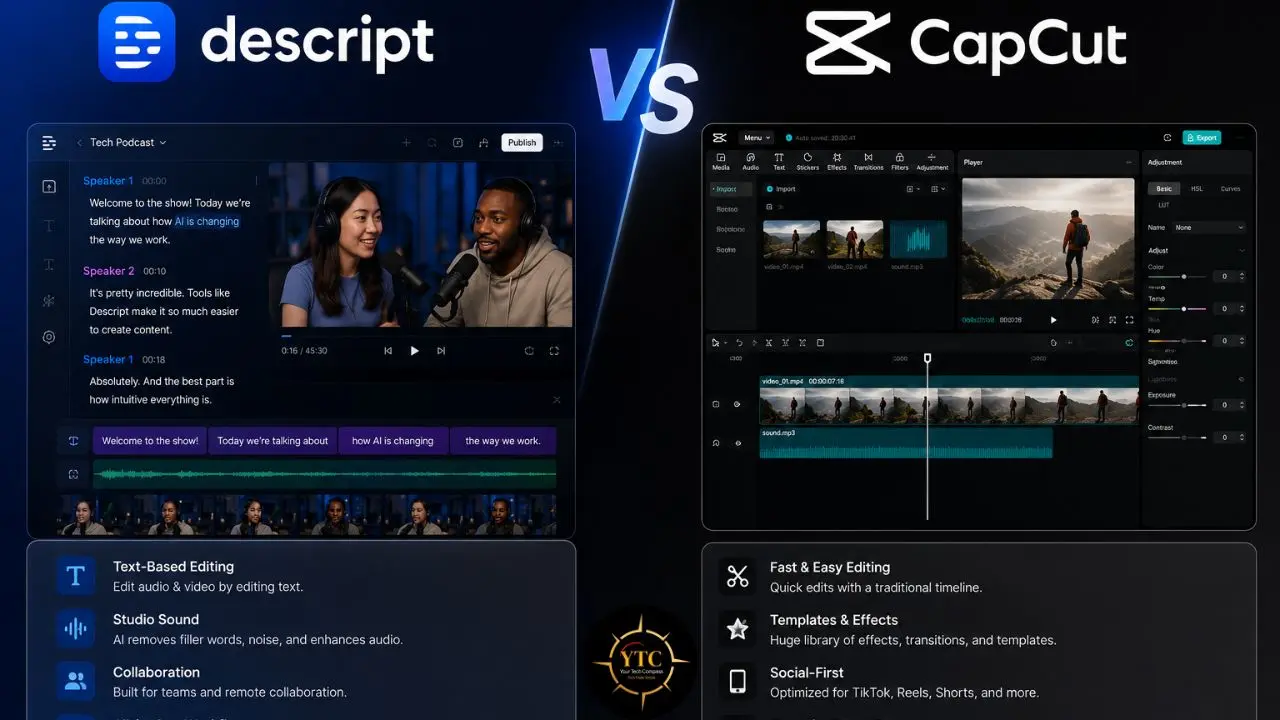
Descript does not currently offer a true mobile editing app, so if you need to edit on a phone, CapCut is the more practical choice. CapCut is especially strong for social-first editing, with templates, effects, auto-captions, and fast workflows built for TikTok, Instagram Reels, and YouTube Shorts.
Descript is better suited to long-form, spoken-word content such as podcasts, YouTube videos, interviews, and courses. However, the most sophisticated creators often use both: Descript for transcript-based long-form editing and CapCut for polishing or resizing clips for social distribution.
For context on CapCut’s platform situation and current status, our CapCut ban concerns guide covers the regulatory context that some creators are navigating, and our CapCut vs InShot comparison covers mobile video-editing alternatives. In addition, our AI Unboxed category tracks all significant developments in AI tools for video and content creation.
Descript vs Riverside.fm
Riverside is usually the better choice when remote recording quality is the top priority, while Descript is stronger once you move into transcript-based editing and AI-assisted post-production. In addition, Riverside offers a cleaner recording-first workflow for interviews and podcast sessions, and Descript offers deeper editing tools such as Underlord and Overdub.
A practical workflow for many creators is to record in Riverside, then bring the footage into Descript for editing, transcript cleanup, and AI-assisted repurposing. That split lets each tool do what it does best: one for capture, the other for fast editing and content reshaping.
Descript vs Otter.ai / Standalone Transcription Tools
This comparison mostly applies to transcription and meeting notes. Otter.ai is a meeting transcription and note-taking tool, while Descript is designed for users who want to transcribe and edit audio or video in a single workflow.
For users who only need transcripts, summaries, or meeting notes, Otter is often the simpler choice. But for users who want to cut media based on the transcript, Descript’s integrated workflow reduces the friction of moving between a transcription app and an editor.
Our Otter AI vs Notta comparison covers the standalone transcription alternatives in detail and provides relevant context if transcription accuracy across multiple languages or meeting contexts is your primary concern, rather than an editorial editing workflow.
Full Comparison Table

Tool | Best For | Transcript Editing | AI Voice Correction | AI Audio Enhancement | Timeline Editing | Annual Price |
Descript | Podcast + talking-head video | ✅Core feature | ✅Regenerate / Overdub | ✅Studio Sound | ⚠️ Basic to moderate | $24/month billed annually |
Adobe Premiere Pro | Professional video production | ❌Not core workflow | ❌ (No native equivalent) | ⚠️ Basic / via plugins or integrations | ✅Best-in-class | Plan-dependent |
CapCut | Short-form social content | ⚠️ Limited / captions-first | ❌ | ⚠️ Basic | ✅Strong for social editing | Free / paid tiers |
Riverside.fm | Remote recording and interviews | ⚠️Basic transcript tools | ❌ | ⚠️ Basic | ⚠️ Basic | Plan-dependent |
Otter.ai | Meeting transcription and notes | ✅ Notes/transcript focus | ❌ | ❌ | ❌ | Plan-dependent |
Honest Limitations: What Descript Doesn’t Do Well
If your workflow depends on advanced transitions, overlays, animations, or heavy color grading, Descript is probably not the right primary tool. It is excellent for rough cuts, talking-head videos, and podcasts, but it is not meant to replace a full cinematic post-production editor.
- Transcription accuracy can drop in the presence of accented speech and technical vocabulary. In practice, clear audio tends to perform much better than recordings with heavy accents, jargon, or overlapping dialogue, which means manual correction can eat into some of the time savings.
- Descript is not a full professional video editor. It does not aim to replace Premiere or Final Cut Pro for complex productions, and that fits its design. If you need advanced color grading, motion graphics, multi-track audio mixing, or complex visual effects, its timeline tools are not built for that level of work.
- AI voice replacement works best on short fixes. Regenerate is generally most convincing for small corrections, while longer passages can sound less natural and more obviously synthetic. For single-word edits, the result is often very strong; for longer rewrites, the quality of the voice becomes more noticeable.
- Performance can become an issue on larger or more complex projects. Long recordings, multiple tracks, and heavier edits can slow the app down, so editors working with multi-hour projects should treat that as a real workflow consideration.
- Eye Contact and Green Screen both work best with decent lighting. Low-light footage, motion, and difficult edges can reduce the quality of the result, so it is worth testing them on your actual recording setup before using them for client-facing content.
- Some features depend on an internet connection. Transcription and AI-powered tools require connectivity, while basic editing is more flexible; however, the platform’s most powerful functions still require an internet connection.
- Descript is not a mobile-first tool. It is built for desktop use on Mac and Windows, so if your workflow is primarily on a phone or tablet, that is a structural limitation rather than a minor inconvenience.
Who Should Use Descript?
Descript is the right tool if:
- You regularly produce podcasts, video interviews, webinars, course content, or talking-head videos, and your primary editing time is spent on what is said rather than how it looks.
- You want a single tool that handles recording, transcription, editing, audio enhancement, AI correction, clip creation, show notes, and export workflows without juggling a large multi-tool stack.
- Filler word removal, silence detection, and transcript search directly correspond to your biggest editing time costs.
- You need basic team collaboration and review without requiring all stakeholders to have an editing subscription.
Who Shouldn’t Use Descript?
Consider alternatives if:
- Your work is primarily visual production with color grading, motion graphics, or complex multicamera workflows; Premiere Pro or Final Cut Pro are usually better primary tools for that kind of work.
- You need a stronger remote-recording-first workflow; Riverside.fm is often a better fit for that priority.
- Short-form social content is your main output; CapCut’s social-first workflows, template library, and mobile interface are a better match.
- Your content regularly includes heavy accents or highly specialized technical vocabulary that may require so much transcript cleanup that it reduces the editing-time advantage.
FAQs
Yes. Descript offers a Free plan that lets you test the platform with basic editing and limited AI usage, and you can get started without entering a credit card. For serious creators, the Creator plan is often the more practical choice, since it adds substantially more media capacity and stronger export options.
Descript says its automatic transcription can reach up to 95% accuracy in clear audio, and performance varies with recording quality, accents, background noise, and mic placement. In practice, clean single-speaker recordings tend to require fewer corrections, while accented speech, technical vocabulary, and noisy recordings usually need more manual cleanup.
Overdub is Descript’s AI voice-cloning capability, now integrated into the Regenerate feature. After training on a voice sample, you can replace small mistakes by typing the corrected words, and Descript generates audio that matches the surrounding speech as closely as possible. It works best for short fixes rather than long rewritten passages, and it is intended for the speaker’s own voice rather than others’.
No, and it’s not trying to. Descript replaces a set of transcript-first workflows such as transcription, filler-word removal, show notes, and clip finding that would otherwise require separate tools. For spoken-word editing, it is often much faster than Premiere. For visual production, color grading, motion graphics, or complex multicamera work, Premiere is usually the better tool. Many professional creators use both: Descript for the rough cut and Premiere for final visual polish.
Yes. Descript is especially strong for podcast editing because transcript-based editing, filler-word removal, and Studio Sound make it much faster to clean up an episode and get it ready to publish. It also supports podcast workflows, including transcription, show notes, timestamps, clip identification, and remote recording, thereby reducing the need for multiple tools. For many podcasters, that makes Descript worth the subscription fee for editing efficiency alone, especially if they regularly produce interviews or solo episodes.
Yes. Descript has native desktop apps for both Mac and Windows. It also has a browser-based version for lighter work. There is no iOS or Android mobile app; Descript is a desktop-first tool, which means mobile content creation workflows aren’t supported.
Conclusion
Descript has genuinely earned its position as one of the leading text-based video and podcast editors in 2026. It is one of the best text-based video editors on the market and is worth every penny at $24/month for content creators who regularly produce talking-head videos. Voice cloning, filler-word removal, and transcript-based editing are genuinely transformative features. The September 2025 pricing overhaul (moving to Media Minutes and AI Credits) made the cost structure more transparent and predictable than the previous transcription-hour model, a genuine improvement, even if it adds a mental-model step for new users. For a podcaster, video educator, or content marketer who currently uses separate tools for transcription, editing, audio cleanup, show notes, and social clip creation, the Creator plan at $24/month consolidates that stack into a single, coherent workflow, delivering meaningful time savings at every stage.
Descript’s limitations are real, but they are mostly about fit rather than quality; the tool was built with a clear scope and executes consistently within it. It’s not the right tool for cinematic production, complex visual effects, or short-form mobile-first social content. It performs less well on accented speech and technical vocabulary than on clear standard English. And the Regenerate voice cloning, while genuinely impressive for brief corrections, produces detectably synthetic output on longer regenerated passages. None of those limitations matter for the specific creator who needs to turn a weekly recording into a polished, distributed, multi-format piece of content as efficiently as possible. For that person, Descript is the best available tool at any price point.
There’s an expanding ecosystem of AI content and productivity tools worth understanding before you decide which ones belong in your workflow. Head to YourTechCompass.com for more honest, tested reviews that help you find the right tool for the job.