Every time you boot into a fresh Windows 11 install, you’re greeted by the same insult. The Start menu is advertising Candy Crush, often as a tile that can auto‑download the app. The taskbar is nudging you to try Microsoft Teams. File Explorer pushes OneDrive with persistent prompts that feel like ads. Your brand‑new laptop or your freshly reset PC can feel less like an operating system and more like a retail showroom with a file manager attached. You did not ask for LinkedIn, Spotify, or a Solitaire Collection that locks premium features behind a subscription. Microsoft or your OEM often provisions them anyway because your desktop is their retail space.
This guide will show you exactly how to remove bloatware from Windows 11. You will learn the manual route through Settings, the programmatic route through PowerShell and Winget, and the automated route through trusted third‑party tools. You will get honest warnings about what happens when you remove the wrong thing, why Microsoft and OEMs can put apps back after updates, and how to debloat safely without breaking Windows Update or the Microsoft Store. By the end, your machine can boot faster, use less RAM on many systems, and stop trying to sell you TikTok and other promoted apps.
Quick Verdict
- Best For: Windows 11 users on any hardware who want a cleaner, less promotional desktop and are comfortable uninstalling apps and tweaking a few settings.
- Skip It If: You’re uneasy modifying system settings, you depend on Microsoft Store apps or Xbox Game Pass, or your organization requires every Windows feature to remain intact for compliance or management policies.
- Bottom Line: Removing Windows 11 bloatware can be free and genuinely effective, but it isn’t risk‑free. The manual route (Settings) is usually low‑risk and often takes under thirty minutes, though results vary by device and image. PowerShell and third‑party tools go deeper and can remove provisioned apps, but they require knowing which packages are truly disposable, and you should back up or create a restore point in case updates or the Microsoft Store behave unexpectedly afterward.
What Is Windows 11 Bloatware?
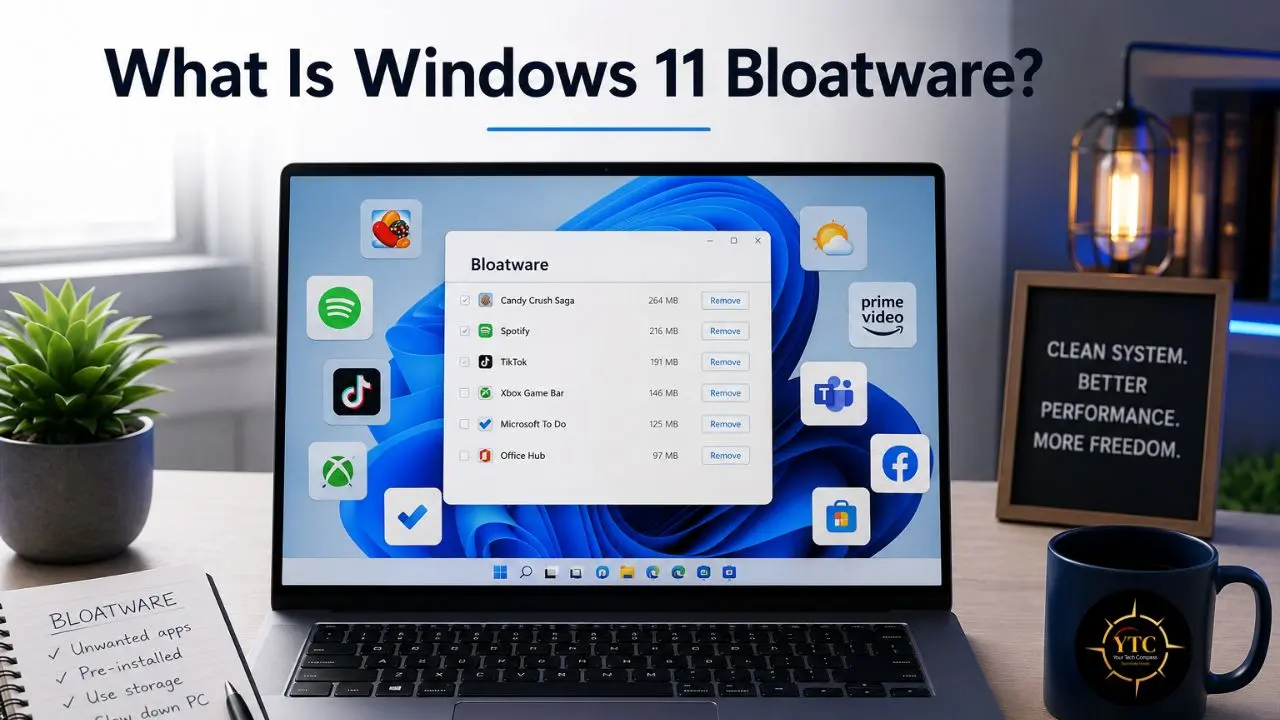
Bloatware on Windows 11 falls into four categories. First, the pre‑installed apps: Candy Crush, Spotify, TikTok, LinkedIn, Kindle, WhatsApp, and the Microsoft Solitaire Collection with its aggressive advertising. Second, the system components were pushed as features: the consumer version of Microsoft Teams, OneDrive, Copilot, and the opt‑in Recall snapshot system on supported PCs. Third, the promotional content baked into the interface itself: Start menu “recommendations,” File Explorer notifications for OneDrive and Microsoft 365, and “suggested” content in taskbar search. Fourth, the background telemetry and advertising infrastructure can send diagnostic data, use an advertising ID, and (depending on settings) collect inking and typing data.
A fully patched Windows 11 24H2 or 25H2 installation (with .NET, drivers, language packs, and the component store) typically occupies the high 20s of gigabytes on disk; with update caches and OEM additions, it can climb to 35–45 GB. That size alone does not cause slowness, but the background processes, startup items, and memory‑resident apps that come with it do. The distinction that matters is between bloatware you can safely remove and system components you should leave alone. This guide will treat them differently because confusing the two is how you break a PC.
Why Remove Bloatware? The Three Gains
Performance
Background apps consume RAM and CPU cycles before you open your first browser tab. The Solitaire Collection, News, Weather, and Xbox apps all register background tasks. Teams (consumer) can start with Windows unless you stop it.
On a machine with 4 GB or 8 GB of RAM, these processes add up to a tangible lag. Removing them can free several hundred MB to around 1 GB of RAM on many systems and shave seconds (sometimes tens of seconds) off boot time, depending on the OEM image and startup load.
Privacy
Telemetry services can collect diagnostic data, use an advertising ID, and (depending on your settings) collect typing and inking data. Copilot and Recall raise additional concerns. Copilot sends queries to Microsoft’s cloud. Recall, available on supported Copilot+ PCs, is opt‑in and off by default in recent builds; if enabled, it captures periodic screenshots of your activity and stores them locally. While Microsoft states that this data is used for debugging and service improvement, the surface area for privacy exposure is larger than many users realize. Reducing it is a legitimate goal.
Sanity
A Start menu that shows your apps instead of ads. A File Explorer without promotional banners. A taskbar that is not a Microsoft services billboard. These are quality‑of‑life improvements, not just performance optimizations, and they matter more than the benchmarks suggest.
How to Remove Bloatware From Windows 11
Method 1: Manual Removal via Settings
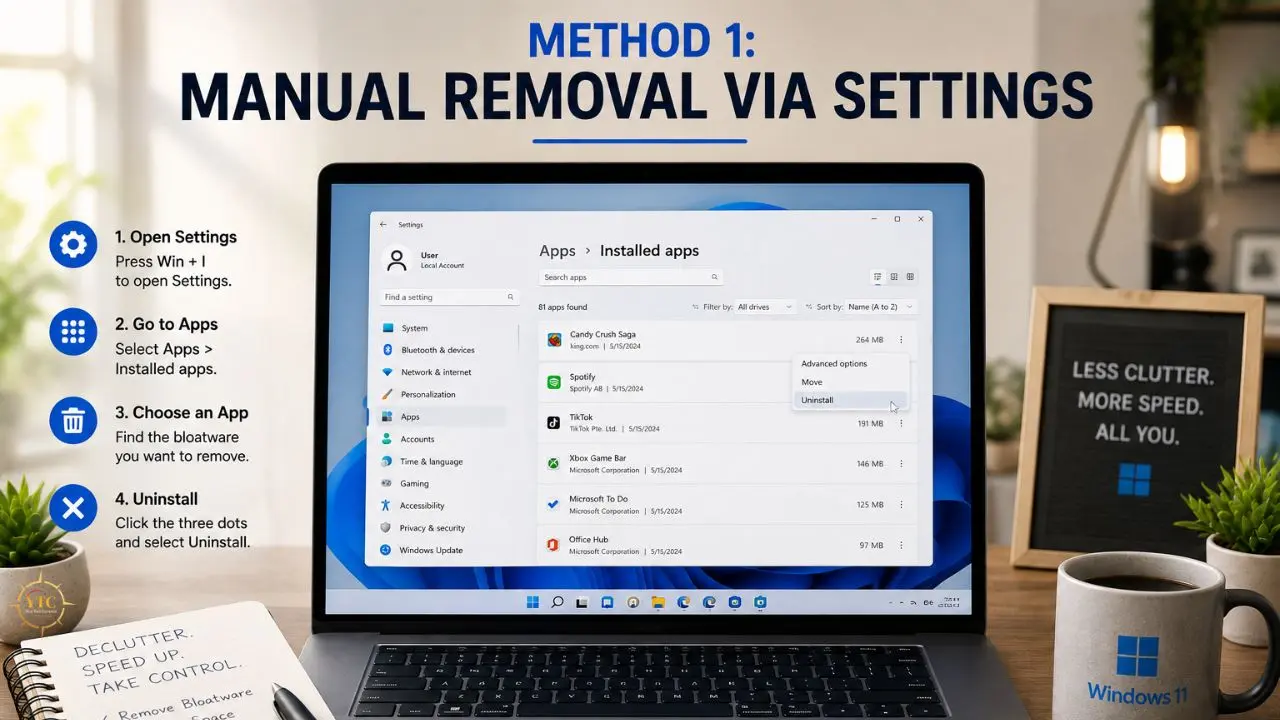
This is the safest place to start. Open Settings > Apps > Installed apps. Scroll through the list and uninstall anything you recognize and do not want. Solitaire Collection, News, Weather, To Do, Movies & TV, Clipchamp, LinkedIn, Spotify, Kindle, and WhatsApp can all go. On Windows 11 24H2 and newer, the Copilot app can be uninstalled from the same menu; on earlier versions, you can hide it from the taskbar and disable related surfaces.
Next, open Settings > Apps > Startup and disable any apps that launch with Windows. Teams, OneDrive, and, in some images, Xbox Game Bar or OEM utilities are common culprits. Then go to Settings > Personalization > Start and turn off “Show recommendations for tips, shortcuts, new apps, and more,” “Show recently added apps,” and related recommendation toggles.
For File Explorer, open the folder, click the three‑dot menu, select Options, and in the View tab, uncheck “Show sync provider notifications” and “Show recommended content.” This removes most OneDrive and Microsoft 365 promotional banners and tips that appear in your folders.
Finally, go to Settings > Privacy & security > Diagnostics & feedback. Set diagnostic data to “Required” only, turn off “Improve inking and typing,” and disable “Tailored experiences.” This is the manual privacy baseline that reduces, but does not eliminate, system telemetry.
The pros are obvious: it is safe, fully reversible, and requires no downloads. The cons are that it is tedious, it does not remove system‑level telemetry services, and Microsoft or your OEM may reinstall or re‑promote some apps after cumulative updates.
Method 2: PowerShell and Winget
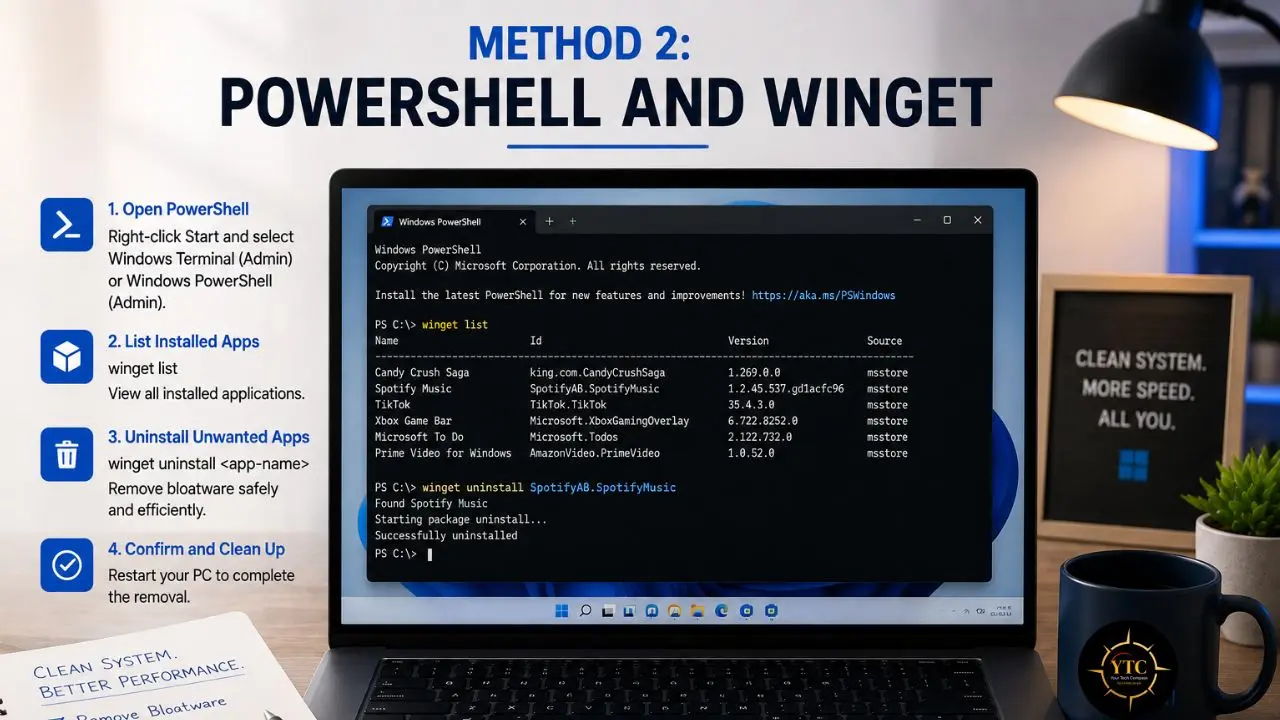
For apps that resist the Settings uninstaller, PowerShell and Winget are the next steps. Winget is Windows 11’s built‑in package manager and typically performs clean uninstalls by invoking each app’s own uninstaller, which is simpler than raw PowerShell for many desktop apps.
Open Terminal or PowerShell as Administrator, then run winget list to see installed apps. Find the one you want to remove and run, for example, winget uninstall –id Microsoft.OneDrive or winget uninstall –id Microsoft.Teams. Winget generally handles cleanup via the app’s uninstaller, though some apps may leave behind services, tasks, or user data, and tightly integrated apps like OneDrive or Teams consumer may not fully uninstall on all images.
For deeper system‑level removal, PowerShell’s Get-AppxPackage and Remove-AppxPackage commands target the underlying app packages. Commonly removed packages include:
- Microsoft.BingWeather (Weather)
- Microsoft.BingNews (News)
- Microsoft.WindowsMaps (Maps)
- Microsoft.MicrosoftSolitaireCollection (Solitaire)
- Microsoft.ZuneVideo (Movies & TV)
- Microsoft.ZuneMusic (Groove Music)
- Microsoft.People (People)
- Microsoft.Todos (Microsoft To Do)
- Microsoft.PowerAutomateDesktop (Power Automate)
- Microsoft.Clipchamp (Clipchamp)
- MicrosoftTeams (Teams consumer)
- Microsoft.XboxApp and related Xbox packages (if you do not game)
Run these as Administrator with commands like: Get-AppxPackage Microsoft.BingWeather | Remove-AppxPackage (and, for all users, Get-AppxPackage -AllUsers … | Remove-AppxPackage -AllUsers).
The pros: this removes packages that Settings cannot touch and can clean up provisioned apps. The cons: removing the wrong package can break the Microsoft Store or app dependencies (and in some cases affect updates), and you must run as Administrator.
Method 3: Third-Party Debloating Tools
Win11Debloat
Win11Debloat is a PowerShell script hosted on GitHub that automates the removal of apps, telemetry, Copilot, and Start menu suggestions. It runs in custom mode, letting you pick exactly what to remove rather than accepting a blanket default. The script also supports creating a system restore point before making changes.
The catch: you may need to bypass or relax PowerShell’s execution policy to run it, which is a security trade‑off. And as with any script downloaded from the internet, you should read the source code or run it in a virtual machine first if you are uncertain.
Chris Titus Tech’s Windows Utility
This is a popular GUI tool that wraps PowerShell debloating in a clickable interface. It offers toggles for telemetry, bloatware removal, Windows Update behavior, and privacy settings. It is also faster than manual removal and typically prompts to create a restore point before applying tweaks.
The limitation is opacity. A GUI hides what it does under the hood, and overzealous toggles can strip packages you actually need. I recommend using this tool only if you understand what each toggle targets, and for most users, starting with the “Desktop/Standard” preset is safer than aggressive profiles.
O&O ShutUp10++
Focused specifically on privacy settings and telemetry rather than app removal. It does not uninstall apps, but it disables dozens of data‑collection settings with reversible toggles and can create a system restore point before applying mass changes. Best used as a companion to manual app removal, not a replacement.
⚡ Removal Methods Compared

Method | Time Required | Risk Level | Reversibility | Best For |
Manual Settings | 20–30 min | Very Low | Mostly reversible (reinstall via Store/vendor) | Beginners, cautious users |
Winget | 10–15 min | Low | Mostly reversible (reinstall via Store/winget) | Intermediate users, clean uninstalls |
PowerShell | 10–15 min | Moderate | Partially reversible (some changes may require repair/reset) | Advanced users |
Third‑Party Tools | 5–10 min | Moderate‑High | Varies by tool (restore points/backups recommended) | Power users with backups |
What You Should NEVER Remove
Some packages are structural. Removing them breaks Windows in ways that are difficult to repair without a full reinstall.
Windows Security (Defender) and its dependencies must stay. On supported Windows 11 installations, Defender cannot be permanently removed; it can be paused temporarily, but it often re‑enables itself, and tamper protection blocks many changes. The Microsoft Store and its framework packages must stay; without them, you cannot update Store apps or install new ones. .NET Runtime and Visual C++ Redistributables must stay; many applications depend on them. Windows Update components must stay unless you want a permanently unpatched system. Audio and display drivers must stay.
A special note on Microsoft Edge: some guides recommend removing it, but Edge is now deeply integrated into Windows 11. It provides WebView2, which powers system features, Store apps, and third‑party applications (including Outlook, WhatsApp, widgets, and modern sign‑in flows). Removing or breaking Edge/WebView2 can cause blank sign‑in windows, frozen embedded pages, and apps that refuse to open. If you prefer another browser, set it as default and hide Edge from the taskbar. Do not uninstall it; if WebView2 apps fail, repair the Microsoft Edge WebView2 Runtime via Settings or Windows Update.
The Honest Risks and Limitations
Windows Update reinstalls apps. This is not a bug; it is Microsoft’s business model. Cumulative updates and featured‑content mechanisms can restore “recommended” apps like Candy Crush and Copilot, especially for new user profiles. On Windows 11 Enterprise and Education 25H2 and later, IT admins can use the “Remove default Microsoft Store packages from the system” policy (off by default, configured via GPO/Intune) to block reinstallation of selected inbox apps, but Home and Pro users do not have this option. The cat‑and‑mouse game is real, and there is no permanent fix without blocking specific update components, which is risky.
Breaking the Microsoft Store is another common failure mode. Removing framework packages like Microsoft.WindowsStore or Microsoft.VCLibs bricks Store functionality, preventing legitimate app updates and new installations.
Corporate and MDM environments add another layer. Debloating can violate IT policies or break management tools. If your machine is company‑managed, check with IT before touching anything.
Over‑aggressive scripts are the most dangerous pitfall. Some community tools remove packages that appear unnecessary but are dependencies for other features. A script that strips 50 packages indiscriminately is playing Russian roulette with your system.
Finally, the performance miracle has limits. On a machine with 16 GB of RAM and an NVMe SSD, debloating yields marginal gains. The real benefit is on systems with 4 to 8 GB of RAM or mechanical hard drives. If your laptop is genuinely obsolete, no amount of app removal will make it pleasant in 2026.
Compared to buying a new laptop: Debloating a two‑year‑old Windows 11 machine can feel like a hardware upgrade for zero dollars. However, if your machine has 4 GB of RAM and a spinning hard drive, no amount of app removal will make it pleasant to use in 2026. Our best laptops for running AI tools locally cover what to look for when an upgrade becomes unavoidable.
Step-by-Step: The Safe Debloating Workflow
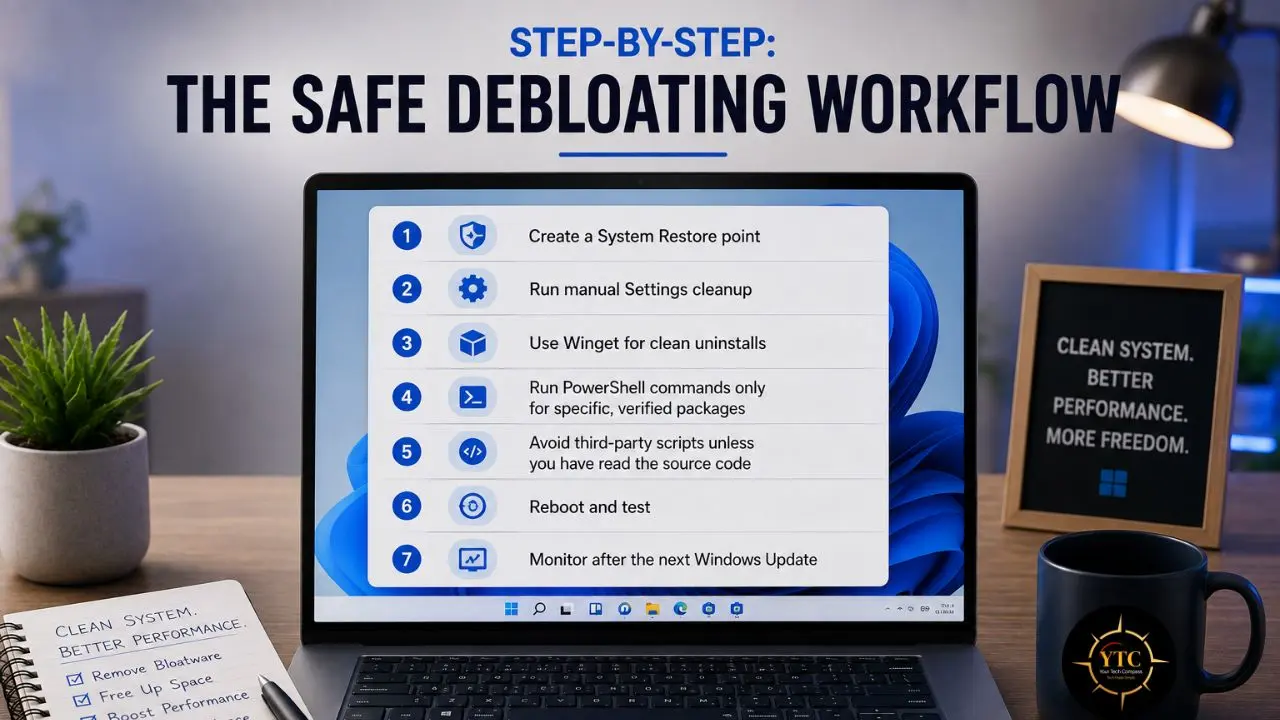
Step 1: Create a System Restore point. Search “Create a restore point” in the Start menu, select your system drive, and click Create. This is your undo button.
Step 2: Run manual Settings cleanup. Uninstall obvious apps, disable startup programs, turn off Start menu ads, and adjust diagnostic data settings.
Step 3: Use Winget for clean uninstalls. Run winget uninstall for OneDrive, Teams consumer, and other non‑essential apps. This is cleaner than PowerShell for standard apps. If winget reports an app isn’t removable, fall back to Settings or disable its startup/background behavior.
Step 4: Run PowerShell commands only for specific, verified packages. Stick to the safe‑to‑remove list above. Do not batch‑remove everything. Use -AllUsers only when necessary and understand it affects all profiles.
Step 5: Avoid third‑party scripts unless you have read the source code. If you use Win11Debloat or Chris Titus Tech’s tool, run it in custom mode and review every option.
Step 6: Reboot and test. Verify that the Store opens, Windows Update checks for updates, and Defender is running.
Step 7: Monitor after the next Windows Update. See what Microsoft reinstalls and repeat the manual removal as needed.
Real-World Use Cases
- New laptop owners clean a fresh OEM install loaded with manufacturer bloatware on top of Microsoft’s. Dell, HP, and Lenovo preload their own utilities, trials, and promotional software. Our Lenovo Legion laptops review covers where gaming laptops sit on the hardware spectrum, and debloating is essential on any new Windows machine, regardless of brand.
- Low‑spec machine users extend the usable life of 4‑ to 8GB RAM laptops by reclaiming system resources. For users managing laptop health more broadly, our guide to checking laptop battery health complements the performance optimization approach.
- Privacy‑conscious users reduce the telemetry attack surface without switching to Linux. For users already concerned about Windows security, our Microsoft Defender coverage explains what the built‑in antivirus does and does not protect against.
- Corporate refugees clean a personal machine after using a locked‑down work PC. If you are transitioning between work and personal setups, our Windows for Mac guide covers the broader ecosystem context.
- Parents setting up family computers remove games, social apps, and ads before handing the device to a child.
Who Should Debloat Windows 11
- Users with 8 GB of RAM or less who need every megabyte of memory.
- Privacy‑focused users who want minimal telemetry and advertising ID disabled.
- Anyone annoyed by Start menu advertising and File Explorer banners.
- Users who are comfortable with Settings menus and basic command‑line tools.
- African users on older or refurbished hardware, where performance gains extend machine lifespan.
Who Shouldn’t Debloat Windows 11
- Users who rely heavily on Microsoft Store apps, Xbox Game Pass, and cloud gaming (especially Game Pass PC titles that depend on Store services).
- Corporate users on managed devices where IT policies prohibit modifications.
- Anyone uncomfortable with system‑level changes or PowerShell.
- Users who need every Windows feature intact (Windows Sandbox, Hyper‑V, etc.). Aggressive presets can disable related services; advanced users should review toggles carefully.
- People expecting a 2015 laptop to feel like a 2026 machine after debloating.
An Honest Note on the Review Landscape
Tech YouTube and Reddit communities are divided on debloating. One camp treats it as essential maintenance. The other says, “Just leave it alone; Microsoft knows best.” The truth sits in the middle: conservative debloating (manual Settings plus Winget) is safe and effective. Aggressive PowerShell scripts that strip 50‑plus packages are where systems break.
Microsoft’s increasing integration of Copilot and Edge into system components means the “safe to remove” list is shrinking with each Windows update. Copilot was a taskbar icon in 2023; it is now a system app in 24H2, with deeper OS‑wide hooks in 25H2. Recall is an opt‑in feature on Copilot+ PCs (not available on standard x64 machines). The trend is toward deeper integration, not less.
Community tools vary wildly in quality. Some GitHub scripts are abandoned or target outdated Windows builds. Always verify the last commit date and the issues tab before running anything.
Windows 11 Debloating in Africa: Accessibility and Practical Realities
A Genuine Performance Win
Many African users run refurbished corporate laptops with 4 GB of RAM and mechanical hard drives. These machines are common because they are affordable, but they struggle with modern Windows 11 out of the box. Removing bloatware can recover several hundred MB to around 1 GB of RAM on many systems (up to 1–2 GB on heavily bloated OEM images) and reduce boot time from minutes to seconds. This is free performance optimization with no USD subscription, no credit card, and no hardware purchase required.
Connectivity and Update Realities
Windows Updates are already slow and data‑heavy on metered connections. Debloating does not significantly reduce update size, but it does reduce background data usage from telemetry, sync services, and app updates. Disabling or removing OneDrive is particularly valuable when cloud storage sync consumes limited bandwidth; marking networks as metered further curbs background activity.
Piracy and Activation Risks
Some third‑party debloating tools circulate through unofficial channels and carry malware payloads. Users in markets with limited access to official software may download compromised “Windows optimizers” from forums or file‑sharing sites. The recommendation is simple: stick to manual methods, Winget, or verified open‑source tools from GitHub with active maintenance.
Practical Recommendations
Manual Settings removal is the safest path for users without technical support networks. PowerShell scripts should be copied and pasted only from official Microsoft documentation or verified repositories. The performance gain is most meaningful on hardware that is common in African markets but considered obsolete in Western contexts.
The broader tech landscape on the continent is something we track across our AI in Africa coverage. For general tech guidance, our Tech Guides category covers complementary topics like how to take a screenshot on Windows and how to factory reset a Lenovo laptop.
FAQs
Yes, if you stick to manual Settings removal or Winget uninstalls for recognizable apps. PowerShell and third‑party scripts carry more risk. Always create a System Restore point first.
Open Settings > Apps > Installed apps, then uninstall anything you recognize and no longer need. Then disable startup programs and turn off Start menu recommendations. This takes 20 to 30 minutes and is fully reversible.
On low‑spec machines with 4–8 GB of RAM, yes. You can recover several hundred MB to around 1 GB of RAM on many systems (up to 1–2 GB on heavily bloated images) and reduce boot time. On high‑end machines with 16 GB RAM and SSDs, the difference is marginal. The interface cleanliness improvement is universal.
Yes. Cumulative updates periodically restore “recommended” apps, often for new user profiles or via featured content. Home and Pro users must remove them again manually. Enterprise and Education users on 25H2 and later can block reinstallation via Group Policy/Intune.
You should not. Edge is deeply integrated into Windows 11 via WebView2, which powers system features and Store apps. Removing it breaks functionality. Set your preferred browser as the default and hide Edge from the taskbar instead. If WebView2 apps fail, repair the Microsoft Edge WebView2 Runtime via Settings or Windows Update.
Never remove Windows Security (Defender), the Microsoft Store and its framework packages, .NET Runtime, Visual C++ Redistributables, Windows Update components, or audio and display drivers. These are structural, and breaking them requires a full reinstall.
Final Thoughts
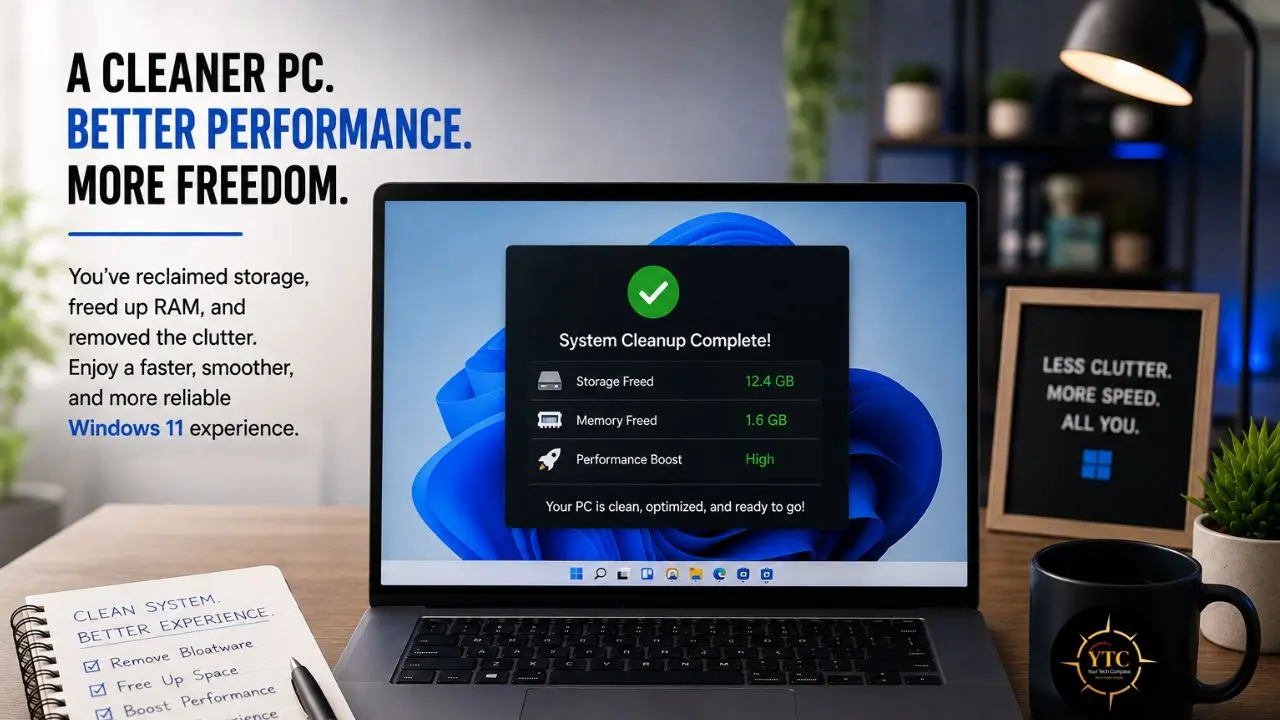
Windows 11 bloatware removal is one of the most effective free optimizations you can perform on a PC. The manual route is safe, reversible, and takes less time than watching a movie. The gains are real (a cleaner interface, lower RAM usage, fewer background processes), but they are not magic. Measured RAM savings vary by image (modest on clean installs, more noticeable on OEM‑bloated machines); a debloated 4 GB laptop is still a 4 GB laptop.
Go slow. Use Settings first. Create a restore point. Treat PowerShell like a power tool: effective in the right hands, dangerous in careless ones. And accept that Microsoft will keep putting apps back, because your desktop is their storefront. The debloating game is not won in a single afternoon; it is defended every Patch Tuesday.
The tech world moves fast; stay ahead of it at YourTechCompass.com.