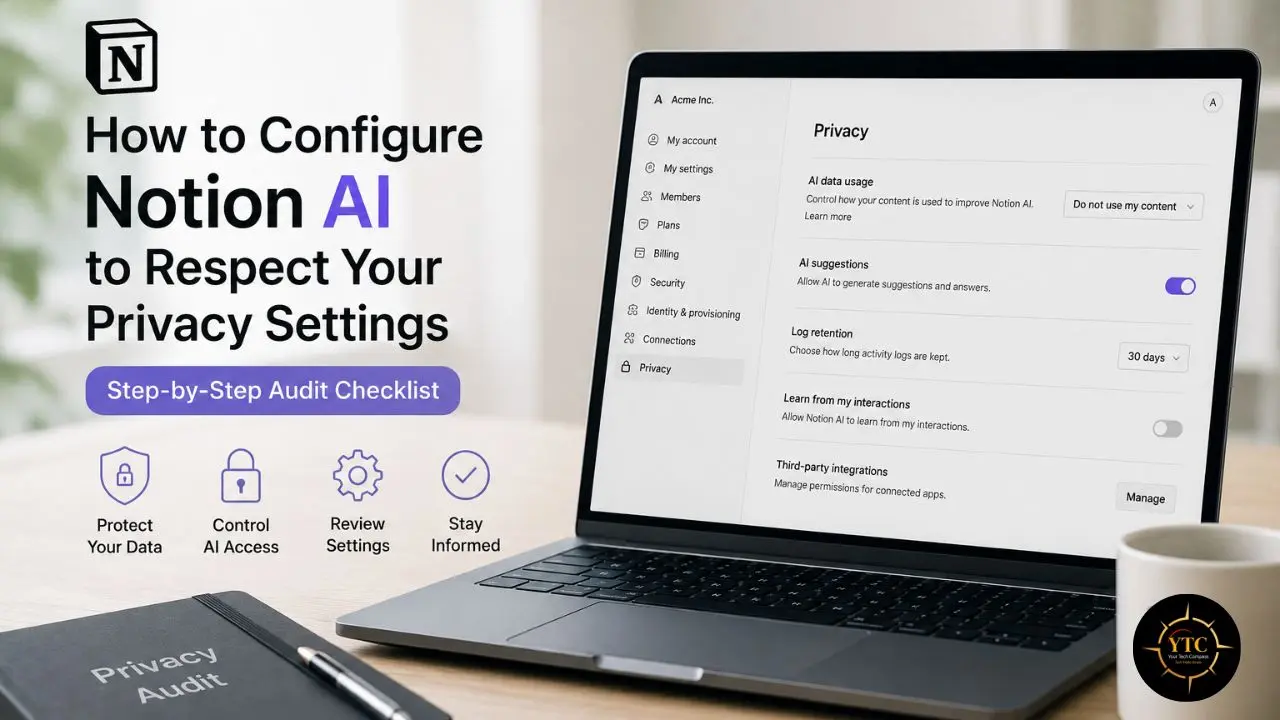
You’ve probably hovered over the “Ask AI” button in Notion more than once, and the hesitation wasn’t “will this help me?” It was something quieter: “What happens to my notes once I click this?” That instinct is reasonable. Notion workspaces often hold client contracts, business strategy, personal journals, and financial planning, exactly the kind of content you’d never paste into a random AI chatbot without thinking twice. And yet most Notion AI content skips straight past that hesitation and goes directly to prompts, templates, and productivity hacks, as if the privacy question doesn’t exist or doesn’t matter.
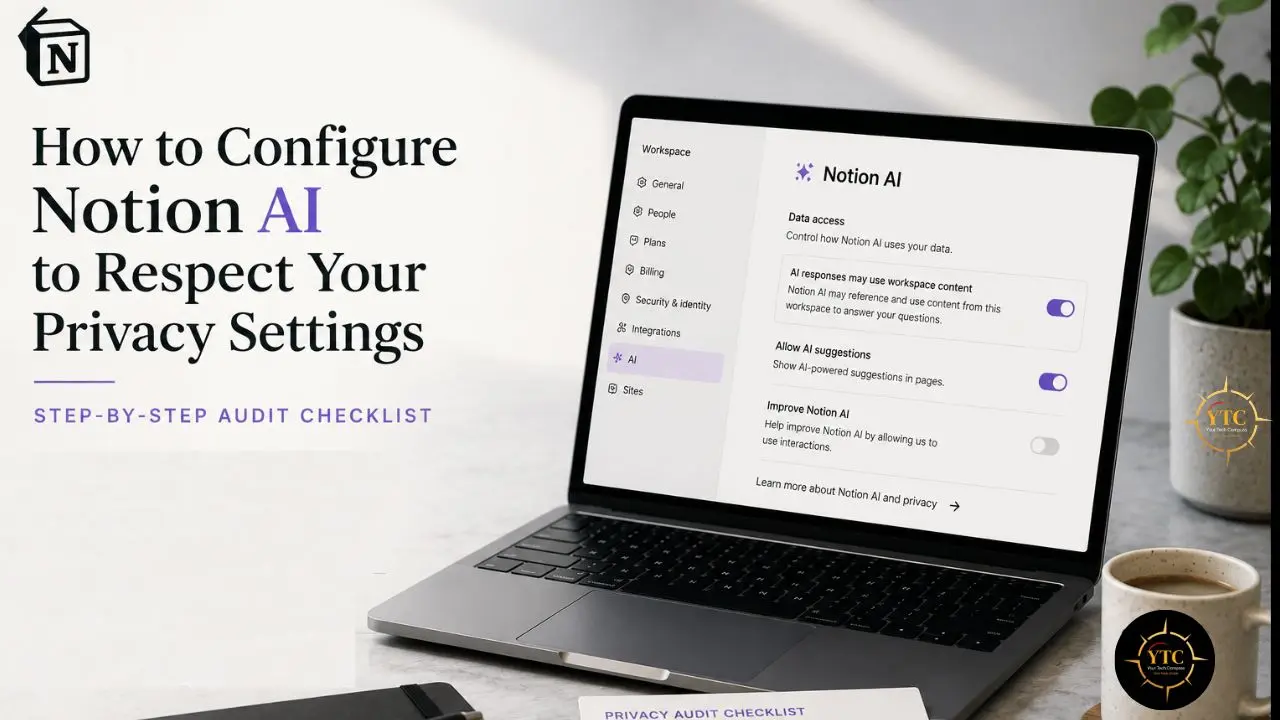
This isn’t a feature tutorial. It’s a privacy configuration guide built specifically to answer the question most Notion AI content avoids. I’ll walk you through exactly which settings control what Notion AI can access, what “data training” actually means versus what most people fear it means, how third-party AI model providers fit into the picture, and a step-by-step audit checklist you can run today in about twenty minutes to confirm your workspace is configured the way you think it is. This is for you, whether you’re a solo user with sensitive personal notes, a freelancer storing client information in Notion, a small business owner responsible for a growing team’s workspace, or an admin who enabled Notion AI without reading what it actually does first.
What Notion AI Actually Does With Your Data: The Plain-Language Explanation
Let me cut through the marketing language and explain the actual data flow, because most of the anxiety around Notion AI comes from not knowing what genuinely happens when you click that button.
When you use Notion AI, your page content, or the specific content you’ve selected, is sent to an underlying AI model to generate a response. Notion currently uses various large language models hosted by Notion and by organizations such as Anthropic and OpenAI. Notion continuously evaluates LLM providers and their models to deliver the highest-quality experience for users. Consequently, Notion AI isn’t a single proprietary model; it’s a routing layer that sends your request to one or more third-party providers, depending on the specific feature you’re using.
It’s worth distinguishing between prompted use (you click “Ask AI” or use an AI block and explicitly request a response) and passive or background use, where Notion AI features like semantic search or autofill might process content automatically as part of their operation. Understanding which category a given feature falls into helps you reason about your actual exposure rather than treating “Notion AI” as one undifferentiated risk.
The Training Data Question: Answered Directly
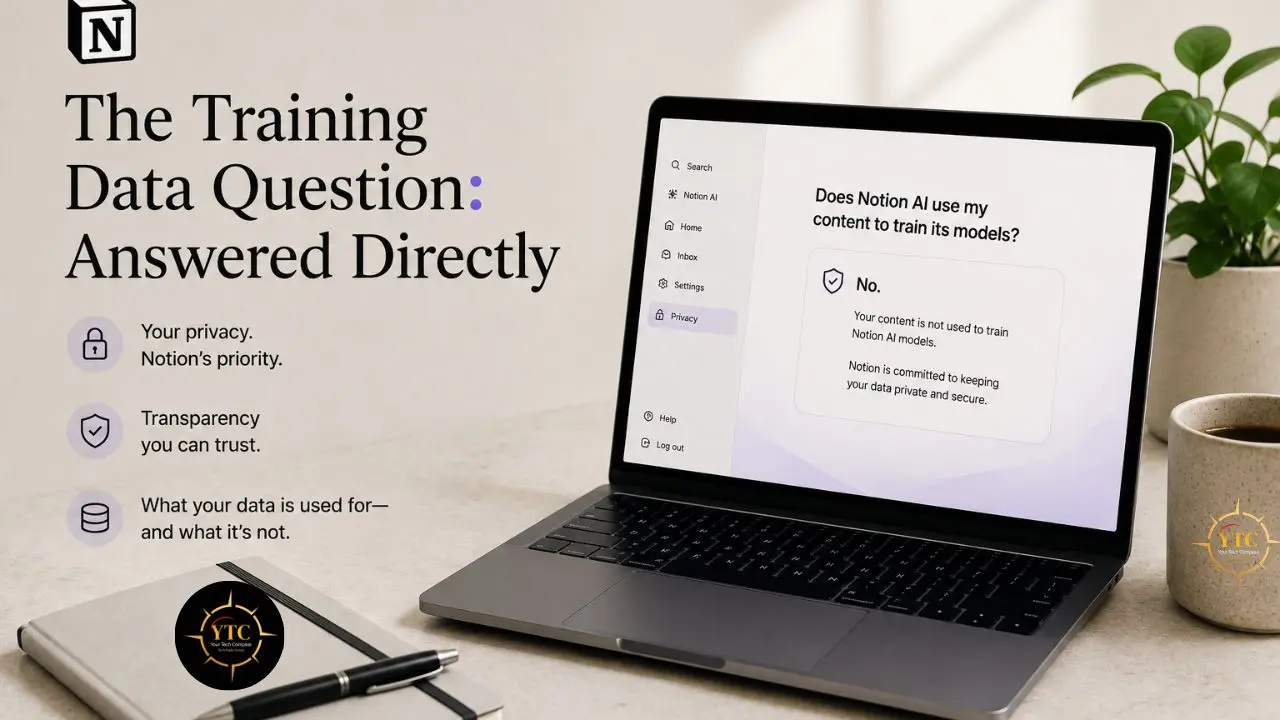
This is the question underneath most of the anxiety, and Notion’s stated policy is clearer than most people assume. Notion AI will not use your data to train its models unless you opt in to a request to share your data. Any information used to power Notion AI is shared with AI subprocessors for the sole purpose of providing you with Notion AI features, and Notion has specific contractual agreements in place with those subprocessors that prohibit using customer data to train their models.
That distinction matters more than it might initially seem: processing is the temporary use of your content to generate your specific answer. Training is the process of using your data to permanently improve the model for other users at scale.
These are categorically different things, and most of the confusion around Notion AI comes from conflating them. By default, your data is processed (because that’s how the feature works), but not used for training (because Notion’s contracts with its AI subprocessors explicitly prohibit it), unless you specifically opt in through Notion’s separate AI LEAP Program, which exists precisely because some users want to actively contribute their data to help improve the product and are given the choice to do so.
What Actually Leaves Your Workspace
When you use Notion AI, what’s transmitted is the specific page or selected text you’re working with, plus relevant connected context if you’re using a cross-page search or Q&A feature that needs to reference multiple pages to answer your question. This does not mean your entire workspace is transmitted on every single AI interaction. The scope is bounded by what the specific feature needs to do its job, though, as you’ll see in Section 2, that scope is also bounded by your existing sharing permissions, which is exactly why permission hygiene matters as much as the AI toggle itself.
The Retention Detail Most Guides Miss
Here’s a detail that matters significantly more than most surface-level Notion AI guides acknowledge: how long your data sits with Notion’s AI partners depends entirely on your subscription plan. For the Free, Plus, and Business plans, AI providers can retain your data for up to 30 days, which they state is for monitoring abuse and misuse. For Enterprise plans, Notion uses zero-retention APIs, meaning data is deleted as soon as your request is processed, with no retention window.
Consequently, the privacy posture you’re actually operating under depends not just on the toggles you configure but also on which plan tier your workspace is on. If you’re handling genuinely sensitive client or regulated data on a Personal or Plus plan, that 30-day retention window with third-party AI providers is a material fact you should factor into your risk assessment, not a footnote.
The Core Privacy Settings: Where They Live and What They Do
Now let’s walk through the actual settings, step by step, with the exact navigation paths.
Setting 1: AI Data Training Opt-In/Opt-Out (Workspace Level)
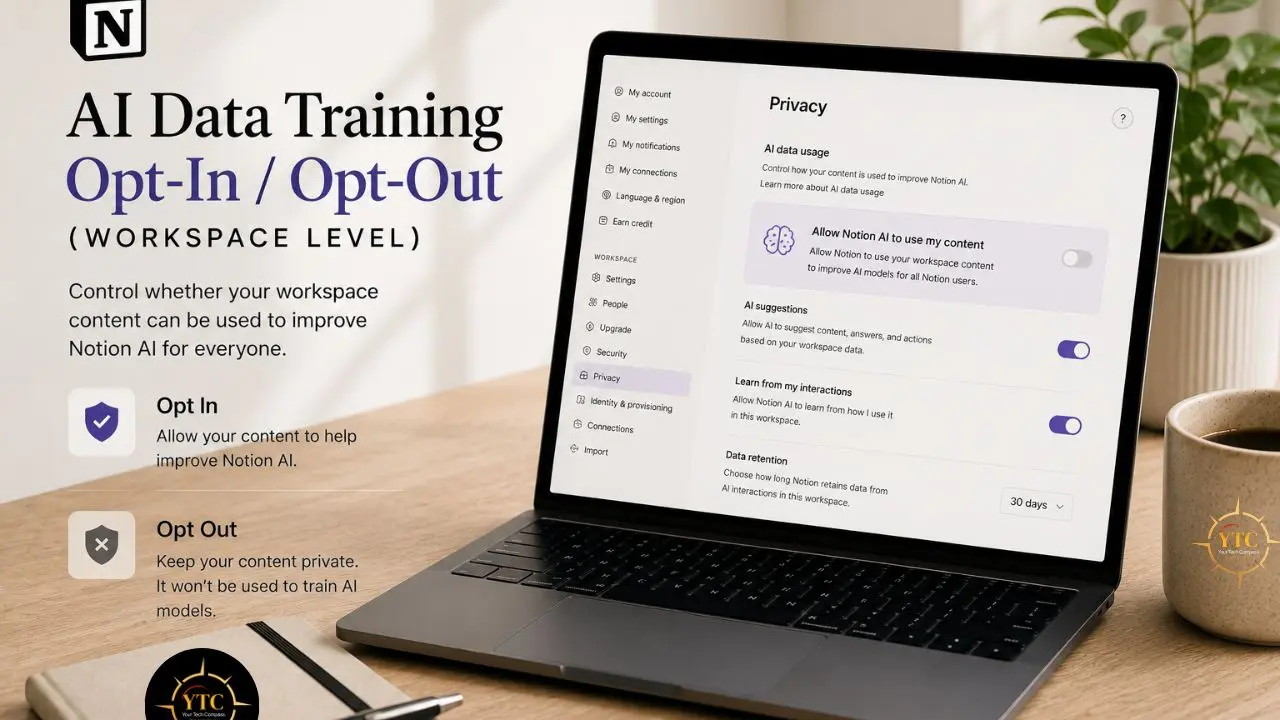
Notion’s default position is that your content is not used for AI training. The AI LEAP Program is an opt-in mechanism: by default, you’re already excluded, and you only need to take action if you want to actively contribute data, not to avoid it.
To verify your current status:
- Click your workspace name in the top left
- Select “Settings & Members”
- Navigate to the Settings tab
- Look for the AI section and confirm whether you’ve opted into the AI LEAP Program (if you haven’t deliberately opted in, you’re already excluded by default)
This is worth verifying directly rather than assuming, since settings interfaces change with product updates, and a verification takes thirty seconds.
Setting 2: Workspace AI Access Controls (Admin Level)
For team and business workspaces, admins can control which members have access to AI features. This matters in shared workspaces where you may want to restrict AI access to specific roles or disable it workspace-wide while your organization reviews its policies.
To configure:
- Settings & Members → Security & Data
- Locate the AI or Connected Apps & AI section
- Toggle workspace-wide AI access on or off
- On Enterprise plans, configure role-based AI permissions if your plan includes that granularity
Setting 3: Page and Database-Level Permissions (The One Most People Miss)
This is the setting that determines your actual exposure more than any AI-specific toggle, and it’s the one most privacy-conscious users skip because it doesn’t live inside an “AI” menu. Notion AI’s access to your content is bound by your existing page permissions.
If AI can reference a page, it’s because you already have access to that page through your normal workspace permissions. Consequently, if your sharing settings are loose (e.g., a sensitive page set to “Anyone with the link can edit”), AI features inherit that same loose boundary. Auditing your sharing settings independently of your AI settings is not optional; it’s the foundation on which every AI privacy setting sits.
Setting 4: Third-Party AI Model Connections (Connected Apps)
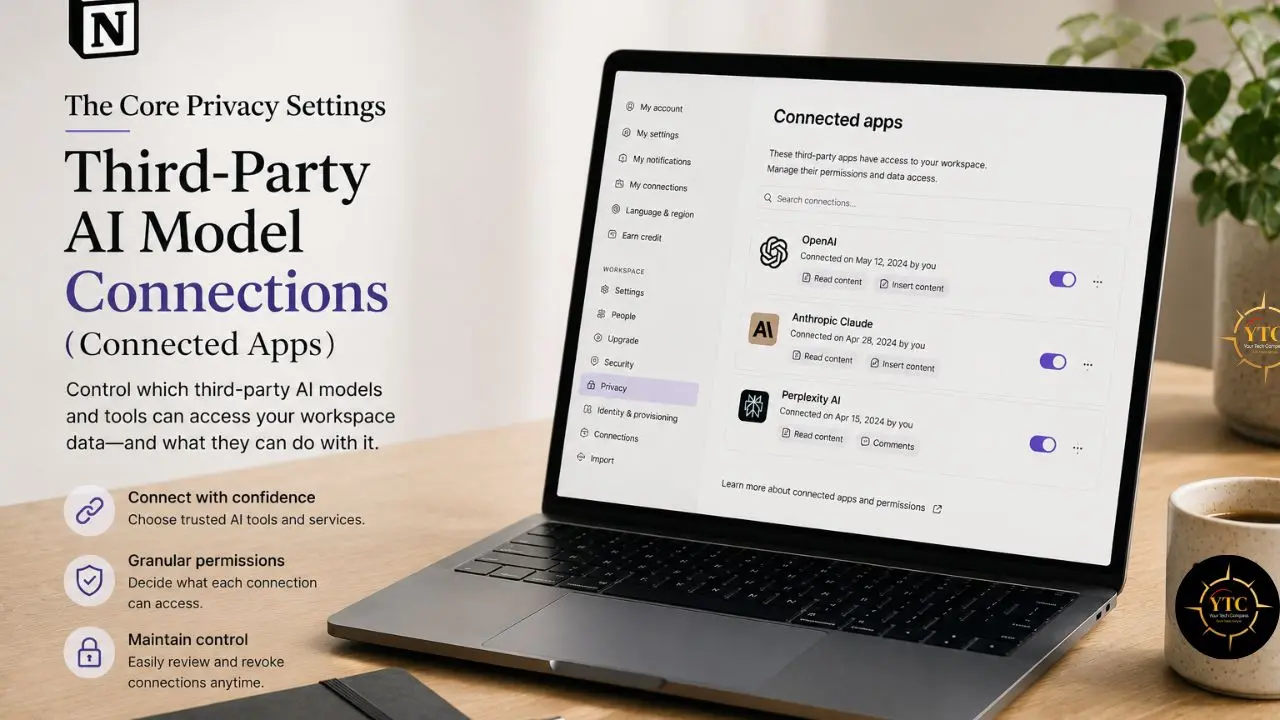
If you’ve connected external AI tools, plugins, or marketplace integrations to your Notion workspace via API, each one is a separate privacy surface with its own data-handling policy, entirely independent of how well your core Notion AI settings are configured.
To review:
- Settings & Members → Connections
- Review every listed connected app
- Remove any integration you don’t actively recognize or use
- For integrations you keep, check their individual privacy policies. Notion’s own commitments don’t automatically extend to third-party integrations built on top of its API.
This is particularly relevant if you’ve connected Notion to automation platforms. Our Zapier review covers how that specific integration handles data in transit between connected apps, which is worth understanding if your Notion workspace is part of a larger automated workflow, since each hop in that chain is its own privacy surface, not just the AI features sitting inside Notion itself.
Setting 5: Data Loss Prevention Alerts (Enterprise)
For Enterprise plan customers, Notion offers a meaningful additional layer: they can trigger data loss prevention alerts for sensitive content in their workspace via third-party integration partners, and this coverage explicitly includes content in an AI prompt and AI-generated content. If your organization handles regulated data (health information, financial records, legal documents), this is the feature tier where genuine compliance-grade monitoring becomes available, and it’s a meaningful reason some organizations conclude that the Enterprise upgrade is justified specifically for AI governance.
If you’re weighing Notion against other knowledge management tools partly on privacy grounds, it’s worth knowing that local-first alternatives handle this question completely differently. Our Notion vs Obsidian comparison covers how Obsidian’s local-storage architecture sidesteps the third-party AI processing question entirely, since your notes never leave your device by default. Similarly, our best open-source productivity tools roundup profiles several tools where self-hosting removes the subprocessor question altogether, a meaningfully different privacy posture than any cloud-based AI workspace, Notion included.
The Notion AI Privacy Audit Checklist: Run This Today
This is the centerpiece of this guide, a scannable checklist you can complete in about twenty minutes.
☐ Step 1: Confirm Your AI Training Opt-In Status
Go to Settings & Members → Settings → AI. Verify whether you’ve opted into the AI LEAP Program. If you haven’t deliberately opted in, you’re already excluded from training use by default. Verify rather than assume, and note the current state for your own records if you’re documenting compliance for a business.
☐ Step 2: Review Who Has AI Access In Your Workspace
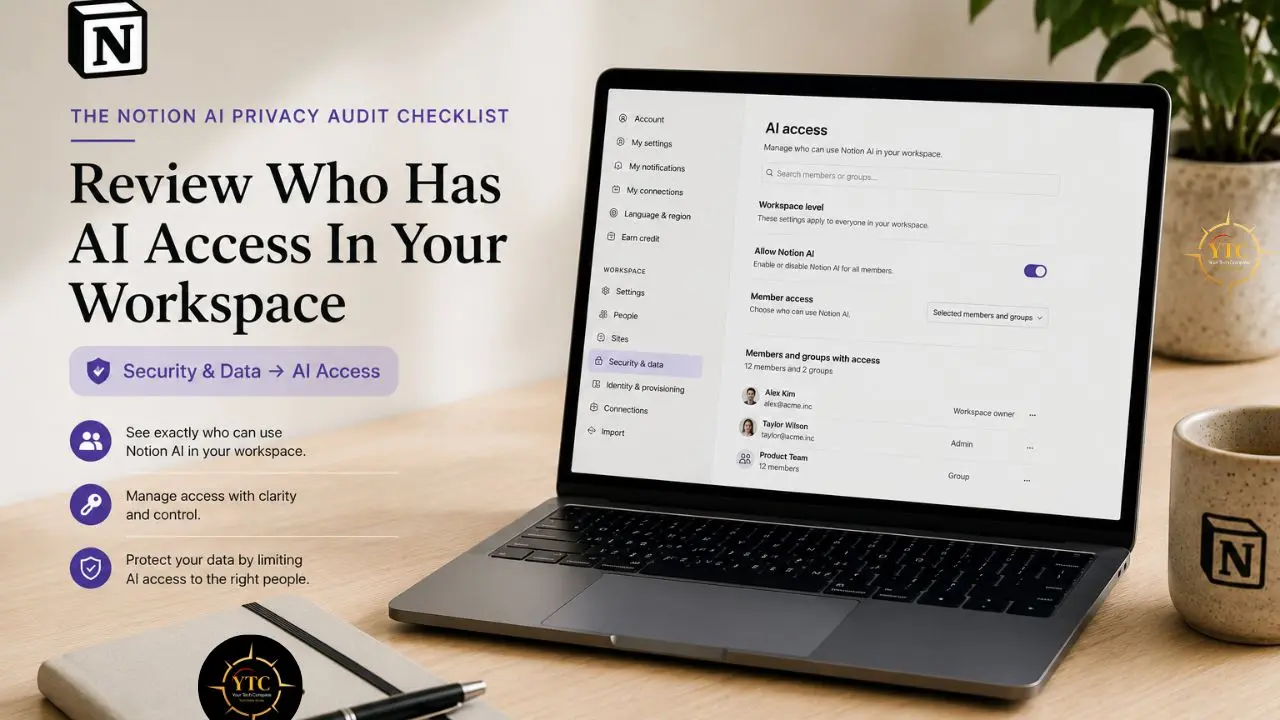
If you manage a team workspace, check Security & Data → AI Access. Confirm AI is enabled only for the roles or members who genuinely need it. If you’re still evaluating whether to adopt AI features at all, disable workspace-wide access until your organization has reviewed its policy.
☐ Step 3: Audit Your Most Sensitive Pages’ Sharing Settings
Identify your five to ten most sensitive pages: client data, financial information, personal journals, and legal documents. Check each page’s Share settings individually. Downgrade any page set to “Anyone with the link” that contains sensitive information. Remove guest access that’s no longer needed for active collaboration.
☐ Step 4: Review All Connected Third-Party Apps
Go to Settings & Members → Connections. Remove unused or unrecognized integrations. For any integration that specifically uses AI features, check its individual privacy policy; don’t assume Notion’s commitments extend to it.
☐ Step 5: Check Your Plan’s Data Retention Tier
Confirm whether you’re on Free, Plus, Business, or Enterprise. Remember that non-Enterprise plans have a 30-day retention window with third-party AI providers, whereas Enterprise plans use zero-retention APIs. If you’re handling sensitive business or client data on a Personal or Plus plan, this retention difference is worth weighing seriously when you evaluate whether an upgrade is warranted, not as an upsell consideration, but as a genuine data governance one.
☐ Step 6: Establish a Content Classification Habit
Before using AI on any page going forward, pause and ask yourself: would I be comfortable with this specific content being processed by a third-party AI model, even temporarily? For genuinely sensitive content (legal specifics, medical details, unreleased financial figures), consider keeping it in a separate space with restricted AI access, or outside Notion entirely if a client contract requires it. This is also a good moment to evaluate whether your broader tool stack actually saves you time or just adds another data surface to manage.
Our guide to the best productivity apps that actually save time is a useful gut-check for that question.
☐ Step 7: Set a Recurring Quarterly Review
AI features and data policies evolve. Revisit this exact checklist every three months. A privacy configuration that was accurate in January may have shifted by the time a product update rolls out new AI capabilities in April.
What Notion AI Privacy Settings Don’t Protect You From
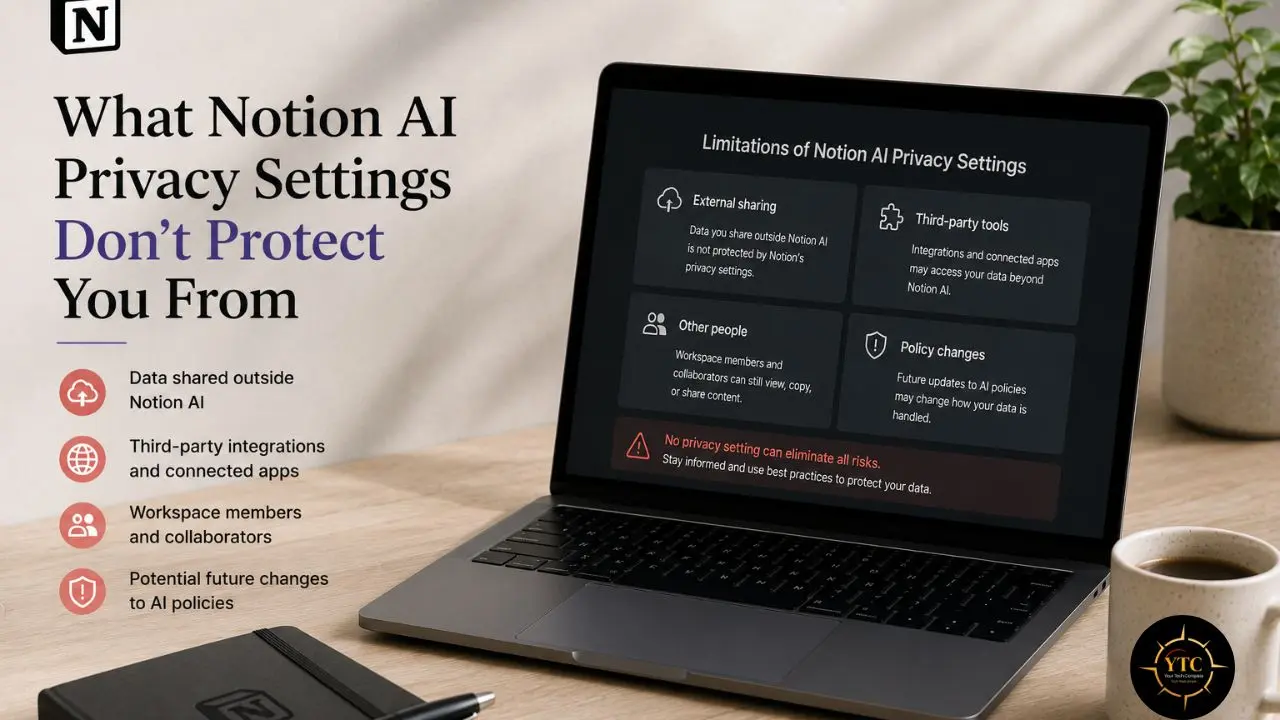
I want to be honest with you about the limits of what configuration alone can do, because overselling these settings would be a kind of dishonesty in itself. Here are things Notion AI privacy settings don’t protect you from:
Settings Don’t Change What You Choose to Type Into An AI Prompt
If you paste sensitive content directly into “Ask AI,” that’s a deliberate action in the moment; no toggle configured beforehand prevents it after the fact. The discipline of pausing before pasting matters more than any setting you’ll find in this guide.
Settings Don’t Retroactively Un-Process Past AI Requests
If you used Notion AI on sensitive content before reading this guide and adjusting your configuration, that processing already happened under whatever settings were active at the time. Privacy settings are forward-looking. They shape what happens next, not what already occurred.
Settings Don’t Protect Against Compromised Account Access
If your Notion credentials are compromised, your carefully configured AI settings are irrelevant; the underlying data is exposed regardless of how the AI toggles are set. This is exactly why the audit checklist above includes broader workspace security considerations, not just AI-specific toggles. Two-factor authentication and basic password hygiene remain the foundation on which everything else sits.
Third-Party Integration Risk Isn’t Fully Covered By Notion’s Own Commitments
A connected app with weak security practices is a privacy risk, independent of how well Notion itself handles your data. Every integration you’ve connected is its own privacy surface, with its own policies, breach history, and accountability — a point worth repeating from Section 2 because it’s the one most frequently overlooked.
Policies Change
AI companies, including Notion, update their data-handling practices periodically as the underlying technology, subprocessor relationships, and regulatory landscape evolve. What’s accurate about Notion AI’s data handling today may shift. This is precisely why the quarterly review habit in Step 7 matters more than treating this guide as a one-time setup task you complete and never revisit.
Notion AI Privacy for Specific User Types
Your actual risk profile and the right baseline configuration depend significantly on who you are and what you’re storing. Here’s the practical breakdown.
For Solo and Personal Users

The stakes are generally lower than in business use, but personal journals, financial planning notes, and health-related content deserve the same scrutiny you’d apply to business data. Recommended baseline: confirm you haven’t accidentally opted into the AI LEAP Program, and periodically review sharing settings on personal pages, even though you’re the only person with access today.
Circumstances change, and old share links can outlive their purpose. If privacy is your primary concern and you’re open to alternatives, our best AI productivity apps guide compares several tools on this dimension alone, not just feature depth.
For Freelancers and Consultants
Client data is the central concern here, and it’s worth taking seriously: confidentiality agreements with clients may include specific data-handling clauses that AI processing could affect, even unintentionally. Recommended baseline: maintain a clearly separated workspace section for client-confidential material, and consider keeping your most sensitive client documents outside Notion entirely if a specific contract requires it. Before using AI features on any client-related page, review whether your engagement agreement explicitly addresses third-party data processing (something most freelancers have never checked). It’s a five-minute read that can prevent a genuinely awkward conversation later.
For Small Business Owners
As your team grows, workspace-wide AI access controls stop being optional and start being a governance necessity. Recommended baseline: designate one workspace admin specifically responsible for running the quarterly privacy audit, and document your organization’s AI data policy on an internal page so new team members inherit clear expectations rather than guessing. This matters even more for distributed teams.
Our best productivity apps for remote workers guide covers broader tool-stack considerations when your team isn’t all reviewing settings from the same office. In addition, if you’re also evaluating how Notion AI stacks up against alternatives for a growing team, our Notion AI vs ClickUp AI comparison covers the feature and pricing trade-offs specifically for small teams making that call.
For Team and Enterprise Admins
Role-based AI permissions, formal data processing agreements, and compliance documentation become particularly relevant at this scale, especially if your industry is subject to GDPR, HIPAA-adjacent, or other regulatory obligations. Recommended baseline: run this checklist formally on a quarterly cadence, and maintain a record of configuration changes for your own compliance documentation. The zero-retention API architecture available on Enterprise plans, combined with data loss prevention alerts covering AI prompts and outputs, represents a meaningfully different risk posture from what’s available on lower tiers and is worth factoring into any procurement decision where AI governance is a stated requirement.
Notion AI Privacy Settings: Quick Reference Table
Setting | Where to Find It | What It Controls | Who Can Change It |
AI Training Opt-In (AI LEAP) | Settings & Members → Settings → AI | Whether your content can be used to improve models | Workspace owner/individual |
Workspace-Wide AI Access | Settings & Members → Security & Data | Whether AI features are available at all | Admins (Team/Enterprise) |
Page/Database Sharing | Individual page “Share” button | What content AI can reference based on access | Page owner/editor |
Connected Third-Party Apps | Settings & Members → Connections | External integrations with their own data policies | Workspace admin |
Data Retention Window | Determined by plan tier | 30 days (Free/Plus/Business) vs. zero-retention (Enterprise) | Not configurable (tied to plan) |
DLP Alerts On AI Content | Enterprise-only feature | Monitoring sensitive content in AI prompts/outputs | Enterprise admin |
FAQs
No. Notion AI will not use your data to train its models unless you specifically opt in through the AI LEAP Program. Notion has contractual agreements with its AI subprocessors, including OpenAI and Anthropic, that explicitly prohibit the use of customer data to train their models. By default, your content is processed temporarily to generate your specific response and is not retained or used to improve the underlying models for other users.
Not entirely. This is an important distinction to understand. Notion AI’s core functionality depends on routing your requests to third-party LLM providers like OpenAI and Anthropic, since Notion doesn’t host all of the underlying models itself. What you can control is whether that processed data is also used for training (it isn’t by default) and how long it’s retained afterward (up to 30 days on non-Enterprise plans, zero retention on Enterprise plans). If you want to avoid third-party processing entirely, the only option is not to use Notion AI features at all.
Run the seven-step audit checklist in this guide. It takes about twenty minutes and covers your training opt-in status, workspace AI access controls, sharing permissions on sensitive pages, connected third-party integrations, your plan’s data retention tier, and a recurring review habit. Configuration “correctness” depends on your specific risk tolerance and data sensitivity; there’s no single universal answer, but the checklist provides the complete picture to help you make an informed decision for your situation.
It can be, with the right configuration and genuine attention to what you’re processing. Notion’s default settings already exclude your content from AI training, and Enterprise plans offer zero-retention APIs and data loss prevention monitoring specifically for AI prompts and outputs. That said, “safe” depends heavily on your specific compliance requirements and any contractual confidentiality clauses with your clients. For genuinely sensitive client data, particularly under contracts with explicit data-handling restrictions, review your agreement’s specific language and consider whether Enterprise-tier protections are necessary before processing that content with any AI feature.
Disabling AI access going forward prevents new processing, but it doesn’t retroactively delete data already sent to third-party AI providers under your previous settings. On non-Enterprise plans, that data is subject to the standard 30-day retention window before deletion by the AI provider. On Enterprise plans, zero-retention APIs mean that data is deleted immediately after your original request is processed, regardless of when you later disable the feature.
Yes, meaningfully. Enterprise plans use zero-retention APIs, meaning your data is deleted by AI providers immediately after processing rather than retained for up to 30 days. Enterprise also unlocks data loss prevention alerts that specifically cover AI prompt content and AI-generated output, as well as more granular role-based AI access controls and formal data processing agreements. For organizations with genuine compliance obligations or particularly sensitive data, these differences are substantial enough to factor directly into the plan decision rather than treating Enterprise as simply a feature-count upgrade.
Conclusion
Configuring Notion AI’s privacy settings isn’t a five-minute task you complete once and forget about; it’s a workspace habit, built on actually understanding what each setting controls, auditing your sharing permissions on a recurring basis, and pausing before you paste sensitive content into any AI prompt, regardless of how your toggles are configured. The good news, based on Notion’s own documented commitments, is that the default posture is more protective than most users assume: your data isn’t used for training unless you actively opt in, and Notion has contractual prohibitions with its AI subprocessors that specifically prevent that use. The retention window (30 days on standard plans versus zero retention on Enterprise) is the detail most worth internalizing, because it most directly shapes your actual exposure if you’re handling sensitive material on a non-Enterprise plan.
The checklist in this guide takes about 20 minutes to run today, and running it quarterly keeps your workspace aligned with both your privacy expectations and any changes Notion makes to its AI architecture over time. As AI features become more deeply embedded into the everyday tools we already depend on (Notion among them), the habit of actually auditing privacy settings, rather than accepting defaults without question, is becoming a baseline digital literacy skill rather than an optional precaution reserved for the unusually cautious. This isn’t unique to Notion: the same scrutiny applies to every frontier AI model and tool covered in our AI Unboxed section, and it’s a question that’s increasingly relevant for AI adoption across African markets, where data governance frameworks are still catching up to the speed of deployment. Run the checklist today. Set the quarterly reminder. That’s genuinely the whole system.
Privacy-conscious productivity doesn’t mean avoiding AI tools; it means understanding exactly what you’re agreeing to before you click “Ask AI.” For more honest, detail-driven guides on the apps and tools you already use, head to YourTechCompass.com.