
I want to start with a frustration I hear constantly from people who use ChatGPT seriously. You open a new conversation and immediately spend the first four messages re-establishing who you are, what you’re working on, and how you like your output structured. You re-upload the same reference document you used last Tuesday. In addition, you explain your writing style again. Afterward, you re-clarify the context that ChatGPT had perfectly understood 48 hours ago, before the session reset and took everything with it. For casual, one-off questions, this context amnesia doesn’t matter much. For recurring professional work, it’s the single biggest source of friction in an otherwise genuinely powerful tool, and for a long time, the only real workarounds were either repeating yourself constantly or building Custom GPTs, which require meaningful setup effort.
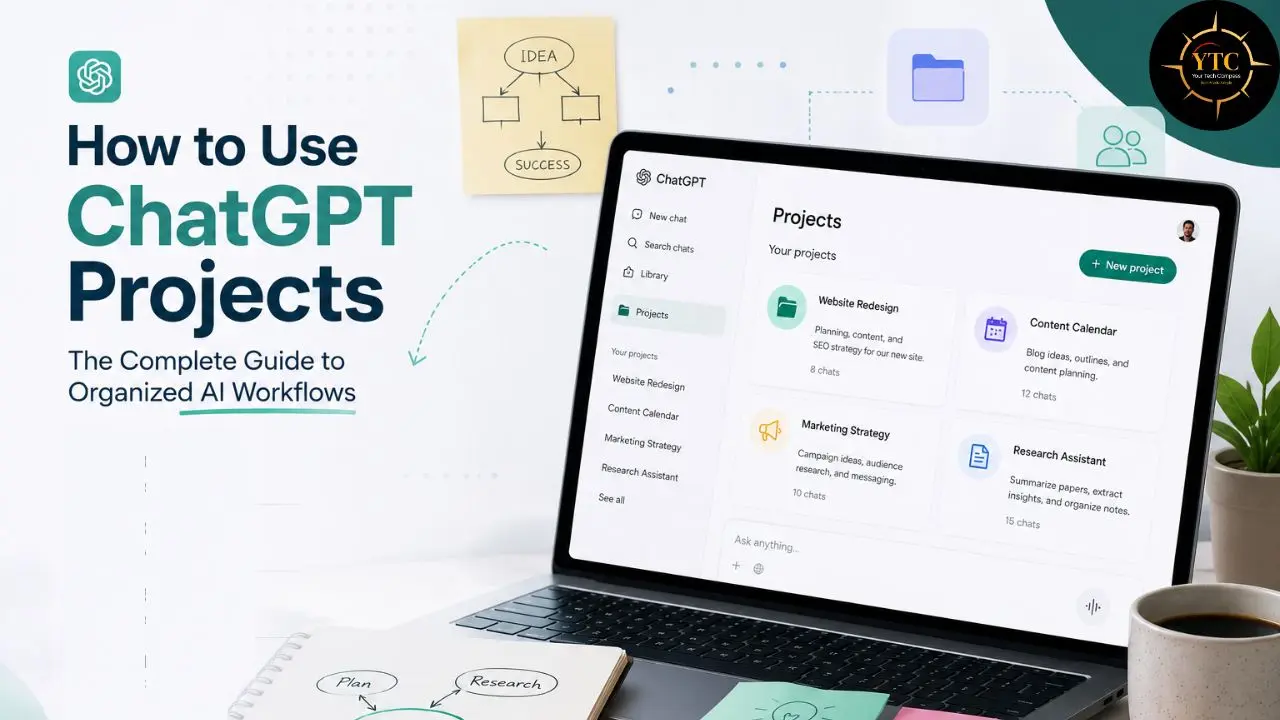
ChatGPT Projects are smart workspaces that keep everything related to a long-running effort in one place (chats, reference files, and custom instructions), all grouped together so ChatGPT stays on topic and helps you stay organized. This guide covers exactly how to use ChatGPT Projects effectively: how to create and configure one from scratch, how the file library and project instructions actually work, the memory system that most tutorials explain incorrectly, how Projects differ from Custom GPTs, and five specific use cases that show the feature at its most valuable. By the end, you’ll have a clear picture of how to set up Projects for your own recurring work, and the specific configuration choices that make the difference between a Project that’s genuinely useful and one that’s just another folder.
What Are ChatGPT Projects?
Before diving into setup, let me explain what a Project actually is at a structural level, because understanding the architecture makes every configuration decision clearer.
A Project is a dedicated space for a specific body of work or area of focus. It can hold chats, files, instructions, and related context in one place, so you don’t need to restate the same background every time you start a new conversation.
Projects are especially useful for work that continues over time. Instead of spreading materials across separate chats, you can keep everything together in one place and return to the same context when needed.
Think of it this way: in a regular ChatGPT conversation, you’re renting a room for the day. Everything you set up is cleared when you leave. A Project is more like having a dedicated office: your notes, reference materials, and working preferences are all there waiting for you every time you return.
What a Project Contains
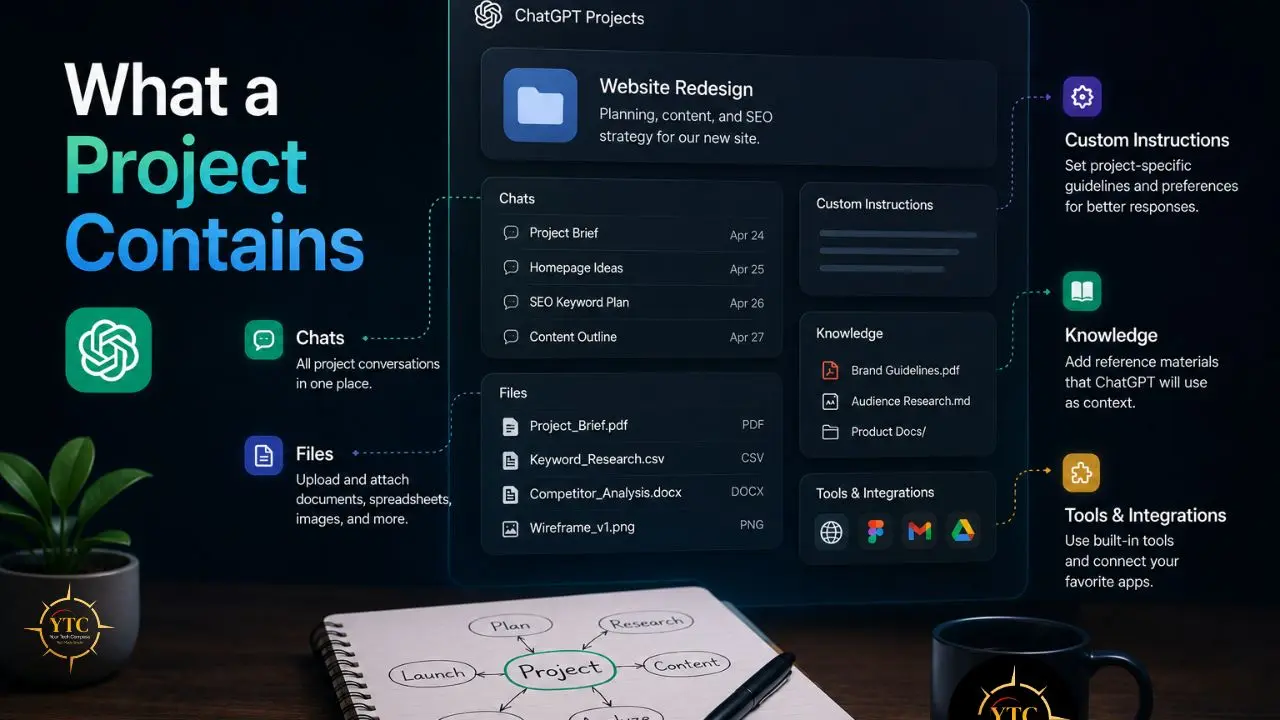
Each Project acts as a self-contained workspace with three layers: a system instruction set, uploaded files (5 to 40, depending on your tier), and a Project Memory scope that captures facts the model learns within that Project but does not bleed into the main chat or other Projects.
In practical terms, every Project you create holds:
- A name: purely for organizational purposes; it doesn’t affect AI behavior.
- Project instructions: system-level guidance that applies to every conversation within this Project.
- A file library: documents, PDFs, images, spreadsheets accessible in any conversation within the Project.
- Conversation history: all the chats you’ve had within this Project, grouped together.
- Project memory: context learned from your conversations within this specific Project.
Who Has Access
This is the detail that’s changed most recently and that many older tutorials get wrong. Projects are available to all users, free and paid, globally as of September 2025. Business, Enterprise, and Edu users can also share projects with teammates, making it easier to align on goals, share progress, and collaborate in ChatGPT.
In other words, you no longer need a Plus or Pro subscription to use Projects. If you have a ChatGPT account, you can create Projects. File upload limits vary by plan: Free users can upload up to 5 files per project; Plus users can upload up to 25; and Pro/Business/Enterprise users can upload up to 40.
The Critical Architecture Point: Memory Is Partitioned
The architectural decision is to partition memory. Memories created in the main chat are kept separate from Project memories, and Project memories are scoped to that specific Project rather than shared with other Projects or the main chat.
This matters more than it sounds. Your global ChatGPT memory (what ChatGPT knows about you from all your past conversations) doesn’t automatically become part of a Project’s memory unless you choose the default memory mode when creating it.
Projects are intentionally isolated by design, which is both a strength (no cross-contamination between work contexts) and something you need to consciously configure for. In practice, the isolation is strong but not perfect; for sensitive work, it’s still wise to avoid reusing the same brand names, product titles, or keywords across different Projects.
How to Create a ChatGPT Project: Step by Step
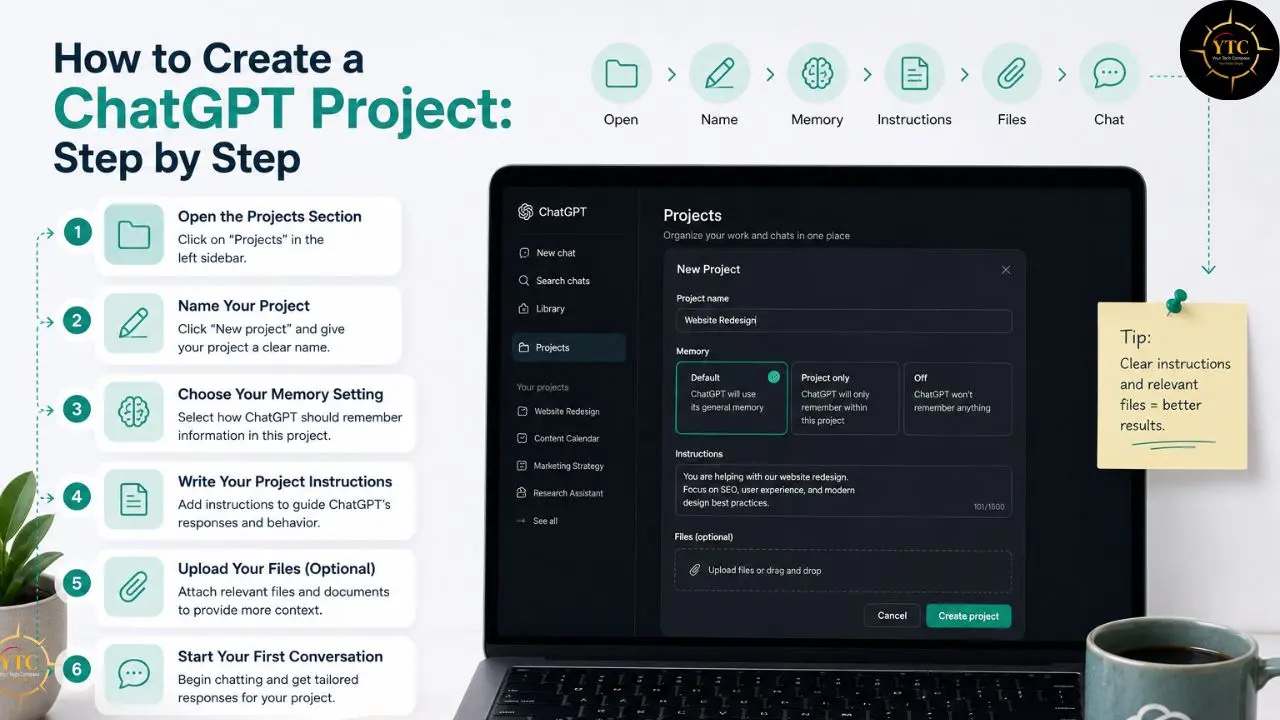
Creating a Project takes about two minutes. Configuring it well takes about ten. The second part is where most users leave significant value on the table.
Step 1: Open the Projects Section
In ChatGPT’s left sidebar, find the Projects section, typically listed below your recent conversations. Click “New Project” or the “+” icon next to it.
Step 2: Name Your Project
Give your Project a name that will be immediately recognizable when you return to it; something specific enough that three months from now you’ll know exactly what it contains. “Content” is too vague. “Q3 Newsletter Campaign — TechCorp Client” is the right level of specificity.
Step 3: Choose Your Memory Setting
This is the configuration choice you need to make carefully, because it defines how ChatGPT uses what it knows about you in this Project. You can change it later in Project settings, but the option isn’t prominently surfaced, and once a Project is shared with teammates, memory is automatically set to project-only.
Your two options:
- Default Memory: ChatGPT can reference your saved memories from outside the Project, alongside the Project’s own context, which is useful for exploratory or personal projects where you want your general preferences available.
- Project-Only Memory: ChatGPT uses context only from this specific Project, ideal for client work, sensitive projects, or any context where you want complete isolation from your broader ChatGPT history.
Step 4: Write Your Project Instructions
Click into Project settings (typically via the three-dot menu or gear icon) and write your instructions. This is the most important step, and Section 3 below covers it in depth. Don’t skip it.
Step 5: Upload Your Files (Optional)
Add any reference documents, style guides, templates, briefs, or data files that conversations in this Project should have access to. Supported file types include PDF, DOCX, XLSX, CSV, TXT, JSON, HTML, images (JPEG, PNG, GIF, WebP), code files, and audio files. The file size limit is 512 MB per file.
Step 6: Start Your First Conversation
Click into the Project and open a new conversation. Your instructions and uploaded files are already active; you don’t need to reference them manually unless the conversation calls for it.
A Quick Tip Before Moving On
Write your Project instructions before uploading files so they explain how you want ChatGPT to use them. A style guide uploaded without instructions about when to consult it will be used inconsistently.
ChatGPT Projects: The Features That Actually Matter
Project Instructions: The Most Powerful Feature
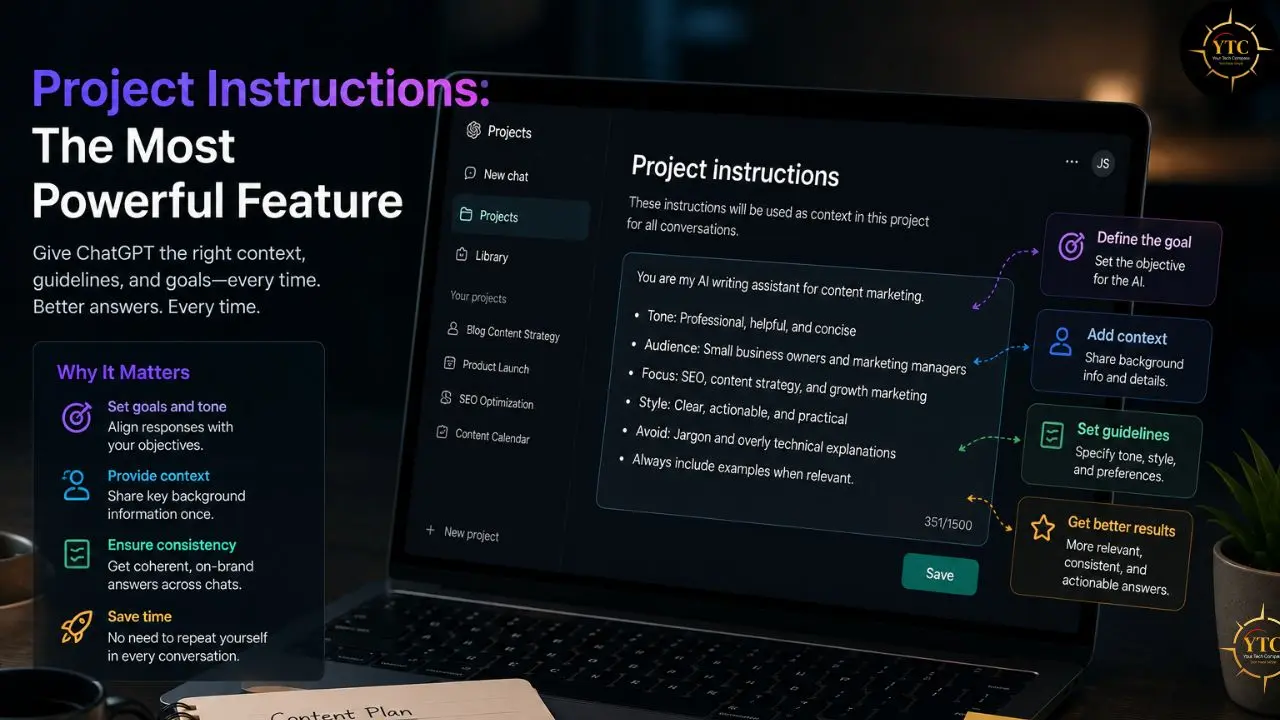
Project instructions are essentially a persistent system prompt that applies to every conversation in this specific Project, without you having to type a word of it each time. This is fundamentally different from the global Custom Instructions in your Settings, which apply to all your ChatGPT conversations across all your chats.
Project instructions apply only to this project, not to all your conversations. That’s the point: you can be a Python developer on one project and a copywriter on another without the contexts bleeding together.
Project instructions hold several thousand characters, room for a full “Master Prompt” of your style rules. Use that space deliberately. The most common mistake is writing instructions that are too short and too vague.
The difference between instructions that work and instructions that don’t:
- Vague (doesn’t work): “Help me with marketing content.”
- Specific (works): “You are assisting me with content strategy for a B2B SaaS company targeting mid-market CFOs. All output should be professional but direct; no buzzwords, no corporate fluff. When I ask for drafts, always produce two versions: short form (under 150 words) and long form (500+ words). Format recommendations as bullet points. Always flag any assumption you’re making about the audience.”
The more specific operational detail you front-load in your instructions, the more useful every conversation in the Project becomes from the first message, without any additional prompt engineering on your part.
File Uploads: Your Project’s Persistent Reference Library
Files uploaded to a Project live in the Project’s file library and are available to every conversation within that Project. You don’t re-upload them every session; instead, ChatGPT retrieves and processes their content as needed during a conversation. You can invite collaborators into the project, and it becomes a live context hub: ChatGPT can draw on the project’s chats, files, and instructions so responses reflect your group’s shared knowledge.
Practically, this means you can upload your brand style guide once and have conversations in the Project, referencing it as you produce copy. You can upload a client brief and have every strategy conversation in the Project grounded in that brief. In addition, you can upload your existing research notes and have the AI build on them rather than starting from scratch.
One honest clarification about how file processing works: after moving an existing chat into a project, the chat inherits the project’s instructions and file context. Files are retrieved and processed when relevant to a conversation; very long documents may be processed in chunks rather than being “memorized” in the traditional sense. For the longest, most detailed documents, being explicit in your conversation (“refer to the product specification I’ve uploaded”) gets more reliable results than assuming the AI will surface the most relevant section unprompted.
Keep your file library up to date as projects evolve. A brief from six months ago that’s been superseded by a new direction isn’t just unhelpful; it can actively produce outputs that contradict your current situation.
Memory Within Projects: What It Actually Does
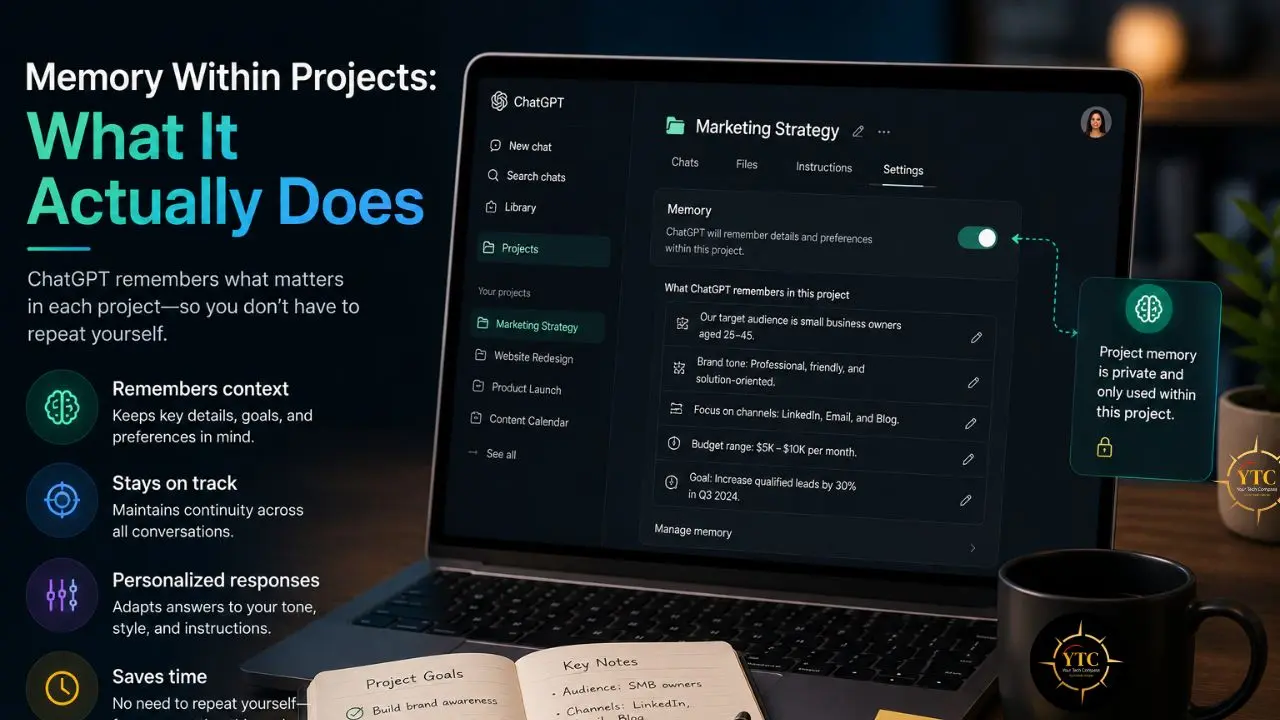
ChatGPT project-only memory rolled out in late August 2025. Instead of starting fresh every conversation, ChatGPT can now remember information from previous chats within the same project.
Think of it as automatic sticky notes that the system identifies as important in your conversations. The system creates memory logs: snippets it pulls from your chats that it thinks matter. It’s not reviewing your full conversation history as you might expect. It’s more selective than comprehensive.
This is the nuance most articles miss: Project memory isn’t a searchable archive of everything you’ve discussed. It’s more like an AI-curated summary of the things ChatGPT judged worth retaining: preferences you’ve expressed, decisions you’ve made, and context you’ve provided in past conversations.
For straightforward preferences and working style, this works well. For specific details where precision matters (an exact pricing figure, a specific deadline, a particular technical decision), don’t rely on automatic memory. State them explicitly in the relevant conversation or add them to your Project instructions.
For critical information, explicitly tell ChatGPT to remember it: “Remember that our target audience is enterprise CTOs.” You can view and manage what’s been remembered in Settings → Personalization → Memory.
Multiple Conversations, One Shared Context
A Project can hold as many conversations as you need, each a separate session, but all sharing the same instructions, files, and memory context. This is useful for keeping related but distinct work threads organized: different chapters of a document, different aspects of a project, different deliverables for the same client.
If you’ve already used ChatGPT and would like to move select chats into a project, you can drag a chat onto your project, or open a chat’s menu and choose “Move to project.” After moving, the chat inherits the project’s instructions and file context. One limitation worth noting: as of 2026, chats started with a Custom GPT generally cannot be moved into a Project.
ChatGPT Projects vs Custom GPTs: The Distinction Most Tutorials Miss
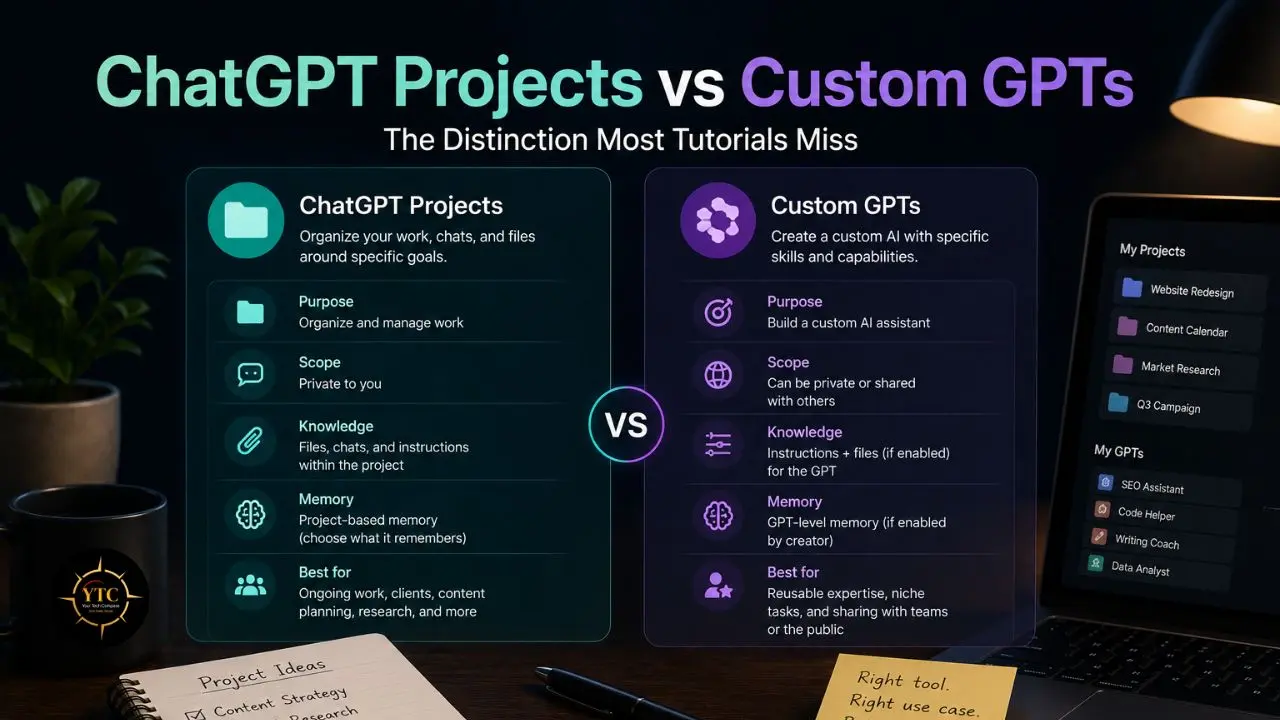
One of the most common questions I hear from people exploring Projects is: “How is this different from a Custom GPT?” It’s a reasonable question because they sound similar. The distinction, once you understand it, will immediately clarify which one to use in a given situation.
What Custom GPTs Are
Custom GPTs are purpose-built AI assistants that you configure once with fixed instructions, a knowledge base, and optional capabilities, then use repeatedly, either privately or by sharing them publicly through the GPT Store. A Custom GPT is essentially a specialized tool you build and then deploy. It doesn’t adapt or build context from your individual sessions the way a Project does.
When configuring Custom Instructions for a specific Project, it’s helpful to understand the underlying model’s core strengths. If you are building a workspace heavily reliant on advanced data analysis or niche coding tasks, you may also want to review current industry comparisons, such as this overview of the best LLMs in 2026 by EpicTechNews, to ensure your workflow is leveraging the most capable technology available.
Side-by-Side Comparison
Dimension | ChatGPT Projects | Custom GPTs |
Setup Effort | Low (create in under 2 minutes) | Higher (requires deliberate configuration in GPT Builder) |
Instructions | Editable anytime via Project settings; evolve with your work | Editable via GPT Builder; changes apply to all future chats |
File Uploads | Dynamic (add/remove anytime in Project library) | Managed in GPT Builder; updates require editing the GPT configuration |
Memory Across Sessions | ✅ Persists within the Project (project-only or default memory modes) | ❌Uses global Memory only; no GPT-specific session memory |
Sharing | Share with collaborators (available on Plus/Pro/Teams/Enterprise; limited on free plans) | Share publicly via GPT Store (if eligible) or privately via link |
Best For | Ongoing personal/team work with evolving context | Repeatable, focused tasks with stable instructions and behavior |
Privacy | Project-only memory available for isolated contexts | Relies on global Memory settings; no dedicated session memory layer |
Ideal User | Individuals or teams organizing long-term workstreams | Anyone who wants a reusable, shareable, purpose-built AI assistant |
Model Flexibility | Can switch between available models per chat (e.g., GPT-4o, GPT-4o Mini, o3) | Fixed to the model(s) configured for that GPT; less flexible per session |
Advanced Features | Integrated chat history, file library, and project memory in one workspace | Supports Actions (API integrations), up to 20 knowledge files, and GPT Store distribution |
Monetization | Not designed for public distribution or revenue sharing | Eligible for GPT Store revenue-share pilot (where available) |
When to Use Each
Projects handle workflow context. Custom GPTs handle specialized tasks.
Use Projects when you’re doing ongoing work that evolves over time, an active client account, a manuscript you’re writing chapter by chapter, a recurring research workflow, or a development project spanning several weeks. The key signal: if you want the AI to get better at working with you over time on a specific body of work, use a Project.
Use Custom GPTs when you need a stable, reusable tool that performs one function consistently (a meeting agenda generator, a specific writing-style enforcer, a code reviewer with fixed standards), and especially if you want to share it with others who should have the exact same AI behavior as you do.
Five Practical Use Cases for ChatGPT Projects
Use Case 1: Writing and Content Production
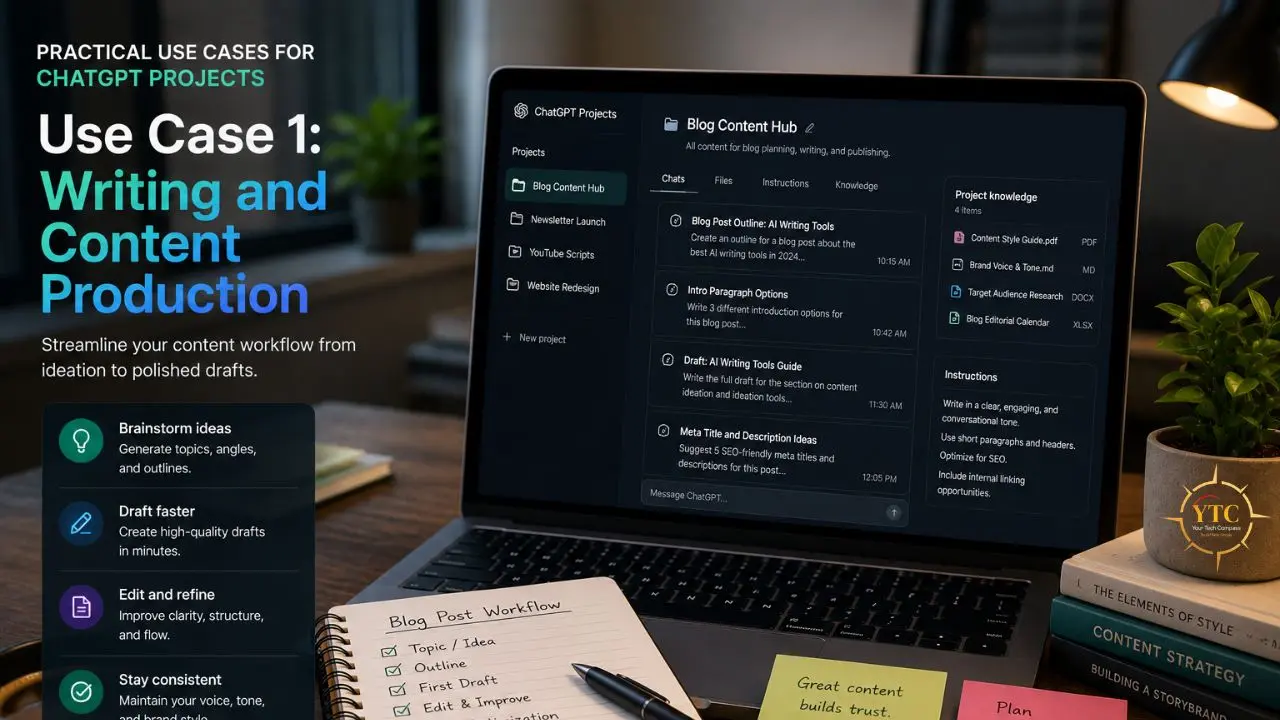
Set up your Project instructions to include your writing voice, your target audience’s characteristics, your preferred structure, and what you want to avoid. Upload example articles, a style guide, or a brand voice document as reference files.
From that point forward, every new conversation in the Project starts with complete stylistic context; you don’t explain your voice; your AI already knows it. Ask for a draft, and it already knows your standards. Ask for headlines, and it already knows your audience.
This is particularly valuable for content creators who’ve felt that ChatGPT produces “generic-sounding” content; the real cause is usually a lack of context, not model quality. A properly configured Project with detailed style instructions and strong reference material produces dramatically better results than a blank conversation.
For an in-depth comparison of the underlying models powering ChatGPT in 2026, our GPT-5.5 vs Claude Opus 4.8 guide covers the current frontier model landscape in detail.
Use Case 2: Client Account Management
Create one Project per client. Your instructions include the client’s background, current objectives, communication preferences, key contacts, any hard constraints or sensitivities, and the project’s current phase.
Upload the brief, relevant contracts, past deliverables, and any reference assets. Every conversation starts with full account context: drafting emails in their preferred style, developing strategies aligned with their specific goals, and preparing presentations consistent with their materials.
Since October 2025, project sharing has been available to all ChatGPT users (Free, Plus, Pro, and Go) on the web, iOS, and Android. You invite people with the Share button and give them either edit access (they can change instructions, add or remove files, and invite others) or chat access (they can use the project but not invite others). For agency or consulting work, this turns the Project into a shared team workspace rather than a solo tool.
Use Case 3: Research and Learning
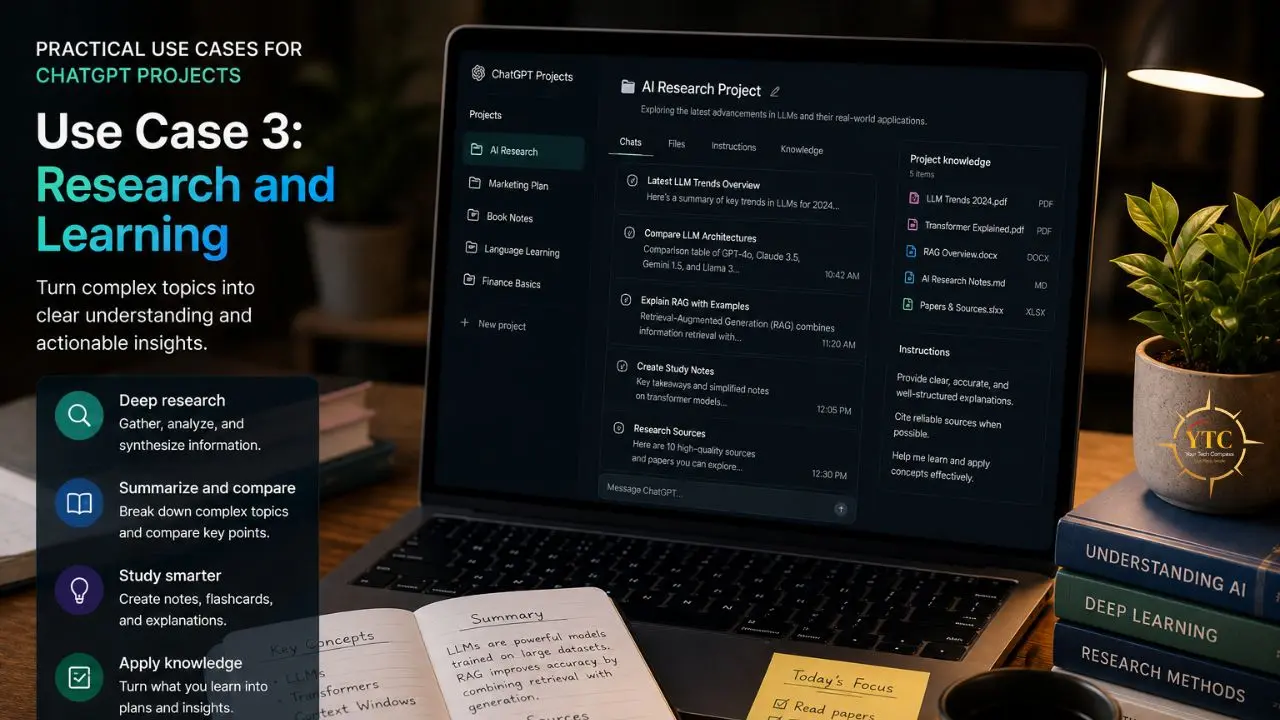
Configure the Project instructions to describe your research goal, what you already know, what gaps you’re trying to fill, and your preferred explanation depth and style. Upload papers, source documents, or your existing notes. Rather than one-off search-replacement queries, you now have a research partner that builds understanding across multiple sessions; you pick up where you left off, the context accumulates, and the AI can synthesize across sessions rather than treating each conversation as the first.
This workflow is particularly relevant for professionals seeking to stay current in fast-moving fields. Our AI in Africa category, for example, covers a domain where researchers and analysts need to synthesize across rapidly evolving topics; exactly the kind of recurring, context-dependent research that a Project handles far better than individual conversations.
Use Case 4: Software Development Projects
Your Project instructions include the tech stack, the architecture decisions made, the coding standards and conventions you’re following, and any specific constraints (security requirements, performance targets, dependency rules). Upload relevant code files, documentation, or API references. Every debugging session, every architecture question, every code generation request starts from a fully grounded understanding of what you’re actually building.
This is the use case where Projects most directly complements IDE-native AI tools like Claude Code or GitHub Copilot. Projects handle conversational context and planning; dedicated coding tools handle in-editor generation.
For a detailed guide to how AI-assisted coding works in practice, our guide on using Claude AI for coding covers the workflow patterns in depth. For background on ChatGPT’s evolution across recent model generations, our ChatGPT 4 and ChatGPT 5.4 explained guides trace the progression of underlying capabilities.
Use Case 5: Job Search or Professional Development
Your Project instructions describe your background, target role, career goals, and specific gaps you’re working to address. Upload your resume, cover letter template, and any job descriptions you’re targeting.
Every application you tailor, every interview question you practice, every follow-up email you draft is grounded in your specific situation rather than generic career advice. Over multiple sessions, the AI builds an understanding of your preferences and the feedback patterns you’re getting, making each session more useful than the last.
For a broader view of the AI productivity tools that complement this kind of systematic professional development, our best AI productivity apps guide covers the current landscape. Our full Apps and Tools category and AI Unboxed section track all significant tool developments as they evolve.
Tips for Getting the Most Out of ChatGPT Projects
Write Instructions Like a Proper Brief, Not a Wish List
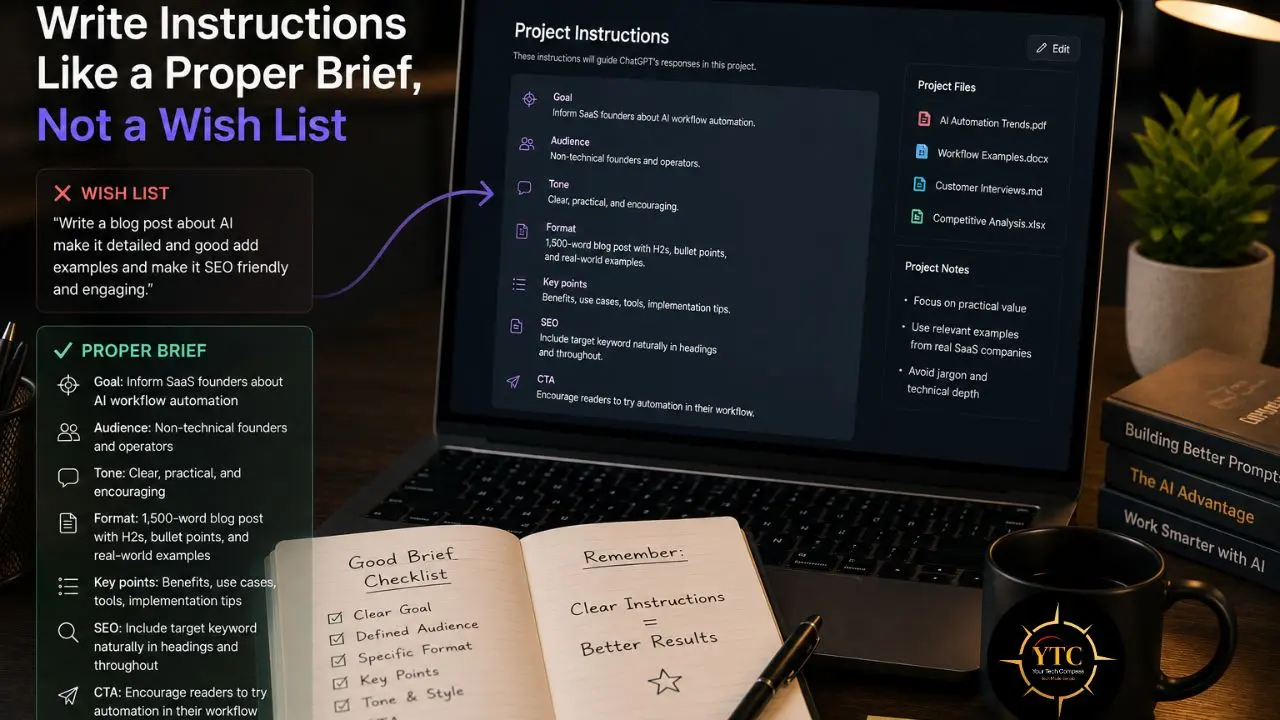
“Bad: ‘Help me with marketing.’ Good: ‘You’re a B2B SaaS marketer. Responses under 200 words.
Focus on lead generation tactics for mid-market companies. Skip the jargon.” The specificity of your instructions is the single biggest driver of output quality, before any other variable.
Create Genuinely Separate Projects for Genuinely Separate Contexts
The temptation is to maintain one large general-purpose Project for everything. The value of Projects comes from context specificity: a client Project with the right files and instructions yields better results than a generic Project that tries to handle everything, because the AI has no meaningful context to work from in the latter case.
Mind the Project-Only Memory Trap
If you need an isolated workspace for sensitive work, enable project-only memory when you create the Project (you can change it later in settings, but the option isn’t prominently surfaced, and once a Project is shared with teammates, memory is automatically set to project-only). Use project-only for sensitive work… Avoid it for exploratory projects where you want ChatGPT to remember your preferences and past work.
Name Your Conversations Inside the Project
Don’t leave every session as “New conversation.” Rename each conversation to reflect its contents.
Treat named conversations inside a Project like named documents in a folder. When you return to a Project three weeks later, you’ll find what you need in seconds, rather than having to open and scan conversations to find the right one.
Keep Your File Library Accurate, Not Comprehensive
Files that are outdated, superseded, or no longer relevant to the Project’s current direction can produce outputs that contradict your actual situation. Review and update your Project file library as the project evolves. Less accurate information is actively worse than no information.
Tell ChatGPT Explicitly When Something Is Important
You can view what ChatGPT has remembered, edit it, and delete specific memories at any time from Settings → Personalization → Manage Memory. You can also tell ChatGPT mid-conversation to remember or forget something specific. Automatic memory is good at capturing general patterns; for critical, specific decisions, state them explicitly: “Remember that we’ve decided to use PostgreSQL, not MySQL, for this project.”
FAQs

Yes. Projects are available to all users, free and paid, globally as of September 2025; project sharing was expanded to all plans in October 2025. The main difference between plans is the file upload limit per project: Free users can upload up to 5 files, Plus users up to 25 files (exact limits may vary slightly by account/region), and Pro/Business/Enterprise users up to 40 files. Memory and sharing features are available across plans, though Business and Enterprise users have additional admin-level controls.
Custom Instructions (found in Settings) are global; they apply to every ChatGPT conversation you have, everywhere, regardless of what you’re working on. Project instructions only apply to conversations within that specific Project and override your global Custom Instructions for those conversations. This means you can have completely different behavioral settings for different types of work without changing your global settings each time. As a high-level rule: Memory handles who you are. Custom Instructions handle your defaults. Projects handle workflow context.
OpenAI hasn’t published an explicit per-account Project limit as of mid-2026. In practice, the number of Projects isn’t the constraint; the per-project file limit is. Create as many Projects as you have genuinely distinct, recurring workflows. Most professionals find they settle into five to ten active projects that cover their major work contexts.
Yes. Since October 2025, project sharing has been available on all plans, including Free, Plus, Pro, and Go. You invite people with the Share button and give them either edit access (they can change instructions, add or remove files, and invite others) or chat access (they can use the project but not invite others). When a Project is shared, memory automatically becomes project-only, keeping the shared workspace isolated from any individual member’s personal ChatGPT history.
OpenAI’s current documentation confirms a 512MB per-file limit and the per-project file count limits described above (5/25/40 by tier). Check OpenAI’s current Help Center documentation for any overall storage limits, as these have evolved with recent product updates.
Projects are personal or shared workspaces for ongoing work; they remember context across sessions, their files and instructions evolve with the work, and they’re organized around a body of work rather than a specific function. Custom GPTs are configurable AI assistants built for a specific, repeatable task; they have fixed instructions, don’t retain session-to-session memory, and are designed to be shared and reused. The practical rule: use Projects for ongoing work that evolves over time; use Custom GPTs for stable, repeatable tasks you want to deploy or share.
Conclusion
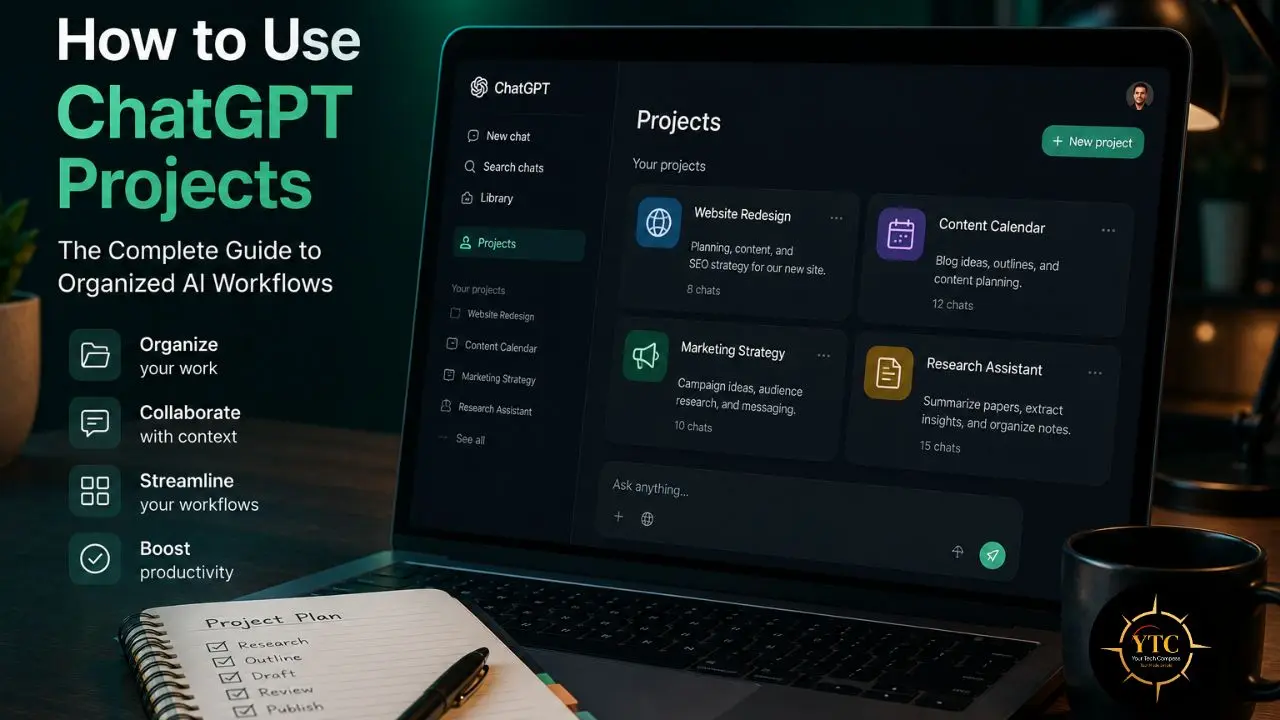
ChatGPT Projects doesn’t make ChatGPT a more powerful model; it makes your relationship with it more productive over time. The persistent instructions, shared file library, and cross-session memory mean you stop spending the first part of every conversation re-establishing context and start every session able to do actual work. Projects create a more stable working context, making it easier to continue where you left off and produce more consistent results over time. For anyone whose primary frustration with ChatGPT has been the context-reset problem (and that’s most people who use it for real professional work), Projects is the feature that actually addresses it rather than offering a workaround.
The most effective way to experience what Projects can genuinely do for your workflow is to pick one recurring, context-dependent use case and spend a week using a properly configured Project for it before evaluating. Choose the thing you currently re-explain most often when opening a new ChatGPT conversation. Write specific, operational instructions. Upload the reference material that should always be present. Choose your memory setting deliberately before creating the Project. The configuration investment is fifteen minutes. The compound dividend, across every conversation you have in that Project going forward, is the kind of quality-of-life improvement that makes you wonder how you were using the tool before it existed.
Getting more out of the AI tools you already use is one of the highest-leverage ways you can use your time right now. Head to YourTechCompass.com for more practical, tested guides on making AI work for you, not just around you.