I want to start with a specific moment, because it’s the moment this entire guide exists to prevent. You’re trying to find a photo from a trip five years ago; the one you took at the market, the one you’d been meaning to print. You open your phone’s gallery, your old laptop, and your Instagram. It’s nowhere. It only existed on the phone you traded in, and you assumed the backup had handled it. Or you’re trying to finish a report by the deadline, and the document isn’t on your laptop anymore. You’d been saving it to the desktop, and the hard drive that failed last month took it with it. Or you’re locked out of an account and realize the password only existed in a password manager that’s now tied to a phone you no longer have access to. These moments feel like small catastrophes because they are. And they happen to be careful, tech-literate people who thought they had a backup in place every single week.
The uncomfortable truth is that most people don’t have a backup problem in the traditional sense; they have a gap problem. Something is backed up somewhere, but the system has holes that haven’t been discovered yet and will only become visible at the worst possible moment. This digital backup guide is built to close those gaps in a single sitting. I’ll walk you through the 3-2-1 framework that professionals use, then take you through every category of data that actually matters (photos, documents, passwords, cloud data, full device state, and the things people reliably forget) with specific, step-by-step instructions for each. By the end, you’ll have a complete, resilient backup system running rather than a vague intention to sort it out eventually.
The 3-2-1 Backup Rule: The Framework That Guides Everything
Before configuring a single setting, you need to understand the framework on which all good backup strategies are built. The 3-2-1 backup rule is widely regarded as the best practice for practical, comprehensive data protection. Here’s what it actually means, broken down clearly:
- 3 Copies of Your Data: The original plus two backups. Not two copies total, three. The file on your laptop is a single copy, not a backup. You need two additional copies beyond that original. Most people think they’re compliant because they have “a backup,” but one backup means two total copies, which still fails the rule.
- 2 Different Storage Media: Your two backups should live on genuinely different types of storage. An external drive sitting next to your laptop is one type; cloud storage in a data center somewhere is another. Two external drives of the same brand bought at the same time don’t qualify; they’re the same media type and often fail together because they’ve experienced identical conditions. The principle is that a single failure mode shouldn’t take out two copies simultaneously.
- 1 Offsite Copy: At least one backup needs to be physically somewhere else. You should keep one copy of your data off-site, ideally more than a few miles away from your other two copies, to protect against natural and physical disasters that could affect local copies. Cloud storage is the simplest modern implementation of the off-site requirement; it’s what makes the 3-2-1 rule achievable for everyday users without the complexity of managing physical off-site drives.
The 3-2-1 backup rule still works in 2026 because it protects you from the problems that matter most: failed drives, ransomware, accidental deletion, stolen devices, and locked or lost cloud accounts.
The Practical 3-2-1 Setup for Most People
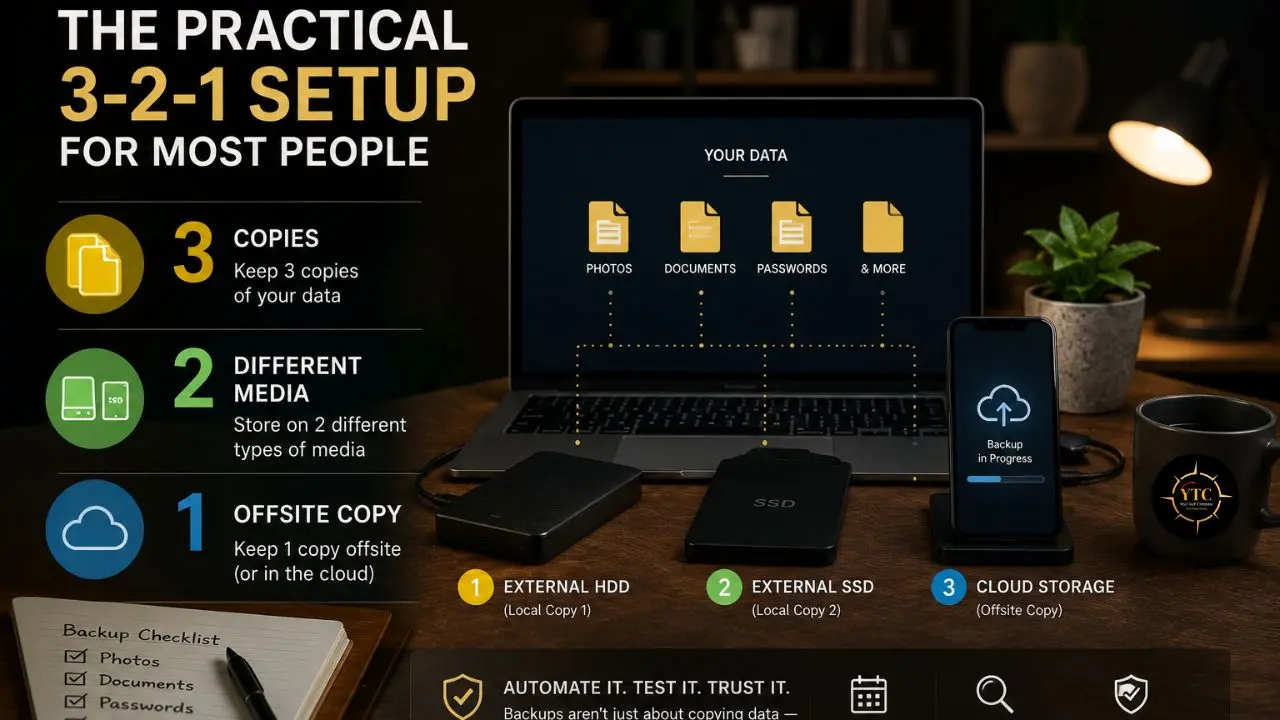
For the overwhelming majority of non-enterprise users, this is what 3-2-1 looks like in practice: your device (original, always) + an external drive with automated backup (second copy, local) + a cloud backup service (third copy, offsite). That combination covers drive failure (cloud copy survives), theft or fire (cloud copy survives), and cloud account issues (local copy survives).
One Honest Warning About Ransomware
Dropbox, OneDrive, and Google Drive sync your files; they don’t back them up independently. If ransomware encrypts your PC, the encrypted versions sync to the cloud within minutes, overwriting your clean copies.
The solution is to use a backup service with versioning (one that keeps historical versions of your files for 30 days or more), rather than relying solely on real-time cloud sync. Backblaze, Time Machine, and File History all do this. A sync-only cloud drive does not.
Not Everything Needs Full 3-2-1
One important scope-setting point before we get into the specifics: not every file you own deserves the same level of backup investment. The framework helps you prioritize:
- Irreplaceable data (photos, personal documents, creative work, passwords) deserves full 3-2-1 treatment.
- Working data (active project files) needs frequent backups, but full redundancy is most important.
- Replaceable data (software installers, streaming content, anything you can re-download) doesn’t need to be backed up at all.
How to Back Up Your Photos: The Most Emotionally Irreplaceable Asset
Photos deserve their own section and significant attention, because they’re simultaneously the data category people care most about losing and the one most likely to be fragmented across multiple half-synced locations.
The Photo Fragmentation Problem
Before setting up any photo backup, spend ten minutes answering an honest question: where do your photos actually live right now? For most people, the honest answer involves: the current phone’s camera roll, an old phone that hasn’t been cleared, a laptop’s Downloads folder where vacation photos were dragged and forgotten, an old computer, a mix of Facebook and Instagram uploads from years ago, and possibly a cloud service they signed up for but aren’t sure has been active recently. The first step is an audit: list every device and service that contains photos you’d be genuinely upset to lose.
Backing Up Your Phone Photos
For iPhone Users
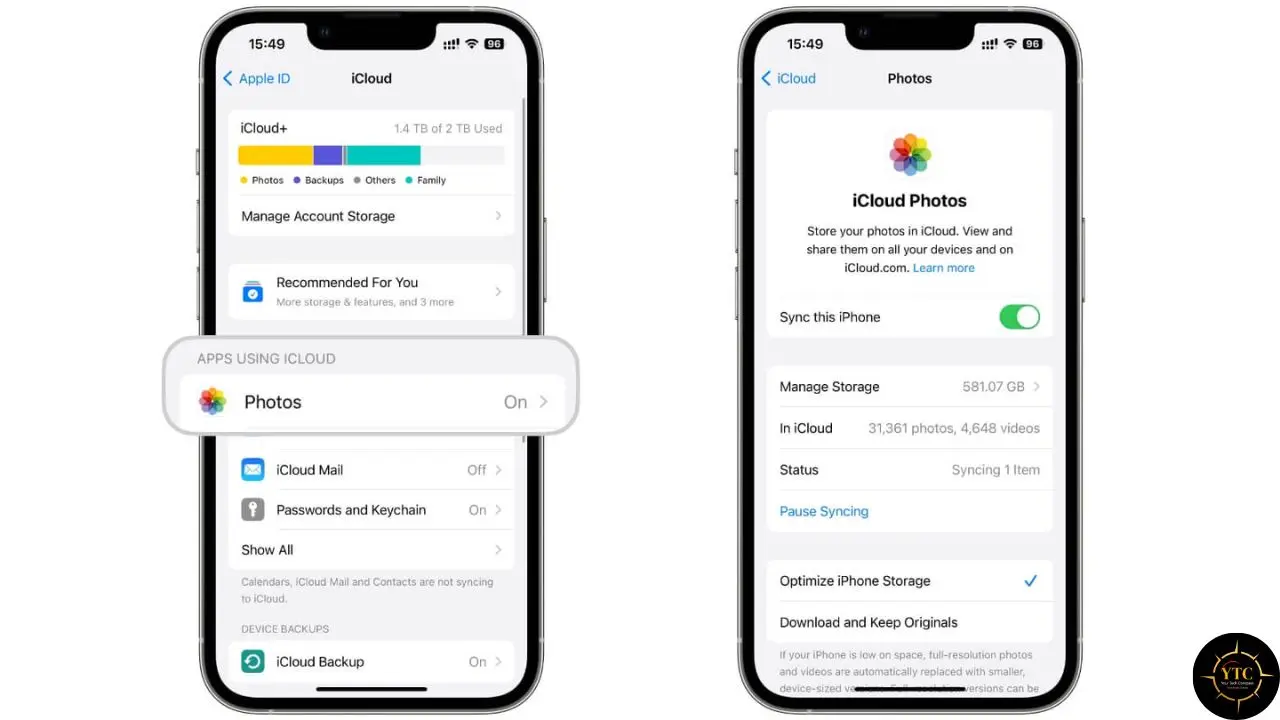
Go to Settings → [your name] → iCloud → Photos and toggle on iCloud Photos. This syncs your entire photo library to iCloud, making it accessible from all your Apple devices and iCloud.com.
The 5GB free tier usually fills quickly with any real photo library. iCloud+ plans start at $0.99/month for 50GB, $2.99/month for 200GB, and $9.99/month for 2TB. For families, the Family Sharing plan makes the storage cost manageable.
For Android Users
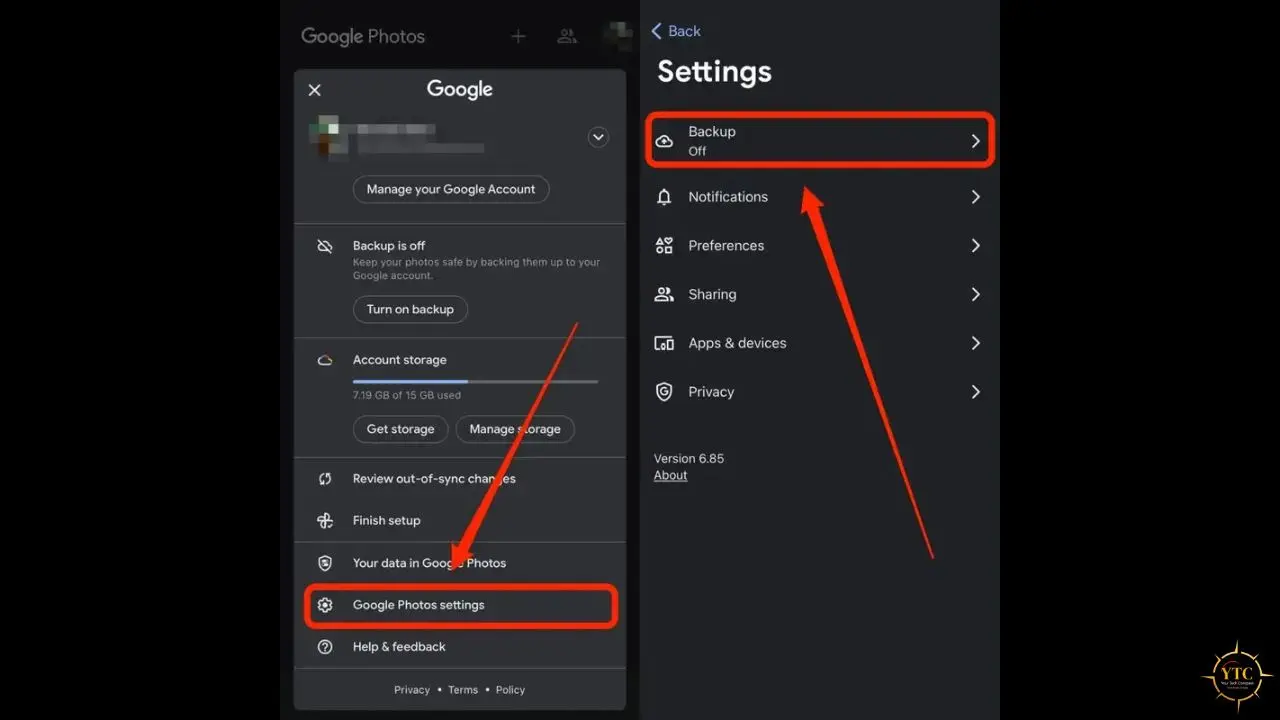
Google Photos remains the standard. Open Google Photos, tap your profile photo → Photo settings → Back up → Back up now, and confirm backup is enabled.
Since Google ended its free unlimited storage in 2021, you’ll likely need Google One storage. Plans start at $2.99/month for 100GB, shared across Gmail, Drive, and Photos.
The Critical Setting Most People Haven’t Checked
Whether backup is configured to run on mobile data or only on Wi-Fi. If it’s set to Wi-Fi only and you’re frequently away from home networks, your backup may be weeks or months behind without showing any visible warning. Check this in your backup app’s settings and make a deliberate choice.
A Local Copy As Your Second Photo Backup
Even with cloud photos as your primary backup, a local copy adds meaningful resilience. Cloud accounts can be compromised, service terms can change, and pricing can shift. A local library on an external drive gives you a copy that doesn’t depend on anyone else’s servers.
- Mac: Image Capture (built into macOS) lets you import all photos from a connected iPhone to any drive you specify. Alternatively, the Photos library can be moved to an external drive by holding down the Option key while opening Photos.
- Windows: The Photos app or File Explorer’s automatic photo import when a phone is connected handles this quickly.
- Frequency recommendation: monthly for most people; weekly if you shoot frequently.
The Legacy Photo Problem
Many people have thousands of photos that predate smartphones: physical prints, scanned JPEGs, IMG files from early digital cameras. These often reside on aging optical discs, such as old CDs and DVDs, that physically degrade over time.
Optical media doesn’t last as long as people assume, and a disc that was readable five years ago may not be readable today. If you have this category, prioritizing its migration to your cloud photo backup is genuinely time-sensitive, not something to defer indefinitely.
Social Media Photos Are Not a Backup
Facebook, Instagram, and similar platforms compress images, may not store RAW or high-resolution originals, and you don’t control the account in the same way you control your own storage. They’re distribution platforms, not backup infrastructure.
If you need your social media photos as a backup source, both Facebook and Instagram offer data export options in their settings. Export this periodically and fold it into your primary backup location, rather than treating a social platform as one of your three copies.
How to Back Up Your Documents and Files
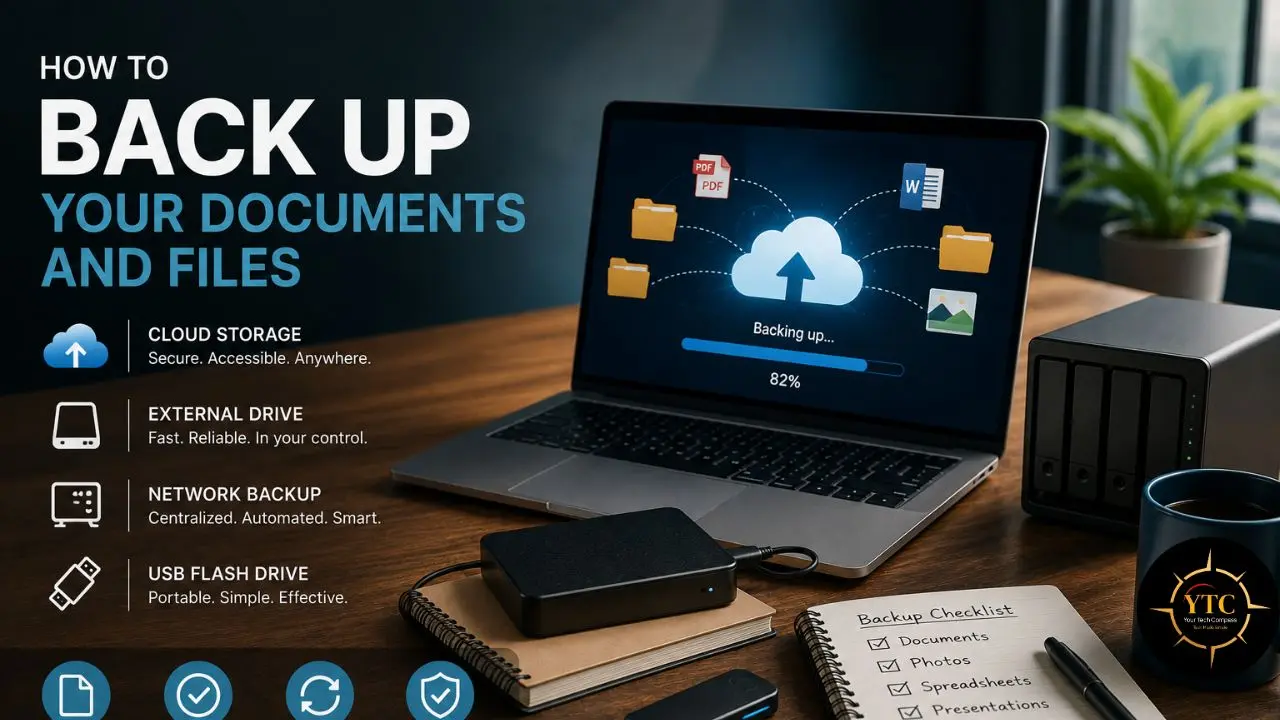
The Full Scope of “Documents”
Most people mentally map “documents” to the folder of that name on their computer. A complete document backup actually covers substantially more:
- Working documents and spreadsheets
- Financial records: tax returns (recommended seven-year retention), bank statements, investment records
- Legal documents: contracts, lease agreements, insurance policies, medical records
- Creative work: writing projects, design files, music projects
- Education: research papers, coursework, certificates
- Personal records: scanned IDs, passport copies, important correspondence
- App-specific data: notes, bookmarks, calendar data, email
The Cloud-Sync Approach for Active Files
The most resilient approach for actively used documents is cloud-first: the file lives in a synced cloud folder, so it’s always backed up to the cloud as you work on it, rather than on a schedule.
For Windows Users
OneDrive is already integrated. Go to Settings → OneDrive → Manage Backup and enable backup for your Desktop, Documents, and Pictures folders. When this is enabled, those three folders live in OneDrive; changes sync automatically in the background.
For Mac Users
Go to System Settings → [your name] → iCloud → iCloud Drive and enable “Desktop & Documents Folders.” The same principle applies: your Desktop and Documents folders sync continuously to iCloud.
For Everyone
Google Drive, Dropbox, or equivalent. The folder-sync client automatically creates a local folder that mirrors the cloud; anything saved there is backed up without any manual steps. Our Google Drive Explained guide covers how to configure Drive’s sync client and make the most of Google’s storage tiers.
The Local External Drive Backup for Files
Cloud sync is your offsite copy. An external drive gives you the local, fast-recovery copy.
- Mac — Time Machine: Plug in an external drive, and macOS will ask if you’d like to use it for Time Machine. Say yes. Time Machine then runs automatic hourly backups in the background, keeping version history so you can restore not just the current version of a file but any previous version going back to when you first set it up. If Time Machine backup performance has become sluggish on your Mac, our guide on fixing slow Time Machine backups on MacBook Air M4 walks you through specific troubleshooting steps.
- Windows — File History: Settings → System → Storage → Backup → Add a drive → select your external drive. File History runs automatically once configured, protecting your personal files with version history.
The Application Data People Forget
Beyond your Documents folder, meaningful data lives inside applications that don’t save to obvious file locations:
- Browser Bookmarks: Export from Chrome via Settings → Bookmarks → Bookmark Manager → the three-dot menu → Export bookmarks. Do this quarterly and store the resulting HTML file in your backed-up Documents folder.
- Note-Taking Apps: Notion, Obsidian, Apple Notes, and Evernote all have different export paths. Most have a “Settings → Export all” option; use it periodically. Specifically for Notion, our Notion AI privacy settings guide covers how your data is stored and what you can control.
- Email: If you use IMAP (which almost everyone does with Gmail, Outlook, and iCloud Mail), your email is stored in the cloud and accessible from any device. If you’ve inherited a POP email setup, your email may only exist locally; check your email client settings and switch to IMAP if possible.
- Contacts: Verify that your contacts are synced to Google Contacts or iCloud rather than stored only on your device or SIM card. Our sync contacts across devices guide covers exactly how to do this correctly on both Android and iPhone.
How to Back Up Your Passwords
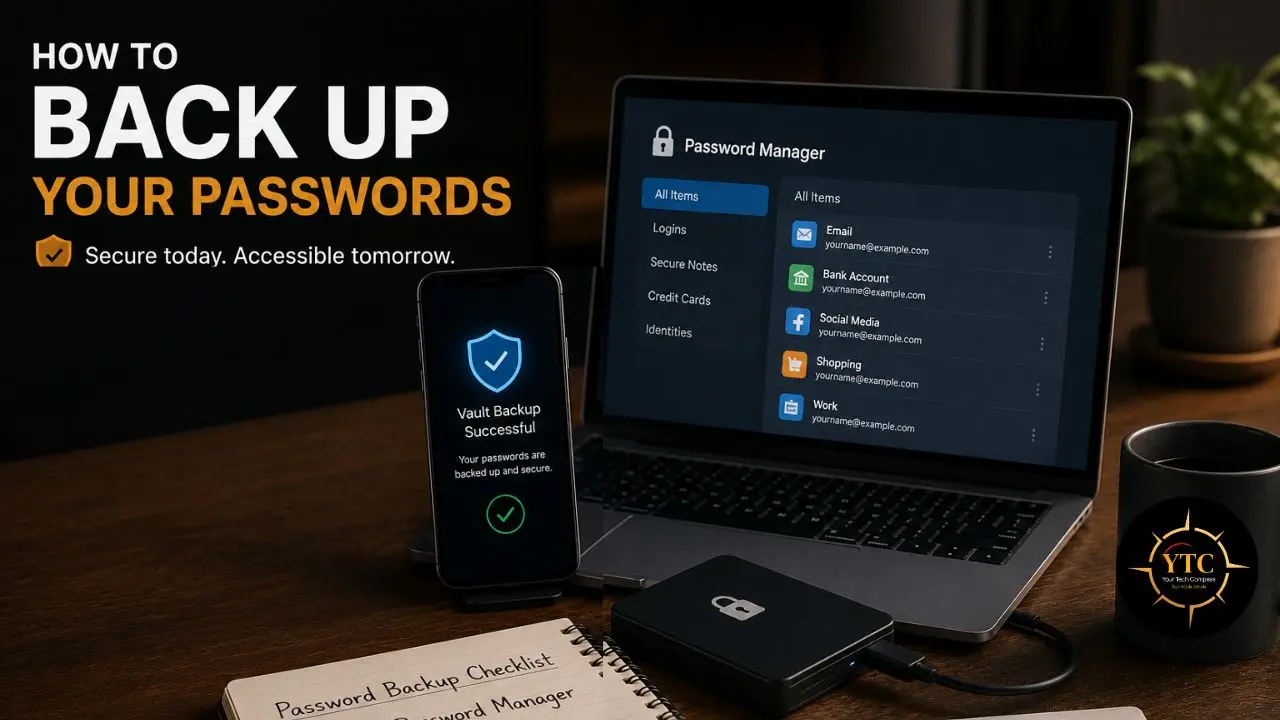
This section tends to get under-addressed in generic backup guides, so let me be direct about why it deserves specific attention.
Why Password Backup Is Actually the Most Critical Category
Passwords aren’t just one data category among many; they’re the keys to every other category. If you lose access to your password vault and can’t recover it, you may lose access to your email, which you need to reset other accounts, which means the cascade can be genuinely catastrophic in a way that losing a document isn’t.
The specific irony: the people most at risk from vault loss are people who use a password manager (a good practice) and strong, unique generated passwords (also a good practice), because they’ve deliberately avoided memorizing their passwords, meaning a vault failure leaves them locked out of everything they’ve secured well.
What Good Password Backup Looks Like
Emergency Kit
Most reputable password managers (1Password, Bitwarden, Dashlane) provide an “Emergency Kit,” a PDF containing your account email, secret key, and account recovery instructions. Print this.
Store it somewhere physically secure that isn’t the same building as your computer. Make sure a trusted person knows it exists and where to find it.
Vault Export
Most password managers support periodic export of your vault as an encrypted file or CSV. Do this quarterly and store the encrypted export in your secure cloud backup or on an encrypted drive. Don’t store an unencrypted CSV of your passwords in a regular cloud folder; it’s the single most dangerous plaintext file you could create.
The Master Password
This is the one password that must be memorized, not stored anywhere digitally. If it’s written down anywhere, digitally or otherwise, you’ve eliminated the security value of the master password concept.
Commit it to memory. Consider using a memorable passphrase (four or five random words) rather than a complex string that’s harder to retain.
Two-Factor Authentication Backup Codes: The Most Forgotten Item
When you enable two-factor authentication on an account, most services provide backup codes (emergency codes you can use if you lose access to your authenticator app). These are critically important and almost universally ignored. When a phone is lost or broken, people who didn’t save their 2FA backup codes find themselves permanently locked out of their accounts because the account recovery process without them is slow and sometimes unsuccessful.
Where to store 2FA backup codes: printed and kept with your password Emergency Kit, or stored as encrypted notes inside your password manager. Never store in plain text in a cloud note or email thread.
Authenticator App Itself
If you use the Google Authenticator App, enable its account sync (added in 2023) so your codes survive a phone switch. Better yet, switch to an authenticator with encrypted cloud backup. Authy and 1Password both handle this well, so a lost phone doesn’t immediately lock you out of every 2FA-protected account.
How to Back Up Your Cloud Data: The Backup of Your Backups
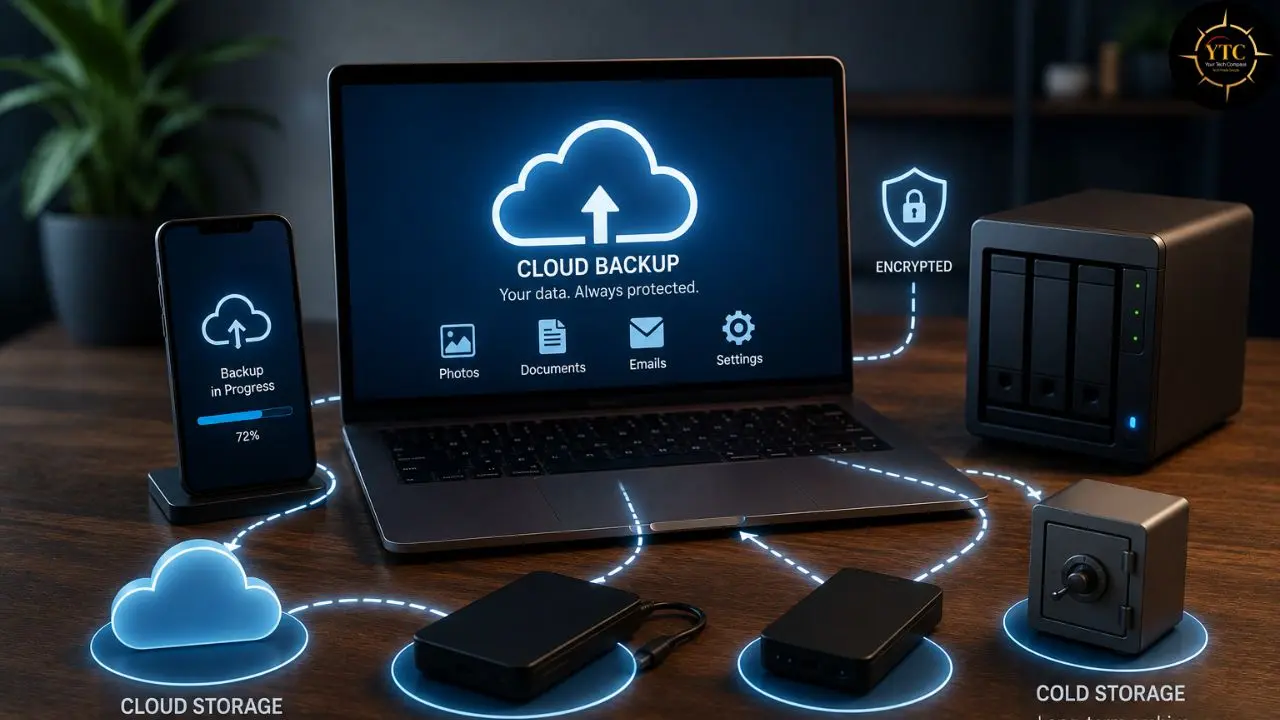
This is the section that most digital backup guides omit entirely, and it’s one of the most important.
The Cloud Is Not a Backup
“My data is in Google Drive, so it’s backed up.” This is one of the most common and consequential misconceptions in personal data management.
Cloud storage is not a backup; it’s a primary copy stored on someone else’s servers. The distinctions matter practically:
- Account Compromise: If someone takes over your Google account, or it’s incorrectly flagged by automated systems, you can lose access to everything in Drive.
- Accidental Deletion: You delete a file; it syncs the deletion across all locations simultaneously, and your “backup” disappears at the same time as your original.
- Ransomware: As noted in the 3-2-1 section, ransomware that encrypts your local files can sync those encrypted versions to Google Drive, Dropbox, or OneDrive within minutes, overwriting your clean copies.
- Service Changes: Companies change terms, remove free tiers, or shut down entirely; Google Photos ended free unlimited storage, and other services have made similar pivots
Backing Up Your Cloud Data
The practical approach for most people is a quarterly Google Takeout export stored elsewhere, not on Google’s servers. Go to takeout.google.com, select the services you want to export (Gmail, Drive, Photos, Contacts, Calendar), and download the archive.
Store this archive on your local external drive and in a second cloud service. This isn’t continuous backup; it’s a periodic snapshot that gives you a recovery point if your Google account ever becomes inaccessible. For Apple users, Apple provides a data export at privacy.apple.com that includes iCloud content such as iCloud Drive, photos, and other synced data.
For those wanting continuous cloud-to-cloud backup, Backblaze B2 is a reliable, cost-effective option used by professionals. Their personal backup plan costs approximately $9/month for unlimited computer storage with a 1-year version history, making it one of the most robust offsite backup solutions available to consumers. Tools like MultCloud or CloudHQ provide browser-based cloud-to-cloud sync for users who want ongoing cross-cloud redundancy without command-line tools.
Important
Even cloud services with versioning have retention limits. Google Drive keeps deleted files in Trash for 30 days by default. Having a periodic export stored independently covers the scenario where you need to recover something that fell outside the version retention window.
How to Back Up Your Devices: The Container, Not Just the Contents
Backing up files is essential. Backing up the full device state (its configuration, installed apps, app data, settings) is what makes recovering from a lost or broken device a 20-minute inconvenience rather than a week-long project.
iPhone Backup
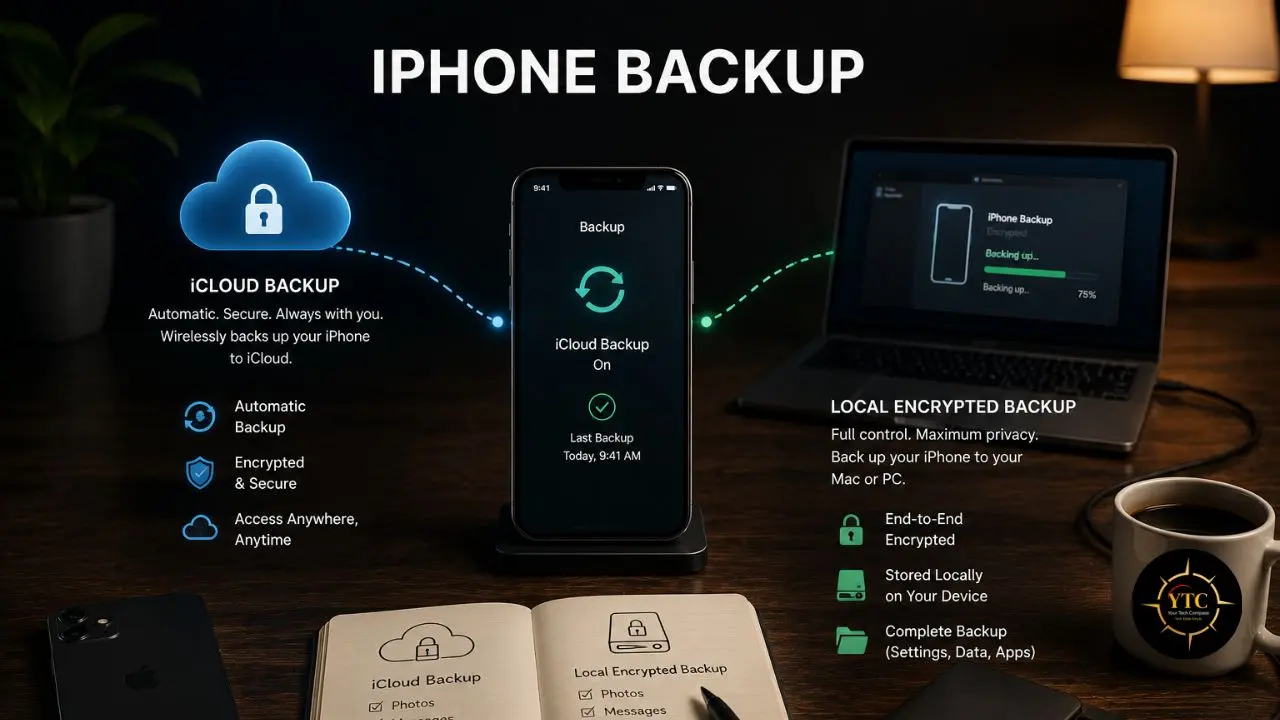
- iCloud Backup: Go to Settings → [your name] → iCloud → iCloud Backup → Back Up Now. This backs up your phone’s configuration, app layout, app data, messages, and device settings. When you get a new iPhone, you can restore from this backup and have your phone back to its previous state within minutes.
- Local Encrypted Backup (Mac/PC): Connect your iPhone to a Mac via Finder or to a PC via iTunes. Create an encrypted backup. Encryption is important; it’s the only way to protect Health data, passwords saved in Safari, and Wi-Fi credentials. The unencrypted backup option specifically excludes these categories.
Verify that iCloud Backup is set to run automatically: it should run daily when your phone is plugged in, locked, and connected to Wi-Fi. Check the “Last Backup” date in the iCloud Backup screen to confirm it’s actually been running.
Android Backup
Go to Settings → Google → Backup and confirm backup is enabled. This covers app data, contacts, calendar, SMS, Wi-Fi passwords, and device settings. Samsung device owners have an additional option in Samsung SmartSwitch, which provides a more comprehensive backup of Samsung-specific data.
One Honest Limitation Worth Knowing
Google’s Android backup is less comprehensive than Apple’s iCloud backup in some categories; specific apps may not include their data in the backup if developers haven’t implemented the Google Backup API. For the most critical app data (specific games, certain productivity apps), verify what’s actually included by testing a restore.
Mac Backup (Time Machine)
Time Machine is the right local backup answer for most Mac users. Set it up once with an external drive, and it runs automatically, keeps hourly snapshots, and lets you restore individual files or your entire system from any point in time. The setup is covered in the documents section above.
Windows Backup (File History + System Image)
File History protects your personal files with version history. System Image goes further: it creates a complete snapshot of your entire drive, including the OS and applications, so you can restore a Windows installation configured exactly as you like it, not just your files. Both are available through Settings → System → Storage → Backup options.
Before Selling or Disposing of a Device
A quick pre-sale checklist worth running through every time: verify photos are synced to the cloud, verify documents are synced, verify password manager data is current and accessible on another device, verify 2FA codes are transferred to another authenticator or app, then sign out of all accounts before performing a factory reset. Selling a device without signing out of accounts is a surprisingly common security issue.
Backup Options at a Glance: Quick Reference
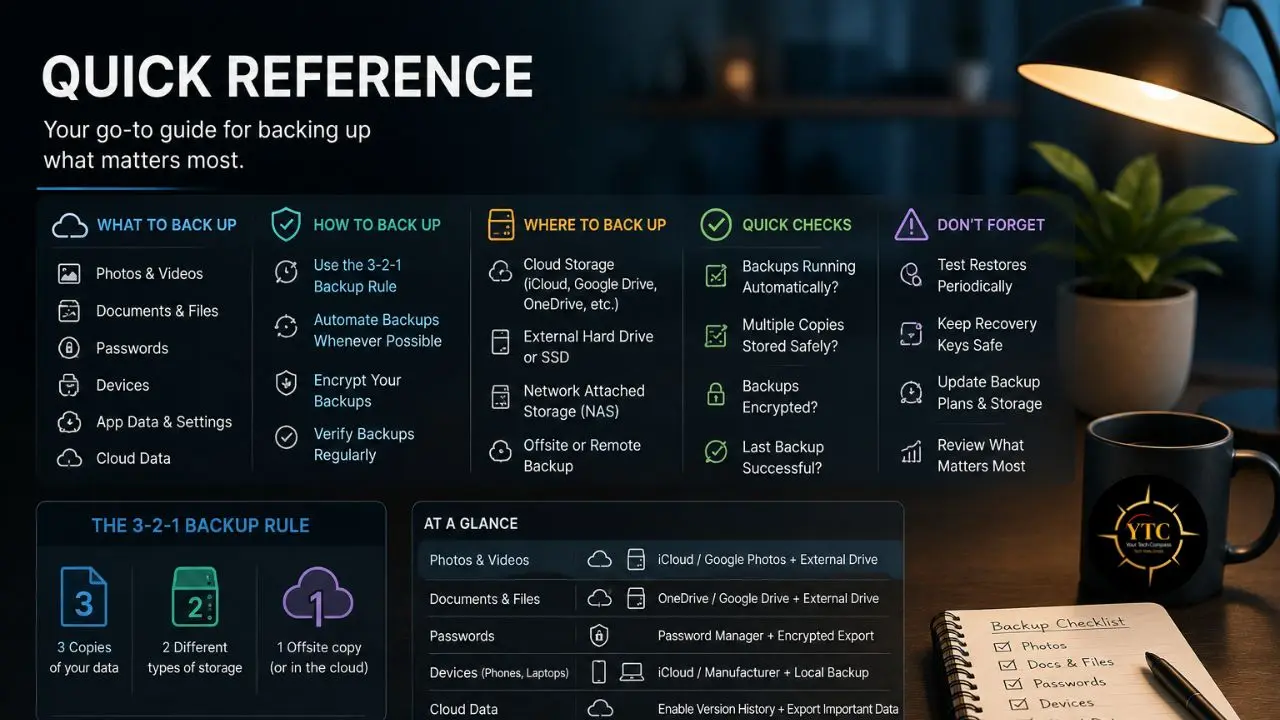
Data Category | Primary Backup | Secondary Backup | Frequency |
Phone Photos | iCloud Photos / Google Photos | External drive (monthly import) | Daily (cloud, automatic) |
Active Documents | iCloud Drive / OneDrive / Google Drive sync | External drive (Time Machine / File History) | Continuous (cloud sync) |
Financial Records | External drive | Second cloud service or Google Takeout | Quarterly review |
Password Vault | Emergency Kit (printed) | Encrypted vault export | Monthly export |
2FA Backup Codes | Printed + password manager note | Secure cloud note | When codes are generated |
Full Phone State | iCloud Backup / Google Backup | Local encrypted backup (Finder/iTunes) | Weekly (automatic) |
Full Computer State | Time Machine / File History (external) | Cloud backup (Backblaze) | Hourly (automatic) |
Cloud Accounts (Google, iCloud) | Google Takeout / Apple Data Export | Secondary cloud storage | Quarterly |
The Things People Always Forget to Back Up
Beyond the core categories, these specific items are reliably overlooked until the moment they’re needed:
- Browser Bookmarks: Years of organized research links, reference tools, and saved resources are lost when a browser profile is corrupted or a device is wiped. Export from Chrome (Settings → Bookmarks → Bookmark Manager → three-dot menu → Export), Firefox (Bookmarks menu → Manage Bookmarks → Import and Backup → Export), or Safari (File → Export Bookmarks) and store the resulting file in your backed-up Documents folder. Do this quarterly.
- Smart Home Device Configurations: Philips Hue scenes, Alexa routines, and smart home schedules are often not recoverable without a complete reconfiguration when devices are reset. Export settings where the app supports it, and document your setup manually if it doesn’t.
- App-Specific Data Not Included in Device Backups: Some apps store data only locally or in proprietary cloud storage, which is not included in standard device backups. Note-taking apps like Bear and Obsidian vaults are common examples; verify your specific app’s backup behavior rather than assuming device backups cover everything.
- Software License Keys: If you’ve purchased software licenses that aren’t tied to an account, those keys exist only wherever you stored them when you first received them; often, an email from years ago. Collect these into your password manager or a dedicated document in your backed-up folder.
- Email Client Local Archives: If you’ve archived emails locally in any email client at any point, those archives reside only on that device and must be explicitly included in your file backup.
The Backup Schedule: How Often Is Often Enough?
Different data categories have meaningfully different frequency requirements based on how much it would hurt to lose a given period’s changes:
Data Category | Recommended Frequency | Why |
Active Work Documents | Continuous (cloud sync) | Losing hours of work is significant |
Phone Photos | Daily (automatic cloud, Wi-Fi) | Photos happen daily |
Full Phone Backup | Weekly | Device configuration changes gradually |
Password Vault Export | Monthly | Low change frequency; catastrophic if lost |
Financial Documents Archive | Quarterly | Low change; high importance |
Google Takeout / Cloud Export | Quarterly | Catches account issues before they cascade |
Browser Bookmarks Export | Quarterly | Low change; easy to forget |
Backup Verification Test | Quarterly | Ensures backups actually work |
A backup is only useful if you can restore from it. Do a test restore instead of just checking that backup jobs say they completed.
Restore a few documents, photos, and one larger folder, then open the files to confirm they are usable. This quarterly verification habit is the difference between knowing your backup works and assuming it does.
Backing Up Your Digital Life in Africa: Local Realities and Practical Adaptations
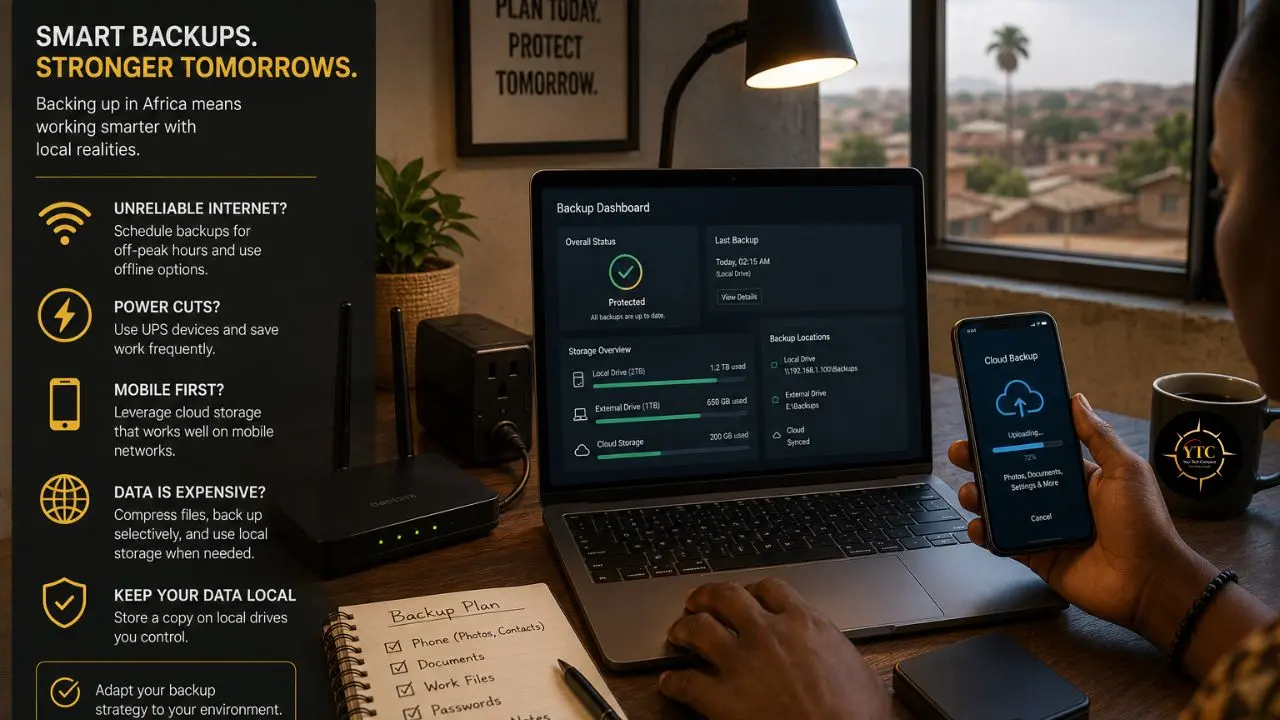
Any guide to digital backup that doesn’t address the African context is missing a significant portion of its readers’ real-world constraints. Several specific factors shape how the 3-2-1 rule is implemented practically across the continent.
Connectivity and Upload Speed
A full cloud photo backup of a large library requires substantial upload bandwidth, which remains expensive, inconsistently available, or both across much of Sub-Saharan Africa. The practical adaptation: prioritize what you back up to the cloud, and use Wi-Fi networks (home, office, café) specifically for backup operations, with mobile data reserved for access rather than initial uploads. Many Android and iPhone backup apps support “backup on Wi-Fi only” specifically for this reason.
Data Cost Considerations
Cloud storage subscriptions are denominated in USD or EUR, making them disproportionately expensive relative to local purchasing power in many African markets. Some practical strategies: Google One’s 100GB plan at ~$2.99/month is often the best value entry point for photo and document backup; shared family storage plans spread that cost across multiple users; and prioritizing backup of truly irreplaceable content (photos, key documents) over complete-library backup means you can work within tighter data budgets.
Local Storage as the Primary Tier
Given connectivity and cost realities, many users across Africa effectively invert the standard recommendation: local external storage becomes the primary backup tier, with cloud serving as the secondary tier where bandwidth permits. This is still meaningfully better than no backup.
A quality external SSD is a one-time cost, works offline, and provides immediate recovery capability without any ongoing subscription. Portable SSDs (256GB–1TB) are increasingly affordable and available across major African markets.
The Mobile-First Reality
Across much of Africa, the smartphone is the primary computing device, not a secondary one. This makes phone backup arguably more important than computer backup for many users, since the phone holds photos, documents, contacts, financial records, and communications that would be unrecoverable if the device is replaced. Both Google One Backup (Android) and iCloud Backup (iPhone) address this and can be configured to run automatically over available Wi-Fi, making them the highest-leverage backup investments available.
Diaspora and Cross-Border Considerations
For African diaspora users and for African professionals with family ties across borders, cross-device contact backup matters especially. Losing a contact database when a phone is replaced can mean losing connections that are difficult to re-establish. Our sync contacts across devices guide covers Google Contacts and iCloud sync step by step, which is the most practical solution for keeping contact data safe and accessible across device changes.
Regional Cloud Availability
Google and Apple both have data center infrastructure in South Africa and, increasingly, across the continent, which has significantly improved cloud backup latency and reliability for users in those regions. For users in markets with limited local data center presence, ping-dependent backup operations may still be slower than desktop norms, but cloud backup over a slower connection is still dramatically better than no offsite copy at all.
FAQs

Start with the highest-impact, lowest-effort wins: enable iCloud Photos or Google Photos on your phone (if you haven’t already), enable Desktop and Documents sync in iCloud Drive, OneDrive, or Google Drive on your computer, and print or store your password manager’s Emergency Kit in a physically secure location. Those three steps, which take about 30 minutes in total, address the most common data loss scenarios immediately. Then add an external drive with Time Machine or File History as your second tier when you have time to configure it.
For most people’s photos and documents, 200GB to 1 TB is sufficient. A useful starting point for an audit: your phone will show the total size of your photo library in the camera app or in storage settings. Add the size of your Documents folder from your computer (right-click → Properties or Get Info). That combined total is your minimum cloud storage requirement. Most people land between 50GB and 500GB.
No, and specifically because cloud sync is not the same as cloud backup. If ransomware encrypts your PC, the encrypted versions sync to the cloud within minutes, overwriting your clean copies. Services with file versioning retain previous versions, allowing you to restore to a state before the ransomware attack. Cloud sync without versioning is vulnerable to this. Cloud backup with versioning (Backblaze, iDrive, or Time Machine for local) covers this scenario. And even with versioning, you still need a local copy for fast, offline recovery.
The combination of free tiers from major providers gives you meaningful coverage at zero cost: Google Photos (15GB free, shared with Gmail/Drive) or iCloud Photos (5GB free) for phone photos; Time Machine (Mac) or File History (Windows) to an external drive for computer files (the drives cost money, but the software is free and built-in); and any reputable free-tier password manager with an Emergency Kit. That combination covers 3-2-1 for most data types without any monthly subscription.
iPhone: Settings → [name] → iCloud → iCloud Backup → Back Up Now. For a more complete backup, connect to Mac (Finder) or PC (iTunes) and create an encrypted local backup. Android: Settings → Google → Backup → Enable backup. Samsung users additionally have Samsung SmartSwitch for Samsung-specific data. Both platforms support automatic backup when plugged into power and connected to Wi-Fi, which should be your default setup.
Time Machine and File History handle this automatically; they keep the most detailed recent history and gradually consolidate older backups to save space. For manual backups like Google Takeout archives or vault exports, keeping the last two or three quarterly archives (six to nine months back) is a reasonable minimum. Financial records should be kept for seven years for tax purposes. Photos are worth keeping indefinitely since storage is cheap relative to the emotional cost of losing them.
Conclusion
The thing I want you to take from this guide isn’t a perfect backup system on day one; it’s the understanding that a good backup system doesn’t have to be complicated, and that the tools you need to implement one are mostly already built into the devices you own. Time Machine is free and runs automatically. iCloud Photos is free for small libraries. Google’s backup for Android is built-in. File History is a Windows setting, not an extra download. The gaps most people have exist not because the tools are inaccessible, but because the backup setup is easy to defer, and the consequences of deferring become visible only at the worst possible moment.
Start today with the category you’d be most devastated to lose. For most people, that’s photos. Enable iCloud Photos or Google Photos, verify that the backup is running and up to date, and confirm it’s set to run automatically. Then work through the checklist: documents synced to a cloud folder, password manager Emergency Kit printed and stored, quarterly Google Takeout scheduled in your calendar, Time Machine or File History connected to an external drive. The full implementation takes one afternoon. After that, the system runs itself, and the peace of mind that comes from knowing your data is genuinely protected in multiple places is one of the quieter but more durable improvements you can make to your digital life. For more guides that help you manage, secure, and make the most of your digital tools, our Tech Guides section and Apps and Tools category have you covered.
There’s always more to getting your digital life working the way it should: protected, organized, and actually under your control. Head to YourTechCompass.com for more practical, tested guides on the tech you rely on every day.