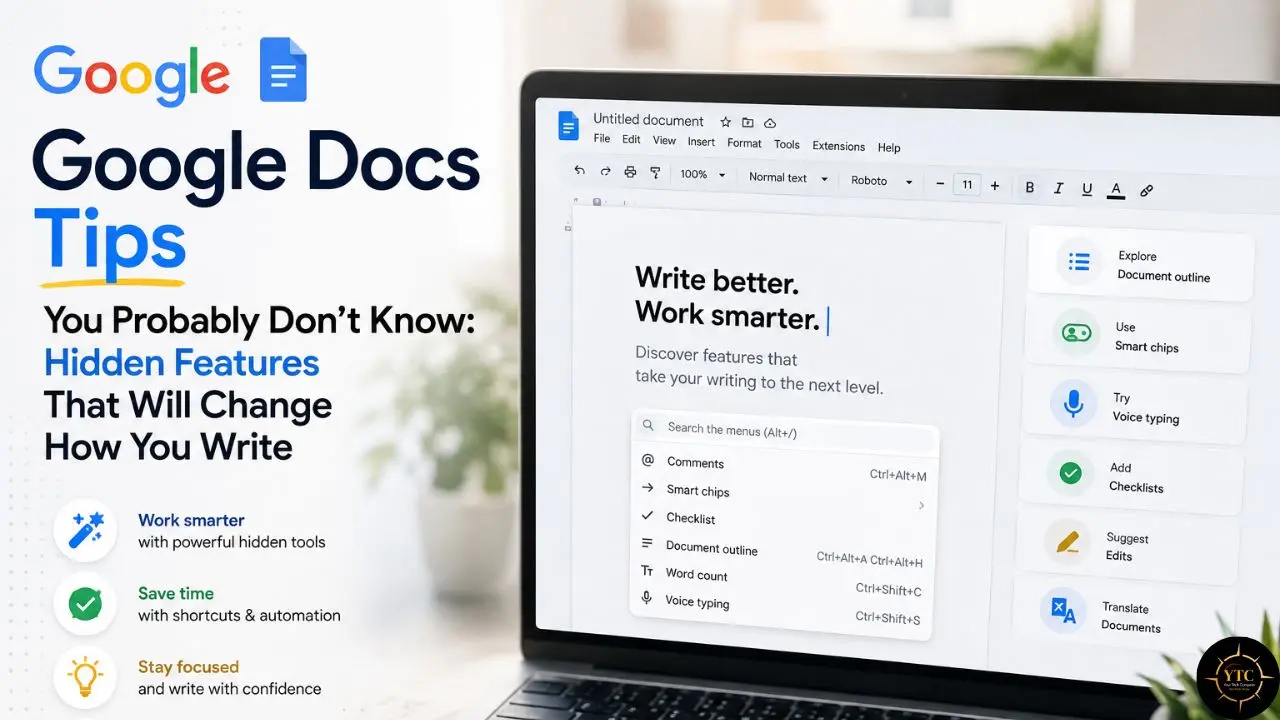
You may be using Google Docs mainly as a digital typewriter. You open a blank page, write your thoughts, format a headline, and click Share. That works well for a grocery list, but if you use Docs regularly, you may be missing tools that can reduce repetitive work. Beneath its clean white interface is a surprisingly capable workspace, with features that can simplify formatting, help prevent or recover from unwanted edits, and make collaboration more organized.
This guide is not a rehash of obvious shortcuts. You will not find “press Ctrl+B to bold” here. Instead, I’ll cover fifteen useful Google Docs features, organized around how you actually work: writing, editing, collaborating, and organizing. Some have been available for years but remain easy to overlook, while others were introduced or expanded in 2026. You may not use all of them, but several could save regular Docs users meaningful time over the course of a month. Note: Feature availability may vary depending on your Google account, Workspace plan, administrator settings, device, language, and Google’s rollout schedule.
Quick Verdict
- Best For: Writers, students, project managers, and remote teams who use Google Docs regularly and want to reduce repetitive writing, formatting, editing, or collaboration tasks.
- Skip It If: You only open Google Docs occasionally to read a shared file. Some tips may still be useful, but most will matter more to people who create, revise, or collaborate on documents frequently.
- Bottom Line: Google Docs is more capable than its simple interface suggests. Depending on your workflow, learning three or four of these features could save meaningful time over the next month, especially if you use them repeatedly.
Writing and Editing Efficiency: The Quiet Time-Savers
Voice Typing That Actually Understands Punctuation
Most people know that Google Docs has Voice typing. What they may not realize is that it also responds to voice commands. Open Tools > Voice typing, click the microphone, and say “period,” “new paragraph,” or “select all” while you work. You can also use commands to select, format, edit, and navigate text, although availability may depend on your language and document settings.
Voice typing can insert spoken punctuation and handle many basic editing commands, allowing you to create a rough first draft without constantly reaching for the keyboard. You will still need to review recognition errors and correct formatting, particularly when working with technical jargon, unfamiliar names, or dense legal terminology. For blog posts, emails, and essays, however, speaking may feel faster and more natural than typing for many users.
There is a bigger update here, too. At Google I/O 2026, Google announced Docs Live, a voice-first drafting and editing feature that will roll out to subscribers in summer 2026. Docs Live is designed to do more than transcribe speech: it can organize spoken thoughts, structure a document, and, with your permission, draw relevant details from Gmail, Drive, Chat, and the web. That represents a shift from simple dictation to AI-assisted composition.
If you are already experimenting with AI-assisted writing, our Gemini 3.1 Pro review breaks down where Google’s latest model shines and where it still stumbles.
The Personal Dictionary: Stop Right-Clicking Forever
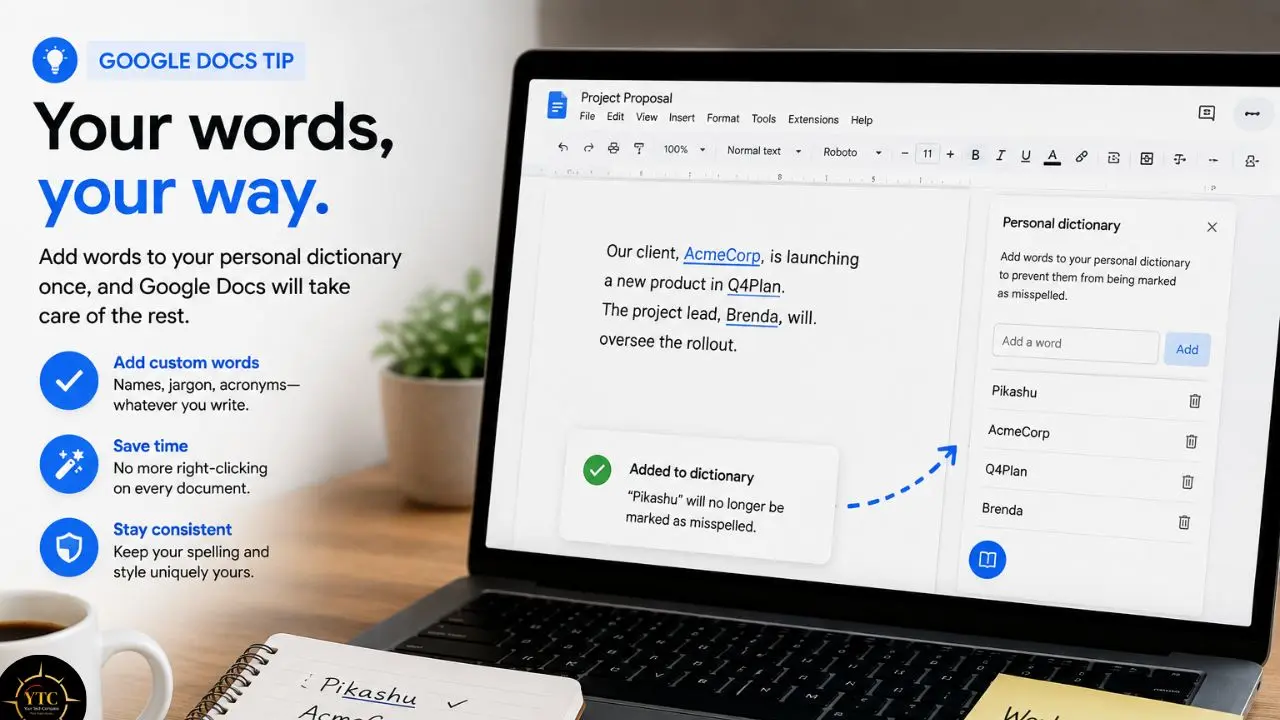
Nothing breaks writing flow like a red squiggle under a proper noun. Go to Tools > Spelling and grammar > Personal dictionary, then add every name, company, and technical term you use regularly. Add words such as “Flutterwave,” “Paystack,” “Kubernetes,” or your CEO’s surname once, and Google Docs will stop flagging them as misspelled in future documents.
Consequently, you no longer have to right-click “Add to personal dictionary” every time one of those terms appears in a new draft. For writers who work in specialized fields, spending a few minutes building a personal dictionary can reduce repeated interruptions and make proofreading more efficient.
Search and Replace with Regular Expressions
Edit > Find and replace hides a useful option: “Match using regular expressions.” It can help you clean imported text in ways that standard search cannot. For example, find repeated spaces with ` {2,}` and replace them with a single space, or find trailing spaces with ` +$` and replace them with nothing. Google Docs supports regex-based pattern matching, but its implementation is more limited than the tools in VS Code or Sublime Text.
You can also use regular expressions to locate phone numbers, dates, repeated labels, or other consistent patterns across a long document. However, Google Docs cannot generally use captured text to dynamically reformat each match, so complex phone-number or date conversions may require manual editing, Apps Script, or a dedicated text editor. For straightforward cleanup of pasted content, the feature is often sufficient.
Most people will not notice this option at first, but it can become extremely useful when you need to standardize formatting across dozens or hundreds of pasted entries. Test your pattern on a copy of the document before using Replace All, especially when cleaning important material.
The Paint Format Tool: Double-Click to Lock It
The paint roller icon next to the print button is not new, but most users treat it as a one-and-done formatter. Here is the hidden move: double-click the paint roller instead of single-clicking it. That locks the formatting so you can apply it to multiple paragraphs, headings, or list items without re-selecting the source each time. Formatting a long interview transcript with consistent speaker labels can take far less time than applying the same styles manually to each entry. When you are finished, click the Paint format icon again or press Esc to turn the tool off.
For more practical workflow shortcuts like this one, our Tech Guides section is worth bookmarking.
Collaboration Features Most Teams Ignore
Suggesting Mode: Force It on Shared Links
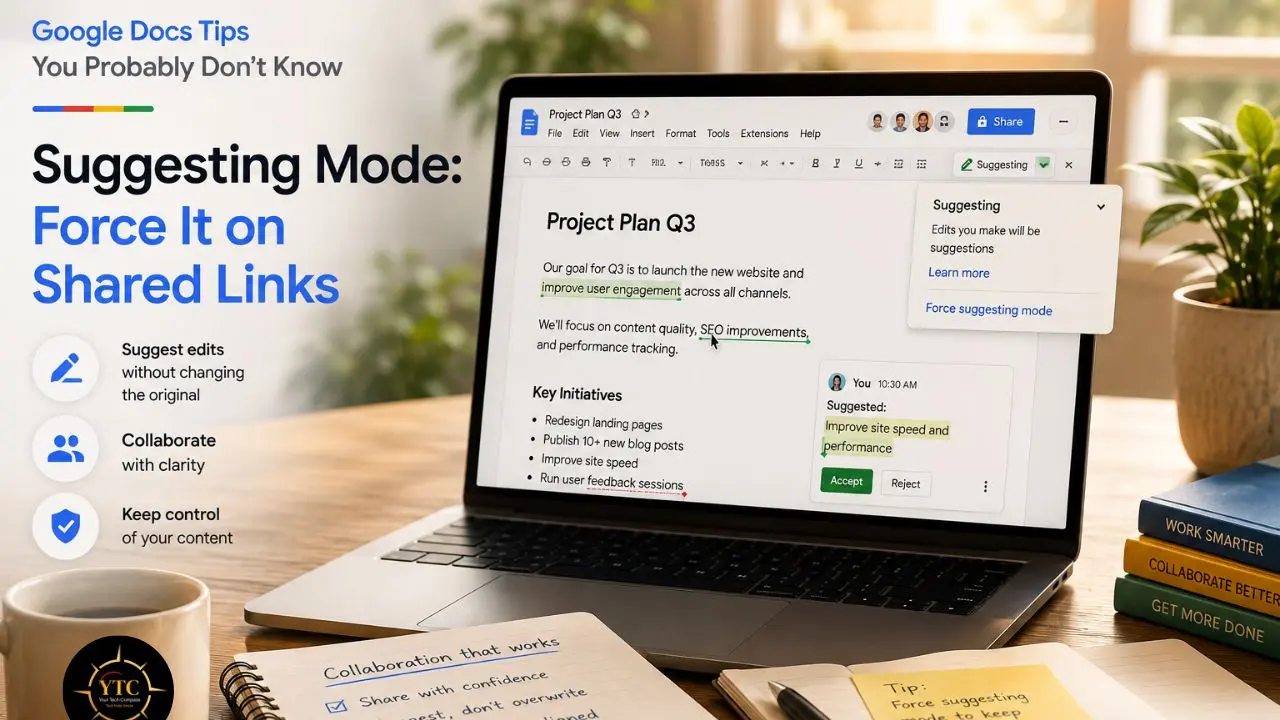
The pencil icon in the upper-right corner lets you switch between Editing, Suggesting, and Viewing modes. Most users know this. What they may miss is that you can protect the original text by changing a shared link’s permission to Commenter, which prevents collaborators from making direct edits and lets their proposed changes appear as suggestions.
Click Share > Change next to “Anyone with the link,” then select Commenter. Sending a contract for review? Use Commenter access so every proposed addition or deletion is separated from the original text for you to review and accept or reject. If you give someone Editor access instead, they can edit directly, although you can ask them to switch to Suggesting mode before making changes. The alternative is discovering that a well-meaning client rewrote your entire introduction instead of leaving tracked suggestions.
Assignable Comments and Action Items
Comments in Docs are not just sticky notes. Type @ followed by a teammate’s name or email address inside a comment, select the appropriate person, and Docs can notify them by email with a link to the comment’s location in the document. Check the “Assign to” box, and the comment becomes an action item with a designated owner and a completion control.
Your teammate can mark the action item as complete, which resolves the comment thread. Meanwhile, emoji reactions let you acknowledge feedback without typing “Looks good” for the fifteenth time. These small reductions in friction can help editorial teams move through review cycles more efficiently, although notification settings, account permissions, and Workspace policies may affect availability.
The Version History Time Machine
File > Version history > See version history is Google Docs’ most underappreciated safety net. Docs automatically saves changes, and you can also name important versions to make them easier to identify later. Before rewriting a major section, open Version history and choose “Name this version” to label the current draft, for example, “Before client revisions.” If you need to undo the rewrite, you can open the earlier version and restore it, while taking care not to lose useful changes made afterward.
To compare an older draft with the current one, make a copy of the relevant version and use Tools > Compare documents. Google Docs creates a new document that highlights the differences as suggested edits, allowing you to review the changes without altering either of the original files. Naming versions before a heavy rewrite has saved me more than once when a client asked me to return to “the version from Tuesday.”
For a broader look at protecting your digital work, our guide on backing up your digital life covers strategies that complement Docs’ native version history.
Formatting and Styling Secrets
Custom Styles That Actually Stick
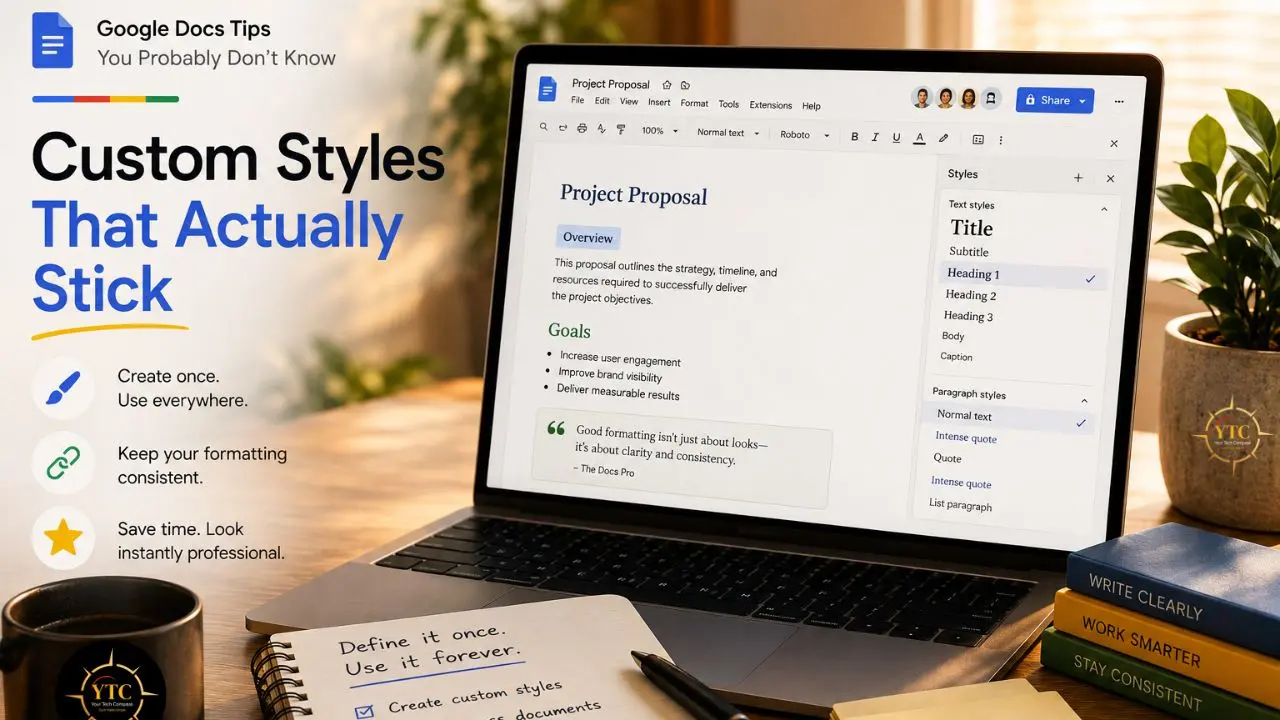
Google Docs’ styles are not just cosmetic presets. Format a heading with your preferred font, size, and spacing, then open the Paragraph Styles menu and choose Heading 1 > Update ‘Heading 1’ to match. Every paragraph in the document that already uses the Heading 1 style will update to match.
This is not a new feature, but most users still manually format headings one at a time, which is like setting your alarm clock every morning instead of once. The benefit becomes more obvious as a document grows: consistent heading styles let you generate a table of contents and navigate through the document outline without scrolling. Remember that manually formatted text will not behave like a true heading until you apply the appropriate heading style.
Pageless Mode: When You Do Not Need Page Breaks
File > Page setup > Pageless removes traditional page boundaries and creates a continuously scrolling workspace. This is useful for web content, brainstorming, wide tables, and documents designed primarily for on-screen reading. Images and tables can adapt to the available screen width, making them easier to view without forcing everything into fixed page margins.
Headers, footers, and page numbers are not available in the same way in Pageless mode, which is useful for digital-first content but inconvenient for formal documents. If you need a carefully paginated PDF, switch back to Pages before exporting to review page breaks, margins, tables, and images. Pageless documents can also feel unfamiliar to collaborators who expect traditional page boundaries, so communicate the layout choice when sharing the document.
Inserting Special Characters by Drawing Them
Go to Insert > Symbols > Special characters and use the drawing box on the right side of the dialog. Sketch a rough approximation of the symbol, and Google Docs will suggest visually similar Unicode characters. Looking for the section symbol §, a specific arrow, or a mathematical operator? Drawing it can be faster than browsing through categories when you do not know the character’s name or Unicode value.
This is one of those features you may not use every day, but when you need an unfamiliar character at 11 p.m., it can feel like a superpower. Choose the correct result from the suggestions before inserting it, since a rough drawing may produce several similar symbols rather than an exact match.
Organization and Navigation Power Moves
The Document Outline: Auto-Generated and Interactive
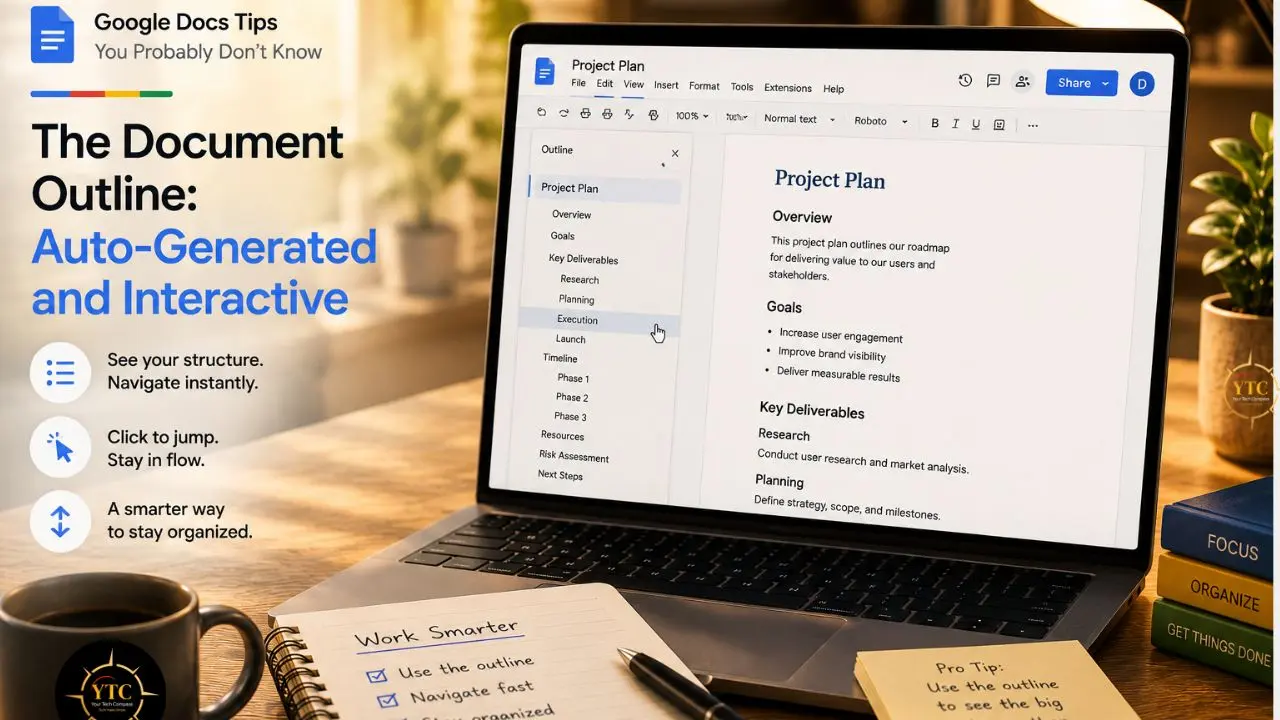
View > Show outline opens a navigable sidebar populated by text formatted with Google Docs heading styles. Click any heading to jump directly to that section, and use the hierarchy of Heading 1, Heading 2, and Heading 3 styles to review the structure of your document at a glance.
For long reports, books, or research papers, the outline can turn navigation from endless scrolling into a few clicks. Remember that text must use an actual heading style to appear in the outline; bolding or enlarging text manually is not enough.
If you are organizing complex long-form content across multiple tools, our guide on using ChatGPT Projects offers complementary strategies for structuring research before it ever hits Docs.
Bookmarking Specific Sections
Insert > Bookmark places an anchor at your cursor position. You can then link to that location from elsewhere in the same document or copy the bookmark link for use in another document. Anyone following the link must have permission to access the destination file.
Combine bookmarks with a manual table of contents for long guides where the automatically generated outline doesn’t offer enough control. Because a bookmark can point to a specific paragraph, clause, figure, or other location, not just a heading, it is especially useful for legal documents, technical specifications, and training manuals where readers need to move between related sections frequently.
Live Word Count Goals
Tools > Word count displays your current count, but the hidden gem is the checkbox labeled “Display word count while typing.” Enable it, and a live counter appears in the lower-left corner of the document window. For content marketers with briefs, students with minimums, or novelists tracking daily output, this removes the friction of repeatedly opening a menu. The counter updates in real time as you type, delete, and paste.
The New AI Features in Google Docs (2026)
Gemini-Powered Comment Workflows
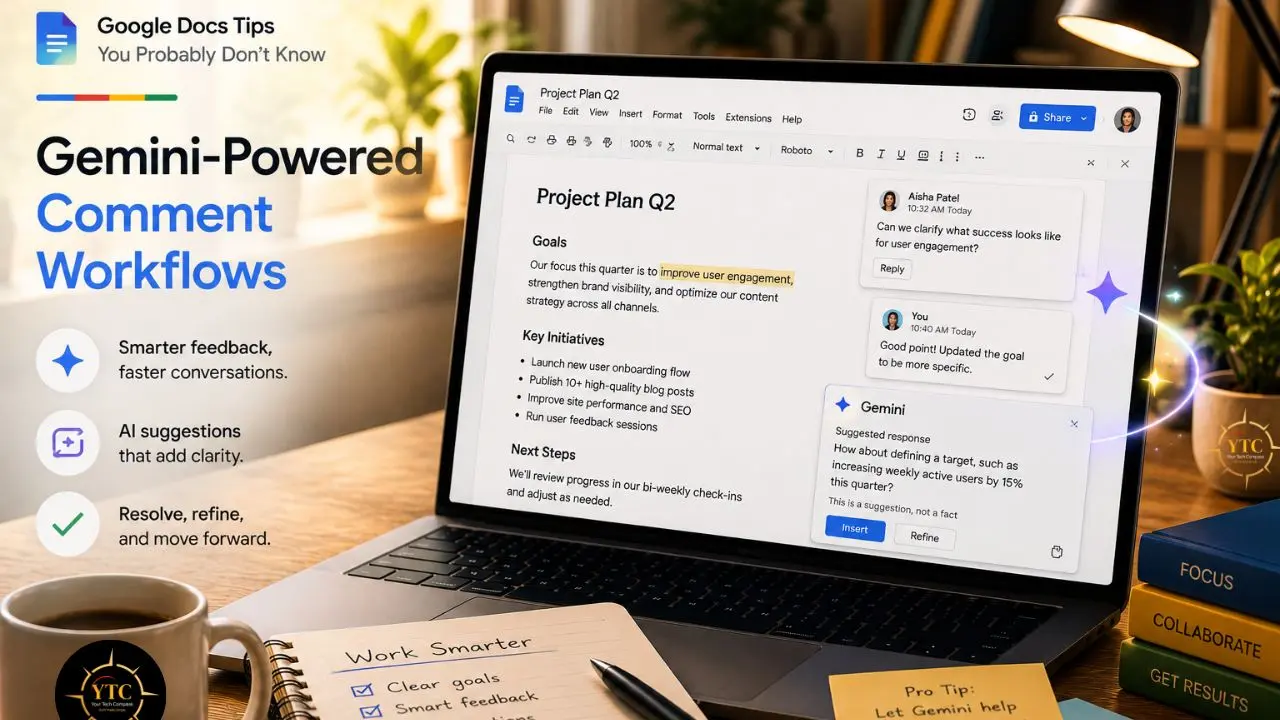
As of late July 2026, Google began rolling out Gemini-powered comment workflows in Google Docs. These features can summarize comment threads, identify key themes and unresolved issues, and draft contextual replies without requiring you to read every thread manually. You can ask Gemini to “summarize all comments from Sarah” or “identify the unresolved issues blocking this launch.” Gemini can also suggest document edits based on reviewer feedback, generating proposed changes for you to review and approve rather than applying them silently.
In my opinion, this is one of Google Docs’ most useful AI additions. Comment fatigue is real in collaborative documents with twenty or more reviewers, and having Gemini distill feedback into actionable items could save meaningful time. The feature is available to eligible Google Workspace Business, Enterprise, and Education users, as well as qualifying Google AI Pro and Ultra subscribers, subject to account permissions, administrator settings, and phased rollout. Personal-account users are not automatically excluded. As with any AI-generated summary or reply, treat the output as a starting point rather than a final judgment, since it may miss nuance, tone, or important context.
For verification strategies that apply equally to AI-generated summaries and AI-written content, our guide on fact-checking AI responses is essential reading.
Generate and Edit Visuals with Gemini
Also rolling out in late July 2026 is the ability to create and edit images, diagrams, and infographics directly inside Google Docs using Gemini. You can prompt it to “Add a diagram summarizing the proposal at the top of my doc” or “Create an infographic based on the information in this document.” You can also refine generated visuals with natural-language instructions such as “Change the aspect ratio to 16:9” or “Use a more polished visual style.” The feature is being released gradually and requires an eligible Google Workspace or Google AI plan.
This reduces the need to switch between Docs, Canva, Figma, or PowerPoint when you need a simple visual. The catch is that the feature is currently available through the web version of Google Docs, and the quality of generated visuals can vary depending on the prompt and source material. For polished, client-facing work, you will still want a dedicated design tool. But for internal reports, blog drafts, or quick visual concepts, in-document generation can be a useful time-saver. Review AI-generated diagrams and infographics carefully for inaccurate data, labels, or missing context before sharing them.
If you are comparing AI note-taking and research tools that also handle visual content, our NotebookLM review explores Google’s AI research assistant and its place in this ecosystem.
Comparison Table: Google Docs Hidden Features vs. Microsoft Word Online

Feature | Google Docs | Microsoft Word Online | Practical Advantage |
Real-time Collaboration | Strong browser-based co-authoring with comments, suggestions, and live cursors; performance still depends on network and document complexity. | Supports real-time co-authoring when files are stored on OneDrive or SharePoint. | Google Docs for browser-first collaboration; close overall. |
Voice Typing with Commands | Built-in Voice typing supports punctuation, editing, selection, formatting, and navigation commands. | Dictate supports speech-to-text, punctuation, and voice commands in supported configurations. | Tie; compare language and command support. |
AI Comment Synthesis | Gemini can summarize comment threads, identify unresolved issues, draft replies, and suggest edits for eligible users. | Copilot can assist with document content and feedback, but availability depends on the Microsoft 365 plan and organization settings. | Tie; plan-dependent. |
Version History | Supports automatic revision history and named versions, with options to review or restore earlier versions. | Version History is available for files stored in OneDrive or SharePoint; Word also supports document comparison in supported versions. | Close tie; Google Docs is often simpler for lightweight revision tracking. |
Advanced Formatting and Automation | Strong everyday styles and formatting, but limited native macro support. | More powerful overall formatting and automation ecosystem, especially in desktop Word; macros do not run in Word for the web. | Word overall, mainly when desktop Word is included. |
Pageless Mode | Dedicated Pageless layout removes traditional page boundaries for screen-first documents. | No direct equivalent to Google Docs’ Pageless mode. | Google Docs. |
Offline Access | Offline editing is available after enabling offline access in Chrome and installing the Google Docs Offline extension. | Word for the web is browser-based; offline editing requires the separate desktop Word application. | Neither is strictly web-only; Word wins if desktop access is included. |
Cloud Storage Integration | Native integration with Google Drive and the wider Google Workspace ecosystem. | Native integration with OneDrive, SharePoint, and Microsoft 365. | Tie; depends on your organization’s ecosystem. |
Note: This comparison focuses on the browser versions of Google Docs and Microsoft Word for the web. Some Microsoft Word capabilities, including VBA macros, deeper formatting controls, offline editing, and certain comparison tools, require the desktop application
The Cost and Accessibility Reality
Free vs. Paid: What You Actually Get
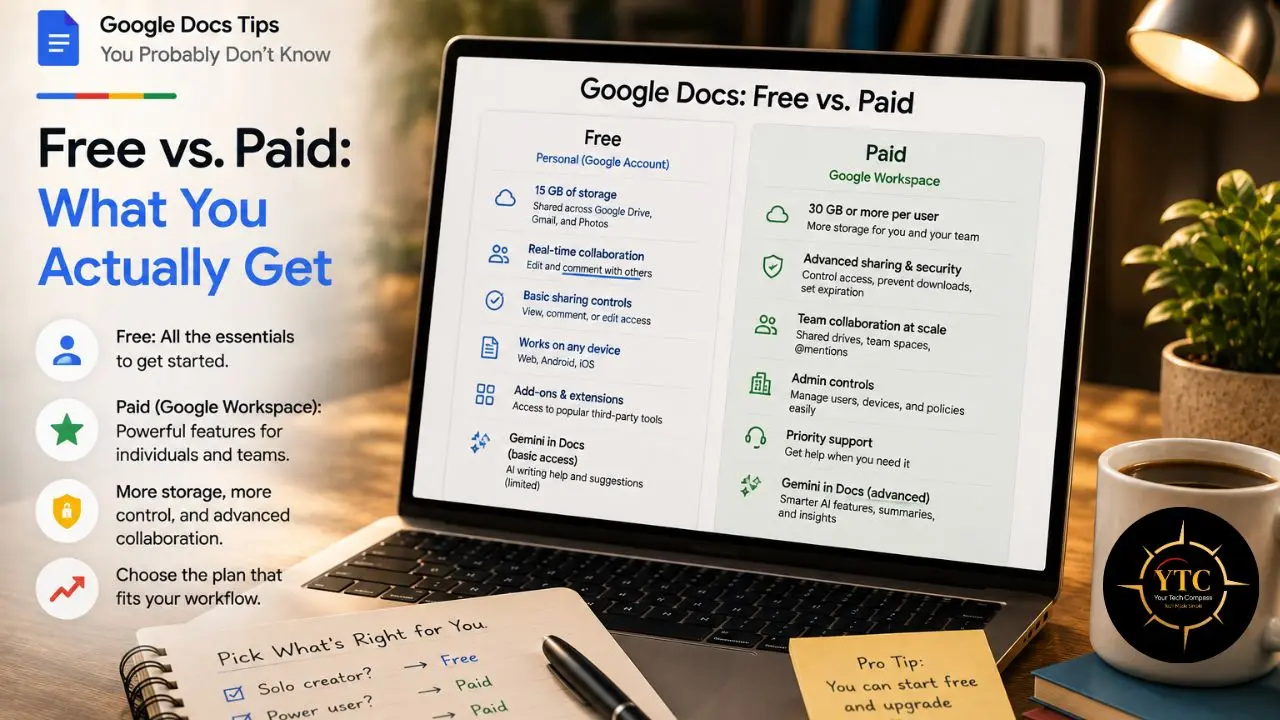
Google Docs is free for personal Google Accounts, which include up to 15 GB of storage shared across Google Drive, Gmail, and Google Photos. The advanced AI features discussed here, including Docs Live, Gemini comment workflows, and in-document visual generation, require an eligible Google AI plan or qualifying Google Workspace edition, and availability can vary by country, subscription, administrator settings, and rollout status.
For individual writers, the free tier still covers core features such as voice typing, real-time collaboration, version history, and the formatting and navigation tools in this guide. Google AI Pro is listed at US$19.99 per month, but local pricing may differ. In my view, the AI features are useful upgrades rather than essential requirements for most writers in 2026.
Africa Accessibility: Connectivity and Data Costs
For users working with intermittent connectivity or limited data budgets, Google Docs’ offline capabilities can be particularly valuable. After you enable offline access in advance, you can create and edit eligible files without an internet connection in Chrome or Microsoft Edge; changes sync when you reconnect. The setup requires the Google Docs Offline extension, available device storage, and an initial connection to configure it.
For text-first documents, Docs may also reduce the need to repeatedly exchange full document files, which can be helpful when data costs or connection reliability are concerns. However, actual data use depends on the document’s size, embedded images, collaboration activity, browser caching, and the alternative workflow. The 15 GB free Google Account allowance, shared across Drive, Gmail, and Photos, can be useful for users who prefer not to pay for additional cloud storage, though pricing and payment options vary by country.
For a deeper look at Google’s broader app ecosystem and how it fits African workflows, our Google Drive explained guide covers storage strategy, sharing permissions, and offline setups in detail.
Security, Privacy, and Smart Habits
The “Shadow Editing” Problem
Giving someone Editor access allows direct changes and may permit copying, downloading, or sharing, depending on the file owner’s settings and your organization’s Google Workspace policies. That does not mean every editor can automatically change sharing permissions: owners can restrict editors from changing access or sharing the file. Still, direct editing requires a higher level of trust than most reviewers need.
Use the least-privilege approach: share as Viewer when someone only needs to read a document, Commenter when they need to leave feedback, and Editor only when they genuinely need to make direct changes. For sensitive documents, use Restricted sharing for specific people and, in Share > Settings, disable download, print, and copy options for viewers and commenters. These controls reduce casual redistribution but cannot prevent screenshots, manual transcription, or copying by users with editing access.
If you are securing your broader Google account, our Google Authenticator app guide walks you through setting up two-factor authentication that protects your Docs, Drive, and Gmail simultaneously.
Smart Chips and Interconnected Documents
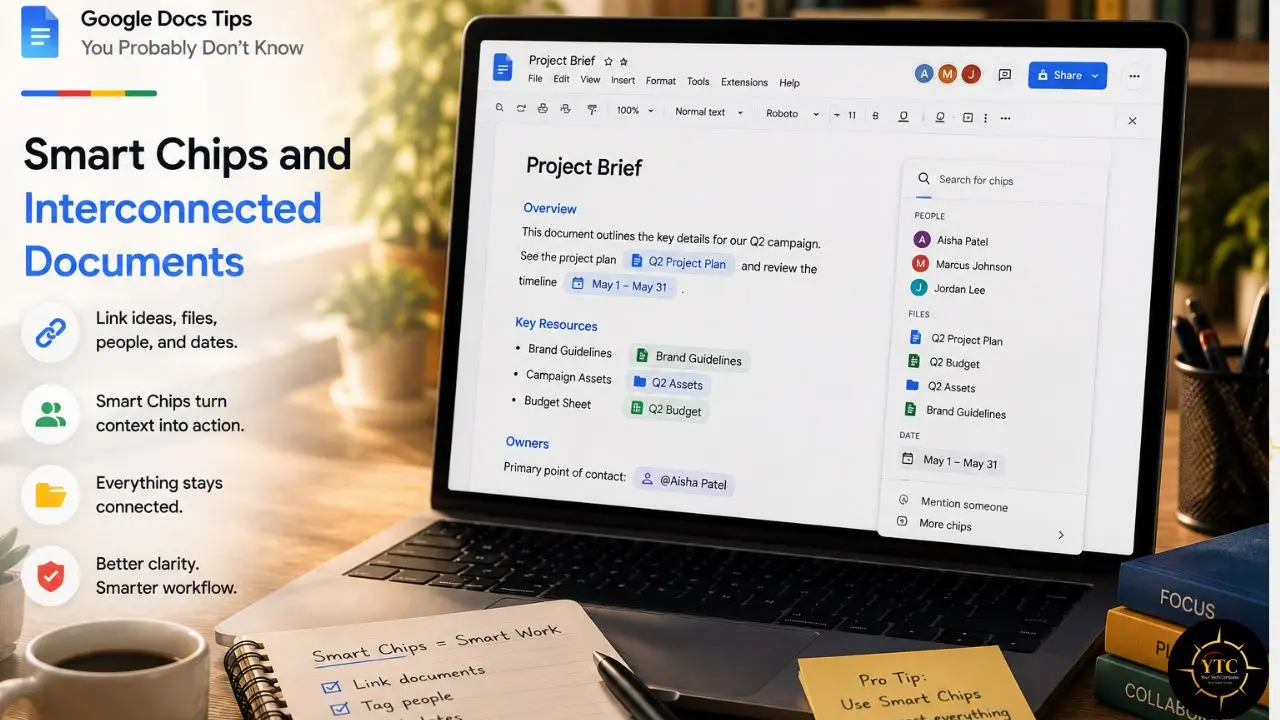
Type @ anywhere in a Google Doc, and a dropdown menu appears with options for inserting people, Drive files, dates, Calendar events, places, dropdowns, and other smart chips. File and event chips can provide quick previews and links, while people chips can show relevant contact information and actions.
This is more than ordinary hyperlinking, although it is not a full database. You can create a project tracker by manually inserting related Docs, Sheets, meeting notes, and people as smart chips, then use dropdown chips for status fields such as “In progress,” “Review,” and “Approved.” The result is a lightweight, interactive project workspace inside the document, but you select the related files rather than having them pulled in automatically.
For teams already using connected note-taking apps, our Reflect Notes review compares how dedicated knowledge management tools stack up against Docs’ built-in linking. If you prefer Google’s native ecosystem for quick capture, our Google Keep explained guide shows how to turn mobile sticky notes into structured document content via the Keep sidebar in Docs.
Who Should Learn These Tips (and Who Should Wait)
Who Should:
- Content writers, journalists, and students who create or revise long-form documents regularly.
- Remote teams that collaborate across time zones and want to reduce unnecessary review meetings and handoffs.
- Microsoft Word users who assume Google Docs is only a simpler word processor.
- Writers and teams interested in using AI-assisted drafting and review without leaving their main document workspace, provided their account has access to the relevant features.
Who Should Wait:
- People who only read shared documents and rarely create, edit, or review content. They may benefit from a few navigation tips, but they do not need to learn the full workflow.
- Power users who depend on VBA macros, advanced mail merge, complex automation, or precise desktop-publishing layouts. Word desktop or a dedicated publishing tool may be a better primary environment.
- Teams that need dependable offline work without a browser-based setup. Google Docs can work offline after configuration in supported browsers, including Chrome and Microsoft Edge, but desktop Word or LibreOffice may be a better fit for offline-first workflows.
FAQs
In my experience, the Paint format tool is one of the most useful features that many people overlook. Double-click the paint roller to keep it active while you apply the same formatting to multiple selections. For review workflows, sharing a document as a Commenter is another valuable habit because it prevents direct edits while allowing collaborators to propose changes. These tools can reduce repetitive formatting and help prevent accidental overwrites, although the time saved depends on your workflow.
Yes, but you need to enable offline access while connected to the internet. On desktop, Google’s current setup supports Chrome or Microsoft Edge with the Google Docs Offline extension enabled in Drive settings. Basic editing and formatting can work offline, with changes syncing when you reconnect. Voice typing, Gemini features, and real-time collaboration require an internet connection, while reviewing or restoring version history generally requires you to be online.
Click Share, then under General access, set the permission to Commenter or Viewer. Commenters can leave feedback and propose changes without directly rewriting the document, while Viewers can only read it. If you give someone Editor access, you can ask them to use Suggesting mode, but this does not force all their changes to remain suggestions; editors can switch back to Editing mode.
Google Docs excels at linear writing, real-time co-editing, comments, suggestions, and document-based review. Notion is stronger for database-style organization, linked pages, wiki building, and lightweight project management. For straightforward drafting and editing, Docs may feel more direct; for knowledge bases and interconnected project information, Notion may be more flexible. Many teams can use both: Docs for drafting and formal review, and Notion for organizing related information. For more app comparisons, browse our Apps and Tools category.
Deleted Docs generally remain in your Google Drive Trash for 30 days before being automatically deleted, although organization policies may affect recovery. For older versions, go to File > Version history > See version history to review or restore an earlier version. To compare separate drafts, use Tools > Compare documents; Google Docs creates a new comparison document rather than displaying two version-history entries side by side. Naming important versions before major edits makes them easier to identify later.
Conclusion
Google Docs is not a stripped-down word processor. It is a collaboration-first writing environment with powerful features hidden in menus that many people rarely open. The fifteen tips here, ranging from voice typing with punctuation commands to repeated-use Paint format, from Commenter-based review workflows to Gemini-powered comment synthesis, represent the difference between fighting your tool and working smoothly with it. The real advantage is not any single feature. It is the compounding effect of saving time on formatting, preventing accidental overwrites, or jumping directly to the section you need without endless scrolling.
Pick three tips from this list, use them consistently for one week, and they may begin to feel familiar. The rest can wait until you need them. If you have an eligible Google AI or Workspace plan, experiment with the new Gemini features, but do not let the AI hype distract you from mastering the fundamentals. Gemini can help summarize feedback, draft replies, and suggest document edits, but you should still review its output before accepting any changes. A well-organized document with consistent styles and clear permissions is still more valuable than a poorly structured one with AI-generated images. Start with the basics, add advanced features as your workflow demands them, and you will stop using Google Docs like a typewriter.
If you are ready to work smarter, not harder, discover more hidden features and practical tech guides at YourTechCompass.com, where we dig past the surface so you can write with confidence.